
How to Clear Instagram Cache Without Deleting Your Drafts
How to Clear Instagram Cache Without Deleting Your Drafts
Clearing your Instagram cache can speed up the app, but the wrong method wipes your drafts. Here is how to do it safely on Android and iPhone.
- 1What Clearing the Instagram Cache Really Removes
- Why Does Instagram Take Up So Much Storage?
- 2How Do I Clear the Instagram Cache on Android?
- 3Why Is There No Clear Cache Button on iPhone?
- 4Does Clearing the Cache Delete My Instagram Drafts?
- What Happens If You Delete the Instagram App?
- 5What Clearing the Cache Will Not Fix
- 6The Safe Order to Clean Up Instagram on iPhone
- 7Quick Takeaways
TL;DR: On Android you clear the Instagram cache in Settings under Storage and cache, and it keeps you logged in. On iPhone there is no cache button, so you either offload the app, which frees only the app itself, or delete and reinstall it, which signs you out and erases your drafts. Your account, posts and messages survive every method, because they live on Instagram’s servers.
If you searched how to clear the Instagram cache, you probably have a phone that is either running low on storage or an app that has started freezing on Reels and stalling on the feed. Clearing the cache is the standard fix, and most of the time it works.
What almost no guide warns you about is that one wrong tap can take your unpublished drafts with it.
How the app stores data under the hood surprised me. On iPhone, the trick everyone recommends, offloading the app, frees only the app itself, about 611 MB as of the September 2026 build, because it deliberately keeps the documents and data where the bloat lives.
Apple’s own rule for auto clearing an app’s cache folder only kicks in when your phone is very low on space, and never while Instagram is open.
So think of this as the safe sequence, split by phone, with a clear map of what each method deletes and what it protects. You will finish knowing exactly which method to use, in what order, without gambling your saved content.

What Clearing the Instagram Cache Really Removes
Clearing the Instagram cache deletes temporary files the app saved to load faster, like preloaded images, video thumbnails, and web previews.
It does not touch your account, your posts, your messages, or your followers, because all of that lives on Instagram’s servers, not your phone.
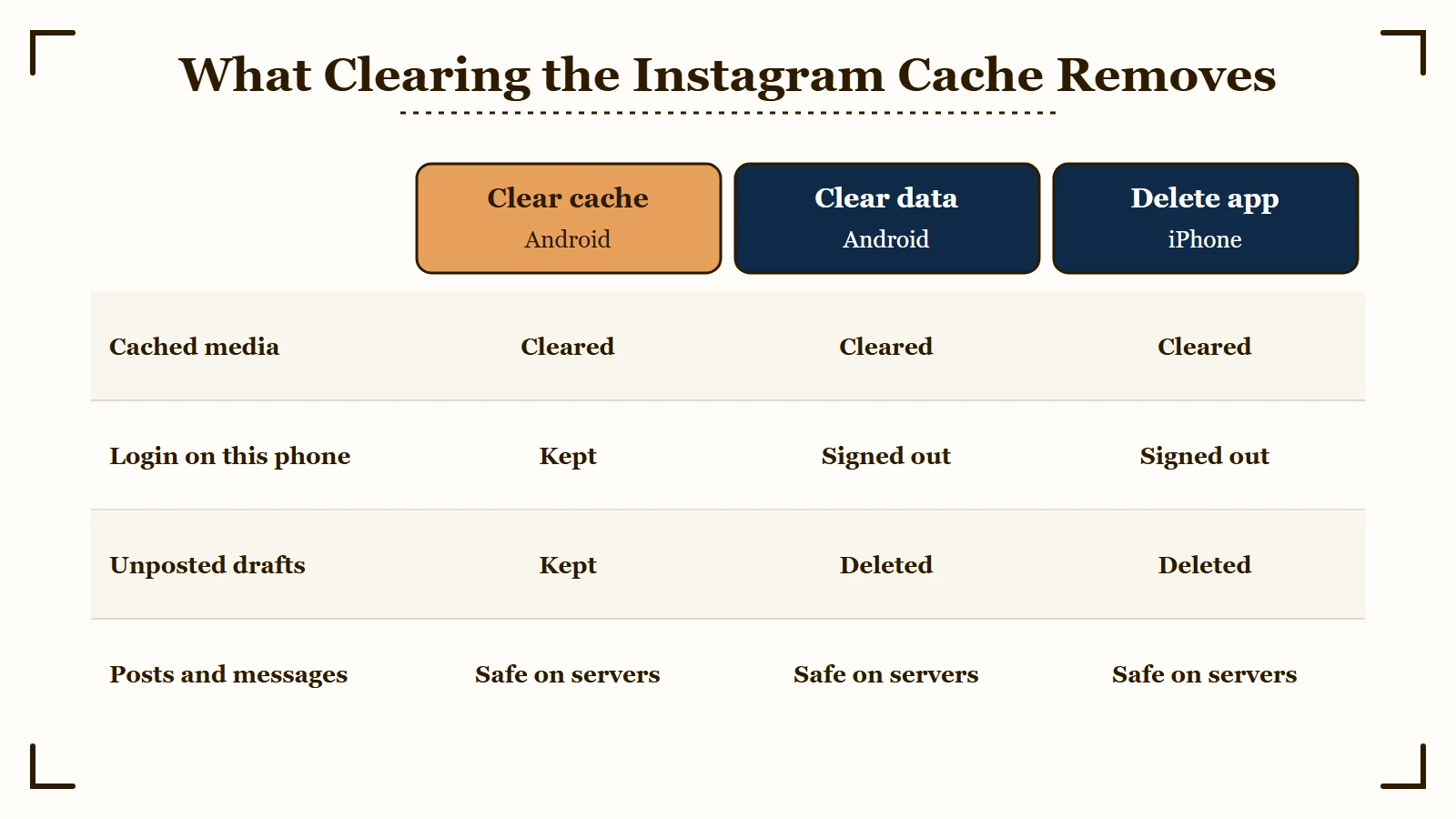
What is app cache: Temporary files an app stores locally so it can reload content quickly instead of downloading it again every time you open it.
What I would keep straight from the start is the difference between cache and data. Cache is the disposable stuff. Data is your login, your settings, and your local drafts.
Every method below sits somewhere on that spectrum, and the safe ones only clear cache while the aggressive ones wipe data too. If your feed is also showing stale content or the app keeps stalling on upload, our guide on Instagram stories not uploading covers the loading side of this.
Why Does Instagram Take Up So Much Storage?
Instagram takes up so much storage because three things pile up on your phone: the app itself, the cache of photos and videos it saves as you scroll, and any drafts you have saved.
The app alone is 611.2 MB on the App Store listing for version 448.0.0, released September 21, 2026, before a single photo is cached.
Drafts add to that, since Instagram’s help page on reel drafts says drafts are saved onto your device and kept until you share or delete them, with no limit on how many you can save. Apart from Story drafts, which expire after seven days, every draft you keep sits in the app’s storage until you post or delete it.
The cache is the part that keeps growing, because the photos and videos you scroll past are stored so they load faster next time. To see the split on iPhone, open Settings, General, iPhone Storage, Instagram, where App Size is the app and Documents and Data holds the cache and your drafts. On Android, open Settings, Apps, Instagram, Storage and cache, which lists the cache on its own line.
How Do I Clear the Instagram Cache on Android?
On Android, open Settings, go to Apps, select Instagram, tap Storage and cache, then tap Clear cache.
This clears the disposable files and, importantly, keeps you logged in and keeps your drafts intact.
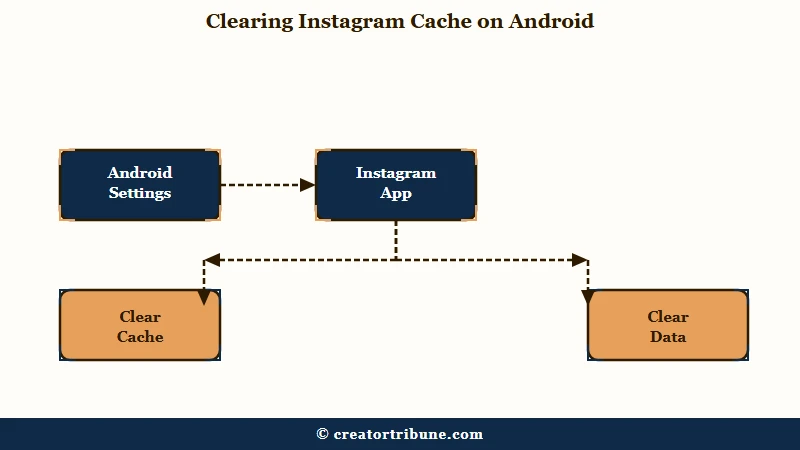
Most people panic here because the same screen has a second button sitting right next to the first, and the two do very different things. Clear cache is safe. Clear storage, sometimes labeled Clear data, resets the app to factory state and signs you out.
The reason Clear cache is safe comes from Android itself. Google’s developer guidance warns apps that “Android may delete these cache files to recover space” whenever storage runs low, so the cache is not where an app keeps anything it expects to last.
Here is the sequence I would walk through, in order, so you never hit the wrong one:
- Long press the Instagram icon on your home screen and tap the “i” App info shortcut, or open Settings, then Apps, then Instagram.
- Tap Storage and cache.
- Tap Clear cache. Stop here. This is the safe action.
- Only tap Clear storage or Clear data if you are prepared to log back in and lose local drafts.
If clearing the cache alone does not settle a crash, do not immediately jump to Clear data. In October 2025, PiunikaWeb reported Android users whose Instagram crashed within seconds of opening even after clearing the cache and reinstalling up to three times, so wiping data would not have helped them either. More on that below in the section on what clearing will not fix.
Before: you tap Clear storage hoping to fix a glitch, and Instagram signs you out and your half finished Reel draft is gone.
After: you tap Clear cache instead, the glitch clears, you stay logged in, and your draft is still sitting in the Reels drafts folder.
Why Is There No Clear Cache Button on iPhone?
iPhone has no clear cache button because Apple designed iOS to manage app caches automatically instead of handing that control to the user.
The system is built to purge temporary files on its own, so Apple leaves it to each app to add its own button. The closest Instagram comes is Clear cookies and cache in its in app browser settings, which clears data from websites you opened inside Instagram and leaves the photos and videos the app caches untouched.
The problem is that “automatic” is doing a lot of work in that sentence. Apple’s developer documentation says the system may delete an app’s Caches directory “on rare occasions when the system is very low on disk space,” and that “this will never occur while an app is running.”
So if your phone still has a few gigabytes free, iOS is not clearing anything, which is exactly why your storage keeps creeping up while Apple insists it has this handled.
That leaves iPhone users with two real options, and this is where the biggest myth lives. Offload App removes the app itself but keeps its documents and data, so your login and local drafts survive. Delete App removes everything, including the cached bloat and your local drafts.
What is Offload App: An iOS feature that deletes an app’s program files to free space while preserving its saved data, so reinstalling restores it as you left it.
Guides constantly recommend offloading as the way to clear your iPhone cache, but offloading preserves the exact folder where much of the cache sits.
Apple’s own iPhone storage page settles it: Offload App “frees up storage used by the app, but keeps its documents and data.” For Instagram that means you get back roughly the 611 MB app and little or none of the cached media.
To truly wipe an Instagram cache on iPhone, you have to delete and reinstall.
Does Clearing the Cache Delete My Instagram Drafts?
Yes, the aggressive methods delete your drafts, because Instagram stores unpublished drafts locally on your phone, not in your account.
Instagram’s help center says it plainly: drafts are saved onto your device, you cannot open them from another device even after logging in, and “if you uninstall the app, your drafts will be lost.”
That makes Clear data on Android and Delete App on iPhone the two draft killers, while Clear cache and Offload App leave drafts where they are. Our guide on saving Instagram drafts covers how to back them up first.
There is a second trap on top of that. Story drafts are treated as temporary, and Social Media Today reported at launch that they “save for seven days before disappearing.” So a Story draft you meant to post next week can vanish on its own.
The practical rule I would follow: if you have drafts you care about, post them, or screen record and re export the media before you clear data on Android or delete the app on iPhone.
What Happens If You Delete the Instagram App?
Deleting the Instagram app signs you out on that phone and erases everything the app stored there, including the cache and any unposted drafts, but your account, posts, followers and messages stay on Instagram’s servers.
Reinstall it and log back in, and everything returns except those drafts. Other people can still see your profile the whole time, because Instagram says it is temporary deactivation that hides your photos, comments and likes.
Deleting the app does not delete your account. Instagram notes that even removing an account’s login from a device “will not temporarily deactivate or permanently delete the Instagram account,” and permanent deletion is a separate request that removes your profile, photos, videos, comments, likes and followers.
Have your password or a login code ready before you delete the app, since you will need to sign in again after reinstalling. If Instagram then keeps signing you out, our guide on why Instagram keeps logging you out walks through the fixes.
What Clearing the Cache Will Not Fix
Clearing the cache will not fix backend outages, server side bugs, or compression on your uploads, because none of those are caused by local files.
Cache clearing only helps when the problem is bloated or corrupted temporary data on your own device.
The clearest example, and the one I see people waste the most time on, is app crashing. When Instagram closes the moment it opens, users try clearing cache, clearing data, and reinstalling, and none of it works when the fault sits in the app build or the phone’s software rather than in local files.
When a crash survives a reinstall, look for a pending Instagram update in the Play Store or App Store and a system update in your phone’s settings. If the whole platform is misbehaving at once, check whether Instagram is down before you start deleting anything. Our guide on why Instagram keeps crashing walks through the device level fixes.
Blurry uploads are the other thing people wrongly blame on cache. That is usually the Data Saver setting compressing your media, combined with the low quality placeholder Instagram shows for a second while the full resolution version loads over the network. Clearing the cache does nothing for either.
If your uploads have been coming out soft or pixelated, our breakdown of Instagram photo quality after upload covers the settings that actually fix it.
Here is a quick map of which problem each method solves:
| Symptom | Likely cause | Does clearing cache help |
|---|---|---|
| App lag and slow scrolling | Bloated or corrupt cache | Yes, this is the main use |
| Storage nearly full | Cache plus stored data | Partly, full reinstall frees more |
| App crashes on open | System or software bug | No, needs an OS or app update |
| Blurry uploads | Data Saver compression | No, change the setting instead |
| Feed or profile will not load | Server outage | No, wait for the outage to pass |
The Safe Order to Clean Up Instagram on iPhone
The safe cleanup order goes from least destructive to most, so you free space without gambling your drafts.
Start with the in app cleanups that touch nothing important, and treat the full delete as a last resort you prepare for.
The way I see it, most people skip straight to the nuclear option and lose content they did not need to. On iPhone only the last step wipes the cache completely, which is why it comes last and starts with backing up your drafts. Here is the order I would use on an iPhone:
- Clear your in app search history under Settings and activity, then Your activity, then Recent searches, then Clear all. It frees little space, but it is separate from the cache and the app never clears it for you.
- Turn off automatic saving of your posts and Stories to your camera roll so the app stops duplicating media.
- Offload the app from Settings, General, iPhone Storage. This is the low risk step that keeps drafts and login.
- Only if storage is still critical, back up any drafts you care about, then delete and reinstall to wipe the cache completely.
Compare that to Android, where step three is just tapping Clear cache, and you only reach the destructive Clear data step if a bug forces it. The point on either phone is the same: exhaust the safe options first.
There is no fixed schedule for any of this. Run through it when the app starts lagging, Reels stop loading, or your storage runs low, which for a heavy daily user might mean once a month.
The platform controls where your content and audience live, and it can reshuffle that under you at any time. That is why I would not keep anything you cannot afford to lose trapped only inside the app. If you want a durable home base that the platform cannot wipe with a cache clear, your own links page is worth setting up once.
Instagram passed 3 billion monthly active users in September 2025, according to TechCrunch, so the same storage squeeze plays out on a very large number of phones.
Here is the full reference for what each method deletes and what it protects:
| What happens to it | Android Clear cache | Android Clear data | iPhone Offload | iPhone Delete and reinstall |
|---|---|---|---|---|
| Temporary cache | Cleared | Cleared | Mostly kept | Cleared |
| Login session | Kept | Signed out | Kept | Signed out |
| Local drafts | Kept | Deleted | Kept | Deleted |
| Posts and messages | Safe on server | Safe on server | Safe on server | Safe on server |
| Storage freed | Moderate | High | The app only, about 611 MB | High |
Quick Takeaways
- On Android, Clear cache is safe and keeps you logged in, while Clear data wipes your login and local drafts.
- On iPhone there is no cache button, and offloading frees only the app itself, about 611 MB, because it keeps the documents and data where the cache sits.
- Instagram drafts are stored on your phone, not your account, so a full delete or Clear data destroys them permanently.
- Deleting the app signs you out and erases drafts, but your account, posts and messages stay on Instagram’s servers.
- Clearing the cache fixes lag and bloat, but it will not fix crashes, outages, or blurry uploads.
- Post or back up any drafts you care about before you use the destructive methods, and clean up in order from safest to most drastic.