Instagram Keeps Logging You Out and the Safe Way to Fix It
Instagram Keeps Logging You Out and the Safe Way to Fix It
Instagram keeps logging you out? Here is how to tell a Meta outage from a hacked account, and the common fix that can lock you out for good.
- 1Why Do I Keep Getting Logged Out of Instagram?
- 2Is Instagram Down or Is It Just Me?
- 3Have I Been Hacked or Is This Just a Glitch?
- 4Should I Reinstall Instagram to Fix Being Logged Out?
- 5Does a VPN Fix Instagram Logouts or Cause Them?
- 6How Do I Get Back In Without Making It Worse?
- 7Frequently Asked Questions
- Why did Instagram log me out of all my devices at once?
- Does getting logged out mean I was hacked?
- Is it safe to reinstall Instagram when I keep getting logged out?
- Why does Instagram keep logging me out on one device only?
- Should I use a VPN to get past an Instagram security checkpoint?
- How do I know if an Instagram security email is real?
- 8Quick Takeaways
TL;DR: A forced Instagram logout has three possible causes, and each one needs a different response. Work out whether Meta’s servers are down, someone else has your password, or your app is broken before you change a single setting. The reinstall that most guides put first is the step most likely to leave you stuck outside your own account.
If you keep getting logged out of Instagram, the advice you will find in the first few search results is close to identical everywhere. Update the app, clear the cache, reinstall, turn on two-factor authentication. It reads like a checklist, and checklists feel reassuring when you are locked out of an account you have spent years building.
The trouble is that a forced logout has at least three completely different causes, and the fixes for one can make another significantly worse.
Reinstalling during a platform-wide outage is the clearest example: it wipes the one authenticated session still working on your device, and leaves you at a login screen that cannot let you back in until the outage clears.
What follows is ordered deliberately. The sequence matters more than the individual steps, and none of the popular guides give you one.

Why Do I Keep Getting Logged Out of Instagram?
Instagram logs you out when your session token stops being valid, and that happens for three broad reasons: a server-side failure at Meta, a security event on your account, or a local app problem on your device.
Everything else is a subcategory of those three.
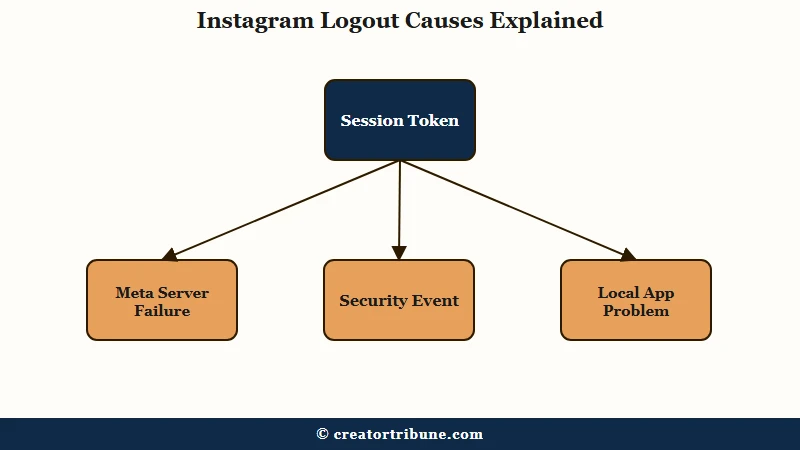
A session token is what keeps you signed in between app opens. When it is invalidated, the app has no way to prove you are you, so it drops you back to the login screen.
The reason that matters is that the three causes leave very different fingerprints, and you can read them in under two minutes.
What is a session token: The credential your app stores after login so you do not retype your password. Invalidate it and you get logged out instantly.
The way I see it, the mistake almost everyone makes is treating the logout as the problem. The logout is the alarm. Silencing it before you know what set it off is how a recoverable situation turns into a lost account.
| Symptom | Likely cause | First move |
|---|---|---|
| Friends report the same thing at the same time | Meta server outage | Wait, change nothing |
| Correct password rejected, no email received | Meta server outage | Wait, change nothing |
| Password or email change email you did not request | Account compromise | Go to instagram.com/hacked |
| Logged out on every device at once | Password changed by someone | Treat as compromise |
| One device only, repeats over days | Local app or token problem | Clear cache, then reinstall |
| Login works, then drops within minutes | Security checkpoint or VPN | Turn off VPN, verify identity |
Is Instagram Down or Is It Just Me?
Rule out a platform outage first, because during one there is nothing to fix on your end and every change you make carries risk.
This is the step that belongs before all others, and it is the one most guides bury or omit.
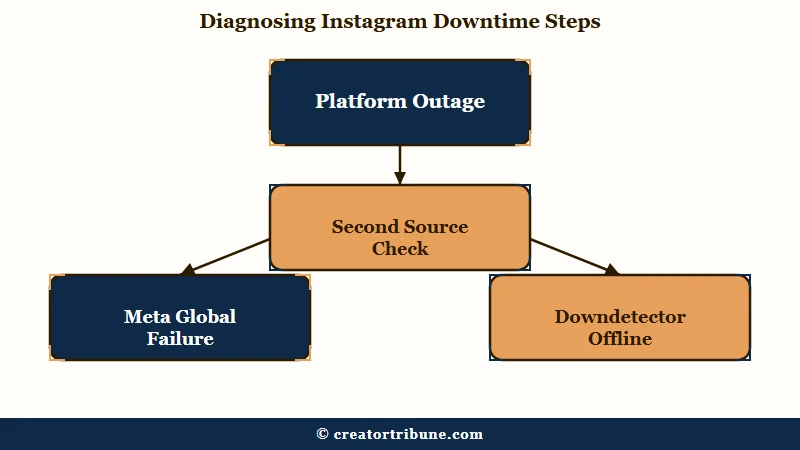
Meta outages produce exactly the symptom people mistake for a hack. On Friday 12 June 2026, a global failure took down Facebook, Instagram, WhatsApp and Messenger simultaneously, starting around 5:45pm UAE time.
Users were abruptly logged out and then could not sign back in using credentials that were completely correct, with login attempts returning an “unexpected error occurred” message.
There is a detail from that day worth remembering, because it breaks the standard advice. Downdetector, the outage tracker nearly every troubleshooting guide tells you to check, appeared to go offline itself around the same time as the Meta platforms.
What I would do instead is check a second source that is not a single point of failure. Search the platform name on X or Reddit and sort by newest.
If hundreds of people posted the same complaint in the last twenty minutes, you have your answer and your job is to wait. Our guide to checking whether Instagram is down covers the order to check things in more detail.
Have I Been Hacked or Is This Just a Glitch?
A compromise leaves evidence that a glitch does not, and the clearest signal is an email you did not trigger confirming a change to your password, phone number or registered email address.
If no such email arrived, that absence is itself a useful data point.
Here is the diagnostic I would run. If your profile is still visible to friends, you are receiving no unexpected change-confirmation emails, and the logout is limited to one device, you are looking at a local problem. If your linked email or phone has changed, friends are getting spam messages from your handle, or you were dropped from every device at once, treat it as a compromise immediately.
That last signal is the one people misread. Changing an Instagram password invalidates the sessions on all other devices, which is exactly what you would want if you had made the change. If you did not make it and you were logged out everywhere simultaneously, the obvious inference is that somebody else did.
There is an important complication, and it cuts against the standard panic response. In January 2026, a wave of unsolicited password reset emails hit Instagram users, and the company’s position was that no breach had occurred. Instagram told users the emails could be ignored, saying it had “fixed an issue that let an external party request password reset emails for some people” and that accounts were secure, as Engadget reported.
I would not treat that as a reason to relax. The same Engadget report noted that security firm Malwarebytes had found a leaked dataset covering 17.5 million users offered for sale, potentially linked to an API exposure in 2024. A reset email you did not request is not proof of a break-in, and it is not nothing either.
Vague: “I got a weird email from Instagram, I should probably change my password.”
Specific: “I received a password reset email at 14:22 that I did not request. My profile is still live, my linked email is unchanged, and no other device was logged out. That points to a reset request against my account, not a successful entry, so I will enable two-factor authentication and leave the password alone until I have checked Where you’re logged in.”
The safest way to verify any email claiming to be from Instagram is to ignore the sender address entirely. Addresses are trivially spoofable, and a convincing fake can read as [email protected] at a glance.
Open the app instead and go to Settings and privacy, then Accounts Center, then Password and security, where Instagram lists the recent security emails it genuinely sent you. If the email in your inbox is not on that list, it did not come from Instagram.
If you are already locked out and someone has changed your password, the official recovery route is instagram.com/hacked, which opens Instagram’s own account recovery flow.
Our walkthrough of recovering a hacked Instagram account covers what to do when that flow stalls.
Should I Reinstall Instagram to Fix Being Logged Out?
Reinstalling should be near the end of your sequence, not the beginning, because it destroys the authenticated session on your last working device before you have diagnosed anything.
This is where the popular advice is at its most dangerous.
Think about what a reinstall does. It clears local app data, including the token keeping you signed in. If the underlying cause is a platform outage or a security checkpoint, you have just traded a partially working session for a login screen that will not accept you.
The order I would use is straightforward, and the first two steps cost you nothing:
- Check whether the platform is down, using a source other than a single outage tracker.
- Open Accounts Center, then Password and security, then “Where you’re logged in”, and review every active session.
- End any session you do not recognise, and only then change your password.
- Turn off any VPN and try a normal login on your usual network.
- Clear the app cache on Android, or offload the app on iOS.
- Reinstall only if the problem persists on that one device and nothing above resolved it.
Step 2 deserves a note, because the terminology has moved. Most guides still tell you to open “Login Activity”, which is the older name.
In current builds you want Settings and privacy, then Accounts Center, then Password and security, where the session list sits under “Where you’re logged in”. Hunting for a menu item that no longer carries that label wastes a surprising amount of time.
If the logouts come alongside the app freezing or closing on its own, the cause may be device-side rather than account-side, and our notes on when Instagram keeps crashing are the better starting point.
Does a VPN Fix Instagram Logouts or Cause Them?
A VPN is far more likely to cause repeated logouts than to fix them, and guides recommending one as a workaround are giving advice that directly contradicts the rest of the field.
The published advice splits cleanly here, and only one side has a mechanism behind it.
One popular guide suggests that if you are stuck on a security checkpoint, using a proxy could be a smart move and should let you access your account smoothly.
Three others say the opposite: turn VPNs off before opening the app. Rapidly changing IP addresses make your location appear to jump between countries, which is precisely the pattern Meta’s automated security treats as an account takeover in progress.
The second group is describing a real mechanism, and the first is not. A checkpoint triggered by an unfamiliar location does not get resolved by presenting an even more unfamiliar location.
Adding a proxy to a flagged account is closer to confirming the suspicion than clearing it, and I would treat any guide recommending it as unreliable on the rest of its advice too.
The same logic explains something that frustrates a lot of travelling creators. Log in from one city in the morning and another that afternoon, and the security system reads a physically implausible jump, even though a flight explains it perfectly.
How Do I Get Back In Without Making It Worse?
Stop retrying the login. Repeated failed attempts in a short window can get your behaviour classified as automated, which risks a temporary restriction and can interrupt delivery of your two-factor codes.
The instinct to hammer the button is the wrong one.
If a login fails twice in a row, leave it alone. Give it a few hours, or a day if a platform-wide incident is underway, then try once on your usual network and usual device. Newer accounts attract security checkpoints far more often than long-established ones, so a fresh profile trips these systems on ordinary behaviour.
When a checkpoint does appear, verify rather than evade. Close the app fully, reopen it, and when the “Was This You?” prompt appears, confirm it. Logging in on a desktop browser often surfaces the same prompt with more context, which makes it easier to clear.
One thing I would treat carefully is the advice, circulating on several sites, to temporarily deactivate your account for a few hours to reset a stubborn checkpoint. The downside is rarely stated plainly.
Your profile disappears from everyone who follows you for the duration, and you are trusting a deactivation flow to behave normally on an account the platform has already flagged.
If identity verification is where you are stuck, our guide to Instagram selfie verification problems covers that specific wall.
Frequently Asked Questions
Why did Instagram log me out of all my devices at once?
A simultaneous logout everywhere almost always means the account password was changed, because Instagram invalidates every other session when that happens. If you did not change it, treat this as a compromise and start recovery at instagram.com/hacked right away.
Does getting logged out mean I was hacked?
Not on its own. Look for corroborating signals first: an unrequested email confirming a password, phone or email change, friends receiving spam from your handle, or unrecognised devices in your session list. Without those, a local app fault or an outage is more likely.
Is it safe to reinstall Instagram when I keep getting logged out?
It is safe, but it should not be your first step. Reinstalling clears the session keeping you signed in, so if the cause is an outage or a security checkpoint you may not be able to log back in until that clears.
Why does Instagram keep logging me out on one device only?
A problem isolated to a single device points to local app data rather than your account. Clear the cache on Android or offload the app on iOS, make sure the app is current, and check whether a VPN is running on that device.
Should I use a VPN to get past an Instagram security checkpoint?
No. Frequent IP changes are one of the triggers that produce checkpoints and forced logouts in the first place. Turn the VPN off and log in from the network you normally use.
How do I know if an Instagram security email is real?
Do not judge it by the sender address, which can be faked convincingly. Open Settings and privacy, then Accounts Center, then Password and security, and compare it against the list of security emails Instagram confirms it sent you.
Quick Takeaways
- A forced logout is a symptom with three very different causes, and the fix for one can worsen another.
- Rule out a Meta outage before changing anything, and use a second source since Downdetector went down during the 12 June 2026 failure.
- Being logged out on every device at once usually means the password changed, so treat it as a compromise if you did not change it.
- Check “Where you’re logged in” under Accounts Center before you reinstall, because reinstalling destroys your last working session.
- Verify suspicious emails against Instagram’s in-app list of sent security emails rather than trusting the sender address.