Why Instagram Keeps Crashing Even After You Clear the Cache
Why Instagram Keeps Crashing Even After You Clear the Cache
Instagram keeps crashing on Android and iPhone in waves. See why cache clearing rarely works and the fixes that match each crash type.
- 1Why Does Instagram Keep Crashing in Waves
- Why does Instagram close itself and then open fine?
- 2Is the Crash Coming From Your Phone or From Instagram
- 3Does Meta’s Status Page Show Instagram Outages?
- 4How to Fix Instagram Crashing on Android
- 5How to Fix Instagram Crashing or Freezing on iPhone
- 6What to Do When Reinstalling Logs You Out Over and Over
- 7How Do Creators Protect Drafts and Deadlines During a Crash Wave
- 8Instagram Crashing FAQs
- Why does Instagram keep closing itself?
- Why does Instagram keep crashing even after reinstalling?
- Why does my phone say Instagram keeps stopping?
- Is Instagram down right now or is it just me?
- Is Instagram crashing on Android in 2026 a phone problem?
- 9Quick Takeaways
What Happened: Instagram keeps crashing in recurring waves, and independent monitoring logged five separate Meta outages in July 2026 alone. Most waves start on Meta’s servers rather than on your phone, which is why clearing the cache so often does nothing. The fix that works depends on which of five crash patterns you have, and two of those patterns are fixed by waiting.
Instagram keeps crashing for thousands of people at a time, and the gaps between waves are shorter than most guides suggest. StatusGator, which has monitored Meta’s status page since September 2022, logged five separate Meta outages in July 2026 alone, on 6, 16, 19, 22 and 27 July, the longest of them running 7 hours 3 minutes.
August was no quieter. Meta’s own status page carried a warning state on thirteen separate days that month up to the 23rd, including an unbroken run from the 12th to the 17th.
Samsung Galaxy owners report this often. Threads on Samsung’s own community forums describe Instagram closing the moment it opens or freezing mid-scroll in Reels on S23 and S24 hardware, and the Android-wide wave that PiunikaWeb tracked from October 2025 through its 12 February 2026 update left people unable to hold the app open for more than a few seconds.
The standard advice is to clear the cache, restart the phone, and reinstall. Plenty of people in the middle of a crash wave have done all three and watched the app crash again on the very next launch. One reinstall attempt can even make things worse, kicking you into a loop where Instagram logs you out every single time you log back in.
There is a reason the usual fixes fail, and it lives on Meta’s side of the connection. I’ll walk through what causes these waves, how to tell whether the problem is your phone or Instagram itself, and the specific fix for each crash pattern, including the ones where the right move is to do nothing at all.

Why Does Instagram Keep Crashing in Waves
Instagram keeps crashing in waves because Meta commits changes to the app’s remote settings about 15 times more often than it commits code, so one bad server-side switch can break millions of phones overnight without any new download.
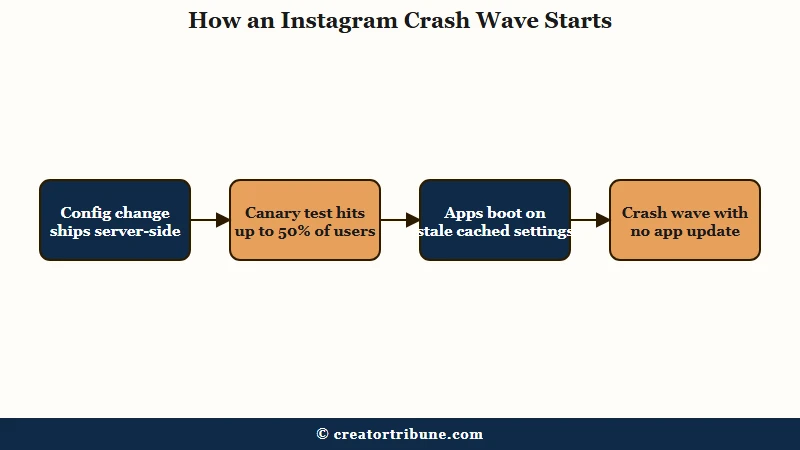
The explanation rarely makes it into fix guides, and it is public. Meta’s own engineering paper on its MobileConfig remote configuration system, presented at USENIX NSDI in April 2024, reports that its largest app carries 4,344 remote configurations and 26,770 individual parameters. Engineers flip those switches from the server, and the paper states that config commits happen about 15 times more often than code commits.
That math answers the question users keep asking during every wave: “the last update was days ago, so why did it break today?” What changed was a server-side setting, and your phone obeyed it the next time the app phoned home. No download was involved.
Meta also tests these switches on live users at a scale that surprises people. The same paper describes a second-stage canary that splits the entire population into a 50 percent test group and a 50 percent control group for four hours, watching app crashes as one of its key metrics. If you crash during one of those windows and a friend on the same phone model does not, you were probably in the test half.
One more wrinkle matters. Fetching fresh settings before the app opened would add 2,499 milliseconds to launch time by Meta’s own measurement, so the app deliberately boots on slightly stale cached settings and refreshes them in the background.
That design choice is why a broken app sometimes runs fine for a few seconds and then dies. The same staged-rollout machinery sits behind other sudden behavior shifts, like the ones covered in the Explore page reset guide.
Why does Instagram close itself and then open fine?
A single self-close followed by normal service usually needs no action, and occasionally it is a repair landing rather than a fault. Meta can push a corrected setting that forces the app to restart, though it reserves that for severe config errors and uses it only about once a quarter.
The MobileConfig paper is unusually direct about it. Emergency push runs “approximately once per quarter to rectify config errors”, and “almost all those cases” use the variant that forces a restart, because a phone will keep reading the broken cached setting until the app is restarted.
At roughly four uses a year across the whole app, emergency push accounts for very few individual self-closes. Ordinary memory pressure and the system closing a backgrounded app explain far more of them.
The two closing patterns still want different responses. One self-close followed by a working app is worth leaving alone, while an app that quits on every single launch is the pattern to diagnose with the scope test below.
Is the Crash Coming From Your Phone or From Instagram
The fastest diagnosis is a two-device test. If Instagram also misbehaves on your browser at instagram.com or on a second device, the problem is on Meta’s side and no amount of phone cleanup will fix it.
Before you bother with the two-device test, spend ten seconds on Downdetector or another independent monitor. A live spike there means the wave is Meta’s, and no phone cleanup will move it. Check Meta’s own dashboard at metastatus.com second, for the reason set out in the next section.
The clearest recent proof was Sunday 19 July 2026, when Instagram and Facebook both faltered. Reuters, reporting the Downdetector counts that morning, put 2,829 US reports against Instagram as of 0818 GMT and 4,808 against Facebook as of 0746 GMT, with 63 percent of the Facebook group reporting trouble reaching the website.
Nothing in that list is fixable from a phone. Meta did not immediately reply to a request for comment sent by email.
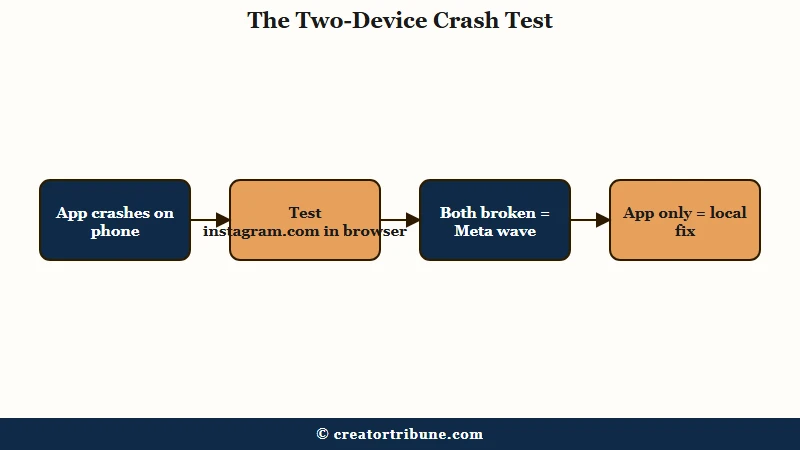
The way I triage this is symptom-first, because each crash pattern points at a different cause. Crashing in step with thousands of strangers means a config wave. Crashing alone means something local, usually storage, an ancient install, or a beta build.
| Symptom | Likely cause | Fix |
|---|---|---|
| App worked yesterday, now crashes at launch for you and many others | Server-side configuration wave | Wait it out, keep the app updated, confirm scope on a second device |
| Crashes only when scrolling or watching Reels | Beta build, low RAM, or post-iOS-26 touch complaints | Leave the beta, restart, then apply the iPhone fixes below |
| Galaxy S23 or S24 freezes or closes during Reels | Widely reported on Samsung forums, unconfirmed by Meta | Leave any beta build, then report it in-app with your model |
| Logged out every time after a reinstall | Account state problem, cause not published by Meta | Stop retrying, use the 24 to 48 hour reset trick below |
| No Save as draft option appears on a single photo | Instagram will not draft an untouched post | Add a filter or one caption character, then the option appears |
Two of those rows deserve a quick flag. If comments will not load at the same time the app is crashing, that is one more vote for a server-side wave, and the comments not loading guide shows the same cross-platform test. And if you want the deeper version of the outage-or-me protocol, the is TikTok down diagnostic applies to Instagram almost line for line.
Does Meta’s Status Page Show Instagram Outages?
Not reliably. Meta’s status page never acknowledged a 7 hour 3 minute failure on 22 July 2026, the longest of the July incidents it left unacknowledged, and it confirmed the two before that only after independent monitoring had already caught them.
StatusGator has monitored the Meta status page since September 2022 and records, for each incident, when it detected the problem and when Meta admitted it. Read on 29 August 2026, that history reads badly for anyone using the dashboard as a first check.
| Incident detected | How long it ran | Acknowledged by Meta |
|---|---|---|
| 27 July 2026, services not loading and accounts logging out | 1h 26m | Never |
| 22 July 2026, Facebook not loading or showing error messages | 7h 3m | Never |
| 19 July 2026, Business Suite and related services unavailable | 5h 15m | 1h 59m after detection |
| 23 June 2026, Instagram and Facebook not loading or refreshing | 2h 10m | 1h 12m after detection |
There is a structural reason the headline can read green while your app is broken. Meta publishes status across 52 components in 17 groups, using only up, warn and down, which may mean a single component sitting at warn never turns the top-level summary red.
The dashboard is still worth a look, just not as your opening move. An independent monitor showing hundreds of live reports while Meta shows no known issues is a normal Tuesday, and it still means the problem is not your phone.
How to Fix Instagram Crashing on Android
The Android fix order is cache, beta status, storage, then a careful reinstall. Run them in that order because the early steps are free and the last one can cost you your drafts.
These waves land harder on Android for a reason. The same Meta engineering paper reports that 75 percent of the Android devices running its apps perform no better than a 2015 flagship, and that 1 percent of installations are older than 987 days, with the oldest dating back 2,499 days. Old hardware plus an ancient build is where crash waves bite hardest.
Android shows this failure under two different strings, and both mean the same thing. A system dialog reading “Instagram keeps stopping” and an in-app “Something went wrong with Instagram” screen are the app terminating, so the sequence below applies to either one.
This is the order worth running on any Android phone, Samsung included:
- Clear the cache at Settings > Apps > Instagram > Storage > Clear Cache. This deletes nothing important, your photos and DMs live on Instagram’s servers.
- Check whether you are in the beta. Open the Play Store, search Instagram, and scroll to the beta section. Leave the program, then update to the standard build. Beta exits fix a large share of Reels-specific crashes.
- Free up storage until at least 10 to 20 percent of the phone is empty. Instagram gets unstable on full phones, and Reels are the most memory-hungry surface in the app.
- Restart the phone after any system update. Galaxy owners regularly report app instability in the days after a security patch lands, and a restart clears the background-service conflicts that cause a share of it.
- Reinstall only as a last resort. Uninstalling permanently deletes every locally saved draft, and some reinstalls trigger the logout loop covered two sections down.
If the phone is older or low on RAM, anything under 3GB struggles with Reels, the smarter long-term move is Instagram Lite. It is a fraction of the size and skips most of the heavy rendering that crashes budget hardware.
How to Fix Instagram Crashing or Freezing on iPhone
iPhone crashes and freezes in 2026 trace more often to touch and power-saving behaviour after the iOS 26 upgrade than to anything the cache is doing.
The strangest failure mode on iPhone is Reels that stop responding to vertical swipes. Complaints about unresponsive touch after installing iOS 26 run across Apple’s own forums and the MacRumors iOS 26.2 threads, and they are not specific to Instagram, though Apple has published nothing naming the fault.
The app still takes the blame, because Reels is where fast swiping happens. Treat a dead swipe as a device symptom and force-restart before touching the app.
| Fix | Where it lives | When to use it |
|---|---|---|
| Force restart | Press Volume Up, Volume Down, then hold the Side button about 15 seconds | Frozen scrolling or unresponsive touch in Reels |
| Offload App | Settings > General > iPhone Storage > Instagram > Offload App | iOS has no clear-cache button, this is the equivalent without deleting your login |
| Reduce Transparency | Settings > Accessibility > Display & Text Size | UI lag and stutter on newer iPhones running iOS 26 |
| Turn off Adaptive Power | Settings > Battery | Jerky Reels scrolling, the setting throttles the GPU to save battery |
| Most Compatible camera format | Settings > Camera > Formats > Most Compatible | Crashes that happen while uploading photos or video |
For upload crashes specifically, drop the export resolution before blaming the app. Pushing 4K at 120fps through Instagram’s uploader strains it badly, and 1080p at 60fps survives the same network conditions with room to spare.
What to Do When Reinstalling Logs You Out Over and Over
The logout loop after a reinstall points at account state rather than at your password, and the counterintuitive fix is to stop logging in and wait one to two days.
This one frustrates people more than the crashes themselves. The reports follow a consistent shape: the password is accepted, the session lasts seconds, and the next launch asks you to log in again, which is a sign the block sits on the account and not on what you typed. Meta has published nothing about the cause, so treat the explanations circulating in creator forums as descriptions of the symptom.
Hammering the login screen makes it worse by tripping rate limits. Log in once through a linked Facebook account if you have one, and if that fails, request a password reset email but leave it 24 to 48 hours before clicking the link.
If the loop survives all of that for more than three days, the last option is a formal data access request under GDPR or CCPA through Meta’s privacy center. It puts your account in front of a team with a legal deadline attached, which is more than the in-app help flow offers, though Meta publishes no success rate for it. Anyone who suspects the lockout is more than a glitch should read the hacked account recovery guide before doing anything else.
How Do Creators Protect Drafts and Deadlines During a Crash Wave
Drafts are local files that die with the install, so the protection strategy is finishing content outside Instagram and treating the app as an upload button only.
The most expensive mistake during a crash wave is reflex-uninstalling with a week of drafts inside. Uninstalling wipes every local draft permanently, and there is no recovery path, because drafts live on the handset and never sync to another device or to the web.
One draft complaint is not a bug at all and is worth knowing before you blame a crash for it. Instagram will not offer Save as draft on a post you have not edited, so a single photo with no filter, no trim and an empty caption gives you no draft option, while typing one character into the caption makes it appear.
The creators who sail through these waves run the same setup, and it wants building before the next wave rather than during it. Edit and store everything in an external editor, keep finished exports in your camera roll or cloud storage, and post through Meta Business Suite in a desktop browser whenever the app is unstable.
The browser path runs on separate infrastructure from the mobile app and usually survives app-side waves untouched. Stories deserve the same caution, since upload failures spike during waves, as covered in the story upload troubleshooting guide.
Without the setup: the app crashes the night a sponsored Reel is due. The creator clears the cache, reinstalls, loses every local draft including the sponsor’s edit, then lands in the logout loop with the deadline gone.
With it: the same crash hits, but the finished Reel already sits in the camera roll and a cloud folder. The creator posts it from Meta Business Suite on a laptop, offloads the app instead of deleting it, and waits the wave out with every draft intact.
Instagram Crashing FAQs
Why does Instagram keep closing itself?
It depends on whether it happens once or every launch. A single self-close can be Meta pushing a corrected setting, which forces a restart to clear the broken one, while an app that quits on every launch before it finishes loading is a live fault. For the repeating version, an independent outage monitor and a second device tell you far more than another reinstall will.
Why does Instagram keep crashing even after reinstalling?
A reinstall only swaps out local app files, so it changes nothing when the fault lives in a Meta server config or in the account-state problem behind the logout loop. During an active wave a reinstall can make things worse by wiping your local drafts and dropping you into the 24 to 48 hour login loop, so hold off until an independent outage monitor and a second device are both clear.
Why does my phone say Instagram keeps stopping?
“Instagram keeps stopping” is Android’s own wording for an app that terminated, so it describes the same event as a crash and does not point at any particular cause. Work the Android order below it: clear the cache, leave any beta build, free storage to 10 or 20 percent, then restart, and check an outage monitor first if the timing lines up with everyone else.
Is Instagram down right now or is it just me?
Check an independent monitor such as Downdetector before Meta’s own dashboard, because Meta never acknowledged its 22 July and 27 July 2026 disruptions and confirmed the 19 July one almost two hours after monitoring caught it. If instagram.com in a browser or a second device shows the same behaviour, the fault is on Meta’s side and nothing on your phone will move it.
Is Instagram crashing on Android in 2026 a phone problem?
Usually not. Independent monitoring logged five separate Meta outages in July 2026 alone, and PiunikaWeb tracked an Android-wide crash wave through February 2026 that Meta had still not acknowledged, so the timing usually explains more than the handset does. Confirm the scope first, then work the Android fix order only if the problem is yours alone.
Quick Takeaways
- Instagram crash waves are mostly server-side. Meta commits config changes about 15 times more often than code, which is why phones break with no new download.
- Check an independent monitor before Meta’s dashboard. Meta never acknowledged its 22 and 27 July 2026 disruptions, and it publishes status across 52 components, so the top-level summary can read green while your app is broken.
- Diagnose scope first. If instagram.com or a second device shows the same problem, skip the phone cleanup, nothing local is broken.
- One self-close then normal service rarely needs any action. Meta’s emergency push does force a restart, but it runs only about once a quarter, so most one-off closes are ordinary memory pressure.
- On Android, leave the beta program and keep 10 to 20 percent storage free before considering a reinstall. On iPhone, offload the app and turn off Adaptive Power.
- Never uninstall with drafts inside, they are local files and deletion is permanent. Reinstalls during a wave can also trigger a 24 to 48 hour logout loop.
- Keep finished content outside the app and post through Meta Business Suite on the web when the app is unstable.