Fix Instagram Story Not Uploading in Six Steps
Fix Instagram Story Not Uploading in Six Steps
Instagram Story not uploading? Here is the six-step fix that covers stuck-on-sending, the 90 percent freeze, and the format gotchas most guides miss.
- 1What a Failed Story Upload Looks Like
- 2Step 1, Run the Five-Second Network Check First
- 3Step 2, Force-Close the App, Not Just Switch Away
- 4Step 3, Free Up Phone Storage
- 5Step 4, Check Your Video Specs
- 6Step 5, Check Account Status
- 7Step 6, Log Out, Reinstall, and Retry
- 8Frequently Asked Questions
- Why does my Instagram Story upload get stuck at 90 percent?
- Does Instagram Story work better on Wi-Fi or mobile data?
- Why does my Story post but then disappear from my tray?
- Can a VPN cause Instagram Stories to fail?
- What video format does Instagram Story require?
- Will clearing the Instagram cache log me out?
TL;DR: Instagram Story uploads fail for six identifiable reasons (network drop, app glitch, low storage, wrong video format, account flag, or a known iOS 26 bug at 90%). Work the six checks in order and most stuck uploads clear within 10 minutes. The longer fix paths (reinstall, log out, format reconvert) only matter if the first three do not work.
If you have ever recorded the perfect Story, hit Share, and watched the spinning circle eat the next five minutes of your life, you already know this is not a “just try again” problem. The fail mode looks the same on the surface, but the underlying cause changes the fix.
Most guides give you a list of 10 random steps and tell you to try them all. That is not how this should work. The first three checks below cover the causes that actually recur, and skipping straight to “reinstall the app” usually costs you 20 minutes for no reason.
This walks through the six causes in order of likelihood, what each one looks like on the screen, and the exact fix for each. If you are on iOS 26 and stuck at 90%, that is a known bug with a specific workaround, so jump to step 2.

What a Failed Story Upload Looks Like
Instagram Story upload failures show up as one of four distinct symptoms (stuck on Sending, frozen at a percentage, posted then disappeared, or visibly blurry after posting), and each symptom points at a different root cause.
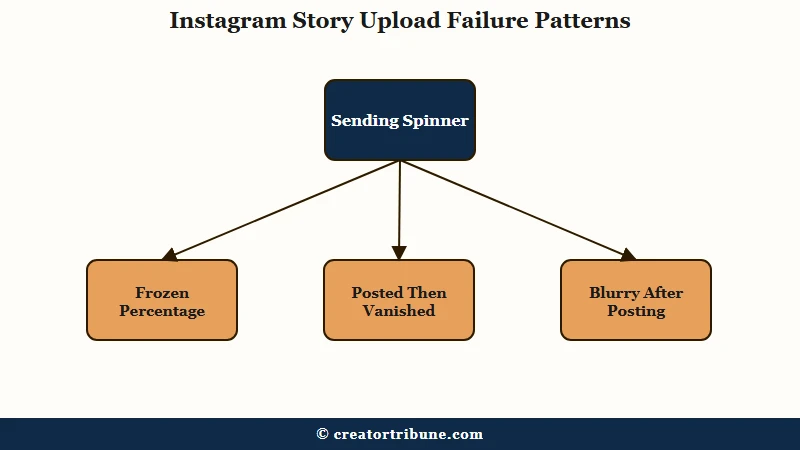
Knowing which one you are seeing saves you from running the wrong fix. Here is the symptom map I would use as a first check:
| What you see | What it usually means | Fix to try first |
|---|---|---|
| “Sending” spinner that never finishes | Network connection dropped mid-upload | Toggle airplane mode |
| Stuck at a specific percentage (often 90%) | App glitch, often an iOS 26 known bug | Force-close and reopen |
| Story posts then vanishes from your tray | Account-level limit, or feature rollout gap | Check Account Status |
| Story posts but looks blurry or cropped wrong | Aspect ratio or format mismatch | Re-export as MP4, 9:16 |
The split that matters most is between “the upload never started” (network) and “the upload started but the app or server choked” (everything else). The first 30 seconds of the failure tell you which side you are on.
If the spinner moves and then stops at a number, the upload reached Instagram’s server and something downstream failed. If you see “Sending” with no progress at all, the request never left your device.
Step 1, Run the Five-Second Network Check First
A dropped or port-restricted network connection is the most common reason a Story upload stalls, so the airplane-mode toggle and the Wi-Fi-to-data switch should always be your first two checks.
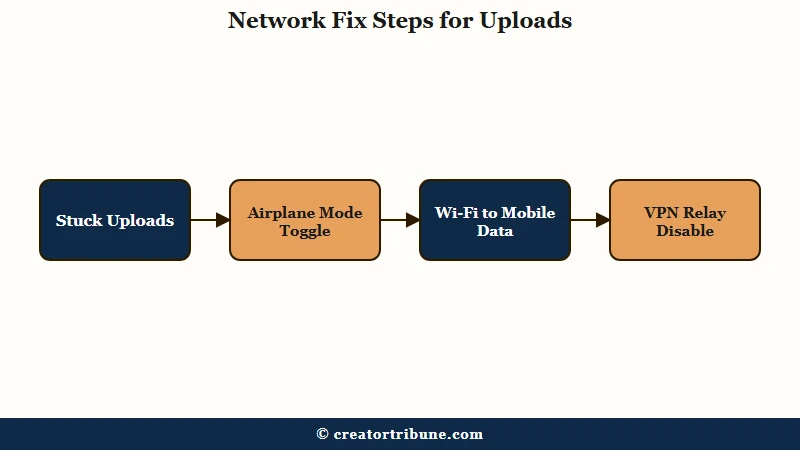
Toggle airplane mode on, wait 15 seconds, toggle it off. Most “Sending” spinners clear within 30 seconds of doing this because your device negotiates a fresh connection to the cell tower or router.
If that does not work, switch from Wi-Fi to mobile data (or the other way around). Public Wi-Fi networks at coffee shops, hotels, and gyms frequently have port restrictions that block the specific traffic Meta uses for video uploads. Mobile data sidesteps that entirely.
Here is the worked split between what each network state usually means:
Vague: “The internet is slow.”
Specific: Open Instagram and try to scroll the feed. If feed scroll is fast but the upload is stuck, the issue is not bandwidth, it is a network routing problem that needs a connection reset. If feed scroll is also slow, the issue is bandwidth and you should switch networks before trying anything else.
One more thing here: if you are on a VPN, turn it off. VPNs route Instagram traffic through a server in a different region, which Meta sometimes flags and which can break the upload entirely. iCloud Private Relay on iPhone and Private DNS on Android cause the same problem.
Step 2, Force-Close the App, Not Just Switch Away
Force-closing Instagram clears stuck upload sessions that just switching to another app does not, and this is the fix for the 90% freeze on iOS 26 in particular.
On iPhone, swipe up and pause to bring up the app switcher, then swipe Instagram up and off the screen. On Android, hit the recent apps button, find Instagram, and swipe it away. Reopen the app and try the Story again.
The 90% freeze first showed up in early iOS 26 builds, where the upload hits 90% and never advances. Apple has shipped a long run of point releases since then, and its own security releases index dates iOS 26.6 to 27 July 2026 and iOS 26.6.1 to 17 August 2026.
A phone still on an early 26.x build is several releases behind, so update iOS and Instagram first. If you are already current and still stuck, force-closing the app and re-uploading stays the reliable workaround.
While you are at it, restart the phone itself if force-closing does not clear the issue. A phone restart resets the camera and microphone hardware sessions, which sometimes get into a state where Instagram can read them but cannot upload them. The restart takes 30 seconds and resolves a non-trivial slice of “the camera works but the upload fails” cases.
For deeper context on patterns that show up alongside upload failures (sudden reach drops, comment limits, or account-status flags), the Instagram reach-drop diagnostic and the Instagram action-blocked guide cover the broader signals.
Step 3, Free Up Phone Storage
Instagram re-encodes your video on the phone before it sends anything, so a device close to full can fail an upload even when the clip itself is only a few hundred megabytes.
Check your storage in iPhone Settings or Android Settings before doing anything else heavy. Clearing space is quick, and it rules out a whole class of “the upload starts and then fails” behavior in one move.
The fastest cleanup paths in order of speed:
- Offload Instagram (iPhone). Settings → General → iPhone Storage → Instagram → Offload App. This frees the cache without deleting your account data. The app re-downloads when you open it next time. This is the iPhone equivalent of clearing cache.
- Clear Instagram cache (Android). Settings → Apps → Instagram → Storage → Clear Cache. Do not tap Clear Data, that logs you out and erases your local drafts.
- Delete recently-watched videos in your photo library. Most creators do not realize that recorded screen-shares and 4K test clips eat 1 to 4 GB each. Sort your photo library by file size and clear the largest non-essential clips.
- Empty Recently Deleted in Photos. A 60-second job that creators forget. Recently Deleted holds files for 30 days and counts against your storage the whole time.
If the upload starts working after a storage cleanup, you have your culprit. Keeping a few gigabytes free as a standing buffer stops it recurring.
Step 4, Check Your Video Specs
Instagram Stories accept MP4 and MOV files at 9:16 aspect ratio, up to 4 GB, and now run up to 60 seconds per slide, up from the old 15-second cap. Clips longer than 60 seconds auto-split into consecutive frames, while wrong formats like MKV, AVI, or a 16:9 horizontal frame get rejected or processed badly.
The format issue catches creators who edit on desktop and transfer to phone. Premiere, DaVinci, and CapCut all default to different containers depending on the export preset, and MKV or AVI files will silently fail to upload.
Re-export as MP4 with H.264 encoding before transferring. This works in every desktop editor with a one-click preset. On mobile, CapCut and InShot both export in MP4 by default, so phone-edited videos rarely have this problem.
Clip length trips up creators who remember the old rules. Instagram raised Stories to 60 seconds per slide, replacing the old 15-second slices, so a 45-second clip now posts as one continuous slide and a 90-second clip splits into two 60-second frames on its own. You only need to pre-split in your editor when you want to control exactly where each slide breaks.
Here is the spec checklist most creators miss:
- Container format: MP4 or MOV only (not MKV, AVI, MPG, or WebM)
- Video codec: H.264 for widest compatibility
- Aspect ratio: 9:16 (vertical) to avoid auto-cropping
- Resolution: 1080×1920 is the sweet spot; 4K renders blurrier after Meta’s compression
- Length: Up to 60 seconds per Story slide (longer clips auto-split into 60-second frames)
- File size: Under 4 GB, but anything over 500 MB will be slow to upload
If you have to convert formats often, the Instagram comment-limit guide covers other format and rate constraints that come up in the same creator workflow.
Step 5, Check Account Status
An “Account Status” warning inside Instagram Settings means your account has a flag that limits Story posting or specific features, and no client-side fix will work until the flag clears.
Go to Profile → Menu → Settings → Account → Account Status. If there is any warning showing (community guidelines violation, recent appeal, age restriction, business account flag), Stories may be the first thing that breaks.
This is the cause most creators miss because it looks identical to a network issue from outside the app. You hit Share, the upload fails, and there is no error message explaining why. The signal is in Account Status, and you have to go look for it.
If you see a warning, follow Meta’s appeal flow from inside the same screen. Appeals typically resolve in 24 to 72 hours, and during that window Stories may continue to fail. The Instagram shadowban diagnostic covers the related signals (non-follower reach drops, hashtag visibility loss) that often appear alongside an Account Status warning.
Step 6, Log Out, Reinstall, and Retry
If steps 1 through 5 fail, the local Instagram install is corrupted and the reinstall path is the only remaining client-side fix.
This is the last resort because it takes 10 to 15 minutes and you lose any unsent drafts. Run it in this exact order:
- Log out of Instagram inside the app. Profile → Menu → Settings → Log out. Confirm you have your password saved, because you will need it.
- Delete the app from your phone. Long-press the icon, then Remove App on iPhone or Uninstall on Android.
- Restart the phone. This clears any leftover system-level associations from the old install.
- Reinstall Instagram from the App Store or Play Store. Use the official Meta install, not any third-party APK or sideload.
- Log back in and immediately test a Story upload with a small photo. Do not start with a 4K video, you want to confirm the install works before stress-testing it.
If the Story still fails after a clean reinstall, the issue is on Meta’s side. Check downforeveryoneorjustme.com for an active Instagram outage.
If there is one, there is nothing you can do but wait. If there is not, your account has a deeper flag that needs a support ticket, not a client-side fix.
For scale context, Instagram passed 2 billion monthly active users in December 2021 per Statista, which is part of why Story-upload issues often look like outages even when they are isolated account-level flags.
Frequently Asked Questions
Why does my Instagram Story upload get stuck at 90 percent?
The 90% freeze appeared in early iOS 26 builds. Update iOS and Instagram before anything else, because Apple has shipped many point releases since, through iOS 26.6.1 on 17 August 2026. If you are already current, force-close Instagram and retry, and the upload usually clears on the second attempt.
Does Instagram Story work better on Wi-Fi or mobile data?
Mobile data is often more reliable for Story uploads than public Wi-Fi, because public networks frequently block the ports Meta uses for video. Home Wi-Fi is usually fine; coffee shops and hotels are where the failures cluster.
Why does my Story post but then disappear from my tray?
A disappearing Story usually points at an account-level limit rather than an upload failure. Check Profile → Settings → Account → Account Status for any warnings or community guidelines flags. If the Story is still there for you but other people are told it is unavailable, the breakdown of an unavailable Instagram Story separates the audience-side causes from the posting-side ones.
Can a VPN cause Instagram Stories to fail?
Yes. VPNs and iCloud Private Relay route your traffic through different regions, which Meta sometimes flags as suspicious and which can break the upload. Turn off the VPN before uploading and retry.
What video format does Instagram Story require?
MP4 or MOV with H.264 encoding at 9:16 aspect ratio. Files in MKV, AVI, or 16:9 horizontal will either fail to upload or post with visible cropping and quality loss. Re-export from your editor as MP4 before transferring to your phone.
Will clearing the Instagram cache log me out?
No. Clearing cache on Android (Settings → Apps → Instagram → Storage → Clear Cache) preserves your login. Clear Data is the destructive option that logs you out. On iPhone, the equivalent is Offload App, which also preserves your login.