Why Instagram Says Something Went Wrong and Which Cause You Have
Why Instagram Says Something Went Wrong and Which Cause You Have
Instagram says Something went wrong for six different reasons. Here is how to tell which one you have, and the fix that matches it. Start with the timing.
- 1Why Does Instagram Say Something Went Wrong?
- 2When Does the Error Appear and What Does That Tell You?
- 3Is Instagram Splitting Your Account From Facebook?
- 4Why Does Instagram Say Something Went Wrong After a Password Change?
- 5Does Something Went Wrong Mean Someone Blocked You?
- 6Why Does the Error Return After Your Appeal Was Approved?
- 7Why Does Instagram Fail When You Post Multiple Photos?
- 8Why Doesn’t Clearing the Cache Fix It?
- 9Frequently Asked Questions
- Does something went wrong on Instagram mean I am banned?
- Why does Instagram say something went wrong when I view someone’s profile?
- How long do I have to wait for the error to clear?
- Will reinstalling Instagram fix something went wrong?
- Why did the error start after my account was restored?
- 10Quick Takeaways
TL;DR: Instagram shows “Something went wrong” for at least six unrelated failures, and the message never tells you which one you hit. The fastest way to identify yours is to note exactly when the error appears, because each cause has a different trigger moment. Clearing your cache only fixes one of the six.
If Instagram says something went wrong and every guide you found told you to clear your cache, you already know how that ended. The message is a catch-all.
Instagram reuses one short error string for a login lockout, a blocked profile, a failed carousel upload, and a server outage.
That is why generic fixes feel like guesswork. You are applying a cache fix to what might be a rate limit, a database sync problem, or an account settings change that happened on Meta’s end without you touching anything.
There is a faster path, and it costs nothing. The error string is useless, but the timing is diagnostic.
What you were doing in the two seconds before the message appeared narrows six possible causes down to one, and each one has a different fix. This guide maps the timing to the cause, then gives you the fix that matches.
Why Does Instagram Say Something Went Wrong?
“Something went wrong” is a catch-all string that stands in for many unrelated failures.
Instagram serves it whenever a request fails and the app has no specific message to show. The cause could be your account, another person’s account, your media file, your network, or Meta’s servers.
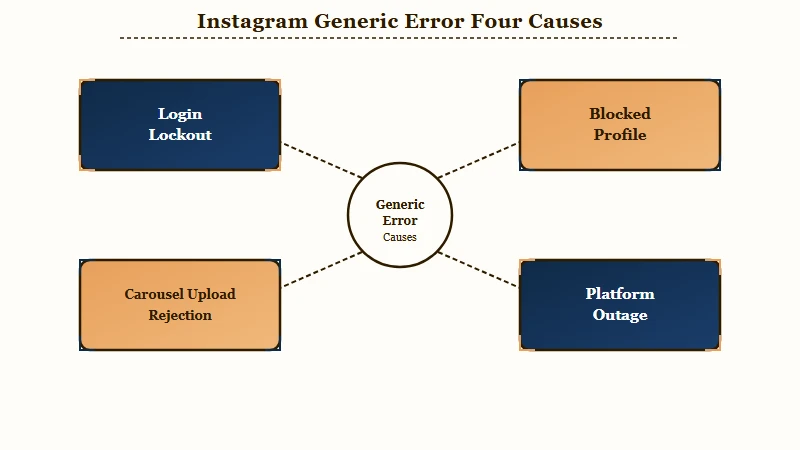
Instagram carries roughly 3 billion monthly active users, and a platform at that scale routes an enormous range of failures through a small set of generic error strings. Writing a distinct message for every failure state is engineering work with no user-facing payoff, so the catch-all survives.
The single most useful habit I have with this error is to ignore the words entirely and look at the timing instead. The message is identical in all six cases. The trigger is not.
One thing worth ruling out first. If the error hits everything at once, your feed, your DMs, and your profile, it is probably not your account at all. That is the shape of a platform outage, and checking whether Instagram is down takes about thirty seconds.
When Does the Error Appear and What Does That Tell You?
The moment the error appears identifies the cause. Six triggers map to six different failures, and each one needs a different fix. Match your trigger in the table below, then jump to that section.
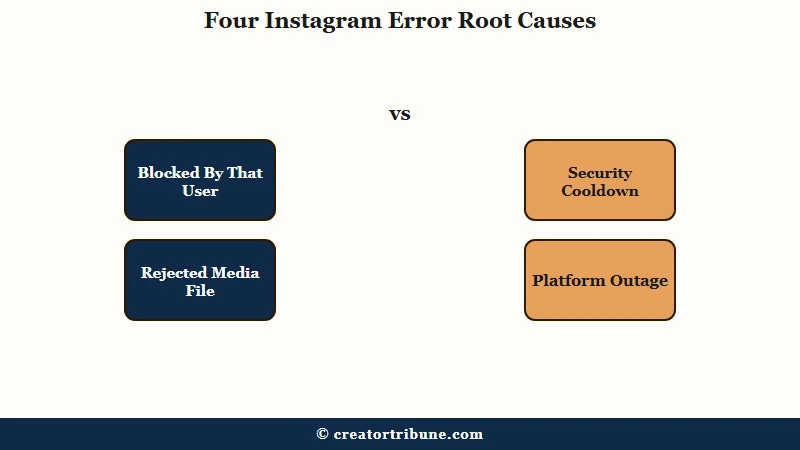
This table is the one I keep in my head, and it has saved me a lot of pointless reinstalling.
| When the error appears | Likely cause | What fixes it |
|---|---|---|
| Logging in, right after a password change or reactivation | Security cooldown or rate limit | Stop retrying. Wait 24 to 48 hours |
| Logging in, and it started sometime this year | Accounts Center login change | Check your Accounts Center settings |
| Only on one person’s profile | You have been blocked | Nothing to fix. Confirm with a logged-out check |
| After an appeal was approved | Server-side account status desync | Wait 24 to 48 hours before the reset link |
| Posting a carousel or Reel | Media spec rejection | Re-export the file to spec |
| Everywhere at once, feed and DMs | Platform outage | Wait it out |
Two of these six are not your problem to solve. A block and an outage both look like broken software and are neither. Knowing that early saves you from the reinstall spiral.
Is Instagram Splitting Your Account From Facebook?
Meta is retiring the setting that lets your linked accounts log into each other, and accounts that are not configured correctly get separated.
Meta’s documentation states that “starting early 2026, the connected experience, Logging in with accounts, will no longer be available.”
Here is the part that produces login errors. The same documentation says “some Facebook and Instagram accounts will be moved into different Accounts Centers unless Logging in with accounts is enabled for all accounts in the same Accounts Center.”
If your accounts get split, the login path you have used for years quietly stops resolving. You type credentials that were correct last month and get the generic error, because the account you are reaching for now lives somewhere else.
This is the cause I would check first if your login broke sometime this year and nothing about your own setup changed. It is also the one no troubleshooting guide mentions, because it is a settings migration rather than a bug.
The setting lives in Meta’s Accounts Center documentation, and the path is exact:
- Open Accounts Center
- Go to Connected experiences
- Open Logging in with accounts
- Select Allow all accounts to log into each other
Before: two linked accounts with “Logging in with accounts” left at its default, which allows Meta to move them into separate Accounts Centers during the transition.
After: both accounts explicitly permitted to log into each other, which keeps them in one Accounts Center and preserves the login path.
Check this while you can still log in. Once the transition completes, the setting is gone.
Why Does Instagram Say Something Went Wrong After a Password Change?
A password change followed by repeated login attempts triggers a security cooldown, and every retry extends it.
Instagram reads rapid repeated authentication attempts as bot behavior and throttles the account. The error is the throttle, not a broken password.
The fix is counterintuitive and it is the one people refuse to follow. Do not tap the login button again, do not request another code, and do not start a second password reset.
Every attempt during a cooldown can reset the clock.
Waiting felt wrong to me too the first time, and it is still the right move. Give it 24 to 48 hours of genuinely no attempts.
If you have two-factor authentication on and cannot receive a code, there is a documented route that does not require being logged in on your phone.
When Instagram and Facebook sit in the same Accounts Center, the login flow can verify you through Facebook. From there you can reach your backup codes, a set of one-time codes that stand in for your normal second factor.
The path runs through Facebook: Accounts Center settings, then Password and security, then Two factor authentication, then select the locked account. Generating a fresh set silently kills every older code, including any screenshot in your camera roll, so save the new list somewhere durable.
If none of this lands and the account was already deactivated, the reactivation path is a different process with its own failure modes.
Does Something Went Wrong Mean Someone Blocked You?
If the error appears only on one person’s profile while the rest of Instagram works, you have been blocked.
A block is a rule on Instagram’s servers tied to your account, so no amount of reinstalling or cache clearing changes it.
There is a thirty-second test that settles it. Open a private browsing tab, or log out entirely, and go to instagram.com/theirusername directly.
If the profile loads normally while you are logged out but breaks while logged in, that is a block. If it is missing for everyone, including logged out, the account was deactivated or deleted instead.
My rule here is to treat one broken profile and a broken account as completely separate problems. People conflate them constantly, then spend an afternoon reinstalling an app that was working the whole time.
The full breakdown of blocked versus deactivated signals covers the edge cases where the two look alike.
Why Does the Error Return After Your Appeal Was Approved?
Instagram’s review system and its login servers can disagree, leaving your account marked restored in one place and suspended in another.
You get the approval email, then the login throws the generic error anyway. Nothing you do on your phone touches this, because both records live on Meta’s side.
The signature is unmistakable once you know it. An official email says the account is restored, and the login screen still shows an appeal-pending state or the generic error.
The fix is patience plus one deliberate action. Stop attempting logins entirely, because repeated attempts make the mismatch worse rather than better. Request a password reset, then leave the link untouched for 24 to 48 hours before clicking it, which gives the two systems time to agree.
Nothing about this one is intuitive, and it cost me the better part of a week before I understood what was happening. If the state is still broken after 72 hours, a data access request through Meta’s privacy portal forces a human to pull your account record, which often surfaces the mismatch.
Worth separating this from a genuine enforcement action. If the account was suspended by mistake, that is an appeal problem rather than a sync problem, and the path is different.
Why Does Instagram Fail When You Post Multiple Photos?
Carousel and Reel uploads fail on file specs far more often than on connection problems.
Instagram rejects media that falls outside its accepted ratios and codecs, and the rejection surfaces as the same generic error rather than a useful message about the file.
Instagram crops anything taller than a 4:5 ratio or wider than 1.91:1, and files outside the supported codecs get refused outright. A 4K HEVC clip or an MKV downloaded from the web is a common trigger.
| Spec | Limit | What happens if you exceed it |
|---|---|---|
| Tallest ratio | 4:5 (1080 x 1350) | Cropped automatically |
| Widest ratio | 1.91:1 (1080 x 566) | Cropped automatically |
| Video codec | MP4, H.264 with AAC audio | Upload sticks on Preparing, then fails |
| Video file size | 4 GB | Refused outright |
I keep a 4:5 crop preset on my phone for exactly this reason, and carousel failures mostly stopped once I did. Re-export before you retry, because the server will reject the same file every time.
One trick for a carousel stuck mid-upload. Turn on airplane mode and reopen the app, which forces the stuck draft to fail so you can delete it, then turn airplane mode off and post a corrected file.
Why Doesn’t Clearing the Cache Fix It?
Clearing the cache only touches data stored locally on your phone, and four of the six causes live on Meta’s servers or inside your phone’s password store.
A block, an outage, a status desync, and a rate limit are all server-side. Nothing you delete locally reaches them.
The iOS case is the one that genuinely surprises people. Instagram’s saved credentials live in the system keychain, which survives deleting the app. Reinstalling reads the same stored credential straight back, which is why the error returns instantly, and why it follows you onto a brand new iPhone set up from an iCloud restore.
If you are on iOS and stuck in a credential loop, go to Settings, then Passwords, and delete the saved Instagram entry before reinstalling. Deleting the app alone does not do it.
There is also real disagreement about whether to reinstall at all during a lockout. General guides treat reinstalling as a harmless first step, while account-recovery specialists warn against it mid-lockout because it can drop a trusted session and make identity verification harder. My reading is that reinstalling is fine for upload and rendering glitches, and a bad idea while you are locked out.
The same split applies to VPNs. Some guides suggest one to route around a network block, but Instagram treats VPN and iCloud Private Relay traffic as a risk signal, and turning those on during verification is a reliable way to get stuck in an identity loop.
I still clear my cache. I just stopped expecting it to fix a lockout.
On the rate-limit side, the practical ceilings are worth knowing: roughly 100 to 350 likes per hour and 1,000 per day, about 60 comments per hour and 200 per day, and around 100 follows per hour, dropping to about 20 per hour on newer accounts.
Meta also enforces a ceiling near 6,000 total actions per 30 days. Cross those and you get the same generic error, which is also what tends to be behind repeated unexplained logouts.
Frequently Asked Questions
Does something went wrong on Instagram mean I am banned?
No, a genuine ban shows a specific message saying your account was disabled for violating terms. The generic error points to a rate limit, a server-side sync problem, or a device flag. Try logging in from a mobile browser to confirm the account still exists.
Why does Instagram say something went wrong when I view someone’s profile?
That pattern almost always means they blocked you. Confirm it by opening their profile in a logged-out private browsing tab. If it loads while you are logged out but not while logged in, you are blocked.
How long do I have to wait for the error to clear?
Plan on 24 to 48 hours with zero login attempts. Severe blocks can run up to seven days. Every retry during the cooldown can restart the timer, so leaving the account completely alone is faster than trying repeatedly.
Will reinstalling Instagram fix something went wrong?
Only for upload and rendering glitches. Reinstalling does not clear server-side flags, and on iOS it does not clear saved credentials either, since those live in the system keychain. During an active lockout, reinstalling can drop a trusted session and slow your recovery.
Why did the error start after my account was restored?
Meta’s review system marked you restored while the login servers still read the old suspended status. Request a password reset, wait 24 to 48 hours before opening the link, and stop attempting logins in the meantime.
Quick Takeaways
- The error string tells you nothing. The moment it appears tells you almost everything, so start there.
- Meta is retiring the “Logging in with accounts” setting in early 2026, and unconfigured accounts get moved into separate Accounts Centers. Set it now while you can still log in.
- If only one person’s profile breaks, you were blocked. Confirm with a logged-out check and stop troubleshooting your own app.
- Retrying makes rate limits and status mismatches worse. Wait 24 to 48 hours with no attempts.
- On iOS, delete the saved Instagram credential in Settings then Passwords before reinstalling, because the keychain survives deleting the app.