How to Change or Remove the Song on a Published Instagram Post
How to Change or Remove the Song on a Published Instagram Post
Instagram lets you swap the song on a published post but never delete it outright. Here is the exact edit path, and what to do when it is missing.
- 1How Do I Change the Song on an Instagram Post?
- 2Can I Remove the Song From an Instagram Post Completely?
- 3Why Is There No Replace Audio Option on My Post?
- 4Does Replacing the Audio Reset My Likes or Reach?
- 5Why Did Instagram Change or Delete My Song on Its Own?
- 6How Do I Fix a Reel Where the Audio Says Unavailable?
- 7Frequently Asked Questions
- Can I remove music from an Instagram post without adding a new song?
- Why can’t I change my music on Instagram?
- Does the Replace Audio feature work on Reels and Stories?
- Will changing the song delete my likes or comments?
- How many times can I change the audio on a feed post?
- Why did my song change to a different version on its own?
- 8Quick Takeaways
TL;DR: You can change the song on an Instagram post you already shared, and you cannot remove one. Instagram added Replace Audio on 21 July 2026 for feed posts and carousels, and it keeps every like and comment. There is no matching Remove button, so a post you want silent still has to be deleted and re-uploaded.
Swapping a track used to cost you the whole post. The only route was delete, re-upload, and watch two years of comments disappear with it.
That changed in July 2026, and half the advice sitting on this question was written before it did. The gap that matters to me is the one between swapping a song and deleting one, because Instagram built the first and never built the second.
This covers the exact tap path, the four reasons the option goes missing, and what to do when Instagram changes your song without asking. It also covers Reels, which work nothing like feed posts here.

How Do I Change the Song on an Instagram Post?
Open the post, tap the menu in the top right, choose Edit, tap the audio row under the caption, then pick a new track and tap Done. Instagram shipped this on 21 July 2026 for published feed posts and carousels.
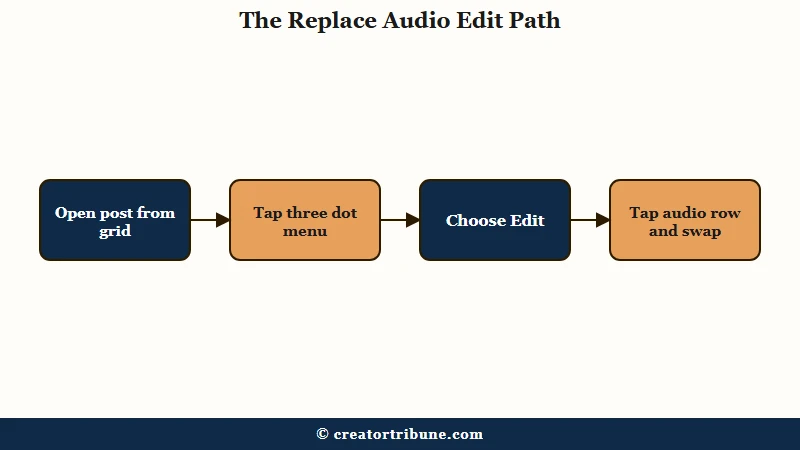
The full sequence takes under a minute:
- Go to your profile grid and open the post you want to fix.
- Tap the three dot or two line menu in the top right corner.
- Tap Edit.
- Tap the audio row under the caption, often labelled Replace Audio.
- Search the in-app library and pick your new track.
- Use the slider to set which part of the song plays.
- Tap Done, then Done again to save the post.
That menu route is the one I use every time, and it is worth knowing why. Tapping an “Audio unavailable” banner directly on the post is the other way in, and it is the route where saves fail most often. Going through Edit forces the change to stick.
Your engagement survives the edit. As Tubefilter reported at launch, “when a user edits the audio within one of their posts, that upload’s likes, views, and reach will remain intact.”
Before: you delete the post, re-upload it with the right song, and start again from zero likes, zero comments, and no saved shares.
After: you edit the audio in place in about forty seconds, and the post keeps every like, comment, share and view it earned.
If the post never had music on it, the flow is different and adding music to a post covers that side.
Can I Remove the Song From an Instagram Post Completely?
No. Instagram built a Replace Audio tool and not a Remove Audio tool, so there is no native way to strip a track and leave a live post silent. Deleting and re-uploading without music is still the only route to silence.
This is the part that annoys me most, because it is the half of the question nobody answers straight. Every step in the edit flow assumes you want a different song. The library opens, you must choose something, and there is no “none” at the bottom of the list.
That matters for anyone who inherited an account with unlicensed audio on old posts. Swapping to a cleared track is easy. Getting to actual silence means losing the post.
Two workarounds surface a change-music prompt on posts where the audio row does not appear on its own. Archiving a post and then unarchiving it can flag the audio and trigger the prompt, and archiving Instagram posts is reversible, so this costs nothing to try.
Putting money behind a post also forces the prompt, though boosting an Instagram post is an expensive way to reach an edit screen.
Neither one gets you to silence. Both only get you to a different song.
| Symptom | Likely cause | Fix |
|---|---|---|
| No audio row in the Edit menu | Music was baked into the video file before upload | Re-upload with the audio on a separate layer |
| Edit menu has no Replace Audio at all | Feature has not reached your account or region yet | Update the app, then wait for the rollout |
| Only a small music library appears | Professional or business account limited to Meta Sound Collection | Switch to a Creator account |
| New song is accepted, then vanishes | Save failed through the banner route | Re-do it through the menu, Edit, audio row |
| Song changed to a version you did not pick | Regional licence swap or an auto-applied cover | Edit the post and choose the track manually |
| Want the post silent | No native remove exists | Delete and re-upload with no audio |
Why Is There No Replace Audio Option on My Post?
The four common causes are baked-in audio, a staged rollout that has not reached you, a post published through a third-party scheduler, and a professional account restricted to a smaller library. Only the rollout one is fixed by waiting.
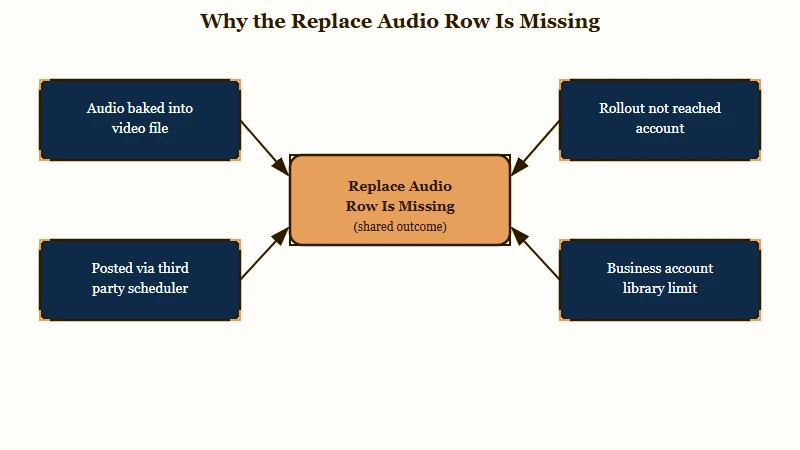
The cause I check first is where the audio came from. Music mixed into an MP4 in CapCut or Premiere before uploading is part of the video’s single flat waveform. Instagram has nothing separate to detach, so no audio row appears.
Posts published automatically through an external scheduler arrive the same way, with the tracks already merged. Those cannot use in-app swapping either.
Then there is the account type. Professional and business accounts are held to the Meta Sound Collection, a pre-cleared royalty-free library, rather than the full commercial catalogue. A track your friend uses on a personal account may never appear in your search at all.
Switching to a Creator account is the usual fix, and changing a business profile category to Entrepreneur often widens the catalogue too. If the audio row is missing entirely rather than just short on songs, reinstalling the app will not force it. That one is a rollout you wait on.
Does Replacing the Audio Reset My Likes or Reach?
Your likes, comments, shares, views and reach all stay exactly where they were. What you do not get is a second push into recommendations, because Instagram does not treat an edited post as new content.
My take is that this is a tidying tool and not a growth one, and the distinction is worth being blunt about. Jimmy O’Keefe, Instagram’s Head of Creator Product Marketing, told The Verge that creators get no algorithmic boost after replacing audio.
His framing for why the feature exists is fair enough: “Creators put a lot of thought and care into their posts, but that doesn’t mean they should be locked into every decision they made at the moment they hit publish.”
So swap a track to fix a post that still gets traffic, or to clear audio you no longer have rights to. Do not swap tracks on dead posts expecting them to move again.
Why Did Instagram Change or Delete My Song on Its Own?
Songs vanish or change on old posts when Meta’s licensing deal for that track lapses in your country. Instagram sometimes mutes the post, and sometimes quietly substitutes a different version of the same song.
The licence angle is the one I find hardest to accept as a creator, because none of it is announced. A track that played fine for two years can go silent with no notification and no email.
Regional licensing makes this worse and harder to spot. A song licensed in your country can be unavailable in another, so a post plays normally for you and silently for part of your audience, with nothing in the app flagging it.
Substitution is the stranger outcome. Rather than muting the post, Instagram sometimes swaps in a cover version of the same track, which is what happened to a Capital Cities track.
Because the post is not technically muted, no “Audio unavailable” banner appears to flag it. Going into Edit and picking a track manually is what overrides it.
Archived posts are not exempt. Copyright sweeps reach into the archive too, so private stored video loses music the same way public posts do. If the muting came with a formal notice rather than silence, that is a different process, and fixing an Instagram copyright claim covers the appeal route.
How Do I Fix a Reel Where the Audio Says Unavailable?
Reels do not use the same tool. A published Reel can only have its audio replaced after Instagram mutes it, through the “Audio unavailable” banner, and that repair generally works only once per Reel.
One shot is the detail that worries me here, and almost no guide leads with it. Pick a replacement that gets muted later and you are locked out of fixing that Reel again.
There is a second cost that catches people out. When Instagram mutes a Reel over a licensed track, it often strips the original voiceover along with the music, and the replacement flow only offers library music back. Speech recorded in that video does not come back through this route.
Android has a specific defect worth knowing. Tapping the banner lets you pick a song but the confirm button does not appear, so nothing saves. Going in through the post menu, then Edit, then the audio layer marked with a red symbol is the route that saves.
Stories get nothing at all. There is no post-publish audio editing for a Story, so a Story with the wrong music has to be deleted and posted again.
| Surface | Can you swap the song | How many times | Can you remove it |
|---|---|---|---|
| Feed post | Yes, any time via Edit | No stated limit | No, delete and re-upload |
| Carousel | Yes, any time via Edit | No stated limit | No, delete and re-upload |
| Reel | Only after Instagram mutes it | Usually once | No |
| Story | No | Not applicable | No, delete and repost |
Frequently Asked Questions
Can I remove music from an Instagram post without adding a new song?
No. Instagram’s tool replaces audio and cannot delete it, so there is no way to leave a published post silent. Deleting the post and re-uploading it without music is the only route to a silent version.
Why can’t I change my music on Instagram?
The four usual causes are audio baked into the video before upload, a staged rollout that has not reached your account, publishing through a third-party scheduler, and a professional account limited to the Meta Sound Collection.
Does the Replace Audio feature work on Reels and Stories?
Reels only after Instagram mutes the track, through the “Audio unavailable” banner, and usually once. Stories get no post-publish audio editing at all and must be deleted and recreated.
Will changing the song delete my likes or comments?
No. Likes, comments, shares, views and reach all carry over. The edit does not push the post back into recommendations, so treat it as maintenance rather than a way to revive a post.
How many times can I change the audio on a feed post?
Instagram states no limit for feed posts and carousels, so you can keep updating a track as trends move. Reels are the exception, where the muted-audio repair generally works only once.
Why did my song change to a different version on its own?
Regional licensing. When Meta’s deal for a track lapses in a country, Instagram either mutes the post or substitutes another version, sometimes a cover. Editing the post and choosing manually overrides it.
Quick Takeaways
- Instagram added Replace Audio on 21 July 2026 for published feed posts and carousels, and it keeps every like, comment and view.
- There is no Remove Audio button anywhere, so a post you want silent still has to be deleted and re-uploaded.
- Go in through the post menu, then Edit, then the audio row, because saves fail more often through the “Audio unavailable” banner.
- Reels only get one repair after Instagram mutes them, and that repair can wipe your original voiceover.
- Audio baked into the video file before upload can never be swapped, so keep music on a separate layer if you want the option later.