Did Instagram Remove Photo Comments? How to Use Them
Did Instagram Remove Photo Comments? How to Use Them
How to use Instagram photo comments, why yours show blank, and how to control unwanted image comments without killing your section.
- 1Did Instagram Remove Photo Comments?
- 2Why No Official Instagram Page Explains Photo Comments
- How Long Has the Photo Comments Rollout Been Running?
- 3How to Post Instagram Photo Comments
- Can You Edit a Photo Comment After Posting?
- 4Why You Can’t Post or See Image Comments Yet
- 5How to Control Unwanted Image Comments
- 6Are Teens Blocked and What About Privacy
- 7What Image Comments Mean for Your Strategy
- 8Frequently Asked Questions
- How do I comment a photo on Instagram?
- Why can’t I post images in comments?
- How do I turn on photo comments on Instagram?
- Why do Instagram image comments show as blank or photo unavailable?
- Is there an official Instagram page about photo comments?
- Can you edit a photo comment on Instagram?
- Can I turn off image comments on my post?
- Does Instagram photo commenting work on desktop?
- Can I report or delete an image comment?
- Are teen accounts blocked from image comments?
- 9Quick Takeaways
TL;DR: Instagram photo comments let people reply with a camera-roll image or GIF, posted by tapping the blue photo icon in any comment thread. Blank or missing image comments are a symptom of the staggered rollout and your account is healthy, and Instagram has never published a Help Center page for the feature, so no guide on this subject is quoting an official rule. The “Allow Photo Comments” switch in Settings under Comments turns image comments off account-wide where it has reached you, and where it has not, control means Hidden Words, Restrict, and manual moderation.
Instagram photo comments are the platform’s newest way to reply, and they arrived with almost no instructions and a pile of confusion. People are asking how to post one, why theirs show up blank, and how to stop strangers from dropping unwanted images under their posts.
The most useful update for creators is recent. Instagram now has a dedicated “Allow Photo Comments” switch in Settings under Comments, though it is still reaching accounts in waves. Where it has not landed yet, you manage image comments with the same tools you already use for text.
This guide covers the exact steps to post a photo or GIF comment, why the feature is missing or broken for so many people, and the real playbook for keeping unwanted images out without shutting down engagement entirely. You will also learn the privacy angle most guides skip.

Did Instagram Remove Photo Comments?
No. As of August 2026 Instagram has not removed photo comments; the feature is on an uneven rollout that toggles on and off during testing, so it can disappear from your account for a while and then come back.
In 2026 Instagram added control instead of taking the feature away. It shipped an “Allow Photo Comments” switch in the Comments menu inside Settings, so an account showing no image-comment button may have the feature paused in the rollout or switched off there rather than gone for good. If the button vanished, update the app and check that Comments menu before assuming it is gone.
Why No Official Instagram Page Explains Photo Comments
Instagram has never published a Help Center page for photo comments, and that is the reason the answers you find online contradict each other.
Search Instagram’s own Help Center for “photo comments” and what comes back is all about ordinary text comments: how to like one, how to reply, how to report or delete one, how to hide comments, how to turn commenting off for a post, how to block someone from commenting. A page about the feature would rank first for its own name, and none appears.
Meta’s own support assistant prints a disambiguation note above those results, offering that “photo comments” might mean how to like or reply to a comment, or how visibility works for private profiles. Its help system does not recognise the phrase as the name of a feature.
There is no official page to check, so every guide on this subject, this one included, is describing behavior somebody watched rather than a rule Instagram wrote down.
Read any site quoting an “official” photo-comment policy with that in mind, and expect what you see in the app to keep shifting until Instagram documents it.
How Long Has the Photo Comments Rollout Been Running?
Longer than the word rollout suggests. App researcher Alessandro Paluzzi found photos and videos in comments inside pre-release Instagram builds, and coverage of that work dates the sighting to 2023; he posted about the feature again on July 20, 2025.
Through August 2026 it is still going out in phases, limited by account and by region. A release measured in years is not one to plan your content calendar around finishing this quarter.
How to Post Instagram Photo Comments
To post an Instagram photo comment, open the comment thread, tap the blue photo icon, then take a new photo or tap the blue plus icon to upload one from your camera roll.
GIFs work the same way through a separate GIF button, and both options are mobile-only right now.
The steps are quick once you know where the icons live.
- Open the post and tap into the comment field or tap a comment to reply.
- Tap the blue photo icon next to the text field.
- Take a new photo, or tap the blue plus icon in the bottom left to pull an image from your camera roll.
- To send a GIF instead, tap the GIF button on the right of the comment field, search a keyword, and tap the GIF to post it.
One limit catches people off guard. Photo and GIF comments only work in the mobile app, so if you manage Instagram from a laptop, you can read image comments but you cannot post them. The desktop comment box still handles text and emojis only.
Can You Edit a Photo Comment After Posting?
You can edit the words. The picture is locked. Instagram switched comment editing on for everyone on April 9, 2026, with a 15-minute window after posting and unlimited edits inside it.
Edited comments carry an edited label and nobody sees the original wording. Where a comment holds both text and an image, only the text is editable, so a wrong photo still has to be deleted and posted again.
Why You Can’t Post or See Image Comments Yet
If you cannot post image comments, or you see blank squares and “photo unavailable” errors, you are looking at the staggered rollout plus an app-version caching bug, and there is nothing wrong with your account.
Instagram is releasing this feature in waves, so access is wildly uneven from one account to the next.
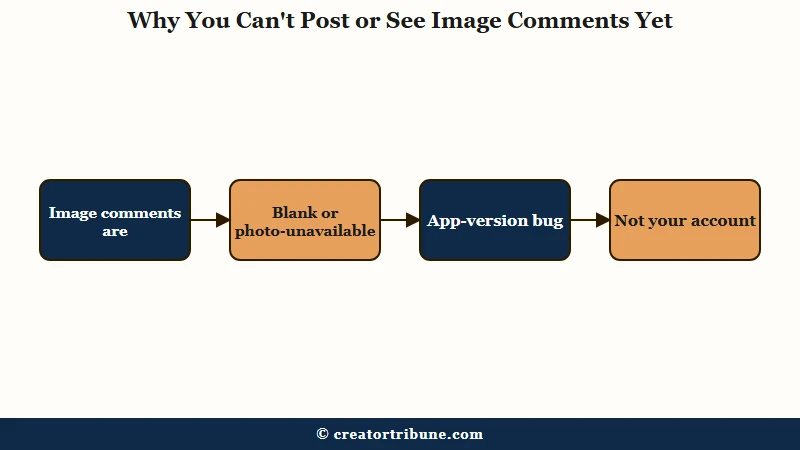
The rollout is the messiest part of the whole feature. Some people have had photo comments for months, some can see them but cannot post their own, and some watched the option appear one evening and vanish by morning.
| What you are seeing | Likely cause | What to do |
|---|---|---|
| No photo icon in comments | Feature not rolled out to you yet | Update the app and wait; nothing to fix |
| You can view photos but not post | Asymmetric rollout | Wait for posting access; it lands separately |
| Image comments not showing, blank, or “photo unavailable” | App-version caching plus mixed rollout | Update the app, clear cache, or check on another device |
| Worked yesterday, gone today | Rollout toggling during testing | Normal during staggered release; it returns |
That blank-comment bug is the one I would not waste energy on. When an image comment renders as empty space, it usually means the commenter is on a newer app build than the viewer, so the image fails to load on the older version. It resolves as updates catch up, the same way other Instagram comment loading issues tend to clear on their own.
How to Control Unwanted Image Comments
Instagram now offers an “Allow Photo Comments” toggle in Settings under Comments that disables image comments across all your posts and Reels, and if it has not rolled out to you, control them with Hidden Words, Restrict, manual deletion, or turning off comments entirely on a given post.
That switch is still rolling out, so plan for both the accounts that have it and the ones that do not.
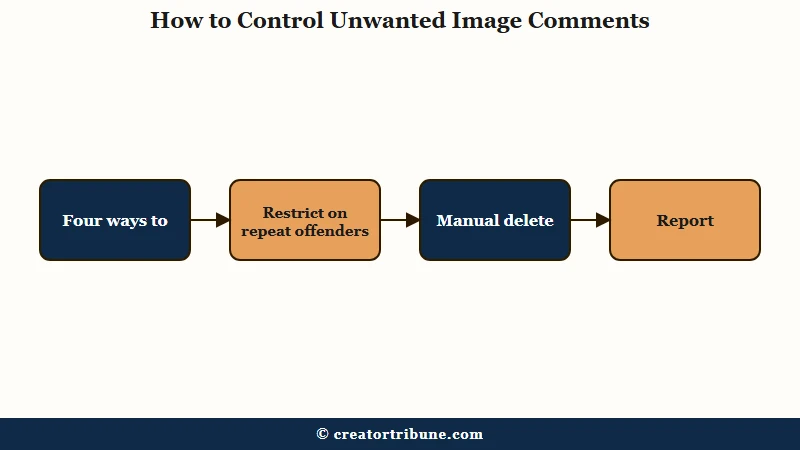
The exploitation problem is real during the rollout, with comment sections catching unwanted or graphic images faster than the automatic filters remove them. Until that stabilizes, I would lean on the tools you do control.
- Open Settings, tap Comments, and turn off Allow Photo Comments to block image replies across every post and Reel; if you do not see it, update the app to the latest version.
- Set up Hidden Words at Settings, then Privacy, then Hidden Words to auto-hide comments containing words, phrases, or emojis you choose.
- Use Restrict on repeat offenders so their comments are only visible to them, not your audience.
- Tap and hold any unwanted image comment until the delete icon appears, then delete or report it.
- For a high-risk post, turn off comments entirely from the post’s menu, accepting the engagement tradeoff.
Here is how those options stack up so you can pick the right level of control for each post.
| Control | Stops image comments | Engagement cost |
|---|---|---|
| Allow Photo Comments toggle (Settings, Comments) | Yes, account-wide where it has rolled out | None, text comments stay on |
| Hidden Words filter | Only the words typed alongside the image | Very low |
| Restrict a user | Yes, for that person only | Low |
| Manual delete and report | Yes, after the fact | Low but slow |
| Turn off comments | Yes, completely | High |
Do not assume Hidden Words covers the picture itself. Instagram’s guidance on hiding unwanted comments describes the list as words, phrases, numbers and emojis, and says nothing about reading text printed inside an image.
A meme with a slur typed across it can therefore sail past a blocklist that would have caught the same slur typed into the comment box. Moderate on the assumption that the filter reads the caption and not the image.
Before: Blank squares and a few unwanted images appear, you panic, and you turn off comments on every post, killing your reach signal.
After: You add a Hidden Words list, Restrict the worst accounts, delete the rare bad image, and keep comments open everywhere else.
Are Teens Blocked and What About Privacy
Teens placed in Instagram’s strict Limited Content setting cannot see or post any comments, which blocks image comments entirely, and every image comment you allow can feed Meta’s AI training.
Both points matter more to creators than the how-to steps.
Meta’s June 2026 teen-account update tightened defaults so that younger users in the strictest tier are cut off from commenting altogether. If your audience skews young, expect a quieter comment section, including fewer image replies, and do not mistake that drop for an Instagram shadowban.
The privacy piece is the part I would genuinely warn my followers about. Photos posted into comments become public interactions that Meta can use to train its generative AI, and the objection path is buried in Settings under the Privacy Center and the AI at Meta section.
That objection works cleanly in the EU but is frequently denied for US users, who often have to prove the AI already reproduced their information. Because a platform can change comment rules and data terms overnight, this is the strongest case I know for moving your most engaged followers somewhere you control, which is exactly what the free Creator Money Page is built for.
What Image Comments Mean for Your Strategy
Design any “reply with a photo” prompt so that a text answer still counts, because a large share of your audience cannot post an image yet and the rollout has been running for years with no end date.
Plan around availability, not the hype.
Instagram is late to this. LinkedIn added image comments back in 2017 and Reddit rolled them out to select communities in 2022, per Social Media Today’s coverage, so the engagement playbook is already proven elsewhere.
The “reply with proof” prompt is the one worth borrowing, and it does not need to wait for the rollout. Ask for a before-and-after, a reaction meme, or a result screenshot, and let the followers who have no photo button answer in words.
With half of U.S. adults using Instagram according to Pew Research Center, even a slow rollout eventually reaches a large audience, so the format is worth preparing for now, and how the algorithm surfaces engagement rewards the deeper threads it creates.
Frequently Asked Questions
How do I comment a photo on Instagram?
Open the comment thread, tap the blue photo icon, then take a new photo or tap the blue plus icon to upload from your camera roll. It works only in the mobile app, not on desktop web.
Why can’t I post images in comments?
The feature is on a staggered rollout, so many accounts do not have posting access yet. Some users can view photo comments but not post them, and some see the option appear and disappear during testing.
How do I turn on photo comments on Instagram?
First update the app, then open Settings, tap Comments, and make sure Allow Photo Comments is on. If the feature itself has not reached your account yet, no setting will unlock it early, because access still arrives in waves.
Why do Instagram image comments show as blank or photo unavailable?
That is a rollout and app-version caching bug. Your account is fine. When a commenter is on a newer app build than the viewer, the image fails to load, so update the app or check on another device.
Is there an official Instagram page about photo comments?
No. Searching Instagram’s Help Center for “photo comments” returns pages about text comments only, and a page named for the feature would rank first for its own name. Meta’s support assistant does not treat the phrase as a feature name either, so nobody writing about this is quoting a documented rule.
Can you edit a photo comment on Instagram?
You can edit the text for 15 minutes after posting, and the image cannot be changed. Comment editing arrived on April 9, 2026, edited comments show an edited label, and a wrong picture has to be deleted and posted again.
Can I turn off image comments on my post?
Yes. Open Settings, tap Comments, and turn off Allow Photo Comments to block image comments across all your posts and Reels, then re-enable it the same way. If that toggle has not rolled out to you, limit them with Hidden Words, Restrict, deletion, or turning off comments on a post.
Does Instagram photo commenting work on desktop?
No. You can read image and GIF comments on the desktop web version, but posting them is limited to the mobile app, which handles text and emojis only on desktop.
Can I report or delete an image comment?
Yes. Tap and hold the image comment until the delete icon appears, then delete it or report it for review. You can remove your own accidental image comments the same way.
Are teen accounts blocked from image comments?
Often yes. Teens in Meta’s strict Limited Content setting cannot see or post comments at all, which removes image comments along with text ones.
Quick Takeaways
- Post a photo comment by tapping the blue photo icon, then uploading from your camera roll; it is mobile-only.
- Comments not showing, blank, or “photo unavailable” are a staggered-rollout caching bug with nothing to fix on your side.
- Instagram now has an Allow Photo Comments switch in Settings, Comments; where it has not rolled out, use Hidden Words, Restrict, and manual deletion.
- Hidden Words matches words, phrases, numbers and emojis, so it does not filter text printed inside an image.
- Comment editing has a 15-minute window and covers the text only, so a wrong image has to be deleted and reposted.
- Teens in Limited Content cannot comment at all, and every image comment can feed Meta’s AI training.
- Do not gate a campaign on photo replies; a large share of followers still cannot post one, so let a text answer count.
- Instagram publishes no Help Center page on photo comments, so treat any “official” policy claim as guesswork.