How to Repost on TikTok and Delete or Turn Off Reposts
How to Repost on TikTok and Delete or Turn Off Reposts
Reposting on TikTok is easy until the button vanishes or you tap one by mistake. Here is how to repost, undo it, and control who sees your reposts.
- 1How to Repost on TikTok in a Few Taps
- 2Why Is the Repost Button Missing on TikTok
- 3How Do You Delete or Undo a Repost on TikTok
- 4Do Your Reposts Show on Your Profile
- 5Who Can See Your Reposts and Does the Creator Know
- 6How to Turn Off Reposts on TikTok
- Turn Off a Repost You Already Made
- Hide Your Reposts From Other People
- Stop Other People From Reposting Your Videos
- 7Repost vs Stitch vs Duet vs Share vs Save
- 8Should You Repost to Your Story Instead
- 9How to Clean Up Reposts and Stop Renting Your Reach
- 10Quick Takeaways
TL;DR: To repost on TikTok, tap the Share arrow on a video and then Repost, or press and hold the video and tap Repost. To delete one, open it from your Reposts tab, tap Share, then Delete repost, and any replies people left on it are deleted with it. Creators often see a “reposted” alert, going by their own reports, but TikTok’s help never promises the original creator one.
Learning how to repost on TikTok takes about two taps, right up until the Repost button is not there, or you tap it by accident and freeze. Both of those happen constantly, and most guides skip the part that trips people up.
Whether you even see the Repost button depends on where you opened the video, a detail most write-ups skip. Whether your reposts land on your profile changed quietly in a recent update.
Below is the full repost flow, how to delete a repost the second you regret it, why the button disappears, how to turn reposts off, and who can really see what you share.
How to Repost on TikTok in a Few Taps
To repost on TikTok, tap the Share arrow on a video and then tap Repost, or press and hold the video and tap Repost. The video goes to your followers’ For You feeds labeled with your name and profile photo, and TikTok files it under the Reposts tab on your profile.
It is TikTok’s version of a retweet, built for sharing other people’s videos rather than your own.
Here is the sequence I use.
- Open TikTok and find a video on your For You feed.
- Tap the Share arrow on the right side, or press and hold the video.
- Tap the yellow Repost button.
That is the whole flow, with no confirm screen: TikTok’s Repost help page says the video is reposted as soon as you tap. It shows up in your followers’ feeds labeled with your profile photo and nickname, and it lands in a dedicated Reposts tab on your profile rather than next to your own uploads. If a friend already reposted the video, you can also tap their profile photo at the bottom of it and tap Repost.
A repost is also a pointer to the original, not a copy. If the creator deletes their video later, your repost vanishes with it, and there is no way to get it back.
Your own uploads still carry your growth, since a repost only relays someone else’s work. If you run several accounts, SMTasker keeps a posting schedule across TikTok, Instagram and Threads through real Android phones you connect yourself, with a trial before you pay.
Why Is the Repost Button Missing on TikTok
A missing Repost button usually traces back to where you opened the video, since the same clip can show the option from search and hide it on a profile grid. When the button is gone on every video, the feature is off for your account, which TikTok support describes as unavailable to some users.
TikTok runs heavy interface tests, so the same clip can show the button in one spot and hide it in another.
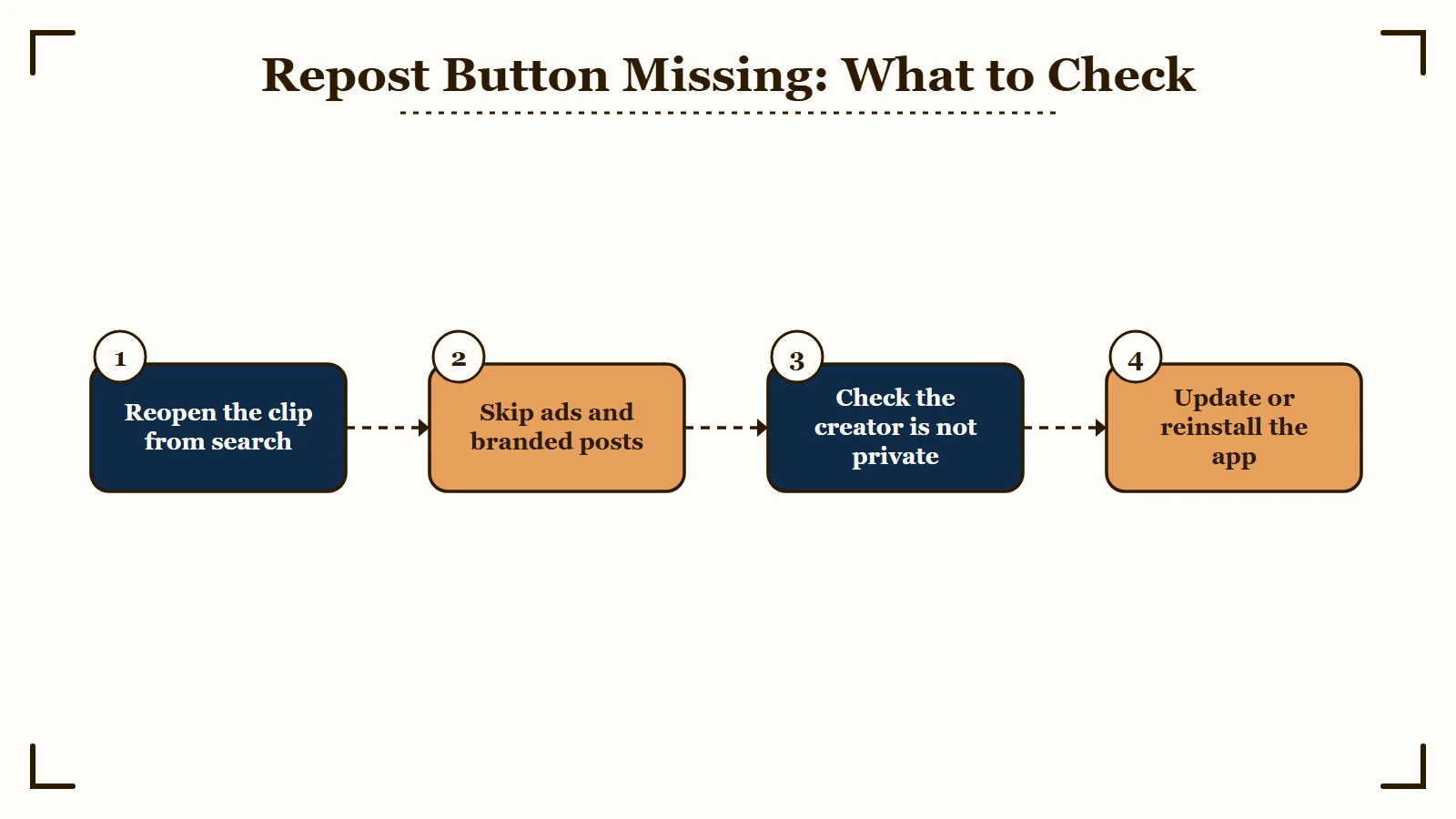
People reinstall the app and clear the cache over a button that reappears the moment they open the same clip from search. Where you tapped the video decides whether the option is there.
The button is designed to appear on videos you find through your For You feed. Open that same video from a creator’s profile grid, your Following tab, or the Discover page, and it often will not show up at all. The workaround is to reach the video from a different entry point.
Before: You are on the creator’s profile, you tap the video, and there is no Repost button on the Share sheet.
After: You search the creator’s name or the video’s hashtag, open the same clip from the results, and the yellow Repost button is right there.
When a missing button is not about the entry point, it is almost always one of the reasons in the table below. I would run through these before assuming anything is wrong with your account.
| Symptom | Likely cause | Fix |
|---|---|---|
| Button missing on one specific video | You opened it from a profile, Following, or Discover instead of For You | Reopen the clip from search, a hashtag page, or a DM and it usually appears |
| No Repost option at all on a video | It is a branded post, an ad, or another restricted format that TikTok excludes from reposting | Nothing to change on your end, that video cannot be reposted |
| Button gone after a recent switch | Account type. Troubleshooting guides widely report Business accounts losing the button, though TikTok documents no such limit | Switch back to a Personal or Creator account in settings |
| Captions blank right after reinstalling | The app cache has not finished syncing | Wait up to 24 hours or clear the cache, it clears on its own |
| Cannot repost one particular creator | Their account is set to private | Private videos cannot be reposted, even by approved followers |
| Button gone on every video | The feature is off for your account. One user reported in March 2026 that TikTok support’s answer is always “this feature is currently unavailable to some users while we’re working on improving it” | Report it in Settings and privacy, then Help Center, then Chat with us. A reinstall brought the button back for one user for about five minutes |
| Repost undoes itself seconds later | Not explained by TikTok, and reported on r/TikTok in July and October 2026 | Check your Reposts tab, update the app, and report it the same way |
If you want your own videos to travel further across platforms instead of relying on one app’s reach, my guide to reposting on Instagram covers the same mechanics on the other side.
How Do You Delete or Undo a Repost on TikTok
To delete a repost on TikTok, open the video, tap the Share arrow, then tap Delete repost. You can also press and hold the video and tap Remove repost, or tap your profile photo at the bottom of the video and tap Remove.
Those are the three routes TikTok’s help lists, and the button’s name changes with the route, which is why guides disagree on what to tap. Removing a repost also deletes every reply people left on it, so screenshot any reply you want to keep first.
- Go to your profile and tap the Reposts tab, marked by two arrows forming a circle.
- Open the video you reposted.
- Tap the Share arrow.
- Tap Delete repost. The video drops out of your Reposts tab, and any replies to it go with it.
A few things I would keep in mind here. TikTok’s help documents removal in the app only, so do it from your phone rather than a browser. TikTok also documents no alert for taking a repost back, and it never says whether an earlier repost alert disappears from the creator’s inbox when you do.
What TikTok does not give you is a bulk option, so a long history is a one-by-one job. One user with 2,100 reposts wrote in July 2026 that they had “tried a lot” and still cleared only “like 100 per day”. Another said the last few reposts they removed came back about a week later, so check the tab again after a big cleanup.
Do Your Reposts Show on Your Profile
Reposts traditionally live in a separate Reposts tab and do not sit on your main profile grid, but a newer setting now lets them appear on your grid if you turn it on.
Older advice on this point is out of date.
For years the standard line was that reposts never touch your profile, only your followers’ feeds. That held up until TikTok added a control that lets reposts surface on your main grid, so the answer now depends on a toggle rather than a hard rule.
My own preference is to keep reposts in the dedicated tab so my grid stays focused on original work. If you would rather hide reposts from casual profile visitors, leave the grid setting off and they stay tucked in the Reposts tab.
There is a related blind spot. TikTok gives creators no metric for how many times their own video has been reposted, so while you can see likes, comments, and shares, native repost counts stay invisible. That leaves the real reach of the feature a bit of a black box.
Who Can See Your Reposts and Does the Creator Know
Anyone who can open your profile can see your reposts: everyone on a public account, and only your followers on a private one. The original creator often gets a “reposted” alert, going by creators’ own reports, but TikTok’s Repost help never says the creator is told.
Visibility tracks your account privacy, and the controls TikTok hands you are thinner than most guides suggest.
On a public account, TikTok’s help says your reposts, any text you add to them, and the replies people leave on them are all visible on your profile. Anyone who can see a repost can reply to it, and your comment privacy settings do not apply to those replies. On a private account, only your followers see your reposts, on your profile and in their For You feeds.
Public reposts also travel beyond your followers. TikTok’s Research Tools page lists liked, pinned and reposted videos among the public-account data that qualifying researchers from non-profit organizations can apply for access to.
TikTok’s Help Center does not say whether the original creator is told. I checked all 216 English articles listed in its sitemap and menu on October 10, 2026, and only the Repost page covers reposts in any detail. Its Notifications page lists inbox filters for likes and favorites, comments, Add Yours, and mentions and tags, with nothing for reposts.
Creators describe the alert anyway. One r/TikTok user wrote in January 2026 about “notifications that people liking and reposting my video”. In April, another said their “notifs say that 3 people has reposted my video”.
A third asked in May how to stop alerts when someone reposts their videos. So assume the creator can see that you reposted, and do not count on an undo erasing an alert they already got.
This cuts both ways for your own content. TikTok’s published privacy controls cover comments, Duet, Stitch, downloads, original sounds and post visibility, with no entry for reposting, so nothing there blocks other people from resharing you.
I cover the broader version of protecting your work in my walkthrough on cross-posting without watermarks.
How to Turn Off Reposts on TikTok
TikTok has no single setting that turns reposting off. The two levers that reliably work are removing reposts one at a time from your Reposts tab, and switching your account to private.
Searches for this phrase send people in three directions, because “turn off repost” describes three separate problems with three different answers. Working out which one you have saves a long hunt through a menu that may not contain what you are looking for.
Turn Off a Repost You Already Made
This is the lever TikTok documents. Open your profile, tap the Reposts tab, open the video, tap the Share arrow, and tap Delete repost. It clears from your Reposts tab right away, and TikTok documents no alert to the creator about the removal.
There is no bulk option, so a long repost history is a one-by-one job. Treat third-party “mass unrepost” tools with suspicion, since they need your TikTok login to do anything.
Hide Your Reposts From Other People
Two different things get confused here, which is why the guides seem to disagree. Where reposts sit on your profile is adjustable, and it already defaults to hidden: they collect in the Reposts tab instead of your main grid unless you switch the newer grid setting on.
What you cannot do is hide the Reposts tab itself. Anyone who can open your profile can tap through and read your repost history, and no toggle in Settings and privacy changes that. Menu labels also move between app versions, so read what is on your own screen before hunting for an option someone described in 2024.
Stop Other People From Reposting Your Videos
Reposting is not one of the controls TikTok lists. Its privacy settings index covers comments, Duet, Stitch, video downloads, original sounds and post visibility, and there is no repost entry beside them.
Account privacy is what works instead. Videos on a private account cannot be reposted at all, even by approved followers, which puts reposting alongside Duets, Stitches and downloads as something a private account shuts down. That is a heavy trade for your reach, so it only makes sense when one video matters more than growth.
Repost vs Stitch vs Duet vs Share vs Save
Repost relays a whole video to your followers untouched, while Stitch and Duet remix it into your own new post, and Share and Save keep it private to you.
Picking the wrong one is the most common mix-up I see from newer creators.
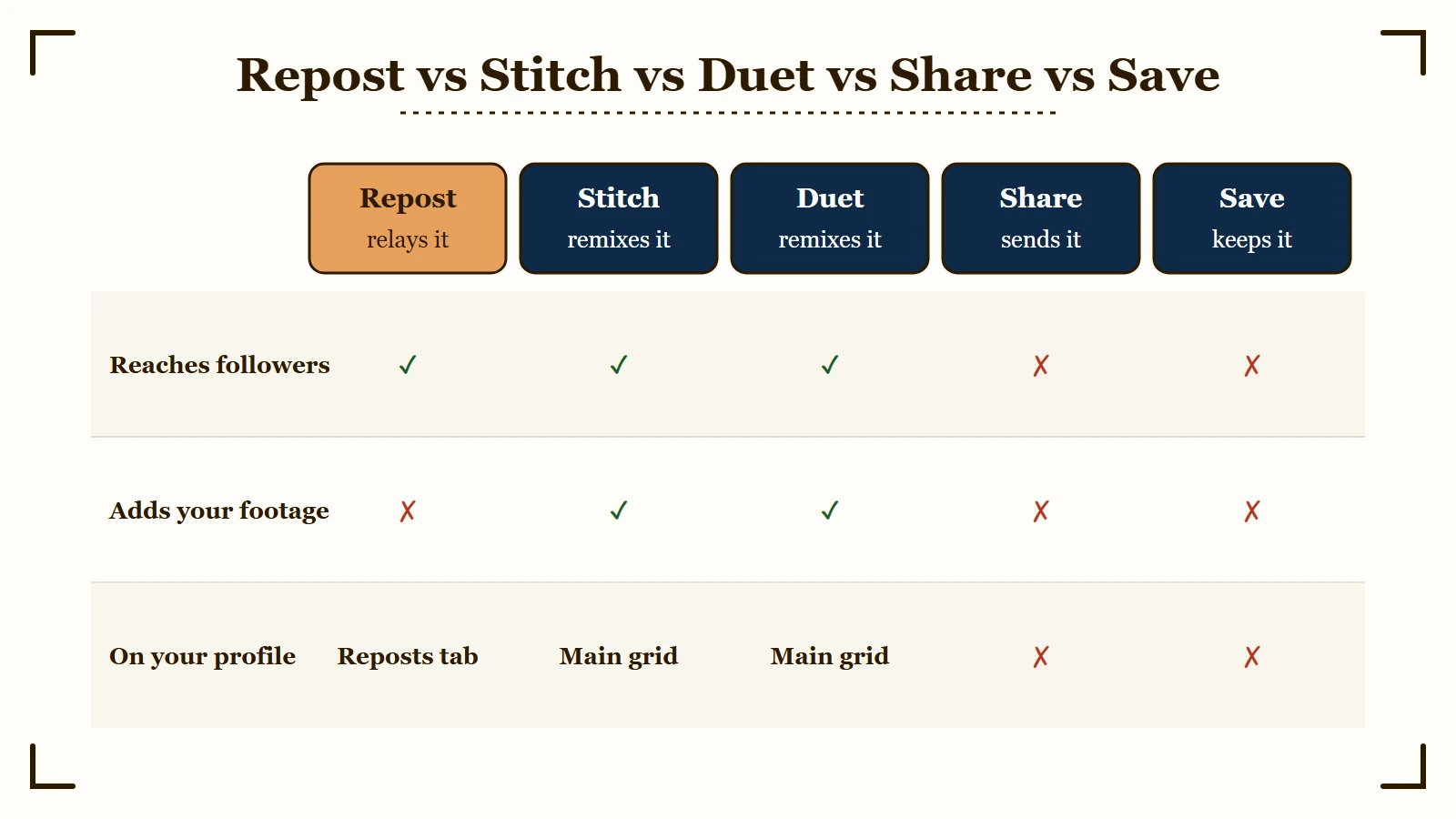
The short version: reach for Repost when you want to amplify someone else’s video as-is. Reach for Stitch or Duet when you want to add your own take and grow your own account from it, since those collaborative formats are some of the easiest growth levers on the app. Share and Save are for sending or stashing, not publishing.
| Action | What it does | Who sees it | Creator notified |
|---|---|---|---|
| Repost | Relays the original video untouched to your followers | Your followers, plus your Reposts tab | Often, by creator reports; TikTok’s help is silent |
| Stitch | Adds up to 5 seconds of a video before your own footage | Posts as your own video to everyone | Yes, credited |
| Duet | Plays your new video beside the original at the same time | Posts as your own video to everyone | Yes, credited |
| Share | Sends the video by direct message or to another app | Only the person you send it to | No |
| Save | Downloads the video to your camera roll | Only you, on your device | No |
If your goal is to recycle long videos into short clips rather than just reshare them, my system for turning one upload into shorts is a better fit than reposting.
Should You Repost to Your Story Instead
Reposting to your Story shares a video to your followers for 24 hours, which is the better move when you want a temporary boost instead of a permanent repost.
It is the low-commitment option.
To do it, open the video, tap Share, and choose Add to Your Story. You can drop on text, stickers, and tags before posting, and the clip expires the next day like any other Story.
I lean on this when I want to react to something without it living on my Reposts tab forever. It is also handy for testing whether your audience cares about a topic before you commit to a full repost or your own video on it. For sourcing the music side of your own posts, my guide to adding your own TikTok sound pairs well with this.
How to Clean Up Reposts and Stop Renting Your Reach
The cleanest way to manage reposts is to keep the habit tidy from the start, because there is no native bulk-delete and the algorithm can quietly de-prioritize reposts as derivative content.
That reach depends on a feed you do not own.
There is real tension in the data here. Some sources frame reposts as a visibility boost that introduces content to new networks, while others warn that when TikTok leans toward original content, reposts get pushed down in feeds and search. Both can be true at different times, which is exactly why I would not build a strategy on reposting alone.
If your repost history is already a mess, plan for a manual cleanup since TikTok has no native bulk tool, and be cautious with third-party “mass delete” extensions that ask for your login. The safer play is to repost less and more deliberately so cleanup never becomes a project.
The bigger lesson is about ownership. Whether a repost lands depends on a feed you do not own, so the creators who stay stable are the ones funneling viewers somewhere they control.
My free Creator Money Page template is built for exactly that, turning borrowed reach into an audience you keep. If reposts are dropping because of a wider visibility issue, my breakdown of low TikTok views digs into the algorithm side.
About 37% of U.S. adults use TikTok, including 63% of those aged 18 to 29, according to Pew Research Center, which surveyed 5,022 adults from February 5 to June 18, 2025. The sharing mechanics you are wrestling with reach a large share of that audience, so getting them right is worth five minutes.
Quick Takeaways
- Open a video from your For You feed first, since the Repost button often depends on where you opened the clip.
- Delete a repost with Share, then Delete repost, and remember that every reply on it is deleted too.
- There is no master switch for reposts. TikTok’s privacy controls do not list reposting, so removing them individually and account privacy are the working levers.
- Reposts stay off your profile grid by default, but a newer toggle can put them there if you want.
- Creators often see a “reposted” alert even though TikTok’s help never mentions one, so assume the creator can tell.
- A repost is a pointer to the original, so if the creator deletes their video, your repost disappears too.
- Reach you borrow through reposts depends on a feed you do not own, so funnel viewers to a home base you control.