How to Repost on Instagram and Fix a Missing Button
How to Repost on Instagram and Fix a Missing Button
How to repost on Instagram with the native button, plus the 10-repost limit that quietly tanks your reach. Step-by-step for creators.
- 1How to Repost on Instagram With the Native Button
- 2How Do You Undo a Repost on Instagram?
- How to Delete Several Reposts at Once
- Will They Know If You Repost and Then Undo It?
- 3How to Reshare a Post to Your Instagram Story
- 4Can Reposting Hurt Your Reach on Instagram?
- 5Which Posts You Can and Cannot Repost
- 6Why You Cannot Repost on Instagram
- Does the Repost Button Work on Instagram Web?
- Where Did My Reposts Go?
- Do You Need a Professional or Creator Account to Repost?
- 7Should You Use a Third-Party Repost App
- 8Quick Takeaways
TL;DR: To repost on Instagram, tap the repost icon (two arrows in a loop) on any public Reel or feed post, and it publishes straight to a Reposts tab on your profile with credit to the creator. To undo a repost, tap the same icon again, or delete several at once from Your activity. Re-uploading is different: since April 30, 2026, Instagram stops recommending accounts that mostly re-upload other people’s work to anyone who does not already follow them, and it points those accounts to the Repost button instead.
Learning how to repost on Instagram used to mean screenshots and clunky third-party apps. Since Instagram launched its native Repost button on August 6, 2025, it is one tap. The harder question is how much of other people’s work to share, because since April 2026 Instagram stops recommending accounts that mostly re-upload it.
Most guides stop at “tap the loop icon.” They skip how to take a repost back, and the difference between reposting and re-uploading, which decides whether you keep your reach with people who do not already follow you.
So this covers every way to repost on Instagram, the native button and the Story reshare included, how to undo a repost, and the reach rules that decide whether a repost helps you or buries you. I have written it for creators who care about distribution as much as the mechanics.
What is the Repost button: Instagram’s built-in tool that reshares a public Reel or feed post to your followers’ feeds and a dedicated Reposts tab on your profile, with automatic credit to the original creator.
How to Repost on Instagram With the Native Button
To repost on Instagram, open any public Reel or feed post and tap the repost icon, two arrows in a loop, between the comment and share buttons. The repost goes live on that tap, and you can add a note afterwards.
It appears in your followers’ feeds and a separate Reposts tab on your profile, not your main grid.
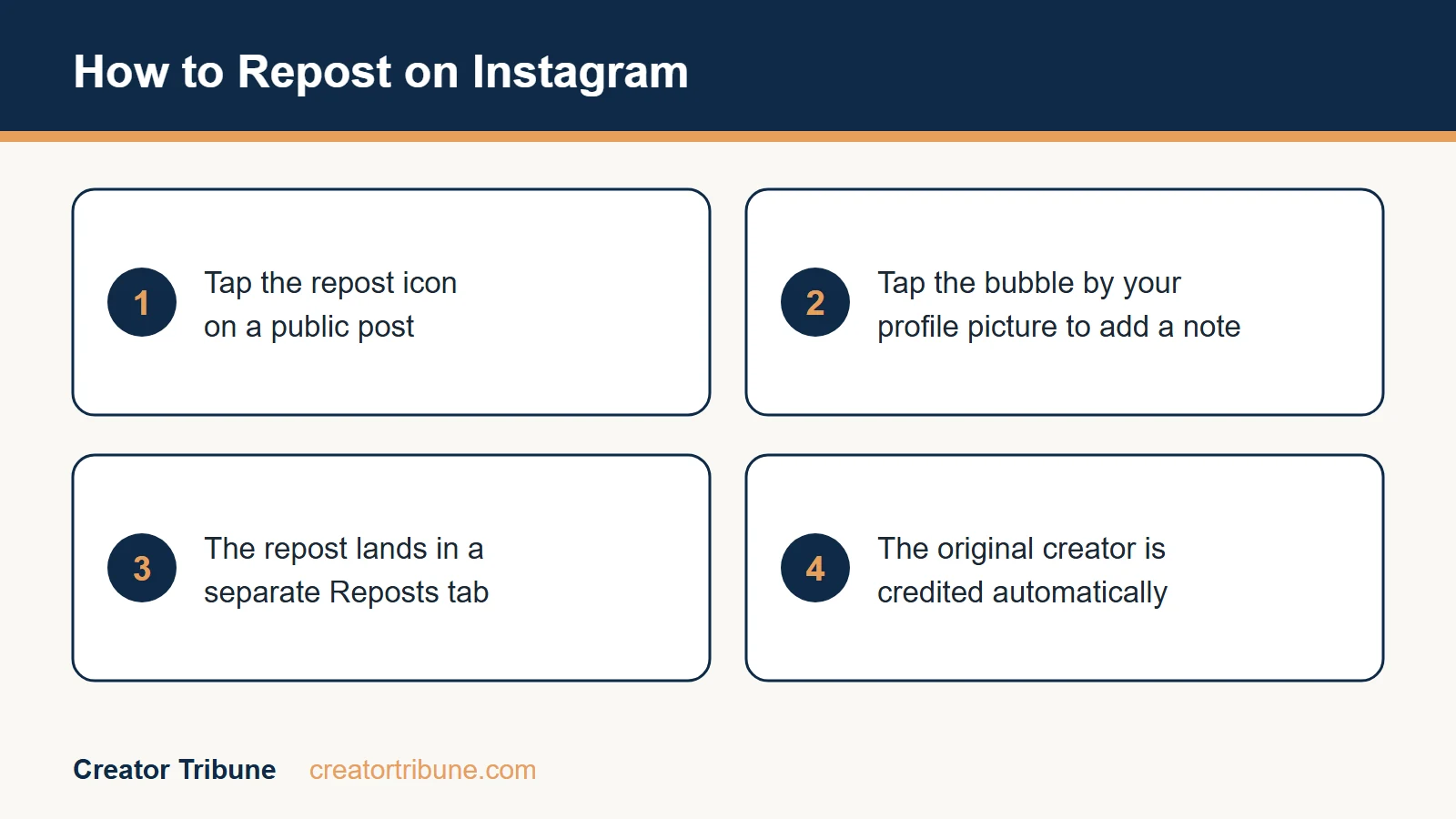
The loop icon sits right next to the comment bubble and the paper-plane. Here is the sequence I would follow:
- Open the public Reel or feed post you want to share.
- Tap the repost icon (two arrows in a loop) below the post. There is no confirmation screen, so this tap publishes it.
- To add a note, tap the thought bubble beside your profile picture at the bottom left of the post.
- Type your note and tap Save.
The original creator gets automatic credit, and you cannot repost a repost: Instagram’s help center says only content posted by the original creator can be reposted, so open the original first. Reposts live in their own tab on your profile and never touch your main grid.
I would keep the note to one short line and write it as a hook that tells followers why the post deserves their time, since a sharp line of context is what earns the watch time Instagram rewards. If your reach is already soft, check your own content first, because a drop in Reels reach usually starts there.
How Do You Undo a Repost on Instagram?
To undo a repost on Instagram, open the reel or post you reposted and tap the repost icon again. The repost comes off your Reposts tab, and the original post stays exactly as it was.
That is Instagram’s own instruction: “You can remove a repost by tapping Repost on the reel or post you reposted.” The New York Times gave readers the same fix in December 2025, and a Meta spokesperson told the paper that, anecdotally, accidental reposts were “quite low” compared with how many people use the feature.
Accidents happen anyway, because the button sits between comment and share and one tap publishes. The author of a September 26, 2026 r/Instagram post titled “THERE NEEDS TO BE A CONFIRMATION FOR REPOSTS” found an accidental repost months after making it, so a glance at your Reposts tab now and then is worth the habit.
How to Delete Several Reposts at Once
Instagram has no single “delete all” button, but it does let you clear reposts in bulk. Tap your profile picture, then Menu, then Your activity, then Reposts, select every reel or post you want gone, and tap Delete.
Instagram’s repost help article has described this bulk delete since at least its September 11, 2025 archived copy. It still means selecting each post by hand, and the top answer to a February 2026 r/Instagram question about deleting every repost at once said Instagram had no built-in way to do that.
Will They Know If You Repost and Then Undo It?
Possibly: creators report an in-app alert when someone reposts their post, and testers found it clears once the repost is undone. Instagram’s repost help article mentions no notifications in any version I checked (five archived copies from September 2025 to August 2026, plus the live page on September 29, 2026), so this comes from an r/Instagram thread where creators and testers compared notes.
Several testers who reposted from a second account saw no alert after undoing within a few seconds, and one watched the alert vanish the moment they undid it. One of them timed it: the alert took about five seconds to reach the notifications tab, and their iPhone got no push alert at all. A creator on the other side still caught a repost alert, checked to find nothing, and knew who had done it anyway.
The closest official answer covers likes. Adam Mosseri said in a July 28, 2026 Reel that when you unlike a photo, “we can delete that Instagram notification, but we cannot delete that phone notification” (quoted by The Express Tribune). If reposts follow the same pattern, a quick undo can clear the in-app alert but not a push alert that already reached someone’s lock screen.
If the creator blocks you before you undo a repost, the original can vanish from your view while friends still see your repost, which is what a July 2026 r/Instagram user described. Your activity, then Reposts, is worth a look, although that user reported no way to remove it from the app or the browser. If you did the blocking yourself, unblocking gets you back to the post so you can tap the repost icon again.
How to Reshare a Post to Your Instagram Story
To reshare a post to your Story, tap the paper-plane icon under the post, choose Add post to your story, customize it, and tap Your Story.
A Story reshare vanishes after 24 hours, unlike a permanent feed repost.
This is the move when you want to shout out a post without it living on your profile forever. What I would reach for here is the Story reshare for anything time-sensitive, and the native repost for anything you want working for you long term.
| Method | Where it lives | How long it lasts | Credits the creator |
|---|---|---|---|
| Native repost | Reposts tab and followers’ feeds | Permanent until removed | Yes, automatically |
| Story reshare | Your Story | 24 hours | Only if you tag them, add it yourself |
You can only reshare someone else’s Story to your own Story if they tagged you in it. If they did not, your only routes are a screenshot or a screen recording, and those need the creator’s permission to stay on the right side of the rules.
For your own content, resharing an old post to your Story is a clean way to recycle a winner without burning a fresh slot, which pairs well with posting at the right times.
Can Reposting Hurt Your Reach on Instagram?
Re-uploading other people’s posts can hurt your reach, because Instagram stopped recommending accounts that mostly publish content they did not create, a policy Adam Mosseri announced on April 30, 2026.
The native Repost button is the credited route Instagram points to instead, and it mostly builds reach for the person you share.
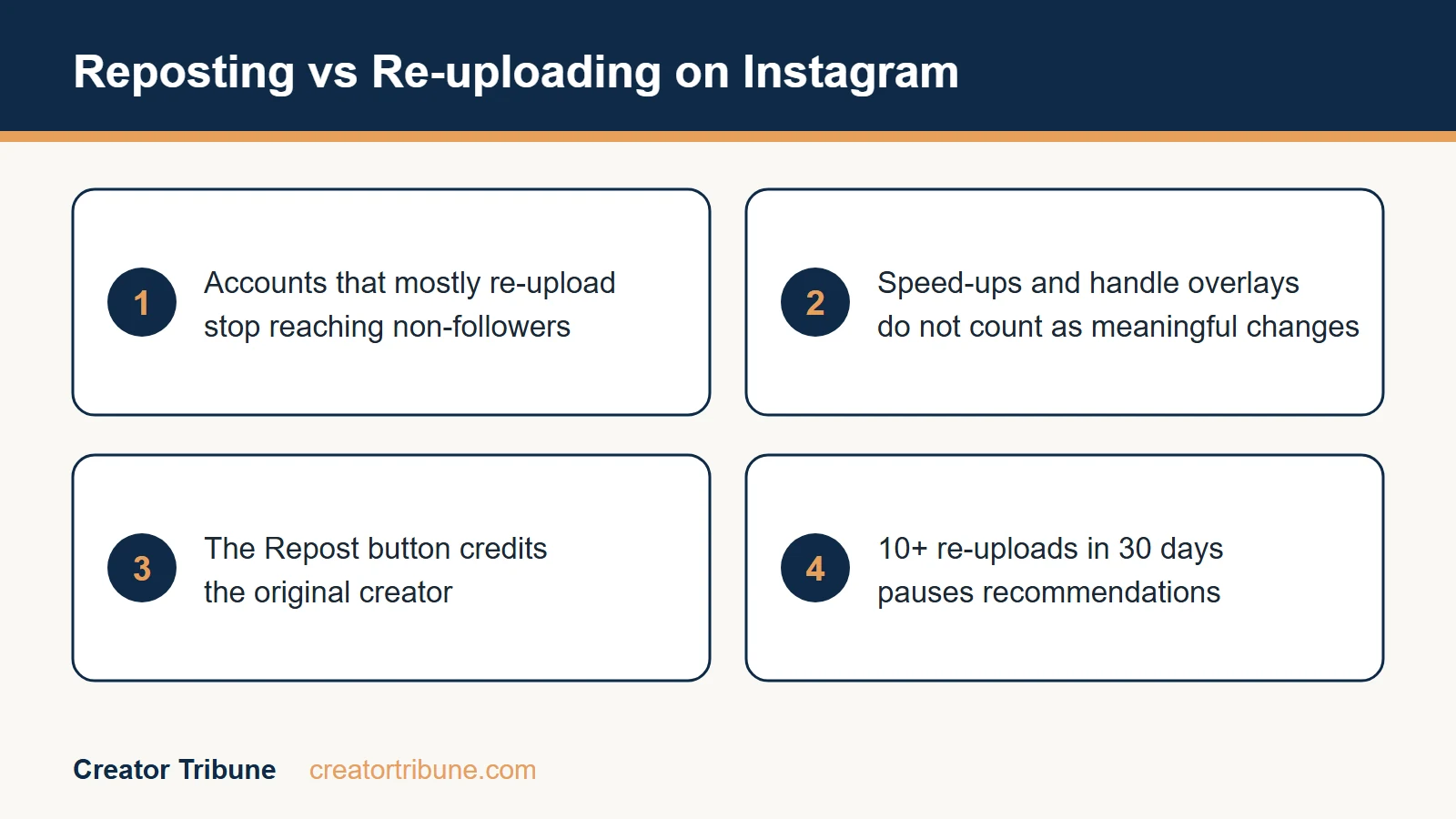
Instagram’s creator guidance on originality publishes a threshold: accounts that post other people’s content they did not create or meaningfully enhance 10 or more times in 30 days are left out of the places Instagram recommends content, counted on a rolling basis you can check in Account Status. What Instagram announced on April 30, 2026 is that accounts posting mostly content they did not create, or did not meaningfully change, stop being recommended to people who do not already follow them.
The bar for “meaningfully changed” is higher than most reposters assume. Speeding a video up or slapping a screenshot of the original poster’s handle on top does not count, according to Tubefilter’s report on the change. The rule previously covered Reels only and now runs platform-wide.
Instagram frames the Repost button and the Collab tag as the sanctioned way to share someone else’s work, because both credit the original account and push the reach and engagement back toward it. Mosseri told accounts with no way to transform a post that “you can either repost someone else’s content using the repost button, which gives them credit where it’s due, or you can actually do a collab post,” PetaPixel reported. A repost tends to do more for the person you shared than it does for you.
Before: Reposting eight Reels a week because the button is right there and your own ideas feel thin.
After: Capping reposts at a handful a month, each with a real note, and spending the rest of your slots on original posts that protect your reach.
I would keep reposts a clear minority of what the account shares and put the effort into original posts, since those are what Instagram can recommend to new people. If your numbers have already slid, the cause is usually content and consistency, and diagnosing an Instagram reach drop is a better first move than blaming the button.
Instagram reported 3 billion monthly active users in September 2025, according to TechCrunch, so the platform can afford to be picky about which accounts it pushes.
Which Posts You Can and Cannot Repost
You can natively repost any public Reel or feed photo and carousel, but not posts from private accounts, someone else’s repost, or someone’s Story unless you are tagged.
If the repost icon is missing, the post or your account usually is not eligible.
The eligibility rules trip up a lot of first-timers.
| Content type | Native repost | What to know |
|---|---|---|
| Public Reel | Yes | Lands in your Reposts tab with auto credit |
| Public photo or carousel | Yes | Same flow as a Reel |
| Private account post | No | Ask first, then screenshot with permission |
| Someone else’s repost | No | Open the original post and repost that |
| Someone’s Story | Only if tagged | Otherwise screenshot with permission |
If you are tagged in the post, you may not need a repost at all. Since September 10, 2026, Instagram’s Add to Grid option puts a post you are tagged in straight onto your main grid, from the three-dot menu on the post, the DM you got when tagged, or by pressing and holding it in your Tagged tab, as Engadget reported.
The original stays on the poster’s profile, and who can see it on yours depends on both accounts’ privacy settings. A repost is still the route for anything you are not tagged in, and if a tagged post will not appear at all, our guide to tagged photos not showing covers the causes.
Why You Cannot Repost on Instagram
If there is no repost button on a post, the usual causes are that the creator switched reposts off, the post type is not eligible, the feature has not reached your account, or your app is out of date.
The button being missing almost never means your account is in trouble.
Work through them in this order, because the first two are about the post and the last two are about you.
- The creator turned reposts off. Instagram lets people block reposts of their own content, and when they do, the loop icon simply does not appear for anyone.
- The post is not eligible. Posts from private accounts, other people’s reposts and Stories cannot be reposted natively, as the table above lays out.
- The feature has not reached your account. Instagram’s help article still says reposting “may not be available to everyone”, and users keep reporting the button missing on one account while their other accounts have it.
- Your app is behind. Update Instagram, then log out and back in, then clear the app cache. Reinstalling is the last resort.
The Reposts toggle in your own settings only controls whether other people can repost your content. It sits under your profile picture, then Menu, then Sharing and reuse below How others can interact with you, next to Reposts on posts and reels. Instagram’s help article describes no effect on your own reposting, so treat it as the fix when followers say your posts have no repost button.
Does the Repost Button Work on Instagram Web?
Not reliably. Instagram’s repost help article gives steps for the iPhone and Android apps and none for the browser version, so if you are hunting for the icon in a browser tab, the fastest fix is to pick up your phone.
The browser side also broke in September 2026. An r/Instagram thread on September 21 reported the Reposts tab on instagram.com loading blank for days, and a September 23 post said reposts had stopped loading on the web and the button had vanished there too.
Where Did My Reposts Go?
Your reposts live in the Reposts tab on your profile, and if that tab has vanished, the reposts usually still exist. Instagram’s help center also lists them under Your activity: tap your profile picture, then Menu, then Your activity, then Reposts, where you can also select and delete them.
On instagram.com, where the Reposts tab loaded blank for several users in late September 2026, the same list sits under Your activity, then Interactions, then Reposts, as an r/Instagram user pointed out on September 24, 2026 after a week of the same problem. That page shows only your own reposts.
Do You Need a Professional or Creator Account to Repost?
No, and this is the most repeated piece of bad advice about the feature. Buffer’s guide describes reposting as working on “any public reel or post” and attaches no account-type condition to it at all.
The confusion comes from two different things being mixed together. Controls over whether your own content can be reposted sit in account settings, and some write-ups have folded that into a claim that you need a professional account to repost anyone at all.
If you have already switched to a professional account and the button still will not appear, the account type was never the problem. Go back through the four causes above, starting with whether the creator allows reposts.
Should You Use a Third-Party Repost App
You rarely need a third-party repost app now that the native button is free and credits creators automatically, and the unofficial ones can get your account flagged or shadow-banned.
The native route also pulls the original high-resolution file, so it never looks blurry.
Third-party tools still have a couple of narrow uses, like grabbing a no-watermark file or resharing a Story you were not tagged in. My honest take is that the shadowban risk is not worth it for most creators, especially when the native button does the job cleanly.
Comments left on a repost you made do not show up publicly under the post; Instagram’s help center confirms they arrive as direct messages to you. That turns every comment into a private conversation, which is a real lead-generation channel if you are ready to manage the inbox rather than let it pile up.
That DM behavior is a reminder that reach you rent from a feature is not the same as an audience you own. The strongest creators turn that attention into something off-platform, and a simple creator money page is how I would route reposted-post viewers toward an email list you control instead of leaving it all to the algorithm.
Quick Takeaways
- To repost on Instagram, tap the repost icon on a public Reel or feed post; it publishes on that tap and credits the creator.
- To undo a repost, tap the icon again, or bulk-delete from Your activity, then Reposts, which also finds reposts when the profile tab goes missing.
- Since April 30, 2026, Instagram stops recommending accounts that mostly re-upload other people’s work; the Repost button is the credited alternative Mosseri points to.
- A repost routes credit and engagement to the original account, so it does more for them than for you; share other people’s work sparingly.
- Will they know? Only if they catch the alert first: in user tests the creator’s in-app repost alert disappeared once the repost was undone, though Instagram documents nothing either way.
- No repost icon? Check whether the creator allows reposts and whether the post is itself a repost, then update the app; on a computer, switch to the phone app.
- Comments on a repost go to your DMs, so treat reposting as a lead channel and route that attention toward an audience you own.
- Tagged in the post? Add to Grid, live since September 10, 2026, puts it on your main grid without a repost.