Clear the TikTok Cache Without Losing Your Drafts or Login
Clear the TikTok Cache Without Losing Your Drafts or Login
Clear your TikTok cache in five taps on iPhone or Android. See what it deletes, what it keeps, and why your drafts are safe when you do it.
- 1How to Clear TikTok Cache on iPhone and Android
- 2Does Clearing TikTok Cache Delete Your Drafts?
- 3What Clearing the Cache Deletes and Keeps
- 4What Problems Clearing the Cache Really Fixes
- 5Clear Cache vs Offload vs Clear Data vs Reinstall
- 6Will Clearing the Cache Log You Out or Reset Your Feed?
- 7Frequently Asked Questions
- Does clearing TikTok cache delete drafts?
- How do I clear my TikTok cache on iPhone?
- How do I clear TikTok’s Documents and Data on iPhone?
- Does clearing TikTok cache log you out?
- How much space does clearing TikTok cache free up?
- Will clearing the cache fix TikTok lag and crashes?
- Does clearing TikTok cache reset the algorithm?
- 8Quick Takeaways
TL;DR: To clear your TikTok cache, open your Profile, tap the menu, go to Settings and Privacy, then Cache & Cellular, then Free up space, and tap Clear next to Cache. It frees storage and fixes lag without touching your drafts, saved videos, or messages. Drafts only disappear if you clear app data or delete the app, not the cache.
If you have been putting off learning how to clear your TikTok cache because you are scared it will wipe your drafts, here is the relief. It will not.
Clearing the cache and losing your drafts are two separate things that people constantly confuse. Drafts live on your phone, not on TikTok’s servers, so a cache clear leaves them untouched. What deletes drafts is clearing the app’s data on Android or deleting and reinstalling the app, which is a different button entirely.
This walks through the exact steps on iPhone and Android, what the cache clear does and does not remove, the problems it really fixes, and the one menu mix-up that can cost you your unsaved work.

How to Clear TikTok Cache on iPhone and Android
To clear your TikTok cache, go to Profile, then the menu, then Settings and Privacy, then Cache and Cellular, tap Free up space, and tap Clear next to Cache.
The in-app steps are identical on iPhone and Android.
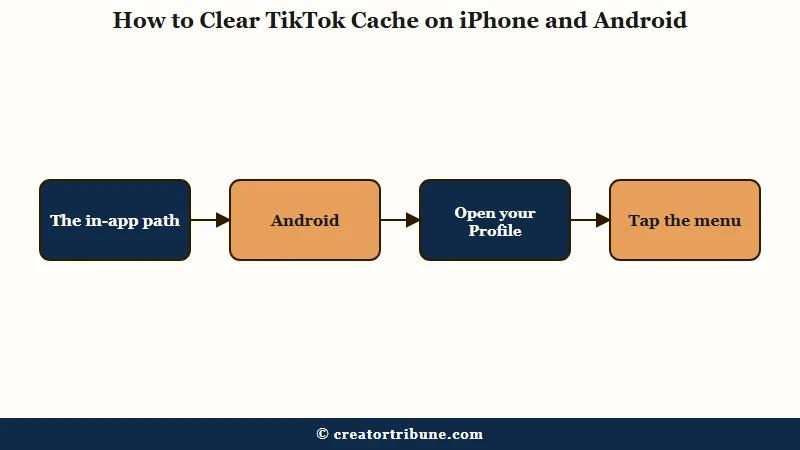
What is the TikTok cache: Temporary files like video previews, thumbnails, and preloaded clips that TikTok stores so the app loads faster. Clearing them is safe.
Here is the sequence I use, and the menu tells you exactly how much space you will recover before you confirm.
- Open TikTok and tap Profile in the bottom-right corner.
- Tap the menu icon, the three lines in the top-right.
- Tap Settings and Privacy.
- Scroll down to Cache and Cellular and tap Free up space.
- Tap Clear next to Cache. The screen shows the megabytes or gigabytes you will free first.
There is a platform difference once you step outside the app. Android also lets you clear the cache from the phone settings under Apps, then TikTok, then Storage and cache, then Clear Cache.
iPhone has no system-level clear-cache button, so the in-app route above is the one to use for a routine clear. The heavier option is deleting the app and installing it again, which Apple describes as removing “the app and its related data”.
Offloading, which I cover further down, is a storage move, and Apple does not document it as a cache clear.
If your app keeps freezing before you even reach these menus, my guide to a TikTok that keeps crashing tackles the harder cases.
Does Clearing TikTok Cache Delete Your Drafts?
Clearing the TikTok cache does not delete your drafts, because drafts are stored locally on your device and the cache is just temporary junk files.
This is the fear that stops most people, and it is misplaced.
The question I get asked most is whether a cache clear will erase weeks of unfinished videos. It will not. Your drafts, saved videos, liked videos, messages, and follower list all survive a cache clear without a scratch.
What I would warn you about is the button right next to it. On Android, Clear Data wipes everything tied to the app, logs you out, and permanently deletes your drafts. That is a different action from Clear Cache, and tapping the wrong one in your phone settings is the real way people lose unpublished work.
Before: You think tapping Clear Cache will erase the drafts you have been building for weeks.
After: Clear Cache leaves every draft in place. The button that wipes them is Clear Data on Android or deleting the app, both of which sit in your phone settings, not inside TikTok.
The habit I would build is saving any draft you care about to your camera roll before a big app update or a reinstall. If your drafts have already vanished, my walkthrough on recovering disappeared TikTok drafts covers what is and is not recoverable.
What Clearing the Cache Deletes and Keeps
A cache clear removes only temporary files like previews, thumbnails, and search history, while keeping every piece of real content you care about.
Nothing tied to your account or your creations is at risk.
What surprised me the first time was how cleanly the line is drawn. The table below is the quick version of what goes and what stays.
| Cleared by a cache clear | Kept safe |
|---|---|
| Video previews and thumbnails | Your drafts |
| Preloaded videos and filters | Saved and liked videos |
| Search history | Direct messages and chat history |
| Temporary app scripts | Followers and accounts you follow |
One thing I would not overlook is the Downloads line in that same Free up space menu. Downloads holds AR filters, effects, and stickers you have grabbed, and it sits separately from Cache.
If clearing the cache alone does not free enough room, you can clear Downloads too without touching a single draft or posted video.
What Problems Clearing the Cache Really Fixes
Clearing the cache is a safe first fix for lag, freezing, crashes, buffering, and parts of the feed that will not load.
It forces the app to pull fresh data instead of leaning on stale files.
I reach for a cache clear first whenever TikTok starts stuttering or a video refuses to load. On an app that Statista tracks at over a billion monthly active users, a bloated cache is a common culprit behind sluggish scrolling and stuck uploads. It is not a guaranteed cure, but it is fast and risk-free, so it belongs at the top of the list.
Where I would set expectations is on the bigger stuff. Clearing the cache will not fix a shadowban or low views, despite a popular myth that it does. It only resolves technical glitches that can mimic those symptoms, like videos failing to load.
If your reach is genuinely down, my breakdown of low TikTok views digs into the real causes. If the whole app is unreachable, my check on whether TikTok is down helps you tell an outage from a local problem.
For quality complaints, a cache clear can sometimes help a blurry or stuck video load properly, though upload settings matter more. My guide to TikTok video quality after posting handles that side.
Clear Cache vs Offload vs Clear Data vs Reinstall
Clear Cache is safe, Offload App keeps your documents and data, Clear Data wipes your drafts and logs you out, and reinstalling deletes local drafts unless you backed them up first.
Knowing which is which is the difference between a tune-up and a disaster.
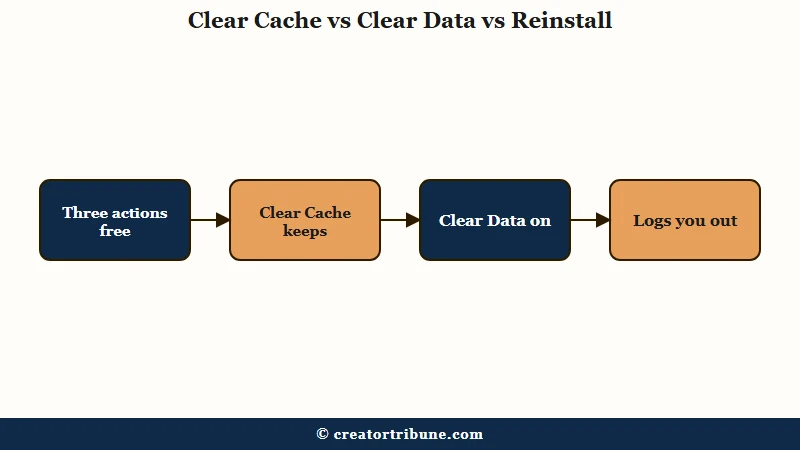
This is the distinction I wish more guides made loudly. All four free up space, and only two of them leave your drafts alone.
| Action | What it removes | Are your drafts safe |
|---|---|---|
| Clear Cache | Temporary files only | Yes, drafts stay put |
| Offload App on iPhone | The app file only, documents and data stay | Yes, drafts stay put |
| Clear Data on Android | Everything, including your login | No, drafts are deleted |
| Delete and reinstall | All local app storage | No, unless saved to camera roll |
The iPhone exception is worth knowing here, and it is the step most guides describe wrongly. Apple’s storage documentation says Offload App “frees up storage used by the app, but keeps its documents and data”, while Delete App “removes the app and its related data”.
So offloading, found under Settings, then General, then iPhone Storage, then TikTok, then Offload App, hands back the space the app file occupies while your documents and data, drafts included, stay put. TikTok’s App Store listing puts its current iOS build at roughly 990 MB, so an offload hands back something in that region.
Android’s Clear Data has no such mercy, which is why I always tell Android users to back up drafts first.
Will Clearing the Cache Log You Out or Reset Your Feed?
Clearing the cache usually keeps you signed in and does not erase your For You algorithm, though a rare logout or a brief feed reset can happen. Neither is something to worry about.
Whether you stay logged in is not fully consistent. Most of the time you stay signed in, but a small number of cases ask you to log back in, so I would jot down your password before clearing if you rely on auto-login and do not remember it.
Your For You feed is built from server-side account activity, not local cache, so it does not get wiped. If the feed looks a little generic for a few minutes after a clear, I would not panic. The algorithm reads your next few taps and snaps back to your usual recommendations quickly.
Frequently Asked Questions
Does clearing TikTok cache delete drafts?
No. Clearing the cache only removes temporary files and leaves your drafts untouched, because drafts are saved on your device. Drafts are only lost if you clear app data on Android or delete and reinstall the app.
How do I clear my TikTok cache on iPhone?
Open Profile, tap the menu, go to Settings and Privacy, then Cache and Cellular, tap Free up space, and tap Clear next to Cache. iPhone has no system-level cache button, and offloading the app does not stand in for one, because Apple states that Offload App “keeps its documents and data”.
How do I clear TikTok’s Documents and Data on iPhone?
Documents and Data is the part an offload deliberately keeps, so that line holds steady even as the app’s total drops. Check TikTok’s entry in iPhone Storage first, because Apple notes that “depending on the app, you might be able to delete some of its documents and data” from that screen.
If TikTok offers no such option, Apple describes Delete App as removing “the app and its related data”, so a delete followed by a fresh install is what clears it. Save any draft you care about to your camera roll before you delete, since a fresh install starts empty.
Does clearing TikTok cache log you out?
Usually not. Most people stay signed in after clearing the cache, though a rare case may ask you to log back in. Know your password first if you rely on auto-login and cannot remember it.
How much space does clearing TikTok cache free up?
It varies, but the cache can reach hundreds of megabytes or even gigabytes on active accounts. The Free up space menu shows the exact amount you will recover before you tap Clear.
Do not check the result against iPhone Storage, because Apple warns that in that per-app view “cached data and temporary data might not count as usage”. The in-app figure is the one to trust.
Will clearing the cache fix TikTok lag and crashes?
Often, yes. A bloated cache causes lag, freezing, and feed loading problems, so clearing it is a safe first step. It is not guaranteed, but it forces the app to load fresh data and resolves many minor glitches.
Does clearing TikTok cache reset the algorithm?
No. Your For You recommendations come from server-side activity, not the local cache, so they are not erased. The feed may look generic for a few minutes, then it readjusts to your normal taps.
Quick Takeaways
- Clearing your TikTok cache is safe and never deletes drafts, saved videos, messages, or followers.
- The five-tap path is Profile, menu, Settings and Privacy, Cache and Cellular, Free up space, then Clear.
- Drafts only vanish from Clear Data on Android or a reinstall, so back them up to your camera roll first.
- A cache clear fixes lag and loading glitches but will not lift a shadowban or raise low views.
- On iPhone, offloading frees the space the app file takes and keeps your drafts, but it is not a substitute for the in-app cache clear.