How to Add Your Own Sound on TikTok Videos
How to Add Your Own Sound on TikTok Videos
Learn how to add your own sound on TikTok, why the song you want is missing, and how to save your audio as a reusable Original Sound.
- 1How to Add Your Own Sound on TikTok
- 2Why the Song You Want Is Missing
- 3How to Record a Voiceover on TikTok
- 4How to Save and Rename Your Original Sound
- 5What to Do When Your Sound Gets Muted or Removed
- 6Frequently Asked Questions
- Can I upload an audio file directly to TikTok?
- Why is the song I want greyed out on TikTok?
- Does my audio become a sound other people can use?
- How do I name my original sound on TikTok?
- Why did my favorite sounds disappear?
- 7Quick Takeaways
TL;DR: TikTok has no direct upload-audio button, so you add your own sound either by editing the track into your clip in CapCut or InShot first, or by playing the audio out loud while you record and not tapping any TikTok sound. If the song you want is greyed out, the usual cause is a Business or Pro account, which is locked to the Commercial Music Library. Switch to a Personal account to get the full library back.
The reason most people search how to add your own sound on TikTok is that the obvious button does not exist. There is no “upload an audio file” option on the record screen, so you have to come at it sideways.
The other half of the frustration is quieter and almost nobody explains it. The song you want is often missing not because of a bug, but because your account type quietly locked you out of it.
I will walk through both real methods to get your own audio onto a clip, how to record a voiceover, and how to save your audio so other people can use it. Then I will cover the account-type trap that hides half the music library, because that is the part that wastes the most time.

How to Add Your Own Sound on TikTok
To add your own sound on TikTok, either edit the audio into your video in an external editor like CapCut or InShot before uploading, or play the track out loud while recording and skip the in-app sound library.
Both work because TikTok turns any audio you bring in yourself into your video’s Original Sound.
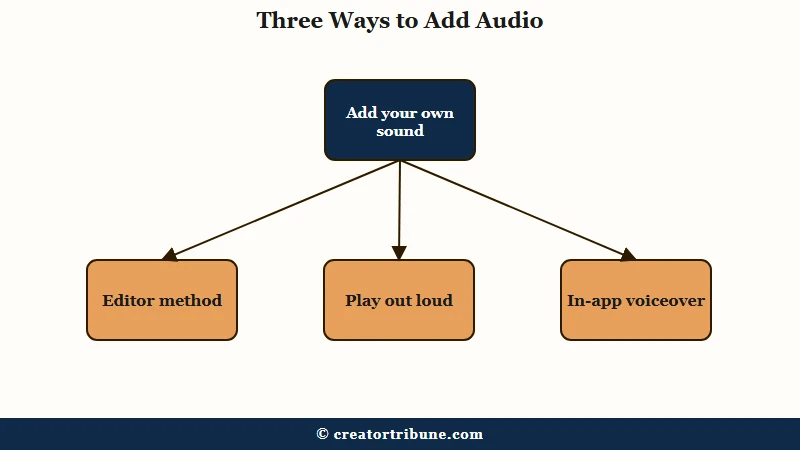
The editor method gives you the cleanest result, and it is the one I use when audio quality matters. If you edit in CapCut, our CapCut review breaks down its audio tools. Here is the sequence:
- Record your video, or have your clip ready in your camera roll.
- Open CapCut or InShot and import the clip.
- Tap the audio or music-note icon, then choose the option to add audio from your device.
- Slide the original clip’s volume to zero if you want only your track to play.
- Export the finished video to your camera roll.
- Open TikTok, tap the plus button, upload that video, and post it without adding a library sound.
The play-it-out-loud method is the fast version when you do not want to edit. Play the audio on a separate speaker or device, record your TikTok with the sound playing, and do not tap any sound from the TikTok library so your recording stays as the original audio.
Here is how the two methods compare so you can pick the right one.
| Method | How it works | Best for |
|---|---|---|
| External editor | Add the audio in CapCut or InShot, then upload the finished clip | Clean audio, precise timing, voiceovers plus music |
| Play out loud | Record while the track plays on another device | Speed, quick posts, casual clips |
| In-app voiceover | Record narration over the clip inside TikTok | Talking over footage, tutorials, reactions |
If you plan to reuse this clip across platforms, my clean cross-posting workflow keeps the audio intact when you move it to Reels and Shorts.
Why the Song You Want Is Missing
The most common reason a song is missing on TikTok is that you are on a Business or Pro account, which is restricted to the Commercial Music Library and loses access to trending mainstream songs.
This single setting causes most of the “where did the music go” confusion I see.
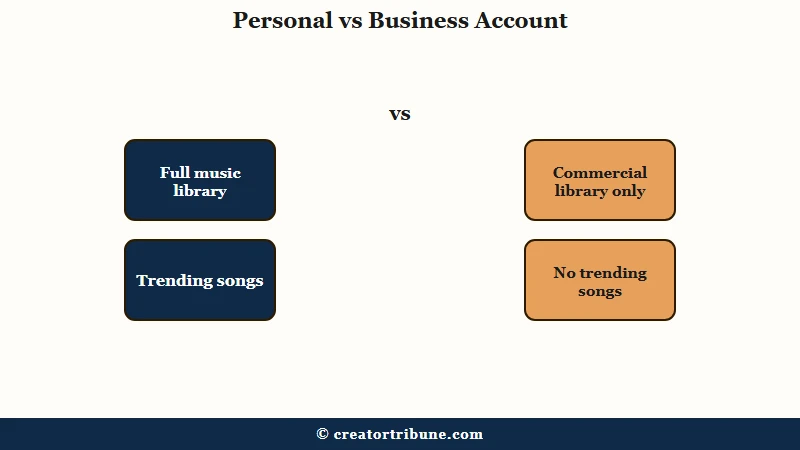
TikTok splits its audio into two pools, a distinction that matters more as TikTok’s audience passes a billion and music rights tighten. Personal accounts reach the full General Library, including trending and popular tracks, while Business and Pro accounts are limited to the Commercial Music Library of pre-cleared, royalty-free songs.
The reason for the split is licensing. Commercial use of a chart hit needs different clearance, so TikTok keeps business accounts inside the safe, pre-licensed library to avoid copyright claims.
| Account type | Music library | Trending songs |
|---|---|---|
| Personal | Full General Library | Available |
| Business or Pro | Commercial Music Library only | Not available |
Before: You tap Add sound on the record screen and the trending track you want is greyed out or missing entirely.
After: You switch your account back to Personal in settings, reopen the sound library, and the full catalog including trending songs is available again.
If a viral sound vanished the day you switched to a Business account, that is your cause. Switching back to a Personal account in your settings restores the full library, and it is the fix I would reach for first.
For more on the licensing side, my guide to cross-platform audio licensing explains why the same song behaves differently across apps.
How to Record a Voiceover on TikTok
To record a voiceover on TikTok, upload or film your clip, tap Next to reach the edit screen, choose Voice Over, then press and hold the record button while the video plays. This is the cleanest way to narrate without any external app.
I lean on voiceovers for any clip where I am explaining something on screen. The steps are quick:
- Tap the plus button and record or upload your video.
- Tap Next to open the editing screen.
- Tap the Voice Over option on the right side.
- Turn off the original audio if you only want your narration heard.
- Press and hold the record button while the clip plays and speak your lines.
- Tap Save, then finish and post.
The narration you record this way becomes part of your video’s Original Sound, so it travels with the clip if someone reuses your audio.
How to Save and Rename Your Original Sound
Once you post a video with your own audio, that audio becomes a reusable Original Sound, and you can rename it so it is searchable and branded to you. Renaming is a small step that most creators skip and later regret.
When your public video uses audio you brought in, TikTok saves it as your Original Sound and lets other users tap it to make their own videos. That is free reach if the sound catches on.
Here is how I save and name mine:
- Open your posted video and tap the spinning audio disc in the bottom corner.
- Tap Add to Favorites so you can reuse the sound later.
- To rename it, tap the pencil icon next to the Original Sound label.
- Enter a clear title, like the topic or your handle, and tap Save.
A descriptive name helps people find the sound in search, and it puts your handle in front of everyone who reuses it. What surprised me is how much a named sound outperforms a generic “original sound” label for discovery.
What to Do When Your Sound Gets Muted or Removed
If TikTok mutes or removes your sound after posting, tap the notice on the video to appeal, or use Change Sound to swap in cleared audio. The right move depends on whether it was a copyright flag or a guidelines issue.
A muted video usually means the audio tripped a copyright or community-guidelines check. Tap the notice at the bottom of the affected video to submit an appeal through TikTok’s review process.
If the appeal is unlikely to succeed, the faster path is the Change Sound feature, which lets you replace the flagged audio without reposting and losing your views and comments. When a track gets pulled entirely, my fix for music removed from TikTok covers recovering the post.
One more gotcha worth knowing: if your saved or favorite sounds suddenly stop showing, it is usually a cache issue or a change in your app store region, not a deletion. Updating the app or clearing its cache normally brings them back.
Frequently Asked Questions
Can I upload an audio file directly to TikTok?
No. TikTok has no direct audio-upload button. You add your own audio by editing it into the video first in an app like CapCut, or by recording while the track plays out loud.
Why is the song I want greyed out on TikTok?
The usual cause is a Business or Pro account, which can only use the Commercial Music Library. Switch to a Personal account in settings to regain trending songs.
Does my audio become a sound other people can use?
Yes. If your video is public and uses audio you brought in, it becomes your Original Sound, and other users can tap it to make their own videos.
How do I name my original sound on TikTok?
Open your posted video, tap the audio disc, then tap the pencil icon next to the Original Sound label and enter a title. A clear name helps the sound show up in search.
Why did my favorite sounds disappear?
This is usually a cache glitch or an app-store region change, not a deletion. Update the app or clear its cache, and the saved sounds normally return.
Quick Takeaways
- TikTok has no upload-audio button, so add your own sound through an editor like CapCut or by playing the track out loud while recording.
- A greyed-out song almost always means a Business or Pro account locked to the Commercial Music Library; switch to Personal to fix it.
- Record voiceovers in-app with the Voice Over tool, then turn off the original audio if you only want narration.
- Rename your Original Sound so it is searchable and carries your handle to everyone who reuses it.
- If a sound gets muted, appeal through the on-video notice or use Change Sound to swap in cleared audio without losing engagement.