How to Add Multiple Photos to Instagram Story Without the Mess
How to Add Multiple Photos to Instagram Story Without the Mess
Instagram splits your photos into separate slides unless you use the right tool. Here is how to add multiple photos to an Instagram Story on one frame.
- 1How to Add Multiple Photos to Your Instagram Story
- 2How to Put Multiple Photos on One Story Frame
- 3How to Post Several Photos as Separate Slides
- 4Why Your Photos Post Out of Order or Won’t Separate
- 5How to Make a Multi-Photo Story Look Clean
- 6Frequently Asked Questions
- How do I put multiple photos on one Instagram Story slide?
- Why do my photos post as separate stories instead of one?
- How many photos can I add to one Instagram Story?
- Why is the Separate button not working on my Story?
- Why do my Instagram Story photos look blurry?
- 7Quick Takeaways
TL;DR: Instagram gives you three different ways to add multiple photos to a Story, and they do completely different things. The Layout tool builds a grid on one frame, Select Multiple posts each photo as its own slide, and the photo sticker lets you overlay images freely. Pick the wrong one and your collage posts as five separate stories, so this guide covers all three plus the fixes for when the buttons break.
If you have tried adding multiple photos to your Instagram Story and ended up with five separate slides instead of the one clean collage you pictured, you picked the wrong tool. That is the single most common mix-up, and it is not your fault.
Instagram quietly offers three separate methods for putting more than one photo in a Story, and each one behaves differently. One packs everything into a single grid, one spreads your photos across a sequence, and one lets you scatter them like a scrapbook.
Here is what I want you to leave with. You will know which method matches the result you want, the exact taps for each, and the specific fixes for the two bugs that trip people up most: the Separate button that closes on you, and photos that load in the wrong order.
How to Add Multiple Photos to Your Instagram Story
You can add multiple photos to your Instagram Story three ways: the Layout tool for a grid on one frame, Select Multiple for separate sequential slides, and the photo sticker for a freeform overlay.
The method decides whether your photos land on one frame or several.
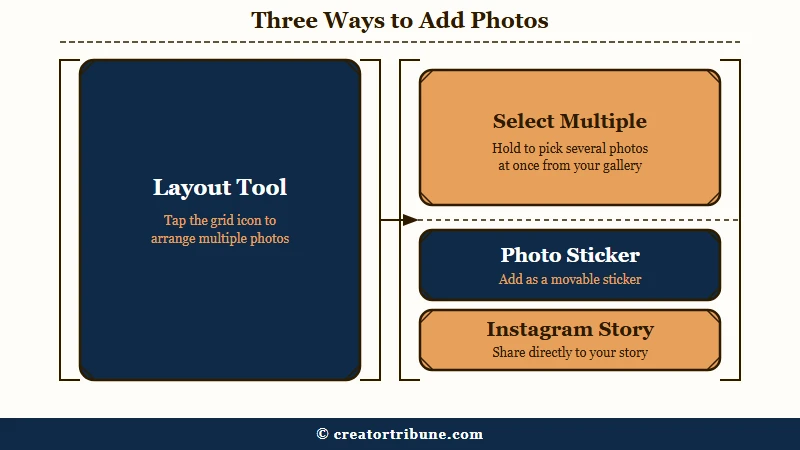
The way I see it, the whole game is choosing the tool before you start tapping, because switching halfway means starting over. With Instagram serving roughly 2 billion monthly users per Statista, the format is worth getting right. Each method has a different limit and a different look, so the table below is the fastest way to pick.
| Method | What it does | Best for | Photo limit |
|---|---|---|---|
| Layout | Locks photos into one grid frame | Product comparisons, before-and-afters | 2 to 6 |
| Select Multiple | Posts each photo as its own slide | Step-by-step or chronological stories | 10 at once |
| Photo sticker | Overlays photos freely on a background | Mood boards, scrapbook collages | No hard cap |
What is the Layout tool: Instagram’s built-in grid feature inside the Story camera that fits 2 to 6 photos into a single frame. The standalone Layout app was retired in May 2024 and folded into Stories.
One quick note that saves confusion later. The old standalone Layout app people still search for in the App Store no longer exists, so everything here happens inside the regular Story camera.
How to Put Multiple Photos on One Story Frame
To put multiple photos on one Story frame, use the Layout grid for a structured look or the photo sticker for a freeform collage, both inside the Story camera.
These are the two methods that keep everything on a single slide.
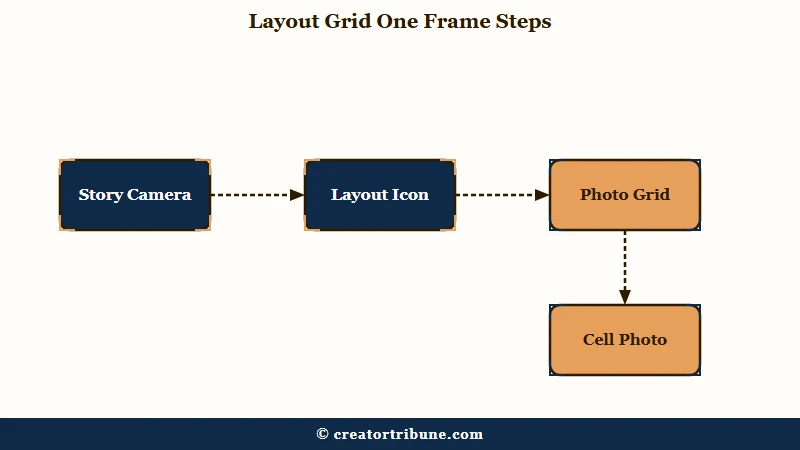
I would reach for Layout when I want clean symmetry, like a two-photo before-and-after. Open the Story camera, tap the grid-shaped Layout icon on the left, tap Change Grid to pick a 2, 3, 4, or 6 photo template, then tap the photo icon to fill each cell.
The tool crops each image to its cell, so photos with the subject dead center survive the crop best.
The photo sticker method is the one I use for anything that should feel handmade. Here is the sequence:
- Open the Story camera and pick a background, either a photo or a blank color from the Aa create screen.
- Tap the sticker icon (the square smiley face) at the top.
- Choose the Photo sticker and select an image to drop on.
- Pinch to resize, drag to place, and tap the sticker to cycle its shape into a circle, heart, star, square, or flower.
There is no hard limit on photo stickers, but the design rule worth following is to use an odd number, one, three, or five, so the arrangement feels balanced instead of cluttered.
If your photos come out looking soft after posting, the culprit is usually compression, and why photos lose quality covers how to keep them crisp.
How to Post Several Photos as Separate Slides
To post several photos as separate slides, open the Story camera, tap the photo icon, tap Select Multiple, choose your photos in order, tap Next, then choose Separate.
The order you tap them is the order they play.
I would use this when the photos tell a story in sequence, like a recipe or a trip recap. The tapping order matters more than people expect, because a numbered badge appears on each photo showing its slot in the queue, and that is the exact play order.
A couple of limits are worth knowing before you start. You can select up to 10 photos at once through Select Multiple, and Instagram caps you at 100 total Story slides in a 24-hour window. Push past 100 and the app archives your oldest active Story to make room, so a heavy posting day can quietly bury your earlier slides.
If you want a viewer to jump to a specific creator when they tap a slide, tagging someone in your Story works on any of these frames.
Why Your Photos Post Out of Order or Won’t Separate
Photos post out of order because of a camera roll sorting bug, and the Separate button often fails because of a known app glitch, both of which have quick workarounds.
These two bugs cause most of the frustration and neither is documented well.
The Separate glitch is the sneakier one. When you tap Separate and the creation pane just closes instead of splitting your photos, the fix is to select your images, tap Separate, tap the select-multiple button again to clear the selection, then tap any single image to force the app to reset. The table below covers the errors people hit most and the fastest fix for each.
| Problem | Cause | Fix |
|---|---|---|
| Photos post out of order | Camera roll sorting bug | Share from your phone’s native album, or switch to collage mode |
| Separate button closes the pane | Known app glitch | Reselect, tap Separate, clear selection, tap one image to reset |
| Photos look blurry after posting | Auto-compression on large files | Upload at 1080 by 1920 pixels, stay under 30MB |
The blurry-photo problem catches a lot of people. Files over 30MB or footage shot in 4K trigger aggressive compression, so exporting at exactly 1080 by 1920 pixels keeps things sharp. For the separate issue where a Story refuses to upload at all, why a Story won’t upload walks through the deeper causes.
Before: You multi-select six vacation photos, miss the Separate glitch, and post six identical-looking slides that viewers tap through in two seconds.
After: You drop the six into one Layout grid, the story reads as a single tidy recap, and people linger on it.
How to Make a Multi-Photo Story Look Clean
To make a multi-photo Story look clean, keep your photos inside the safe zone, use an odd number of overlays, and match image sizes so nothing gets cropped by the interface.
A little framing discipline is what separates a polished story from a cluttered one.
I would treat the safe zone as a hard rule, not a suggestion. Instagram’s own buttons cover the edges of your frame, so leave roughly 250 pixels clear at the top and bottom and 90 pixels on each side, keeping faces and text out of those margins. On a busy collage, the reply bar at the bottom will otherwise slice through your lowest photo.
Two more traps to sidestep. A music sticker restarts from the beginning on every new slide, so a sequence of separate photos will never carry one continuous song without external editing. And if your collages look crisp on an iPhone but soft on Android, shoot with your native camera app and upload afterward rather than capturing inside Instagram, since the in-app camera compresses harder on Android.
A clean multi-photo story earns the kind of attention that is worth keeping, so pointing your best viewers toward an audience you own outright turns a good story into lasting reach. If your story views have been sliding lately, why Story views drop is worth a read.
Frequently Asked Questions
How do I put multiple photos on one Instagram Story slide?
Use the Layout tool or the photo sticker. Open the Story camera, tap the Layout grid icon for a structured 2 to 6 photo grid, or tap the sticker icon and choose the Photo sticker to overlay images freely on a background.
Why do my photos post as separate stories instead of one?
Because you used Select Multiple with the Separate option, which is designed to create individual slides. For one combined frame, use the Layout grid or the photo sticker method instead.
How many photos can I add to one Instagram Story?
Layout grids hold 2 to 6 photos on one frame. Select Multiple lets you upload 10 photos at once as separate slides, and Instagram caps you at 100 total Story slides per 24 hours.
Why is the Separate button not working on my Story?
It is a known glitch that closes the creation pane. Select your photos, tap Separate, tap the select-multiple button to clear the selection, then tap a single image to reset the app and try again.
Why do my Instagram Story photos look blurry?
Instagram compresses large files hard. Photos over 30MB or shot in 4K get downgraded, so export at exactly 1080 by 1920 pixels to keep multi-photo stories sharp.
Quick Takeaways
- Three methods, three results. Layout builds one grid, Select Multiple makes separate slides, and the photo sticker overlays freely.
- If your photos posted as separate stories, you used Select Multiple. Switch to Layout or the photo sticker for one frame.
- The Separate button glitch has a fix: reselect, tap Separate, clear the selection, then tap a single image.
- Keep photos in the safe zone, 250 pixels off the top and bottom, and upload at 1080 by 1920 to beat compression.