Why Is My Instagram Story Blurry and How to Make It Sharp
Why Is My Instagram Story Blurry and How to Make It Sharp
Your Instagram Story looks sharp to you but blurry to everyone else. Here is why your Story is blurry and the settings that keep it crisp.
- 1Why Is My Instagram Story Blurry to Others but Not to Me
- 2Which Blurry Story Causes Are in Your Control
- 3What Settings Stop Instagram From Blurring Your Story
- 4Why 4K and 60fps Footage Looks Worse Not Better
- 5Does Editing Inside Instagram Make Stories Blurry
- 6Frequently Asked Questions
- Why does my Instagram Story look clear to me but blurry to everyone else?
- Does turning on Upload at Highest Quality really fix blurry Stories?
- Why does my 4K video look worse than 1080p on Instagram Stories?
- Why do my Story photos blur on iPhone specifically?
- Is Story blur the same as feed post blur?
- 7Quick Takeaways
TL;DR: If your Instagram Story looks crisp on your own phone but blurry to everyone else, that is not a glitch. Instagram serves you a cached copy while your followers get a heavily compressed version. Most blur comes from a few fixable causes: the Data Saver setting, uploading 4K or 60fps footage, editing inside the app, and skipping the Upload at Highest Quality toggle.
You post a Story, it looks perfectly sharp on your screen, then a friend texts to say it looks like a potato. If you have wondered why your Instagram Story is blurry to everyone but you, the answer is stranger than a slow upload.
Instagram keeps a high-quality copy of your Story cached on the phone you posted from. You are watching that clean local file, while your followers are being served a smaller, compressed version off Instagram’s servers.
That single fact splits every blur problem into two piles. Some causes are yours to fix, like your export settings and a couple of buried toggles. Others are out of your hands, like a viewer’s weak signal or Instagram quietly downgrading an old Story.
Here is how to tell which pile you are in, the settings that fix the causes you control, and the export specs that keep a Story sharp from camera to upload.

Why Is My Instagram Story Blurry to Others but Not to Me
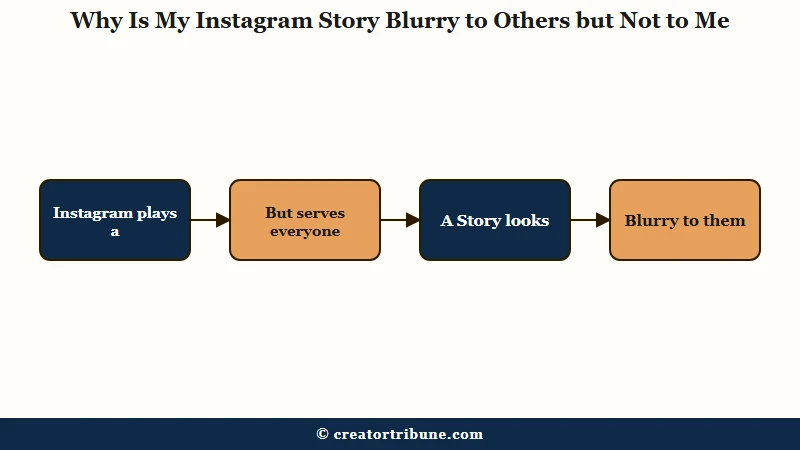
Your Instagram Story looks blurry to others but sharp to you because Instagram plays a high-quality copy cached on your own phone, while it serves everyone else a heavily compressed version so it loads faster.
Checking your own Story is not a real quality test.
The way I see it, this is the single most useful thing to understand, because it stops you from tweaking settings on a file that is already fine. If you want a true check, view your Story on a second phone or ask a friend what they see.
Two more causes sit outside your control. A viewer on a weak connection gets an even lower-quality stream, since Instagram drops resolution to keep playback smooth. Instagram also runs a sliding scale that quietly lowers the quality of older or low-view Stories to save on server costs, a practice Instagram head Adam Mosseri has confirmed.
What is the uploader cache: A local high-quality copy of your own post that Instagram stores on your device so it loads instantly for you, which is why your Story always looks sharper to you than to anyone else.
Which Blurry Story Causes Are in Your Control
The blurry-Story causes you control are your export settings, the Data Saver toggle, in-app editing, and your upload connection. The ones you cannot control are viewer bandwidth, the uploader cache illusion, and Instagram downgrading old low-view Stories. Focus only on the first group.
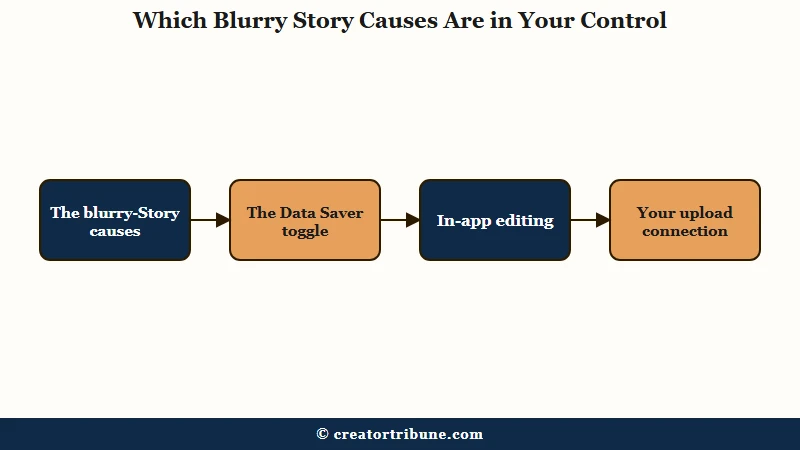
What I would do is run down the controllable list before blaming Instagram, because four of the five common causes are things you can fix in under a minute. Sorting them this way saves you from chasing a problem that lives on someone else’s phone.
| What you see | Likely cause | In your control |
|---|---|---|
| Sharp to you, blurry to followers | Uploader cache plus viewer compression | No, but export settings reduce how bad it gets |
| Every Story you post is soft | Data Saver on or Highest Quality off | Yes, flip both toggles |
| Choppy or pixelated video | Uploaded 4K or 60fps footage | Yes, export 1080p at 30fps |
| Text and stickers look fuzzy | Added inside the app, double compression | Yes, bake edits in before uploading |
| An old Story got worse over time | Instagram sliding-scale downgrade | No, this is a server-side decision |
The pattern is worth noticing. If only one old Story looks bad, it is probably Instagram’s doing, but if every fresh Story is soft, the cause is almost always a setting you can change right now.
Our guide on feed photo quality after upload covers the same compression math for regular posts.
What Settings Stop Instagram From Blurring Your Story
Two hidden settings fix most blurry Stories. Turn on Upload at Highest Quality and turn off Data Saver, both inside Data Usage and Media Quality.
One toggle bypasses compression, the other stops the app from shrinking your uploads to save data.
These two switches do most of the heavy lifting. Enabling Upload at Highest Quality clears the blur for the large majority of people who try it, and turning off Data Saver removes the setting behind a big share of the rest.
Here is the exact path I would set once and forget:
- Open your profile and tap the three-line menu in the top corner.
- Go to Settings and privacy, then Data usage and media quality.
- Toggle Upload at highest quality ON.
- Make sure Data Saver, or Use less cellular data, is toggled OFF.
One more habit matters here. Upload on a strong, stable Wi-Fi connection rather than a weak signal, because Instagram downgrades your file to a lower resolution when it senses the upload might time out. If your Story will not post at all rather than just looking soft, our fix for Stories that won’t upload walks through that separately.
Why 4K and 60fps Footage Looks Worse Not Better
Uploading 4K or 60fps footage makes your Story look worse because Instagram is built for 1080p and 30fps, so it aggressively downscales anything larger and drops 60fps to 29fps.
Bigger files trigger harsher compression, not better quality.
This one feels backward, so I will be blunt about it. Shooting a Story in 4K at 60fps and expecting it to look pristine is the fastest way to end up with a choppy, pixelated result, because Instagram crushes the oversized file to fit its own specs.
The safe target is a modest, correctly-sized export. Match these specs and Instagram has almost no reason to re-compress your file.
| Setting | Use this | Not this |
|---|---|---|
| Resolution | 1080 by 1920, 9:16 | 4K or any other ratio |
| Frame rate | 30 fps | 60 fps, gets dropped to 29 |
| Bitrate | A moderate 4 to 8 Mbps | 15 Mbps or higher, invites compression |
| Format | MP4, H.264 video | ProRAW or 12-bit source files |
There is also a file-history trap worth avoiding. Every time a clip passes through another app, a WhatsApp forward, a TikTok re-download, or a second editor, it gets compressed again, so Instagram is squeezing a photocopy of a photocopy.
Before: You film in 4K 60fps, save the clip from your TikTok drafts, then upload to a Story. Instagram downscales, drops frames, and crushes an already-compressed file.
After: You export one clean 1080p 30fps MP4 straight from your editor and upload it directly on Wi-Fi. Instagram barely has to touch it, and the Story stays sharp.
Does Editing Inside Instagram Make Stories Blurry
Editing inside Instagram makes Stories blurry because adding text, stickers, or music forces the app to re-render and re-compress the whole video a second time.
Baking your edits in before uploading avoids that double hit.
This is where a lot of clean footage quietly dies. When you drop native text or a GIF onto a video in the Story editor, Instagram re-encodes the entire file at a lower bitrate instead of layering the graphic on top, so your crisp clip comes out soft.
What I do is finish the edit in an external app like CapCut, then upload a flat, final file and skip the in-app stickers where you can. On iPhone, one more setting helps: newer phones shoot in HEIC and ProRAW, which Instagram handles badly, so switch your camera to Most Compatible to save as JPEG, or convert before uploading. Adobe’s HEIC versus JPEG guide explains why the format matters for compression.
The PNG-versus-JPEG debate is worth settling too. For plain photos, a JPEG at 90 to 95 percent quality beats a PNG, because Instagram converts everything to JPEG anyway and starts from a cleaner file.
Keep your finished Stories as part of the owned content you can reuse across platforms, which ties into the Creator Money Page idea of not letting one app control your best work. For quick cache glitches, our note on clearing the Instagram cache can clear a one-off soft render.
Frequently Asked Questions
Why does my Instagram Story look clear to me but blurry to everyone else?
Instagram caches a high-quality copy on the device you posted from, so you see the clean local file while followers get a compressed server version. View the Story on another phone to see what your audience really sees.
Does turning on Upload at Highest Quality really fix blurry Stories?
Yes, for most people. The toggle lives under Data Usage and Media Quality and tells Instagram to skip connection-based compression. Pair it with Data Saver turned off for the best result.
Why does my 4K video look worse than 1080p on Instagram Stories?
Instagram is optimized for 1080p at 30fps, so it aggressively downscales 4K and drops 60fps to 29fps. Exporting at 1080 by 1920 and 30fps gives Instagram the exact file it wants and avoids heavy re-compression.
Why do my Story photos blur on iPhone specifically?
Newer iPhones save photos as HEIC or ProRAW, which Instagram struggles to convert cleanly. Switch your camera format to Most Compatible for JPEG, or convert the file before uploading.
Is Story blur the same as feed post blur?
Not quite. Story blur is often aspect-ratio stretching plus Instagram’s Story compression, while feed blur is mostly file compression. Sharing a square feed post to a 9:16 Story stretches it and destroys sharpness.
Quick Takeaways
- Your own phone shows a cached copy, so a Story that looks sharp to you can still be blurry to followers.
- Turn on Upload at Highest Quality and turn off Data Saver under Data Usage and Media Quality.
- Export at 1080 by 1920, 30fps, H.264 MP4, and skip 4K and 60fps entirely.
- Add text and stickers in an outside editor first, since in-app editing re-compresses the whole video.
- Some blur is out of your hands, like viewer bandwidth and Instagram downgrading old low-view Stories.