Why Is My TikTok Camera Not Working or Showing Black Screen
Why Is My TikTok Camera Not Working or Showing Black Screen
A dead TikTok camera has seven separate causes and only one is a permissions problem. Find yours in 60 seconds, then apply the fix that works.
- 1Why Is My TikTok Camera Not Working and How Do I Find the Cause
- 2How Do I Give TikTok Permission to Use My Camera
- 3Why Is My TikTok Camera Black When Permission Is Already On
- 4Why Does Android Block the Camera Even When TikTok Has Permission
- 5Why Did My TikTok Camera Stop Working After I Ignored the App for Months
- 6Why Can I Not Turn On My Camera on TikTok LIVE as a Guest
- 7What Does Setting Up Camera Please Try Again Mean on TikTok
- 8Frequently Asked Questions
- Why is my TikTok camera just a black screen?
- Why is TikTok not letting me access my camera?
- Does reinstalling TikTok fix a black camera?
- Why does restarting my phone work when restarting TikTok does not?
- Why did my TikTok camera stop working when I changed nothing?
- Why can’t I turn my camera on during TikTok LIVE as a guest?
- 9Quick Takeaways
TL;DR: A TikTok camera that will not open, or that opens to a black rectangle, is one of seven separate states. Only the first is a permissions issue. A 60-second diagnostic tells you which one you have, and five of the seven cannot be fixed by clearing the cache or reinstalling the app.
There are seven separate reasons for a TikTok camera not working, and the app tells you nothing about which one you have. You tap the plus button, the screen goes black or freezes on a spinner, and that is the entire diagnostic you get.
Every guide on this topic hands you the same four steps in the same order. Check permissions, clear the cache, restart the app, reinstall it. That sequence fixes exactly one of the seven states, and Google’s own AI summary of this question ends by asking you whether you are on iPhone or Android, which is a fair admission that it cannot answer without knowing more.
The reason the standard list falls short is documented by Apple and Google rather than guessed at. Your phone’s camera is an exclusive resource, and both operating systems will hand it to one app at a time and block everyone else. When something outside TikTok is holding that lock, nothing you do to TikTok can take it back.
This piece sorts the seven states, gives you a 60-second diagnostic to find yours, and tells you which fixes are wasted effort in each case.
Why Is My TikTok Camera Not Working and How Do I Find the Cause
The fastest way to find the cause is to start with two checks: open your phone’s built-in Camera app, then close every other app and reopen TikTok.
Those two answers plus three quick follow-ups narrow seven possible states down to one, usually in under a minute.
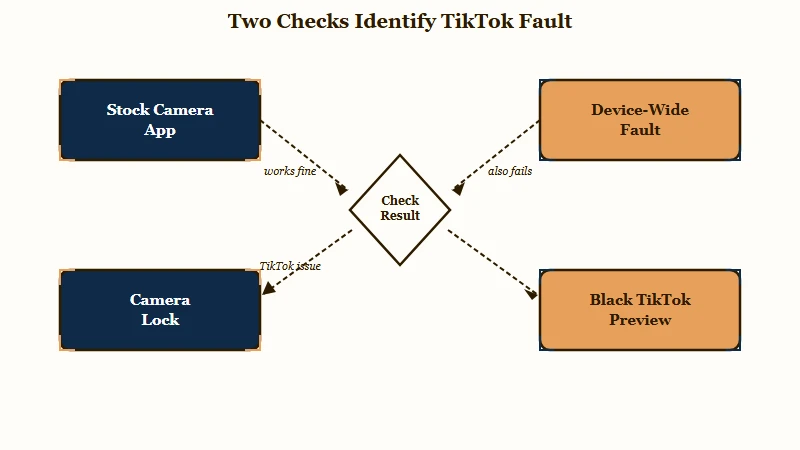
I run both before changing a single setting, because the wrong fix on the wrong state wastes ten minutes and teaches you nothing.
Here is the order that gets you to an answer fastest.
- Open your phone’s stock Camera app. If it is also black or frozen, the problem is your device, not TikTok, and no amount of reinstalling TikTok will touch it.
- Open a different camera app, something like Instagram or Snapchat. If that one works and TikTok does not, the fault is scoped to TikTok.
- Close every other app from the app switcher, then reopen TikTok. If the preview comes back, another app was holding the camera.
- Check whether TikTok appears in your camera permission list at all. If it is missing entirely, permission was never granted.
- If the preview is black in every app including the stock Camera, restart the phone before anything else.
Match what you saw against this table.
| What you see | Likely cause | The fix that works |
|---|---|---|
| TikTok never asked for camera access | Permission was never granted | Grant camera access in system settings |
| Preview is black, other camera apps work fine | Another app is holding the camera | Force close other camera apps, then reboot |
| Camera is black in every app, not just TikTok | System-level block or OS fault | Check the Android camera tile, or reboot the iPhone |
| Camera worked months ago and is dead now | Permission auto-reset after disuse | Re-grant camera permission by hand |
| Stuck on “Setting up camera, please try again” | Camera failed to initialize | Reboot the phone before trying anything else |
| Camera opens fine, video looks bad | Upload compression, not a camera fault | A different problem, covered separately |
| Works normally, fails only inside LIVE | Host or platform gating | Confirm the host enabled multi-guest |
If your answer was the last row, the camera is fine and the block is on TikTok’s side. If it was the second row, the cause is a camera lock held by another app, and that is the one the popular advice handles worst.
How Do I Give TikTok Permission to Use My Camera
TikTok cannot open the camera until you grant camera access at the operating system level, which lives in your phone’s settings and not inside TikTok. This is the one state that the standard advice does fix.
Skip the reinstall here. It is the slowest possible route to something you can change in about fifteen seconds, and reinstalling drops your drafts along the way.
On iPhone, open Settings, scroll to TikTok, and switch Camera on. Microphone sits directly beneath it and is a separate toggle, so a camera that works with no sound is usually just that second switch.
On Android, press and hold the TikTok icon, tap App info, tap Permissions, then set Camera to Allow. Some Android skins label that middle step Permissions manager or App permissions, so the wording shifts by manufacturer even though the path does not.
What is a camera handle: The exclusive lock one app holds on your phone’s camera hardware. Only one app can hold it at a time, and the operating system decides who gets it.
If the permission was already on before you looked, you are not in this state at all. Move to the next section.
Why Is My TikTok Camera Black When Permission Is Already On
A black preview with permission already granted almost always means another app is holding your camera, and TikTok is being refused the hardware. Reinstalling TikTok cannot fix this, because the app causing it is not TikTok.
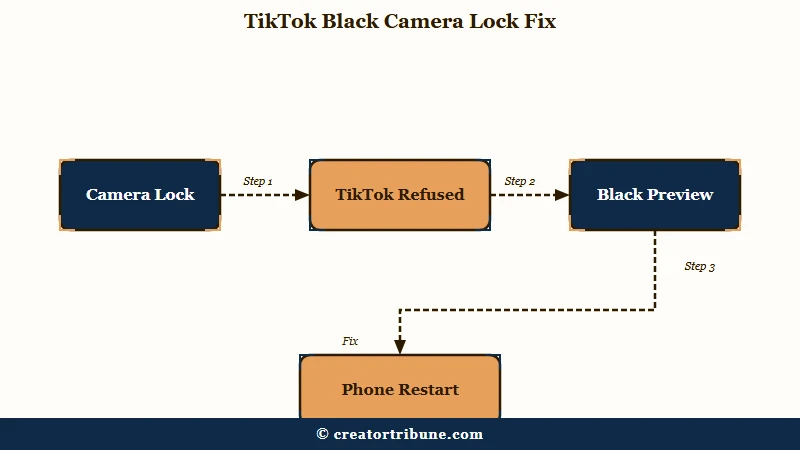
This is the state the popular advice gets wrong, and it is not a close call.
Google’s Android documentation is explicit about how the camera gets handed around. An app can be evicted when the system needs the camera for a higher-priority client, and the Android camera error constants include a dedicated code for the camera already being in use, plus a second one for when the system-wide limit on open cameras has been reached.
Google’s own wording on that second case is that more camera devices cannot be opened until previous instances are closed.
Apple documents the same behavior from the other direction. An iOS capture session can be interrupted because the video device is in use by another client, and Apple’s list of capture session interruption reasons includes one that fires when another foreground app has a claim on the camera.
Developers have reported that same interruption landing on iPhones after Picture in Picture or a FaceTime window has been running, and that restarting the affected app does nothing while a full phone restart clears it.
That detail explains a pattern people report constantly and rarely get an answer for. Restarting TikTok fails, restarting the phone works, and the reason is that the reboot is what releases a lock TikTok never held.
Before: You close TikTok, clear its cache, delete the app, reinstall it, and sign back in. The preview is still black.
After: You open the app switcher, swipe away Snapchat, Instagram, and the FaceTime window still floating in Picture in Picture, then reopen TikTok. The preview comes back.
Force closing the other apps is the fix, and a reboot is the guaranteed version of it. If TikTok is closing itself rather than showing a black preview, that is a different fault and the reasons TikTok keeps crashing cover it properly.
Why Does Android Block the Camera Even When TikTok Has Permission
Android 12 added a system-wide Camera access tile in Quick Settings that blocks the camera for every app on the phone, even apps whose individual permission still reads Allowed.
When it is off, apps get a silent black preview rather than a permission error.
I check that tile before anything else on an Android phone, because it produces the most confusing version of this problem.
The trap is that everything looks correct when you go looking. You open App info, you see Camera set to Allow, you conclude permissions are fine, and you move on to clearing the cache. The block is sitting one level above the per-app permission you just checked.
To check it, swipe down twice from the top of the screen to open the full Quick Settings panel and look for a tile labeled Camera access. If it is off, turn it on. Some phones hide the tile until you scroll the panel or edit which tiles are shown.
Android also shows a small green dot in the status bar whenever an app is genuinely using the camera. If you open TikTok’s camera and no green indicator appears, the app is being stopped before it ever reaches the hardware.
Why Did My TikTok Camera Stop Working After I Ignored the App for Months
Android automatically revokes permissions from apps you have not opened in a few months, so a returning user often finds camera access silently switched back to Deny.
The app looks installed and signed in, and the camera is dead.
My take is that this is the most under-explained cause in the whole category, because it hits people who changed nothing and therefore never suspect a settings problem.
Google’s app hibernation documentation spells out what happens to a dormant app. Runtime permissions get reset, background jobs stop, notifications stop arriving, and the app’s cached files are deleted by the system.
That last point matters more than it looks. If hibernation is what broke your camera, the cache you are being told to clear was already wiped by Android, so clearing it again does nothing at all.
The setting that controls this is named differently on almost every Android version, which is why generic advice never lands.
| Android version | Where to look | Exact setting label |
|---|---|---|
| Android 13 or higher | App info | Pause app activity if unused |
| Android 12 | App info | Remove permissions and free up space |
| Android 11 | App info, then Permissions | Remove permissions if app isn’t used |
| Android 6 to 10 | Play Store, then Play Protect | Permissions for unused apps |
Turn that off for TikTok and the revocation stops repeating. Then re-grant the camera permission manually, because switching off the automation does not restore what it already took.
Why Can I Not Turn On My Camera on TikTok LIVE as a Guest
A camera that works everywhere in TikTok but fails inside LIVE is usually a host or platform restriction, not a fault on your phone.
Multi-guest is gated on TikTok’s side, and the host controls whether it is open at all.
I would not touch your camera settings for this one. If the recording camera works and only the LIVE panel fails, the hardware has already proved itself.
TikTok’s own multi-guest documentation states that the multi-guest option may not be available for everyone’s LIVE, and that you request to join and wait for the host to accept before your video settings become adjustable. A guest camera that will not switch on frequently means the request has not been accepted yet, or the host never enabled multi-guest.
The quickest way to separate the two is to try joining a different creator’s LIVE. If your camera works as a guest there, the first host’s settings were the block.
Going live has its own eligibility requirements that are separate from camera access, and the rules for going live cover which ones apply to your account.
What Does Setting Up Camera Please Try Again Mean on TikTok
That message means TikTok asked the operating system for the camera and never received it, so the failure happened before the preview could load.
The camera never finished starting up, so no permission change will clear it.
A full reboot is the right first move here. Something in the camera pipeline is stuck, and a reboot is the fastest way to force the system to release it and start clean.
There is a second cause worth knowing if the message appears during long sessions rather than at launch. Apple documents an interruption that fires when the device is under system pressure, including thermal load, and the operating system will shut down a capture session to protect the hardware.
That is why the error shows up more during long LIVE broadcasts, while fast charging, or when filming outdoors in direct sun. Take the case off, unplug the charger, let the phone cool for a few minutes, and try again before assuming the app is broken.
If the camera opens without complaint and the finished video is what looks wrong, the camera is not the problem at all. Compression on upload is the cause, and why TikTok videos look blurry deals with that properly.
Desktop users hitting a black preview in a browser or an emulator should start with the TikTok on PC fixes instead, since the causes there are different again.
Frequently Asked Questions
Why is my TikTok camera just a black screen?
A black screen usually means another app is holding the camera, or a system-level camera block is switched on. Check whether your stock Camera app works. If it does and TikTok stays black, close every other camera app and reopen TikTok.
Why is TikTok not letting me access my camera?
Camera access is granted at the operating system level, not inside TikTok. On iPhone, go to Settings, then TikTok, and turn Camera on. On Android, hold the app icon, tap App info, then Permissions, then allow Camera.
Does reinstalling TikTok fix a black camera?
Only when permission was never granted. Reinstalling cannot release a camera lock held by a different app, and it cannot override a system-wide camera block, so it fails on five of the seven causes while costing you your drafts.
Why does restarting my phone work when restarting TikTok does not?
Restarting TikTok only clears TikTok’s own state. A reboot releases the camera hardware across every app, which is what clears a stuck camera lock or a crashed camera service.
Why did my TikTok camera stop working when I changed nothing?
Android resets permissions for apps left unopened for a few months. If you came back to TikTok after a break, camera access was likely revoked automatically and needs granting again by hand.
Why can’t I turn my camera on during TikTok LIVE as a guest?
Multi-guest has to be enabled by the host, and your request has to be accepted before your camera controls become active. Try joining a different creator’s LIVE to confirm your own camera is fine.
Quick Takeaways
- Seven separate states sit behind the same broken TikTok camera, and the standard advice of clearing the cache and reinstalling only fixes one of them.
- Run the stock Camera app test first. If that is black too, your phone is the problem and TikTok is a bystander.
- A black preview with permission already granted means another app is holding the camera, and only closing that app or rebooting releases it.
- Android 12 and newer have a system-wide Camera access tile that blocks every app while per-app permissions still read Allowed.
- If the camera works normally and only fails inside LIVE, the block is on TikTok’s side and your settings are not the problem.