How to Block a Sound on TikTok and Why It Keeps Coming Back
How to Block a Sound on TikTok and Why It Keeps Coming Back
TikTok has no true block for sounds. Here is what Hide videos with this sound really does, why the audio comes back, and how to make it stick.
- 1Can You Block a Sound on TikTok
- 2Why Does the Same Sound Keep Coming Back After You Hide It
- 3How Do You Hide a Sound on TikTok Step by Step
- 4What Is the Difference Between Not Interested and Hide Videos With This Sound
- 5Why Is the Hide Sound Option Missing From My Menu
- 6Can Keyword Filters Block a TikTok Sound
- 7What Works to Get a Sound Out of Your Feed
- 8Frequently Asked Questions
- Can you permanently block a sound on TikTok?
- Why do I still see a sound after hiding it?
- Can you undo hiding a sound on TikTok?
- Does blocking a sound work differently on Android and iPhone?
- Can keyword filters block a sound?
- Why can I not find the hide sound option?
- 9Quick Takeaways
TL;DR: You cannot block a sound on TikTok. The app only offers “Hide videos with this sound,” which is a ranking signal that makes the audio rarer rather than a filter that removes it. It keeps coming back because the same song exists under thousands of separate sound IDs, and hiding one does nothing to the rest.
You want to block a sound on TikTok, you find the menu option, you tap it, and three videos later the same audio is playing again. That loop is why this question gets asked over and over, usually in capital letters.
The guides that rank for it are old and they all print the same three taps. None of them explain the part that matters, which is what happens after you tap. That gap is the reason people assume the feature is broken or that TikTok quietly removed it.
Here is what the option really does, the reason a hidden sound returns within a day, and the sequence that gets an audio track out of your feed for good.
Some of it is a genuine platform limit you cannot beat, and knowing which half is which saves a lot of pointless tapping.
Can You Block a Sound on TikTok
You cannot block a sound on TikTok. The app has no true block for audio.
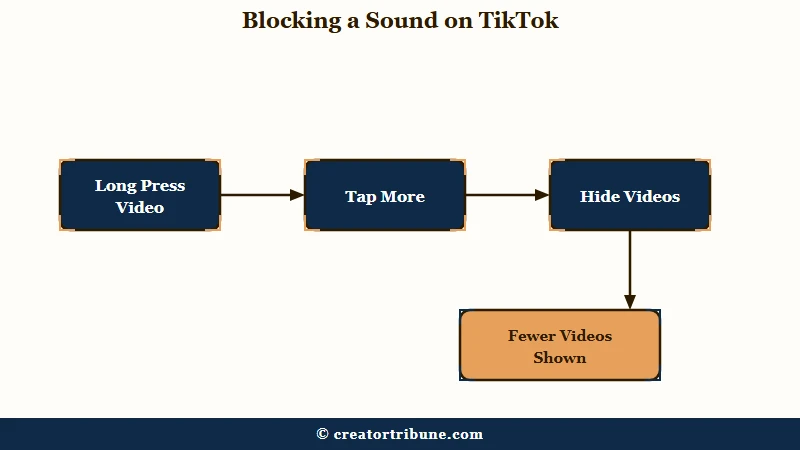
The closest option is “Hide videos with this sound,” which tells the recommendation system to show you that audio less often rather than removing it from your feed.
The wording is the part that bothers me, because “hide” and “block” get used interchangeably in almost every guide on the subject and they are not the same promise. A block is absolute. Hiding is a preference you register.
TikTok’s own confirmation message says so plainly. After you hide a sound, the toast that appears reads “We’ll show fewer videos like this.” Fewer. Not none.
That single word is the whole answer, and it sits in the interface where nobody reads it. Read literally, the message promises a reduction in frequency and nothing beyond that.
What is a sound ID: The unique identifier TikTok assigns to a specific audio file so the platform can group videos using it and credit the rightsholder.
Why Does the Same Sound Keep Coming Back After You Hide It
A hidden sound returns because your hide applies to one sound ID, and a single song can exist under thousands of them.
Every time a creator uploads audio themselves instead of pulling it from the library, TikTok mints a separate ID that your earlier hide has never seen.
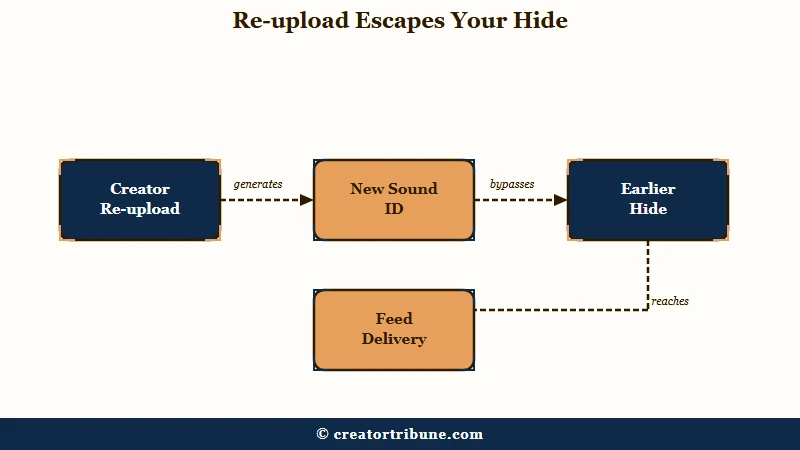
The scale of this is much worse than most people assume. Audio-identification firm Pex tracked 141,000 song recordings across TikTok and found 2.8 million distinct sound IDs attached to them, roughly twenty separate IDs for every actual recording.
Run that against your feed and the maths gets bleak fast. Hiding one instance of a track with twenty live IDs removes about five percent of the ways that audio can reach you.
I stopped treating a single hide as a fix once I understood that ratio. It explains the exact complaint people post, which is that they hit the button and the same audio was back the next morning.
Uploaders make it worse on purpose. Pex documented a sped-up edit of Beyoncé’s “16 Carriages” reposted as “Fortunate Carriages,” which spread across more than 97,000 videos under an ID that had nothing to do with the original.
Speed changes, pitch shifts, and a quiet voiceover laid over the top are all common. Each variant is a fresh ID, invisible to every hide you have already registered.
The same mechanic is visible from the creator side. Anyone who has saved their own audio has minted one of these IDs, which is exactly how a single track ends up scattered across thousands of them.
How Do You Hide a Sound on TikTok Step by Step
Hiding a sound takes four taps from the video itself, and the option lives one level deeper than most people look.
It only appears in the Home feed, so you cannot do it from search results, a profile, or a sound page.
This is the sequence I run whenever a track starts following me around:
- Wait for a video using the sound to appear in your Home feed.
- Press and hold the middle of the screen until the menu appears.
- Tap More to the right of Not interested.
- Tap Hide videos with this sound.
Step 3 is where almost everyone stops early. Tapping Not interested on its own registers a general dislike of the video and never touches the audio specifically.
Two limits catch people out. There is no undo, so a sound you hide by accident cannot be restored from a settings list, and the option is identical on Android and iPhone despite a lot of posts claiming otherwise.
Before: hide the one video in front of you, then assume the sound is gone and get annoyed when it returns tomorrow.
After: hide it, then hide the next upload of the same audio when it appears, because the second one is a different ID and your first hide never covered it.
What Is the Difference Between Not Interested and Hide Videos With This Sound
“Not interested” is a broad negative signal about a whole video, while “Hide videos with this sound” targets one specific audio ID.
Both feed the same ranking system, and neither removes anything permanently.
The distinction matters to me because the two buttons get treated as interchangeable and they solve different problems. If a creator is the issue, hiding the sound achieves nothing.
If the audio is the issue, a bare “not interested” spreads your objection across the caption, the topic, and the creator as well.
| What you tap | What it targets | How long it lasts |
|---|---|---|
| Not interested | The whole video, including topic and creator | A weighting nudge, no fixed expiry |
| Hide videos with this sound | One specific sound ID | Permanent for that ID, no undo, no effect on other IDs |
| Hide videos from this user | That creator’s uploads | Ongoing, but the sound still reaches you via others |
| Filter video keywords | Captions, hashtags and on-screen text | Until you remove the keyword in settings |
There is a third signal you send without touching anything. Research on short-video recommenders, including work on passive-negative feedback from Tsinghua University and Kuaishou, treats a video watched for under three seconds as a rejection and one watched past half its length as approval.
So a fast scroll is doing real work. Sitting on the video while you hunt for the hide button quietly tells the system you were interested.
Why Is the Hide Sound Option Missing From My Menu
The option is not missing, it is nested under “More” next to “Not interested” instead of sitting on the first menu layer.
TikTok moved it deeper at some point, which is why long-time users are convinced it was deleted.
You can watch this confusion play out across years of forum posts, where people remember blocking a track back when the button sat on the top level and cannot find it now. I hit the same wall before I found the second layer.
A few genuine reasons the option will not appear:
- You are not in the Home feed. Search results, profiles, and sound pages do not offer it.
- The video uses no attached sound object, so there is no audio ID to hide.
- The app is badly out of date and still on an older menu layout.
If the menu genuinely will not open, the problem is the app rather than the feature, and the same fixes that clear other interface faults apply. Our guide to TikTok audio getting muted covers the related case where the sound disappears from a video you posted yourself.
One practical trick if the video scrolls away before you can act. Your TikTok watch history keeps a record of what you have seen, though the hide itself still has to happen from the Home feed.
Can Keyword Filters Block a TikTok Sound
Keyword filters cannot block audio. They work on captions, hashtags, and on-screen text only.
You can still use them against a sound indirectly, because trends carry predictable hashtags and phrases along with the audio.
My honest position is that this is the most underused control on the platform, and it is the one that survives the sound ID problem. A filtered hashtag catches every upload carrying that tag no matter which of the twenty audio IDs is attached.
Set them under Settings and privacy, then Content preferences, then Filter video keywords. Turning on the smart filter extends each entry to close synonyms rather than matching one exact string.
The obvious hole is that filters are only as good as the text people type. Deliberate misspellings and lookalike characters slip past keyword blocking routinely, and the same evasion happens by accident every time a trend travels without a consistent tag.
What Works to Get a Sound Out of Your Feed
Layering several signals works far better than repeating one. A sound that survives a single hide usually gives up once you combine hides, keyword filters, and a fast scroll past every instance.
Here is the order I would work through, strongest first:
- Hide the sound on every fresh upload you meet, not only the first one.
- Filter the two or three hashtags the trend travels under.
- Scroll past instantly, well inside three seconds, and never rewatch to check.
- Hide the repeat-offender creators, since a handful of accounts usually drive a trend.
- Refresh your For You feed if the audio has already contaminated your recommendations broadly.
That last one is the reset switch, and plenty of older guides still insist it does not exist. It wipes your interaction history and rebuilds the feed from scratch, which our guide to resetting your For You page covers in full.
Two structural things are working against you regardless. University of Washington researchers studying the platform describe a feed shaped by watch behaviour more than by stated preferences, so what you do beats what you tap.
TikTok also injects unrelated content deliberately. The platform describes systems for diversifying recommendations and interrupting repetitive patterns, and the second only stops two videos with the same sound running back to back rather than removing the audio from rotation.
Patience is the honest final ingredient. A trend at full volume floods everyone’s feed, and the audio thins out on its own as the trend dies, which for most sounds happens inside a couple of weeks.
Frequently Asked Questions
Can you permanently block a sound on TikTok?
No. TikTok offers no permanent block for audio. “Hide videos with this sound” reduces how often that specific sound ID reaches you, and the confirmation message says the app will show fewer videos like it rather than none.
Why do I still see a sound after hiding it?
Because your hide applies to one sound ID. The same track is re-uploaded constantly as original audio under new IDs, and Pex counted about twenty IDs per recording, so one hide covers a small fraction of the uploads.
Can you undo hiding a sound on TikTok?
No. There is no list of hidden sounds and no restore option. The action is permanent for that sound ID, so be certain before tapping it.
Does blocking a sound work differently on Android and iPhone?
No. The menu path and behaviour are identical on both. Long-press the video, tap More beside Not interested, then choose Hide videos with this sound.
Can keyword filters block a sound?
No. Filters apply to captions, hashtags, and on-screen text, never to audio. Filtering the hashtags a trend travels under is the closest workaround and often catches more uploads than hiding the sound does.
Why can I not find the hide sound option?
It sits under More, next to Not interested, rather than on the first menu layer. It also works only in the Home feed, so it will not appear from search results, a profile, or a sound page.
Quick Takeaways
- TikTok has no true sound block, only a “show me fewer” ranking signal, and the confirmation toast admits it.
- A single track averages around twenty separate sound IDs, so one hide removes roughly five percent of its routes to your feed.
- Hiding is permanent per sound ID with no undo, and works only from the Home feed.
- Keyword filters beat sound hides on trending audio, because hashtags stay constant while sound IDs multiply.
- Scroll past in under three seconds and stop rewatching to check, since watch time outweighs the buttons you tap.