How to Turn Off Save Video on TikTok and What It Cannot Stop
How to Turn Off Save Video on TikTok and What It Cannot Stop
Turn off save video on TikTok in Privacy, then Downloads, and stop TikTok copying your own posts to your camera roll. See what the switch still allows.
- 1How Do You Turn Off Save Video on TikTok?
- Where Is the Allow Downloads Setting on TikTok Now?
- Can You Still Save Your Own TikToks With Downloads Off?
- Can You Turn Off Downloads for Just One TikTok Video?
- 2How Do You Stop TikTok Saving Your Videos to Your Camera Roll?
- How Do You Back Up a TikTok Draft Without Posting It?
- 3Why Does TikTok Say Someone Saved Your Video When Downloads Are Off?
- 4Why Is the TikTok Video Downloads Setting Greyed Out or Missing?
- 5What Can People Still Do With Your TikToks When Downloads Are Off?
- 6Quick Takeaways
TL;DR: To turn off save video on TikTok, tap Profile, Menu, Settings and privacy, Privacy, then Downloads, and switch off Video downloads. That removes the Save video button for other people on every video you have posted, old ones included. To stop TikTok copying your own uploads into your camera roll, switch off Save to device under More options on the Post screen before you post.
The switch that turns off Save video on TikTok takes about 20 seconds to reach, and it covers every video on your profile at once.
TikTok uses the word save for three different things, and this switch controls only one of them. That is why creators turn downloads off and still get alerts saying someone saved their video.
TikTok’s own help center does not agree with itself here. Its Manage video downloads page says you keep the download options for your own content when the switch is off. Its guide to saving videos points the other way, telling you to switch downloads back on when the Save option is missing from your own video.
I treat this as two jobs with two switches. One stops other people saving your videos, and the other stops TikTok dropping a copy of each post into your own gallery.
The third save, the Favorites bookmark behind those alerts, has no switch at all, and this guide covers it along with locked toggles and what no setting can block.
How Do You Turn Off Save Video on TikTok?
You turn off save video on TikTok with the Video downloads switch, under Settings and privacy, then Privacy, then Downloads. Switching it off removes the Save video button from all your posts for everyone else.
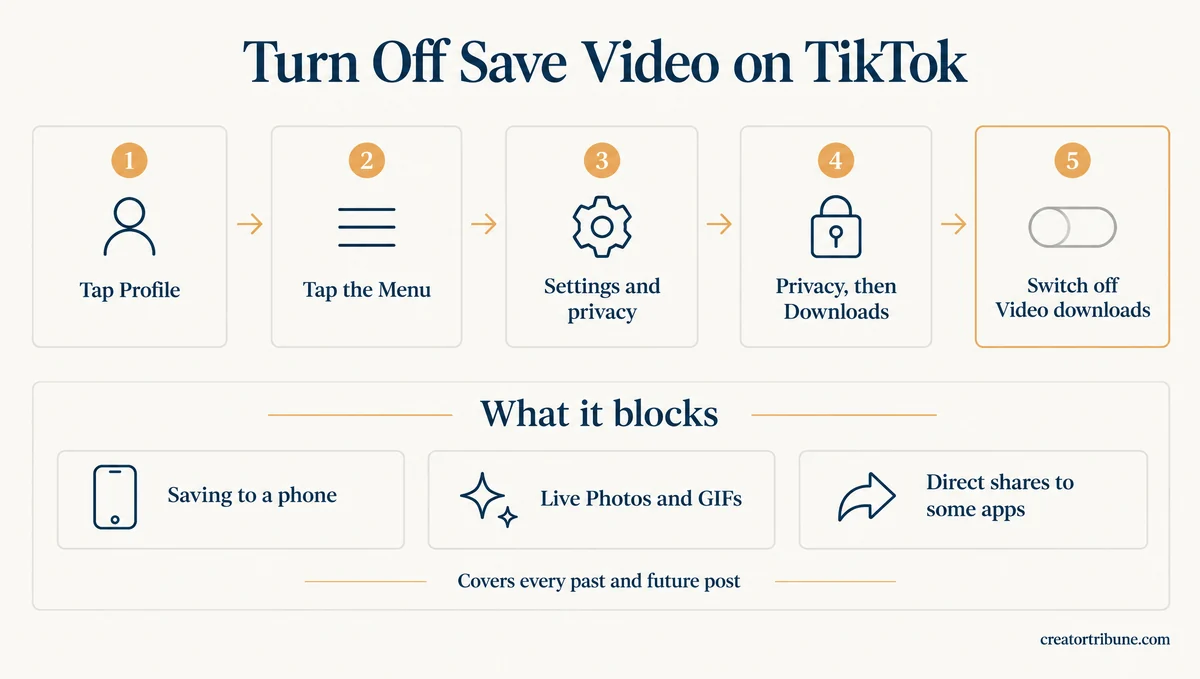
I leave this switch off on every account where I post my own face. The path is the same on iPhone and Android:
- Open TikTok and tap Profile at the bottom.
- Tap the Menu button, the three lines at the top.
- Tap Settings and privacy.
- Tap Privacy, then tap Downloads.
- Switch off Video downloads.
TikTok’s help page, as it read on November 2, 2026, lists what changes when you turn off downloads on TikTok. People can no longer save your videos or photos to their device, turn them into Live Photos or GIFs, or share them straight to some third-party apps.
The change covers posts you have already published as well as future ones, so there is no need to edit old videos one at a time.
TikTok’s help pages say the switch is locked off on private accounts and for anyone under 16, and 16 and 17 year olds with public accounts have to switch it on themselves.
If you are 18 or older on a public account and have never opened this menu, check it today.
Where Is the Allow Downloads Setting on TikTok Now?
The setting older guides call “Allow your videos to be downloaded” now sits under Privacy, then Downloads, with the name Video downloads.
Older guides send you to a Safety header first, while TikTok’s current help page names no header at all, only Privacy and then Downloads.
The label shifts even inside TikTok’s own pages. The same switch appears as “Video downloads”, “Allow video downloads” and “Allow others to save my videos”, so look for the word Downloads under Privacy rather than any single name.
Can You Still Save Your Own TikToks With Downloads Off?
TikTok’s help pages give two different answers, so save a copy of your own video before you switch downloads off.
The Manage video downloads page says: “You’ll still have the download and sharing options available for your own content.”
TikTok’s save-to-device guide disagrees in its troubleshooting section: for a Save option that is “not visible for your own video”, it tells you to “Turn on Allow video downloads.”
That contradiction bothers me, because the people who switch downloads off are often the ones who most need a backup of their own work.
The safe route works whichever page is right: save the posted videos you care about through Share, then Save video, before you switch downloads off. For a new video, turn Save to device on at the Post screen, or back up the draft first using the draft steps below.
Can You Turn Off Downloads for Just One TikTok Video?
TikTok’s help pages describe no download switch for a single video, because Video downloads covers your whole account.
The per-post controls they do describe are who can watch a post and whether other people can reuse it.
On TikTok’s post privacy page, a public account can set each post to Everyone, Friends or Only you. Only you hides the video from everyone else, which makes it the one per-post setting that stops anyone else saving it from then on.
Allow reuse of content sits under More options on the Post screen, or under Privacy settings on an existing post. Switching it off turns off Duet, Stitch, stickers and adding your post to Stories in one go, according to TikTok’s Stitch help page.
How to Duet on TikTok covers the rest of those settings.
How Do You Stop TikTok Saving Your Videos to Your Camera Roll?
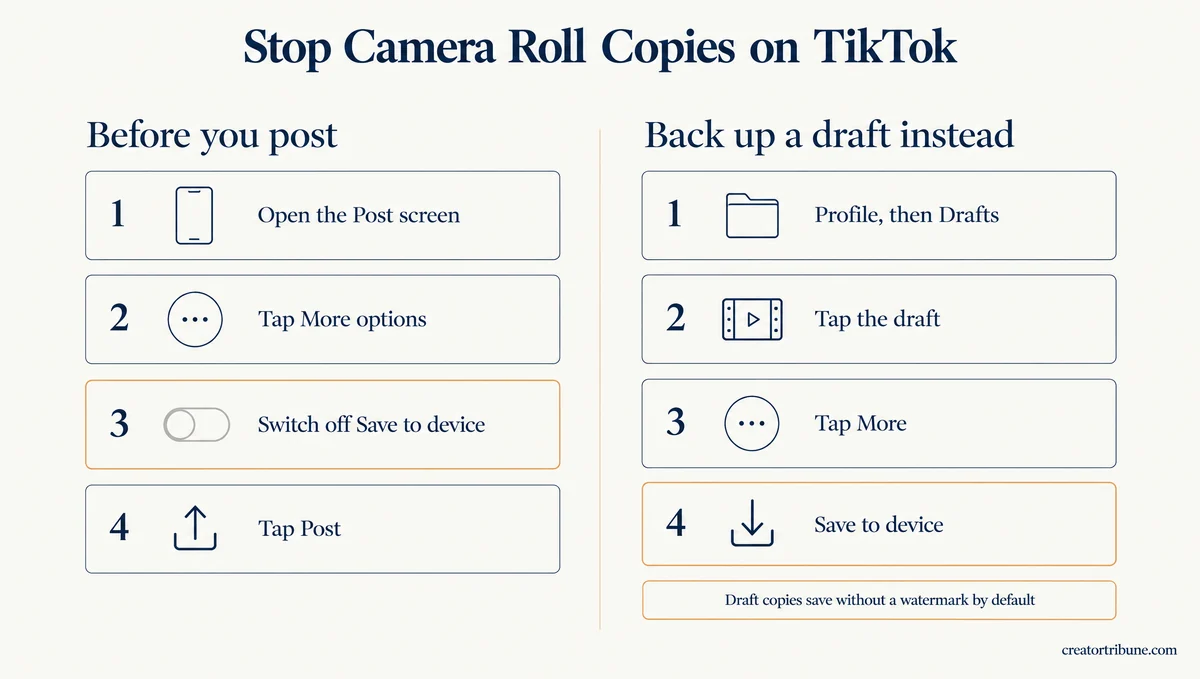
You stop TikTok saving your videos to your camera roll by switching off Save to device under More options on the Post screen, before you tap Post.
TikTok’s Download content page puts Save to device on the Post screen and lists no account-wide camera roll switch.
That matters if you have read about a Save to camera roll option under Video preferences or Playback, because the Download content page describes no such menu.
My routine is to check the toggle on every upload, since it lives on the Post screen rather than in Settings:
- Record or upload your video, edit it, and tap Next.
- On the Post screen, tap More options.
- Switch off Save to device.
- Go back and tap Post.
Before: Save to device is on. You post a 40-second clip, and a second copy lands in your camera roll. Post once a day and that is about 30 extra videos a month.
After: Save to device is off. The clip goes live on TikTok, and nothing new appears in your camera roll.
A video can still land in your gallery later if you open it and tap Share, then Save video, because that saves a copy to your phone. Check that Save to device is off each time you post, and your camera roll stays clean.
How Do You Back Up a TikTok Draft Without Posting It?
You back up a TikTok draft by opening it from Drafts on your profile, tapping More at the top and choosing Save to device.
TikTok’s save-to-device guide says the copy saves with no watermark by default, and that you no longer need to post a draft to save it.
That retires the old trick of posting a draft to Only you just to get a copy. TikTok’s Download content page also recommends keeping offline copies of what you post, and TikTok’s editing help warns that drafts can be removed when you reinstall the app or move your account to another phone.
I would rather spend camera roll space than lose a finished edit, and why TikTok drafts disappear covers the ways they vanish. If you post with Save to device off, save each draft you care about to your device first.
Why Does TikTok Say Someone Saved Your Video When Downloads Are Off?
That alert means someone added your video to their Favorites, a bookmark inside TikTok that no setting lets you switch off.
Downloads and Favorites are separate actions, and the Video downloads switch only controls downloads.
What is TikTok Favorites: A private collection where viewers bookmark videos with the Favorite button, just below the comment button, to rewatch them later inside the app.
A Favorite saves a link to your video in the viewer’s collection, and no file leaves TikTok. TikTok’s Favorites help page calls the Favorites collection private to the viewer, and it offers creators no way to stop a bookmark.
Creators have seen the username of each person who favorites a clip since late 2022, as Tubefilter reported at the time. That is the alert a creator in this r/TikTok thread kept getting after switching downloads off.
I don’t buy the advice to go private just to stop bookmarks. TikTok’s private account page lists Duets, Stitches, stickers, downloads and Story shares as the things a private account blocks, and Favorites is not on that list, so approved followers can still bookmark your posts.
Making a TikTok account private explains what else you give up by going private. If the alerts bother you, limit who can watch the post, because audience is the only control that reaches bookmarks.
Why Is the TikTok Video Downloads Setting Greyed Out or Missing?
The Video downloads switch is locked off on private accounts and on accounts whose birthday puts the owner at 13 to 15, even when the account is public.
Accounts aged 16 to 17 start with downloads off but can switch them on once the account is public.
TikTok’s teen privacy settings page is blunt about the younger group: “This control is set to off and can’t be changed, even if you have a public account.”
TikTok set these teen defaults in January 2021, according to TechCrunch’s report on the change.
The age lock is the one setting I would leave alone, because it exists to protect younger creators. If you are 18 or older and the account carries the wrong birthday, changing your age on TikTok walks through the appeal TikTok allows.
A parent using Family Pairing can also limit how much a teen can adjust alone.
| What you see | Likely cause | What to do |
|---|---|---|
| Video downloads is greyed out on a private account | Private accounts have downloads forced off | Switch the account to public if you want downloads on |
| Greyed out on a public account | The account’s birthday puts you at 13 to 15 | Wait until 16, or appeal a wrong birthday if you are 18 or older |
| No Save video button on your own post | One TikTok help page ties this to downloads being off | Switch Video downloads on, or save from Drafts before posting |
| A saved video is missing from your iPhone gallery | TikTok has no access to your photo library | Open iPhone Settings, then TikTok, then Photos, and allow access |
| The setting is not where a guide said it would be | The switch moved to Privacy, then Downloads | Open Privacy, then Downloads |
To turn downloads back on:
- Open Settings and privacy, then Privacy.
- Switch off Private account if it is on.
- Tap Downloads.
- Switch on Video downloads.
What Can People Still Do With Your TikToks When Downloads Are Off?
People can still screen record your videos, share them by link or DM, keep copies they saved earlier, favorite them, and repost them.
The Video downloads switch only removes the in-app Save video button and the features built on it.
| What people can still do | What limits it instead |
|---|---|
| Share a link or send it in a DM | Setting the post to Only you, or a private account |
| Keep a copy they saved before you switched | Nothing, the copy stays on their phone |
| Screen record it | Nothing inside TikTok on a post they can watch |
| Add it to Favorites | Who can watch the post |
| Repost it | A private account |
| Duet, Stitch or make stickers | Allow reuse of content off |
Screen recording is the gap that worries me most, because no TikTok setting blocks it on a video people can watch. TikTok does not alert creators to screenshots or recordings either, which the screenshot alerts guide covers in detail.
Turning the switch off recalls nothing. The Manage video downloads page says copies downloaded while it was on stay on the other person’s device. Copies people do save may carry the TikTok watermark and your username, according to the save-to-device guide.
For clean copies of your own work on other platforms, cross-posting without a watermark covers that workflow. Reposts need no download at all, and reposting on TikTok explains why only a private account stops them.
If a video must not leave your account at all, post it as Only you or keep it in your drafts.
Quick Takeaways
- Switching off Video downloads, under Settings and privacy, Privacy, then Downloads, stops other people saving your TikToks and covers every past post at once.
- Switching off Save to device, under More options on the Post screen, stops TikTok copying your own uploads into your camera roll.
- A “saved your video” alert is a Favorites bookmark, and no setting turns bookmarks off.
- Private accounts and accounts aged 13 to 15 cannot switch downloads on at all.
- Save copies of your own videos before you switch downloads off, and save the drafts you care about before posting, so your backups never depend on which help page is right.