How to Remove a TikTok Filter and Stop the Auto Beauty Mode
How to Remove a TikTok Filter and Stop the Auto Beauty Mode
How to remove a TikTok filter before recording, on drafts, and on Live, plus the hidden auto beauty mode most guides miss. Here is the full fix.
- 1How to Remove a TikTok Filter Before You Record
- 2Why the Filter Will Not Turn Off Even With Everything Off
- 3How to Remove a Filter From a Draft or Posted Video
- 4How to Turn Off Beauty Filters on TikTok Live
- 5What the 2026 Teen Beauty Filter Ban Changes
- 6Do Beauty Filters Trigger TikTok’s AI Content Label
- 7Frequently Asked Questions
- Why does TikTok automatically put a filter on my face?
- How do I know if the filter is from TikTok or my phone?
- Can I remove a filter after I post a TikTok?
- Why can I not remove an effect from my draft?
- How do I turn off the beauty filter on TikTok Live?
- Can teenagers still use TikTok beauty filters?
- 8Quick Takeaways
TL;DR: To remove a TikTok filter, clear Filters to Normal and switch Retouch to Beauty Mode OFF before you record. If your face still looks smoothed after that, the filter is coming from your phone’s own camera, not TikTok. This guide fixes both layers, plus drafts, posted videos, Live, and the 2026 teen filter rules.
If you have tried everything and still cannot work out how to remove a TikTok filter from your face, there is a strong chance the filter is not coming from TikTok at all.
A lot of the smoothing and face-slimming people blame on the app is baked in by the phone itself, before TikTok ever touches the frame.
That one detail explains most of the frustration I see around this topic. You switch off every TikTok toggle, your skin still looks airbrushed, and you assume the app is quietly ignoring you.
So this guide covers both layers. First the filters and beauty mode you can turn off inside TikTok, then the hidden hardware smoothing on phones like Samsung Galaxy that survives every in-app change. After that I will cover drafts, posted videos, Live, and the 2026 rules that changed which filters teens can even use.
How to Remove a TikTok Filter Before You Record
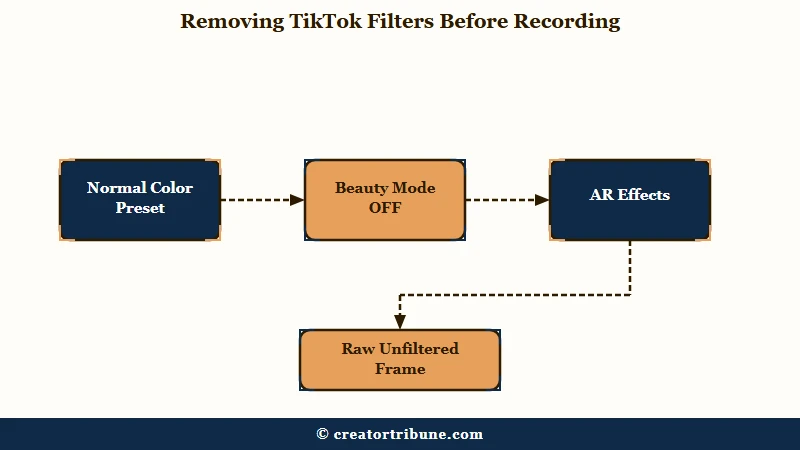
To remove a TikTok filter before recording, open the camera, tap Filters and choose Normal, then tap Retouch or Enhance and toggle it off until the screen reads Beauty Mode OFF. Effects are separate, so clear those too.
What is Retouch: TikTok’s built-in skin-smoothing feature, renamed from Skin Smoothing in the January 2026 Effect House update. It softens skin and adjusts facial features in real time.
TikTok stacks three different things people call a filter, and each one lives in its own menu. There is the color filter (the lighting and tone presets), the Retouch or Enhance beauty layer (skin and face smoothing), and Effects (the AR overlays).
Turning one off does nothing to the other two, which is why so many people think they cleared a filter when they only cleared part of it.
The step I see missed most often is the confirmation. TikTok does not just dim the Retouch icon, it shows the words Beauty Mode OFF on screen. If you never see that prompt, the beauty layer is still running.
Here is the order I would go through every time before hitting record:
- Open TikTok and tap the plus icon to open the camera.
- Tap Filters on the right side, then swipe to the Normal tab or tap the crossed-out circle to clear any color filter.
- Tap Retouch or Enhance and deselect the red checkmark until you see Beauty Mode OFF.
- Tap Effects in the bottom-left corner and tap any active effect again to remove it.
- Record. With all three cleared, the camera shows your raw frame.
One warning that saves a lot of wasted takes: if you apply an AR effect or Retouch before you press record, it becomes part of the footage and cannot be peeled off later. Clear everything first, then record.
Why the Filter Will Not Turn Off Even With Everything Off
The most common reason a TikTok filter will not turn off is that it is not a TikTok filter. Many phones, especially Samsung Galaxy models, run their own beauty smoothing at the camera level that stays on no matter what you change inside TikTok.
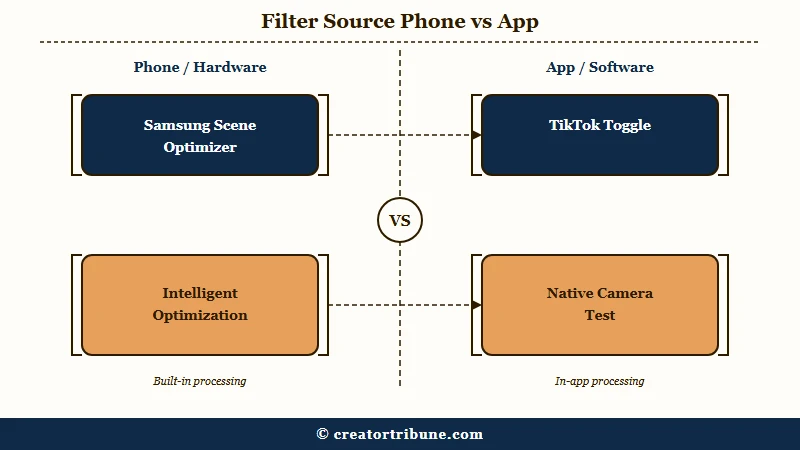
This is the part that took me longest to work out. You can strip every TikTok toggle back to zero and your skin still looks softened, because the phone smoothed the image before the app received it. On Samsung devices the usual culprits are features named Scene optimizer, Intelligent optimization, and Super HDR, all of which run by default.
What is Scene Optimizer: A Samsung camera feature that automatically adjusts and smooths photos and video using AI. It runs by default and is separate from any social app.
There is also a hidden native beauty filter on many phones that has nothing to do with any social platform. On some Samsung models you open the stock camera, tap the wand-shaped icon in the corner, choose the face option, and switch it to off. On newer models the setting lives under Camera assistant as a toggle called Soften pictures.
The reliable way to know which layer is responsible is a side-by-side test. Compare your native camera to the TikTok camera and watch what changes between them.
Before: You switch off TikTok’s Retouch and Filters, but your skin still looks airbrushed and your jaw looks a little narrower than it does in a mirror.
After: You open your phone’s native camera, turn off Scene optimizer and the beauty wand, then hold it next to the TikTok camera. If the two finally match, the smoothing was your phone the whole time.
This distinction matters for more than vanity. Hardware smoothing also changes how sharp your footage looks, which feeds straight into TikTok video quality after posting. Here is where each version of the filter lives and how to switch it off.
| Where the filter lives | How to tell it is the source | How to switch it off |
|---|---|---|
| TikTok in-app filter | Smoothing changes as you tap Retouch or Filters in the camera | Filters to Normal, Retouch to Beauty Mode OFF, clear Effects |
| Phone hardware smoothing | Native camera looks smoothed too, even with TikTok closed | Turn off Scene optimizer, the beauty wand, and Soften pictures |
| Stealth auto-applied filter | Face shifts when you pass a hand across it during a glitch | Close and reopen the camera, update the app, clear the cache |
How to Remove a Filter From a Draft or Posted Video
You can remove a filter from a draft by reopening it and clearing the Filters and Effects, but you cannot remove a filter from a video once it is posted. For a posted clip you have to delete it, fix the original draft, and repost.
Drafts give you room to fix a color filter or an added effect. Open the draft, tap Filters and choose Normal, then tap Effects and undo each one. If you layered several effects, keep tapping undo until they are all gone, then save.
There is a real disagreement between guides on this, and it is worth being honest about. Some tutorials say you can edit any filter in a draft regardless of when you added it. Others warn that an AR effect or Retouch applied before you hit record is welded into the footage and cannot be removed afterward. The second group is right about pre-record effects, so the safe rule is that anything applied before recording means you re-record rather than edit.
What I would do when a filter is stuck is match the symptom to the cause first, then apply the matching fix instead of guessing.
| Symptom | Likely cause | Fix |
|---|---|---|
| Filter still on a drafted video | Color filter or effect added in edit mode | Reopen the draft, Filters to Normal, undo Effects |
| Effect cannot be removed from a draft | AR effect or Retouch applied before recording, now embedded | Re-record with beauty mode off |
| Filter on an already-posted video | Filters bake in at upload | Delete the post, fix the draft, repost |
| Another creator’s video looks filtered | You cannot edit someone else’s clip | Nothing to change on your end |
How to Turn Off Beauty Filters on TikTok Live
To turn off beauty filters on TikTok Live, tap Enhance on the pre-live screen and switch it off before you go live. On TikTok Live Studio for PC, open the Enhancement tab and disable it, which also stops the AI features that can eat over half your GPU.
Standard filter guides skip Live entirely, which is a shame because Live has its own set of toggles that behave nothing like the video camera. On mobile, the beauty and Enhance controls sit on the setup screen you see right before you start streaming, so that is the moment to switch them off.
On desktop the story gets more practical. When I go live from a computer, TikTok Live Studio turns on enhancement and AI background features by default, and streamers report those features chewing through GPU resources and causing lag even while idle.
Opening the Enhancement tab and disabling it strips the beauty layer and frees up performance in one move. If you are still setting up your stream, my walkthrough on how to go live on TikTok covers the rest of the setup.
What the 2026 Teen Beauty Filter Ban Changes
In 2026 TikTok blocks users under 18 from appearance-altering beauty filters like Bold Glamour, while leaving comedic filters such as animal ears available. The ban targets effects that mimic cosmetic surgery, not every filter.
The way I read this shift, TikTok is drawing a hard line between playful AR and the hyper-real filters that reshape a face. Effects that plump lips, enlarge eyes, thin noses, and smooth skin are the ones being pulled for minors. Dog ears and silly overlays stay.
Enforcement leans on age, and age is exactly where it gets shaky. TikTok already removes around 20 million underage accounts every quarter worldwide, and research it cites suggests roughly 30 percent of under-13s get past age gates by aging up their profiles. The platform announced the change at a safety forum ahead of the UK’s Online Safety Act, and The Guardian reported it alongside a commitment to invest heavily in youth safety.
For parents trying to manage this, Family Pairing is the lever, and it works far better once the teen account is verified as belonging to a teen. If a filter or verification step is blocking a younger creator, my guide on how to verify your age on TikTok walks through the process.
Do Beauty Filters Trigger TikTok’s AI Content Label
A standard beauty filter or Retouch does not trigger TikTok’s AI-generated content label, but heavy generative effects that fuse or reshape your face can. TikTok uses C2PA content credentials and invisible watermarks to flag synthetic media.
I would not lose sleep over the everyday smoothing filter here. The label system is aimed at content that looks generated or swaps a face, not at softened skin.
Where I would be careful is with the newer generative beauty effects that rebuild your features, since those sit much closer to what the detection is watching for.
There is a bigger point underneath all of this. The same platform that decides how smooth your jaw looks also decides how far your videos travel, and neither decision is yours.
That is the case for building a direct line to your audience with a tool like the free Creator Money Page template, so a filter policy or an algorithm tweak never controls your whole reach. It is also why I keep pointing creators toward turning views into subscribers on channels you own.
Frequently Asked Questions
Why does TikTok automatically put a filter on my face?
TikTok often enables a default Retouch or Enhance layer, and in some cases a glitch has applied beauty filters without permission. Check the camera every time you open it and toggle Retouch off until you see Beauty Mode OFF.
How do I know if the filter is from TikTok or my phone?
Open your phone’s native camera and compare it side by side with the TikTok camera. If your native camera looks smoothed too, the filter is your phone’s hardware, not TikTok, and you fix it in the phone’s camera settings.
Can I remove a filter after I post a TikTok?
No. Filters bake into a video at upload, so you cannot remove one from a posted clip. Delete the post, reopen or re-record the original without the filter, then repost it.
Why can I not remove an effect from my draft?
If the effect or Retouch was applied before you pressed record, it is embedded in the footage and cannot be edited out. Only filters and effects added during editing can be cleared from a draft.
How do I turn off the beauty filter on TikTok Live?
Switch Enhance off on the setup screen before you go live. On TikTok Live Studio for PC, open the Enhancement tab and disable it, which also reduces the GPU lag those AI features cause.
Can teenagers still use TikTok beauty filters?
Not the appearance-altering ones. Since 2026, accounts under 18 are blocked from filters like Bold Glamour that reshape facial features, though comedic filters such as animal ears remain available.
Quick Takeaways
- If a filter will not turn off, check your phone’s camera settings first, because hardware smoothing survives every TikTok toggle.
- Inside TikTok, clear Filters to Normal and switch Retouch to Beauty Mode OFF before you record.
- A filter baked into a posted video cannot be removed, so delete, fix the draft, and repost.
- Effects applied before recording are embedded for good, which means you re-record rather than edit.
- Under-18 accounts lost access to appearance-altering filters like Bold Glamour in 2026.