How to Turn Off Meta AI on Instagram Without Going Private
How to Turn Off Meta AI on Instagram Without Going Private
Meta AI is baked into Instagram, but you can still shut down the parts that matter most. Learn how to turn off Meta AI on Instagram, surface by surface.
- 1Why You Can’t Fully Turn Off Meta AI on Instagram
- Can You Turn Off the AI Summary on Reels?
- 2How to Stop Meta AI From Turning Your Photos Into AI Images
- 3How to Mute the Meta AI Chat and Wipe Its Memory
- 4How to Turn Off AI Images of You and Voice Translation
- 5What Is Meta’s Muse App, and Can You Turn It Off on Instagram?
- 6How to Stop Meta From Training Its AI on Your Posts
- 7Quick Takeaways
TL;DR: You cannot fully remove Meta AI from Instagram, but you can switch off or mute the parts that touch your photos, your chats and your feed. Muse Image tagging ran only from July 7 to July 10, 2026, and the reuse switch that governed it still sits under Sharing and reuse. If you use Muse, Meta’s separate agent app, it links to your Instagram automatically through a shared Accounts Center, and Meta says any Connector can be disconnected in Muse under Settings, then Connectors.
If you went looking for how to turn off Meta AI on Instagram in July, the trigger was probably Muse Image. Meta launched the image model on July 7, 2026, and for three days anyone could @-mention a public Instagram account in the Meta AI app to generate pictures from that account’s photos.
Meta withdrew the @-mention feature on July 10, saying it had “missed the mark”. Muse Image itself stays live in Meta AI and behind more than 30 AI effects in Instagram Stories in the US, and the setting that governed the tagging has since been renamed.
Since September 8 the name has a second meaning, because Muse is also Meta’s personal AI agent app, a separate product that can link to your Instagram. If a Muse ad or share icon brought you here, the section on the Muse app covers how it connects and how to disconnect it.
There is no single master switch. Meta AI is wired into the search bar, your DMs, Stories and Reels, and each surface has its own control.
The usual advice is to set your account to private, which is useless if you post for a living. So I have laid this out as a per-surface playbook for creators who need to stay public.
Why You Can’t Fully Turn Off Meta AI on Instagram
You cannot fully turn off Meta AI on Instagram, because the assistant lives in the search bar and your chats and no setting removes it. The realistic goal is to mute the chat and switch off each feature that uses your photos, your voice or your feed.
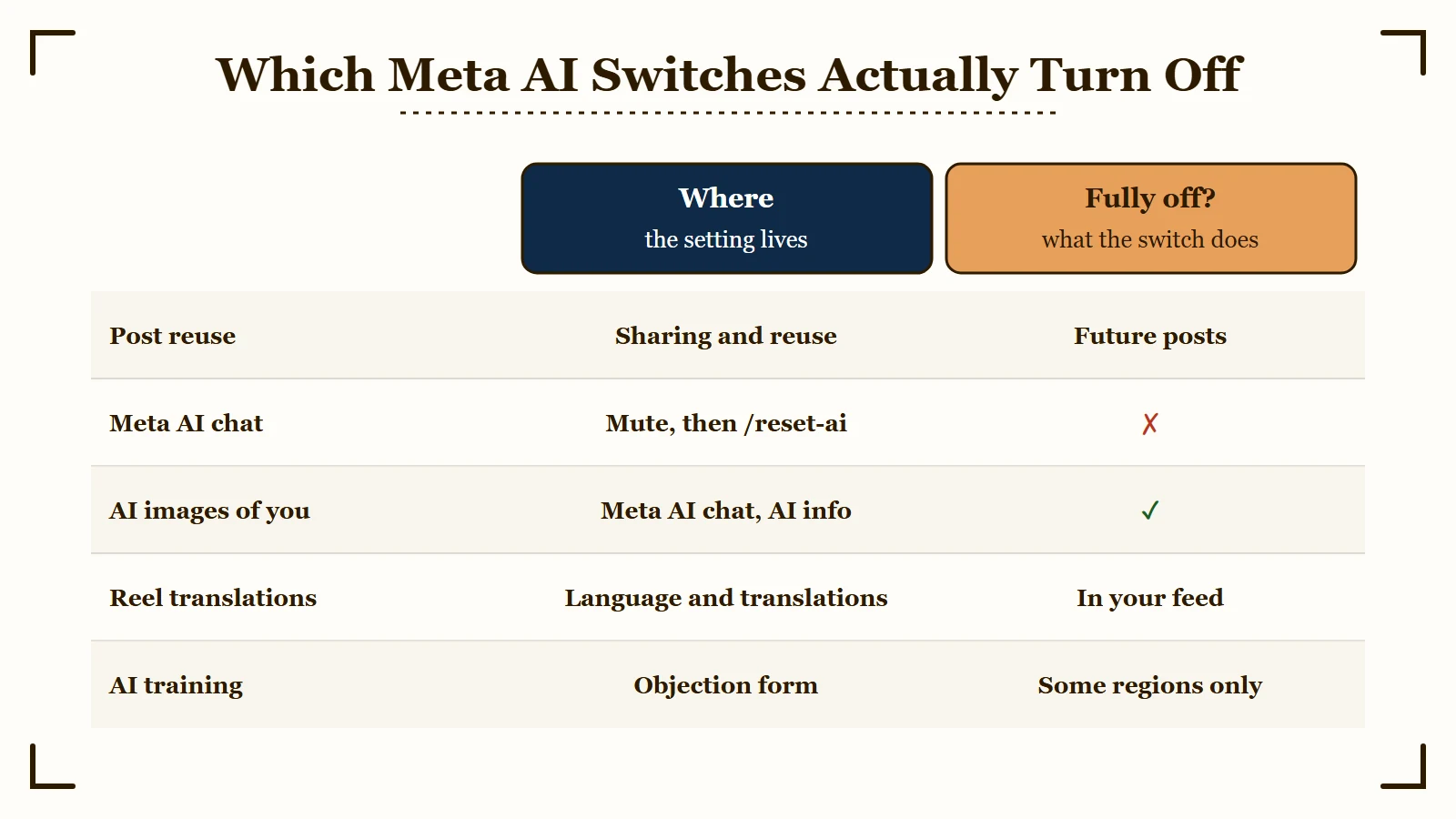
I find it more useful to sort the controls by what they protect. Muting the Meta AI chat stops its notifications and does nothing about how your posts are used. Treating those as one system is why so many people think they have opted out when they have not.
What is Meta AI: Meta’s built-in assistant and set of generative features across Instagram, Facebook and WhatsApp, which Meta says it trains partly on public posts and comments shared by adults.
Instagram passed 3 billion monthly active users in September 2025, CNBC reported, and Meta told investors on July 29, 2026 that Instagram had reached 2 billion daily actives. At that scale a feature that ships quietly reaches an enormous audience overnight.
| Meta AI surface | What it does | How to limit it | Fully turns off? |
|---|---|---|---|
| Reuse of your posts | Lets others remix your public posts, and governed Muse Image tagging | Sharing and reuse toggles | Yes, for future posts |
| Meta AI chat (blue ring) | Assistant in search and DMs | Mute the chat, /reset-ai |
No, only mutes |
| AI images of you | Makes images of you from setup photos, some shown in your Feed | AI info, then Imagine yourself | Yes |
| Reel translations | Plays dubbed reels in your language | Language and translations | Yes, in your feed |
| AI training | Uses public posts from adults to train AI at Meta | Objection form or go private | Region-dependent |
| Reel summaries | Shows an About this reel summary in a reel’s options menu | No documented control | No |
| Muse app | Separate agent app that links to Instagram through Accounts Center | Disconnect under Settings, then Connectors in Muse | Partly, past data can stay until you reset Muse |
Can You Turn Off the AI Summary on Reels?
Instagram offers no documented way to turn off About this reel, the Meta AI summary some viewers now see at the top of a reel’s options menu. It comes with a Sources link and an Ask Meta AI box.
A September 17, 2026 r/Instagram thread with more than 170 upvotes shows the panel above Save, and its summary named two people and the city the family in the clip was driving through. The top reply said it could not be removed or turned off.
I found no Instagram help article that mentions the panel or a way to hide it, either for viewers or for the creator whose reel gets summarized.
How to Stop Meta AI From Turning Your Photos Into AI Images
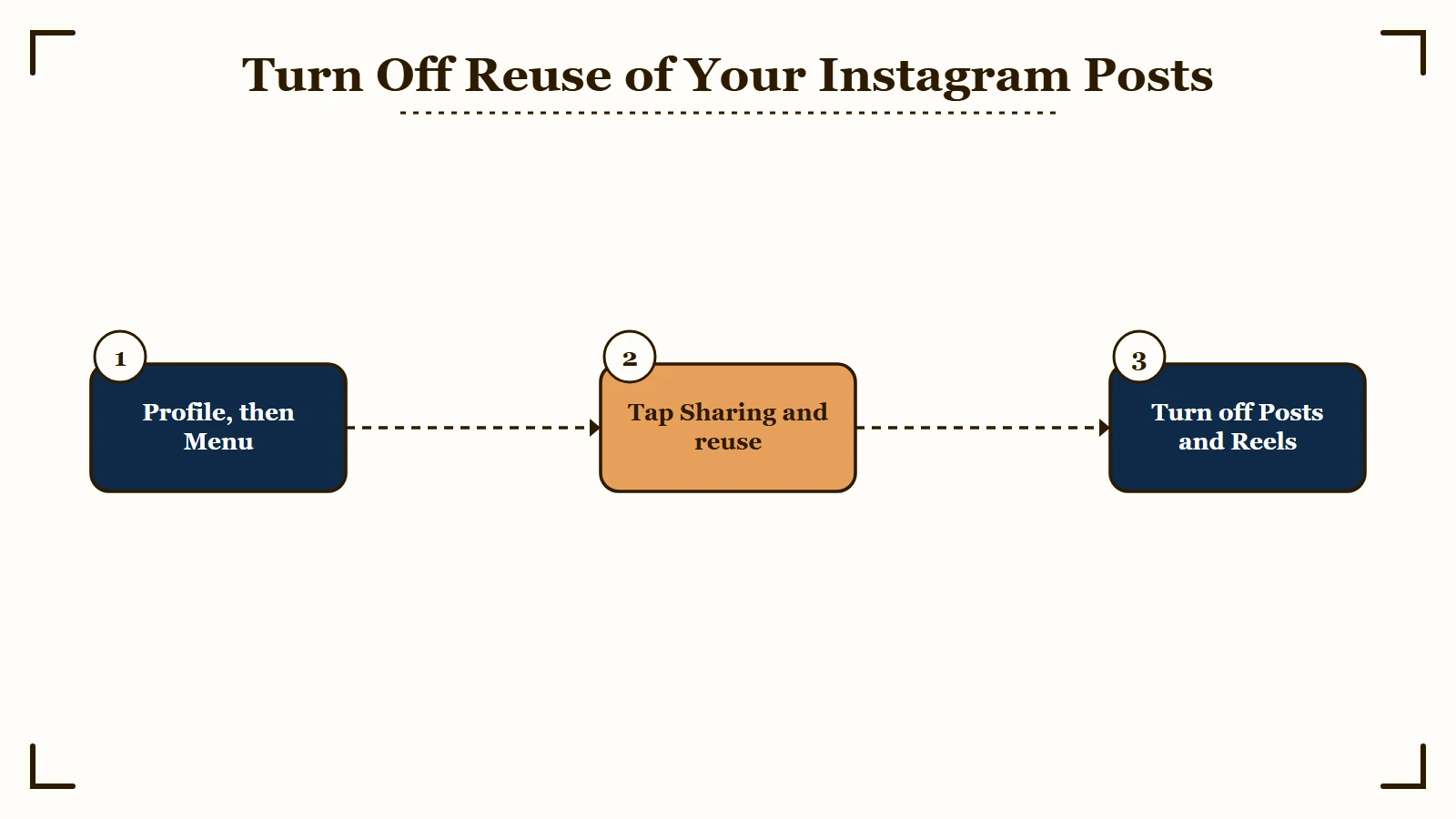
The setting to change is Sharing and reuse, found under How others can interact with you in your Instagram menu. Its Posts and Reels toggles, below Allow people to create with and reuse your content, decide whether others can build on your public media.
On a public account both toggles start on. Instagram’s reuse help article says anyone can reuse all or part of a public account’s reels, feed videos and photos, while nobody can reuse media from a private account.
This is the same switch that governed Muse Image tagging, under a new name. On July 10, 2026 that article said the setting controlled reuse “including using your content to create with AI features at Meta”. The toggle read “Allow people to reuse your content on Instagram and with AI features at Meta”, as an Internet Archive copy captured that day shows.
The article had been rewritten by September 4, 2026. The toggle now reads “Allow people to create with and reuse your content”, and the current text no longer mentions AI at all. I found no Meta announcement of the change, and CBC reported in July that Meta had not said whether it would automatically opt users into future AI features.
What is Muse Image: The first image generation model from Meta Superintelligence Labs, launched in Meta AI on July 7, 2026. For three days it also let people @-mention public Instagram accounts to generate images from their photos, until Meta withdrew that feature on July 10.
Here is the sequence I would walk through right now:
- Open your Instagram profile and tap the menu (three lines) in the top right.
- Below How others can interact with you, tap Sharing and reuse.
- Below Allow people to create with and reuse your content, toggle off Posts and Reels.
- If the screen also shows Allow people to create with and reuse your original audio on Meta AI, a separate toggle CBC reported in July, turn that off too.
The trade-off is real, because the same switch stops remixes, sequences, templates and stickers built from your posts. To protect only certain photos, open a post, tap Options and choose Turn off reuse.
The switch is not retroactive. Instagram says account-level changes apply only to future media, and its July 10 help text added that content others created with AI features at Meta would not be deleted. If you find an AI image of yourself, report it through Instagram’s impersonation and harassment tools.
No Instagram setting stops someone uploading a screenshot of your photo to an AI tool. Muse Image pictures made in the Meta AI app and on meta.ai do carry Content Seal, an invisible watermark Meta says survives cropping, compression and screenshots.
Before: Public account, reuse on by default, and between July 7 and July 10 a stranger could @-mention your username in the Meta AI app to generate images from your last photo dump.
After: Reuse toggled off, your future posts are closed to remixes and reuse, and you keep your public reach intact.
How to Mute the Meta AI Chat and Wipe Its Memory
You cannot delete the Meta AI chat from your search bar, but you can mute it indefinitely and wipe what it remembers about you with a slash command.
Muting the blue circle is the fix I reach for first. CNET’s July 2026 walkthrough starts in your messages: tap the new message icon, find Meta AI under Suggested or search for it, and open the chat.
Then tap the “i” icon at the top right, tap Mute and set Mute messages to “Until I change it”. That stops it from nudging you, though the icon itself stays in place.
If you have already chatted with the assistant, muting does not erase what it stored. Meta’s Privacy Center guide says typing /reset-ai into the chat deletes the AI’s copy of your messages and the details it saved about you there. Typing /reset-all-ais does the same for every AI chat on the app, group chats included.
You will still see your own copy of the thread afterwards, so delete the chat too if you want it gone from your inbox.
Meta AI reads what is shared with it, which can include more than the message that called it. I found no Instagram help page that puts a number on this. Meta’s Messenger help page says using an AI feature in a chat shares up to 50 recent messages, and an @Meta AI mention in a group chat can share messages from the past 30 days.
Meta’s 2023 privacy note says it does not use the content of your private messages with friends and family to train its AI. A clarification Meta added on November 21, 2025 says “we may train our AIs on messages that people choose to share with our AI features”.
How to Turn Off AI Images of You and Voice Translation
Two of Instagram’s creative AI features have their own switch: AI images of you under AI info in the Meta AI chat, and reel translations under Language and translations. Restyle has no switch at all and only runs when you tap it.
AI images of you are still rolling out gradually in the US. Once you set the feature up with photos of yourself, Meta AI can generate images of you and even show them in your Feed, where only you see them unless you share them.
To turn it off, open your chat with Meta AI, tap AI info, tap Imagine yourself and switch off Create AI images of yourself with Meta AI. Per Instagram’s help page, that also deletes your setup photos. The See AI images of yourself in Feed toggle on the same screen stops them appearing in Feed.
Voice translation has two sides. Creators switch on “Translate voices with Meta AI” per reel before publishing. Viewers hear translated reels in their default language automatically and can switch off text and voice translations under Settings and activity, then Language and translations.
Meta announced French, German, Italian, Japanese and Korean for Instagram reels on July 14, 2026, bringing the list to 14 languages. For the creator toggle and dubbed reels arriving in DMs, see the auto translate guide.
Restyle has no off switch, so the only way to avoid it is to never tap it. Instagram describes it as a way to edit a photo or video with Meta AI before you share it to your Story, and videos are limited to 10 seconds and five a day. The restyled memories people ask about are a Facebook feature.
For related settings creators hunt for at the same time, turning off read receipts and using sensitive content control live in the same menus.
What Is Meta’s Muse App, and Can You Turn It Off on Instagram?
Muse is Meta’s personal AI agent app, launched in the US on September 8, 2026, and separate from Muse Image, the July image model. I found no Instagram help page describing a setting that turns Muse off. For Muse users, Meta’s help center lists Instagram among three Connectors that link automatically, and says any Connector can be disconnected in the Muse app under Settings, then Connectors.
Meta’s launch post says Muse is powered by Muse Spark, the company’s most capable model, and gives the example of turning “a recipe reel the person saved on Instagram into a grocery list”. The help article on Connectors says Facebook, Instagram and Threads “are connected automatically if you have your accounts in the same Accounts Center”, but it does not list which Instagram data that link reads.
Disconnecting “stops Muse from exchanging data with the Connector,” the same article says, but information Muse already used “might still remain in Muse’s memories and your conversation history”. For Facebook, Instagram and Threads, the article points you to Accounts Center to manage the linked accounts.
Muse’s privacy page says the setting that lets Meta use your interactions with Muse to develop and improve its AI models starts switched on, and the toggle sits under Settings, then Data controls. Resetting Muse deletes all your Muse data. The launch post adds that Muse does not share your conversations or the data in its virtual machine with Meta’s ad systems.
Meta has pushed Muse hard inside its own apps. It began running house ads for Muse on September 9, and within 10 days Muse was getting the majority of Meta’s house ad promotions, TechCrunch reported, citing Sensor Tower. Muse from Meta reached number one on the US App Store on September 18, and Apple’s top free iPhone chart still had it at number one on October 5, 2026.
Some people first meet Muse in the share sheet. One r/Instagram user posted a screenshot on September 26 showing a Muse option between Copy link and WhatsApp while sharing reels, and a commenter reported seeing it too. I found no Muse help page that mentions that option or a way to hide it.
Meta’s page for people who don’t use Muse says a Muse user may share information that includes details about you, and that Muse “might also access information that is publicly available on the internet”.
None of this revives the July tagging feature, which Meta’s update still says is “no longer available”, and CBC reported that Meta had not responded when asked whether it would return.
How to Stop Meta From Training Its AI on Your Posts
Whether you can stop Meta from training its AI on your public posts depends on where you live, because only a few places, including the EU, the UK and Brazil, get a form to object.
In the EU, Meta’s notifications carry “a link to a form where people can object to their data being used in this way at any time”, per its April 2025 announcement. Meta says it honors every objection and does not train on public data from EU accounts under 18. UK users got the same kind of objection form in 2024, and so did users in Brazil, where the data regulator made it a condition of training.
In the US there is no first-party opt-out. The closest thing is a third-party information form for personal information Meta gathered elsewhere, and Meta says it does not automatically fulfill requests sent through it.
This connects to the wider shift where Meta AI replaced Instagram search and where Instagram’s AI creator label started appearing on profiles. Instagram renamed that label “AI-generated profile” on August 31, 2026.
An “AI info” tag on one of your own posts is a separate system that none of these Meta AI controls removes. Meta adds it when it detects industry-standard AI indicators in a file or when you disclose AI content. The guide to blocking AI content covers AI posts in your feed and why real photos get that tag.
| Region | Opt-out available | Where to find it |
|---|---|---|
| EU, UK and Brazil | Yes, an objection form | Linked from Meta’s notifications, usable at any time |
| United States | No first-party opt-out | Only a third-party information form that Meta reviews case by case |
| Rest of world | Usually none | Going private is the main lever |
Setting your account to private keeps future posts out of the public content Meta trains on, but it cannot pull back anything already used, so treat it as harm reduction.
Two more changes sit outside Instagram’s menus. Since December 16, 2025 Meta has used your interactions with its AI features to personalize content and ads everywhere except the EU, the UK and South Korea. TechCrunch reported there is no way to opt out.
If you also use Facebook, its opt-in Camera roll sharing suggestions sit under Preferences in the Facebook app, not in Instagram.
Platforms keep changing the rules under you, which is the whole argument for moving fans somewhere you own the relationship outright.
Quick Takeaways
- There is no single switch. Meta AI is spread across search, DMs, Stories, Reels and training data, each with its own control.
- Do the Sharing and reuse toggles first. The setting is now called Allow people to create with and reuse your content, and it governed Muse Image tagging before Meta withdrew that feature on July 10, 2026.
- Mute the blue chat and type
/reset-aito silence the assistant and wipe what it has stored about you.
- Muse, Meta’s agent app, is separate from Muse Image. For Muse users it links to Instagram automatically through a shared Accounts Center, and Meta says any Connector can be disconnected in Muse under Settings, then Connectors.
- Only a few regions, including the EU, the UK and Brazil, get a training objection form. Everyone else relies on going private, which protects future posts only.