Lock AI Video Style Consistency Across Big Batches
Lock AI Video Style Consistency Across Big Batches
AI video style drift hits at clip 8. Get the 4-stage batch workflow with reference-image locks, tool stacking, and post-batch harmonization fixes.
- 1What Causes AI Video Style Drift In A Long Batch
- 2How Do You Spot The Consistency Cliff At Clip 8
- 3What Is The 4-Stage Workflow For 30 Plus Clips
- 4Which AI Video Tools Pair Best For Style Consistency
- 5How Do Reference Images Beat Text Prompts For Consistency
- 6How Do You Fix An Already Inconsistent Batch Without Regenerating
- 7Frequently Asked Questions
- Why does my AI video style change after clip 8?
- How do I keep a character consistent across multiple AI video clips?
- Can I use one AI video tool for an entire video?
- What is the best AI video generator for consistent style?
- How do I write AI video prompts that produce consistent output?
- How do I fix an AI video batch that already drifted without regenerating?
- How many AI video clips can I batch before style drift becomes a problem?
- What is the realistic cost of a 30 clip AI video batch in 2026?
TL;DR: Style drift in AI video is not a bug, it is what happens when you push a model past its native clip length. The fix is a 4-stage batch workflow built around reference images, a 2 to 3 tool stack, and a harmonization pass at the end. Done right, the consistency cliff at clip 8 stops being a wall.
You batched 30 clips for a single Reel series. The first 5 looked great, clips 6 to 8 started feeling off.
At clip 15 the character’s face had shifted, the lighting had warmed, and the color grade was visibly different from where you started.
Style drift in AI video is the most-encountered and least-discussed problem in the entire batch generation workflow. Most guides treat it like a prompt issue.
It is not. It is a workflow issue, and the fix is structural, not lexical.
What follows is a 4-stage batch workflow for keeping AI video style consistency across 30 plus clips in 2026, plus the tool-stack pairings that work, a reference-image system that does the heavy lifting, and a harmonization pass for fixing a batch that already drifted without regenerating everything from scratch.
What Causes AI Video Style Drift In A Long Batch
AI video style drift is the gradual divergence of character, lighting, and color grade across clips in a batch, driven by short native clip lengths combined with text-only prompts that re-roll the visual interpretation each generation.
The 2026 models have native clip lengths between 5 and 20 seconds. Veo 3.1 maxes at 4 to 8 seconds individually, Runway Gen-4.5 and Kling 3.0 both run roughly 10 seconds.
Seedance 2.0 runs 15 to 20 seconds natively, which is the longest in the field.
The way I see it, this is the first piece nobody wants to admit: most professional AI video is not “long-form generation.” It is a stitched composite of 5 to 10 second clips, edited together in Premiere Pro, CapCut, or DaVinci Resolve. The hype around 60 second single-shot generations is mostly marketing.
Drift compounds because each generation re-interprets the prompt independently. Without a visual anchor (a reference image or a multi-shot lock), the model rolls a fresh interpretation of “soft sunset lighting” or “moody warehouse” every time. Five rolls in, the variance accumulates past the point of editorial coherence.
The repurpose-YouTube-videos workflow covers the post-production side of stitching AI video clips into platform-ready short-form content if that part of the chain is also new to you.
How Do You Spot The Consistency Cliff At Clip 8
The consistency cliff is the point in a batch, usually between clip 6 and clip 10, where character identity, color grade, and lighting start drifting visibly from the first clip without intervention. It is detectable by side-by-side frame comparison of the first and current clip.
The standard cliff for text-only prompted batches sits between clips 6 and 10. After that point, the visual difference is large enough that a viewer scrubbing the timeline sees the inconsistency before any single clip plays. With reference images locked in, the cliff pushes out to clip 20 or 25 on a well-tuned workflow.
The detection method that works in practice:
- Pull frame 1 of clip 1 and frame 1 of the current clip. Put them side by side at full resolution.
- Compare three attributes specifically: the main character’s facial features (eye spacing, jawline, hair density), the dominant color in the scene (warm vs cool vs neutral), and the lighting direction (front-lit vs side-lit vs backlit).
- Score each attribute on a 0 to 2 scale. 0 means identical, 1 means subtly different, 2 means visibly different to a viewer. A cumulative score of 3 or higher across the three attributes means you are over the cliff and need to intervene.
The intervention is not regenerating from clip 1. It is regenerating the current clip with a stronger reference-image anchor pulled from a clip earlier in the batch. The point of the cliff diagnostic is to catch drift before clip 20, not to live with it.
What Is The 4-Stage Workflow For 30 Plus Clips
The 4-stage batch workflow for 30 plus AI video clips is: anchor your reference image set, pick a 2 to 3 tool stack matched to shot types, batch with style locks in groups of 8, and run a harmonization pass at the end.
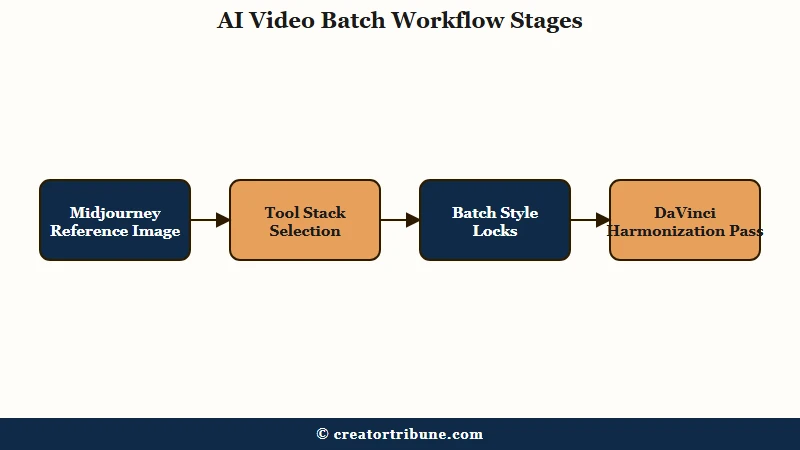
This workflow is what professional AI video shops run in 2026, even when their public messaging implies they are generating long-form one-shots. The stages are sequential, not parallel.
- Stage 1, Anchor the reference image set. Before generating a single clip, create 3 to 5 high-quality stills in Midjourney or DALL-E that lock in the character, the lighting, and the scene aesthetic. These become the visual contract for the entire batch. If you skip this stage, every later stage degrades.
- Stage 2, Pick a 2 to 3 tool stack matched to shot types. No single AI video tool wins every shot type. Runway Gen-4.5 owns camera-controlled shots and style consistency. Kling 3.0 owns human motion. Seedance 2.0 owns multi-shot narrative continuity (12 file inputs). Pika 2.5 owns batch volume for variation testing. Assign each shot in your storyboard to the tool that handles it best.
- Stage 3, Batch in groups of 8 with style locks. Generate 8 clips at a time, not 30. Use the reference image from Stage 1 plus a “style guide” prompt fragment that stays identical across every clip in the batch. After each group of 8, check the consistency cliff with the diagnostic from the previous section. Adjust before the next group of 8.
- Stage 4, Run a harmonization pass at the end. Once all 30 clips exist, run them through a color grader (DaVinci Resolve’s color match, or CapCut’s preset color sync). Lock the LUT on the cleanest clip and apply it to the others. This catches the residual drift the per-clip workflow could not eliminate.
The hardest part is Stage 2, the tool stack. Most creators want a single tool and the data is clear that no single tool wins. Here is the working stack-by-shot-type matrix:
| Shot type | Best tool | Why |
|---|---|---|
| Cinematic camera moves (pan, tilt, zoom) | Runway Gen-4.5 | Strongest camera controls, 1247 Elo benchmark |
| Multi-shot continuity (2 to 4 shots in one sequence) | Seedance 2.0 | Native multi-shot, 12 reference inputs |
| Human motion (dance, walk, gesture) | Kling 3.0 | Best motion coherence in the field |
| High-volume variation testing | Pika 2.5 | Cheapest per-clip, designed for 20-30 rolls |
| Premium cinematic 4K hero shots | Veo 3.1 | 95+ percent prompt accuracy, lowest flicker |
| Physics-heavy shots (object interaction) | Luma Ray3 | 95 percent object trajectory accuracy |
Three of these tools is enough for almost any solo creator. Runway plus Kling plus Pika covers 80 percent of common shot needs.
Which AI Video Tools Pair Best For Style Consistency
Runway Gen-4.5 paired with Kling 3.0 paired with Pika 2.5 is the strongest 2026 stack for solo creators batching style-consistent AI video. Runway anchors the hero shots, Kling handles motion, Pika provides volume variations.
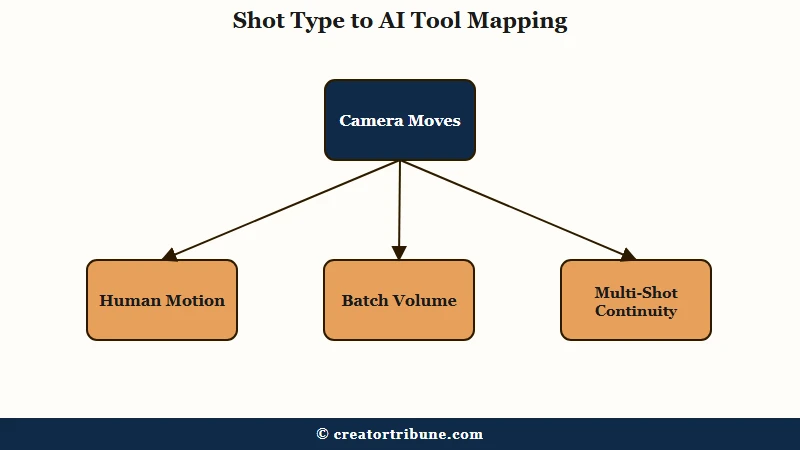
From my testing of the consistency claims each tool makes, the pairings that work consistently in 2026 land in a clear order. Most creators waste time picking a single “best” tool when the answer is which 2 to 3 tools their workflow needs.
The cost stack to plan for at solo-creator volume (30 to 50 clips per video) is below.
| Tool | Per-clip cost | Native clip length | Reference inputs |
|---|---|---|---|
| Runway Gen-4.5 | $0.50 to $1.00 | 10 seconds | Multiple, plus camera controls |
| Kling 3.0 | $0.20 to $0.50 | 10 seconds | 1 to 2 images |
| Pika 2.5 | $8 per month flat | 5 to 10 seconds | Scene Ingredients (2 to 3) |
| Veo 3.1 | $0.15 to $0.40 per second | 4 to 8 seconds | Up to 4 images |
| Seedance 2.0 | $0.30 per clip | 15 to 20 seconds | Up to 12 inputs |
For a 30 clip batch at a Runway plus Kling plus Pika stack, the total raw model spend lands around $20 to $40 before subscription fees. That is the realistic per-video cost floor for AI video at this quality bar in 2026.
A scheduling tool comparison covers the post-production side once you have the clips, especially the part where you need to distribute the finished video across multiple platforms without watermarks.
How Do Reference Images Beat Text Prompts For Consistency
Reference images beat text prompts for AI video style consistency because they give the model a concrete visual anchor instead of forcing it to re-interpret style adjectives from scratch each generation. The image-to-video workflow produces measurably fewer “failed takes” than text-to-video for the same scene.
The conventional wisdom is that text prompts are the goal and reference images are a workaround. The reality in 2026 is the inverse. Reference images are the primary control surface, and text prompts are the supplement.
Vague (text-only, drift-prone): “soft sunset lighting, moody warehouse, a young woman in a denim jacket”
Specific (image-anchored, drift-resistant): Upload one Midjourney still showing the exact warehouse, the exact denim jacket, and the exact sunset color temperature you want. Then in the prompt write: “Slow dolly-in on the woman from the reference image, soft sunset key light from camera right, 35mm look, 24fps cadence.”
The image carries the visual contract. The prompt directs the motion and camera. Splitting the two responsibilities is what produces consistent output across 30 clips.
The framework I would recommend for building a reference image set:
- Generate 3 to 5 stills in Midjourney or DALL-E that show the character from different angles (front, three-quarter, side), the main scene under different lighting moments, and any prop or wardrobe detail that needs to stay constant.
- Save these as a “style bible” folder named after the project. Number them so you can call out “reference image 02” in your shot list.
- Reuse the same reference image across every clip in a continuity block. Do not rotate references mid-block, you will introduce drift.
- For multi-character shots, generate a reference image that shows both characters together. Trying to combine two separate single-character references is unreliable in 2026 tools.
This is also why the HeyGen review covers a separate use case. HeyGen runs avatar-based video generation that is different from the open-world AI video tools described here. Use HeyGen when you need an on-camera avatar speaking, use the Runway-Kling-Pika stack when you need cinematic scenes.
How Do You Fix An Already Inconsistent Batch Without Regenerating
You fix an inconsistent AI video batch without regenerating by running a color and grade harmonization pass in a video editor (DaVinci Resolve color match, CapCut color preset sync) plus a targeted regeneration of the 3 to 5 most outlier clips identified by the consistency cliff diagnostic.
The instinct is to regenerate the whole batch. This is rarely the right move. A 30 clip batch where 24 clips are close enough and 6 are visibly drifted is fixable in 3 hours of color work, while regenerating the whole batch costs another full session plus another model bill.
The fix sequence I would recommend:
- Run the consistency cliff diagnostic on every clip in the batch. Score each clip against frame 1 of clip 1 using the 3-attribute scale. Flag any clip scoring 3 or higher as an outlier.
- Regenerate just the outliers using the strongest reference image you have from the early clips. Do not regenerate the whole batch.
- Import all clips into DaVinci Resolve. Use the Color Match tool to pull the LUT from the cleanest clip and apply it to the others. CapCut’s automatic color sync handles a similar job for mobile-first edits, though with less precision.
- Apply a unified film grain or grade preset across the whole timeline. This masks small residual differences that the color match did not catch.
- Do a final scrub at 0.5x speed through the whole timeline. Anything that still feels off at half speed needs another color pass on that specific clip.
This workflow saves the typical 30 clip project from a full regenerate. The exception is when the early clips themselves were inconsistent with each other (the reference image set was weak). In that case, fix Stage 1 of the workflow before regenerating anything.
The native-vs-reupload breakdown covers the platform side of how AI-generated video is treated by Instagram, TikTok, and YouTube’s originality detectors, which is the next gotcha after style consistency is solved.
For the broader market context on how fast this part of the stack is moving, the Statista creator economy data tracks the year-over-year growth in AI-assisted creator tools, which now covers a meaningful share of short-form production budgets.
The action this article asks of you is short: before you generate clip 1 of your next project, spend 30 minutes in Midjourney building the 3 to 5 reference stills described in section 5.
That single front-loaded hour is what separates the batches that hold style across 30 clips from the ones that drift at clip 8.
Frequently Asked Questions
Why does my AI video style change after clip 8?
Most 2026 AI video models have native clip lengths between 5 and 10 seconds, and without a reference-image anchor each generation re-rolls the visual interpretation independently. The cumulative variance crosses the threshold of visible drift between clip 6 and clip 10 for text-only prompted batches.
How do I keep a character consistent across multiple AI video clips?
Use image-to-video with the same reference image across every clip in the continuity block. Seedance 2.0 supports up to 12 reference file inputs natively, which is the highest in the field. For other models, a single strong Midjourney still reused per clip is the working baseline.
Can I use one AI video tool for an entire video?
Not reliably at the 2026 quality bar. Most professional workflows pair 2 to 3 tools matched to shot types, with Runway Gen-4.5 for camera moves, Kling 3.0 for human motion, and Pika 2.5 for high-volume variation testing.
What is the best AI video generator for consistent style?
Runway Gen-4.5 leads on style consistency across single-shot generations and has the highest benchmark Elo score in the field. Seedance 2.0 is the strongest for narrative continuity across multi-shot sequences thanks to its 12 reference inputs and native multi-shot mode.
How do I write AI video prompts that produce consistent output?
Split responsibilities between the reference image and the prompt. The image carries the visual contract (character, lighting, color), the prompt directs the camera and motion. Use cinematic language for the motion (“slow dolly-in,” “35mm look,” “soft side-lit”) rather than restating visual style.
How do I fix an AI video batch that already drifted without regenerating?
Run a color and grade harmonization pass in DaVinci Resolve or CapCut, regenerate only the 3 to 5 most outlier clips with a stronger reference image, then apply a unified grade across the whole timeline. This saves the typical 30 clip batch from a full regenerate.
How many AI video clips can I batch before style drift becomes a problem?
Without reference images, drift becomes visible between clip 6 and clip 10 for most 2026 models. With reference images and a 2 to 3 tool stack, the cliff pushes out to clip 20 to 25 on a well-tuned workflow. Above 25 clips, plan for a harmonization pass regardless.
What is the realistic cost of a 30 clip AI video batch in 2026?
Around $20 to $40 in raw model spend at a Runway plus Kling plus Pika stack, plus monthly subscription fees on Pika and any premium tier on Runway. Veo 3.1 and Seedance 2.0 push that cost up if the hero shots demand premium 4K output.