
How to Turn Off Calls on Instagram and Why They Still Ring
How to Turn Off Calls on Instagram and Why They Still Ring
Turn off Instagram calls in Notifications, mute one chat, or block a caller. See why calls still ring with notifications off and how to stop them.
- 1How Do You Turn Off Calls on Instagram?
- 2Why Do Instagram Calls Still Ring With Notifications Off?
- Does Turning Off Instagram Notifications on Android Stop Calls?
- 3Who Can Call You on Instagram?
- 4How Do You Stop Someone Calling You on Instagram Without Blocking Them?
- 5How Do You Stop Spam Accounts From Calling You on Instagram?
- 6Can You Turn Off Calls on Instagram Completely?
- Does Setting WhatsApp as Your Calling Method Stop Instagram Calls?
- 7Why Do Instagram Calls Show Up in Your iPhone Call Log?
- 8How Do You Stop Instagram Calls on a Computer?
- 9What Does Each Instagram Call Setting Stop?
- 10Which Instagram Call Fix Matches Your Problem?
- 11Quick Takeaways
TL;DR: To turn off calls on Instagram, open your profile, tap the menu, tap Notifications, tap Calls and choose “Off,” or “From profiles I follow” to let only accounts you follow ring through. Calls has its own row in that menu, so switching off messages, likes and comments leaves calls ringing. On an iPhone, the phone’s own notification switch for Instagram does not govern calls, because they arrive through Apple’s call screen instead of as ordinary notifications.
The owner of one public art account wanted to know how to turn off calls on Instagram, asking on r/Instagram whether it is even possible. They said every notification was off, in the app and on the phone, yet a person with several spam accounts still called 50 times. Each call paused their music and rang through their headphones like a phone call.
The post lists messages, likes and comments as switched off and never mentions a separate Calls setting. Any account can silence Instagram calls from that row, though only verified accounts can switch calling off entirely.
I treat the Calls row as the first stop for anyone who wants quiet, and a block as the second for anyone who keeps calling. Both take under a minute.
How Do You Turn Off Calls on Instagram?
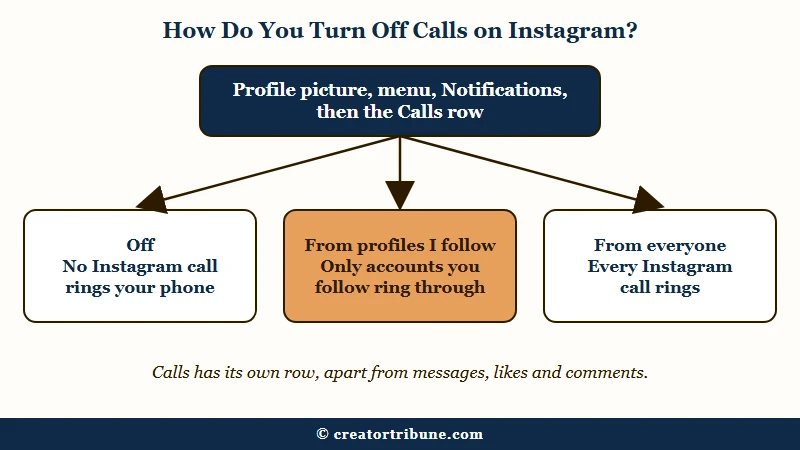
Calls are turned off in Instagram’s Notifications menu, where “Off” stops Instagram calls ringing your phone and “From profiles I follow” lets only accounts you follow ring through.
These taps match the 2026 Instagram app, and labels can shift slightly between versions.
- Open Instagram and tap your profile picture at the bottom right.
- Tap the menu icon, the three lines at the top right.
- Under “How you use Instagram,” tap Notifications.
- Tap Calls. Some versions put it on a “Messages and calls” screen or under a “Video chats” heading.
- Choose Off, or From profiles I follow to keep friends and silence strangers. The third choice, From everyone, leaves every call ringing.
On any public account, I pick “From profiles I follow,” so a friend can still reach me and a stranger’s call stays silent. “Off” suits anyone who never takes Instagram calls. Confirm it with a test call from a friend, and if one still rings after “Off,” fall back on mute and block, the two controls covered below.
Instagram’s “Pause push notifications” option quiets alerts for a set time, but its notification help makes no promise about calls, so I set the Calls row directly. If alerts stop arriving altogether, the opposite problem, this notifications fix walks through the causes.
Why Do Instagram Calls Still Ring With Notifications Off?
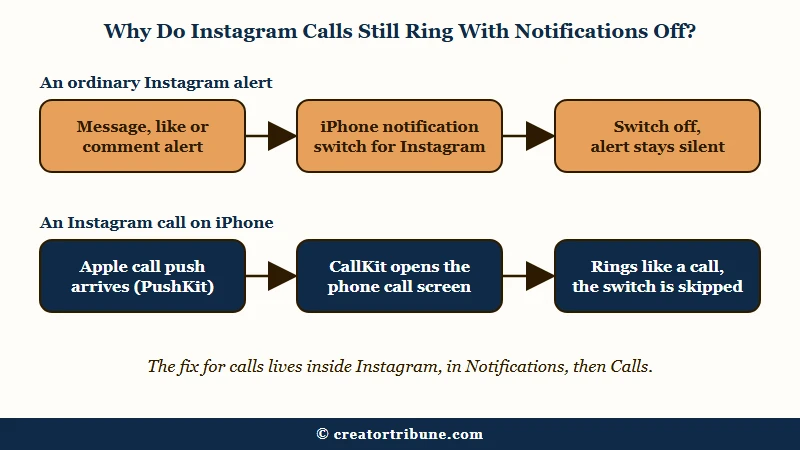
Instagram calls still ring with notifications off because, on an iPhone, a call arrives as a call push that Apple routes to its own call screen, which the phone’s notification switch does not govern.
What is CallKit: Apple’s framework that lets apps like Instagram show the iPhone’s built-in incoming call screen and log calls the way the Phone app does.
An iPhone handles two kinds of push. Ordinary notifications show an alert, badge the app’s icon or play a sound. Call pushes travel through PushKit, Apple’s system for delivering calls, and they “wake up or launch your app and give it time to respond,” per Apple’s PushKit documentation.
Pushes for internet calls, known as VoIP, come with a hard rule. “PushKit requires you to use CallKit when handling VoIP calls,” according to Apple’s guide to VoIP pushes. The same guide describes it as a way to manage calls “that doesn’t require your app to be running,” which is why a call can arrive when Instagram has not been opened for days.
CallKit then shows the same incoming call screen the Phone app uses. That is why an Instagram call can pause music and ring through headphones with Instagram’s alerts switched off in iPhone Settings, since that switch governs the alert, badge and sound kind of push.
Because every call push ends at that screen, the lasting fix sits inside Instagram: the Calls row for everyone, and mute or block for single accounts. I never point anyone at the iPhone’s notification menu for this.
One iPhone setting does reach these calls, Do Not Disturb. CallKit “responds appropriately to system-level behaviors, such as Do Not Disturb,” in Apple’s words, so turning it on under Settings, then Focus, quiets every caller you have not allowed. If one account keeps redialing, switch off Allow Repeated Calls in that Focus, since Apple’s Focus settings can let “two or more calls from the same person within 3 minutes” through.
Does Turning Off Instagram Notifications on Android Stop Calls?
Turning off Instagram notifications on Android can stop calls, because Android delivers an incoming call as a notification and lets you switch an app’s notification categories off in system settings.
On Android 12 and later, call apps use a call-style notification template that gives incoming calls top priority in the notification shade. Android’s notification channel guide says users can change each category of an app’s notifications, “including behaviors such as vibration and alert sound.”
Open your phone’s Settings, then Apps, then Instagram, then Notifications, and switch off the call-related category or all notifications. Category names vary by phone maker and app version, so I look for any row with calls or video chats in its name.
Who Can Call You on Instagram?
Anyone you have accepted a message from can call you on Instagram, and messages from accounts you follow skip the request folder and land straight in your Chats list.
Instagram’s calls page puts the rule plainly: “Anyone you’ve accepted a message from can start an audio or video call with you.” The only prevention it names is blocking.
Requests wait in the Message Requests folder until you accept them, while “Messages from people you follow on Instagram will appear in your Chats list,” Instagram’s message requests page adds. So treat everyone in your Chats list as a possible caller.
After the Calls setting, my next stop is that list, where I mute or block any stranger who keeps calling. Message controls, under “Messages and story replies” in Settings, decide whether strangers’ requests reach you at all, and why accounts can’t message you shows those settings from both sides.
How Do You Stop Someone Calling You on Instagram Without Blocking Them?
Muting calls in one chat stops that person’s Instagram calls from ringing without blocking them, and Instagram does not tell them you muted them.
For a friend who calls at bad hours, I use mute, since nothing about the friendship changes. These are the steps on a phone.
- Tap Messages and open the chat with the person.
- Tap their name at the top of the chat.
- Tap Mute at the top.
- Turn on Mute calls, and Mute messages too if their texts are the problem.
The other person never finds out, because “Instagram won’t let them know you muted them,” Instagram’s mute page confirms. Group chats get the same “Mute calls” toggle, next to “Mute messages” and “Mute @mentions.”
Restrict is less clear-cut for calls than a mute or a block. A restricted person’s chat moves from your main inbox to Message Requests, and Instagram’s Restrict page never mentions calls.
Instagram’s verified calling page does list restricting among the ways “to stop receiving calls from them.” That is one line on a page written for verified accounts, so I’d still mute or block a caller. How Restrict works covers what the other person can and cannot see.
Limit interactions won’t hide someone already in your chats. “Only new chat threads with the accounts you limit will be hidden,” Instagram’s Limits page says, and older chats stay visible.
How Do You Stop Spam Accounts From Calling You on Instagram?
Blocking stops spam accounts from calling you on Instagram, and the block option that covers their other accounts reaches both existing and future ones, except accounts of theirs you already follow.
When calls come from an account I don’t know, I block it straight from the chat.
- Open the chat with the account that keeps calling.
- Tap their name at the top, then tap Options.
- Tap Block.
- When Instagram asks, pick the option that also blocks other accounts they have or create, then confirm.
Instagram’s block page says that option reaches “other existing accounts they may have or any new accounts they may create,” and people aren’t notified when you block them. One hole matters on public accounts, since the block “will not apply to other accounts of theirs that you already follow,” so a spam account you followed back needs its own block.
Here is the difference on a public creator account, before and after the changes above.
Before: Calls set to “From everyone,” a spam account’s message request accepted weeks ago, and nothing blocked. Every call from that account rings.
After: Calls set to “From profiles I follow,” the spam account blocked with the option that covers its other accounts, and any spam account you follow blocked one by one. Calls from strangers stay silent, and the blocked accounts cannot call at all.
If a block seems to undo itself later, this unblocking fix covers the usual causes.
Can You Turn Off Calls on Instagram Completely?
Only verified accounts can switch calling off completely on Instagram, through a “Video calling” setting set to “No one,” while everyone else can silence calls and block specific callers.
Verified accounts can “tap Select next to No one to disable calling,” according to Instagram’s verified calling page. With calling on, a verified account can only call, and be called by, accounts it follows.
That page points to Settings, then Privacy, then Video calling, and the wording may differ in newer app versions. I’d rank the missing “No one” option as the biggest gap in Instagram’s call controls for everyone else.
Instagram documents no way to remove the call and video buttons at the top of a chat. A Call button on a professional profile is different. It comes from your business contact info, which you edit under Edit profile, then Public business information, where Profile Display can hide it.
Does Setting WhatsApp as Your Calling Method Stop Instagram Calls?
Setting WhatsApp as your preferred calling method does not stop Instagram calls, because Instagram’s help page says people can still call you using Instagram with it switched on.
The option sits in Accounts Center, under Connected experiences, then WhatsApp calls on Instagram, and it is rolling out gradually. Even with it on, “people can still call you using Instagram,” according to Instagram’s calls page.
Watch out: With it on, “anyone who can already call you on Instagram will be able to call you through WhatsApp,” Instagram’s calls page warns. Your phone number “won’t show on Instagram, but will be visible on WhatsApp.”
Linking WhatsApp to Accounts Center is “optional and off by default,” TechCrunch reported when Meta announced it in January 2025. I leave it off on any account a stranger can reach.
Why Do Instagram Calls Show Up in Your iPhone Call Log?
Instagram calls show up in the iPhone call log because Apple’s CallKit adds app calls to the Phone app’s Recents list by default, and only the app can switch that off.
A CallKit setting decides whether an app’s finished calls land in the Phone app’s Recents list, and Apple’s CallKit reference sets its default to true. No Instagram setting for this is documented, so deleting entries is the practical fix.
Deleting entries one by one is a chore I’d rather skip, so I stop the calls inside Instagram first. To clear old ones, open the Phone app and swipe an Instagram call all the way to the left, or tap Edit, then Select, to delete several at once, as Apple’s call history guide describes.
Don’t count on Silence Unknown Callers here. Apple’s unknown callers page describes it for “phone numbers that aren’t saved in your contacts,” sending those calls to voicemail.
How Do You Stop Instagram Calls on a Computer?
Instagram calls on a computer are silenced in two places, one for a single person and one for every call alert from instagram.com.
- One person: click Messages, open the chat, click Information at the top right, then toggle on the option to mute call notifications, per Instagram’s mute page.
- Every alert: in Chrome or Edge, click the icon to the left of the web address, open Site settings, and set Notifications to Block for instagram.com.
I keep instagram.com blocked from sending notifications in my browser, which ends the pop-ups without touching the phone.
What Does Each Instagram Call Setting Stop?
Each Instagram call setting works at a different level, from silencing calls for everyone to removing one account’s ability to call, and only blocking and the verified-only “No one” option prevent calls outright.
The row that surprises me most is the iPhone notification switch, since it looks as if it should cover calls and does not. This table lines up the main Instagram controls covered above, plus the iPhone switch.
| Control | What it does to calls | Where to find it |
|---|---|---|
| Calls notification setting | “Off” stops Instagram calls ringing your phone; “From profiles I follow” lets only accounts you follow ring through | Profile, menu, Notifications, Calls |
| Mute calls in one chat | Silences one person or group, and they are not told | Chat, their name, Mute |
| Block | Stops the account calling, and its other accounts too if you pick that option, except ones you follow | Chat, their name, Options, Block |
| Restrict or Limit interactions | Moves their chat to requests or hides new chats; a mute or block is the surer call fix | Chat options, or profile menu |
| Video calling set to No one | Turns calling off, verified accounts only | Settings, Privacy, Video calling |
| iPhone notification switch | Governs alerts, badges and sounds, not the incoming call screen | iPhone Settings, Notifications, Instagram |
Which Instagram Call Fix Matches Your Problem?
The right Instagram call fix depends on the symptom, and most cases come down to the Calls setting, a mute in one chat, or a block.
My order of checks starts with the Calls row in Instagram, then the chat, then Do Not Disturb on the phone. Match your symptom to the row below.
| Symptom | Likely cause | Fix |
|---|---|---|
| Calls ring with every other alert off | Calls has its own row in Notifications | Set Calls to “Off” or “From profiles I follow” |
| iPhone rings with Instagram alerts off in Settings | The call arrives through Apple’s call screen | Change the Calls setting inside Instagram |
| One friend calls at bad hours | Their chat allows calls | Mute calls in that chat |
| A stranger keeps calling | Their message was accepted, so they sit in Chats | Block them from the chat |
| A blocked spammer calls from another account | The block skipped their other accounts, or you follow that one | Block that account too, with the option for other accounts |
| A test call still rings after “Off” | Instagram documents no cause for this | Mute calls in that chat, or block the account |
Quick Takeaways
- Set Notifications, then Calls, to “Off” or “From profiles I follow,” since switching off messages leaves calls ringing.
- On an iPhone, Instagram calls come through Apple’s call screen, so the phone’s notification switch does not stop them.
- Block a caller with the option that covers their other accounts, and block any of their accounts you follow one by one.
- If you only have a minute today, set Calls to “From profiles I follow,” then block whichever account keeps calling.