
Instagram Says Log In on Another Device to Continue? Fixes
Instagram Says Log In on Another Device to Continue? Fixes
Instagram says log in on another device to continue and you have none. Here is what triggers the screen and which fixes get accounts back.
- 1Why Does Instagram Say Log In on Another Device to Continue?
- 2Why Does It Happen on the Same Phone or Laptop?
- 3Which Fix Works When You Have No Other Device?
- 4Why Can’t You Turn On Two Factor Authentication While Locked Out?
- 5How Long Does the Instagram Device Lock Last?
- 6What Should Teams Running One Instagram Account Do?
- 7Frequently Asked Questions
- Why does Instagram say log in on another device to continue?
- How do I fix log in on another device if I have no other device?
- How long does the try another device to continue lock last?
- Does reinstalling the Instagram app fix this error?
- Can two factor authentication get me past this screen?
- Is an unexpected Instagram password reset email a scam?
- 8Quick Takeaways
TL;DR: Instagram shows “Log in on another device to continue” when it stops recognising the browser or app install you are signing in from, not the physical phone. That is why it hits people on the same laptop they have used for years. The fix that works most often is a password reset followed by the “you can secure your account here” link at the foot of the confirmation email, which logs every session out and clears the check.
Instagram says log in on another device to continue, you tap “I don’t have another device”, and the app tells you it is not safe to let you in. There is no support button that works and no way forward. Your account is sitting right there behind a wall.
The screen is real, and it is not rare. It catches people who bought a new phone, people whose old phone broke, and people who uninstalled the app without logging out first.
What annoys me most is that Instagram never names the device it wants. You get told to go find a device you have signed in from before, with no list, no hint, and no way to ask.
This page covers what the screen means, why it fires on hardware you never changed, the recovery routes ranked by how often they land, and how long the lock runs if you just wait it out.

Why Does Instagram Say Log In on Another Device to Continue?
“Log in on another device to continue” is a Meta Account security check that fires when Instagram cannot confirm the person signing in owns the account.
It asks you to approve the attempt from a session it already trusts. Nothing here is malfunctioning, which is why waiting for a fix gets you nowhere.
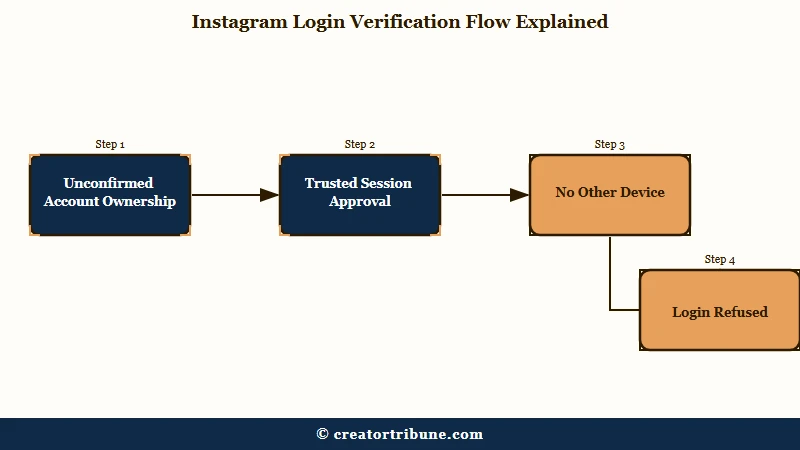
The full screen reads: “When we can’t be sure someone trying to log into an account really owns it, we’ll add an extra security step at login. You need to sign in on a device you’ve signed in from before and approve this login.”
Tap the “I don’t have another device” option and it closes the door: “If you don’t have access to an alternative device that you’ve used to log in to this account before, it’s not safe for us to let you log in.”
My read is that this check lives at the Meta Account layer, one level above Instagram, and two things point that way. The identical screen shows up on Facebook logins, and it was reported there in January 2025, months before the Instagram wording started showing up in search.
In that same thread the desktop loop redirects to a URL path on Facebook’s auth platform containing the word “limbo”. That looks like Meta’s internal label for an account stuck between states with no exit.
Instagram has never published a help page explaining this screen. Searching the Instagram Help Centre for the exact phrase returns 27 results about logging in, logging out and saving login info, and not one of them describes the check. Meta’s own support assistant answers the query by telling you to open the app and enter your password, which is the exact action that produces the screen.
If you are seeing a different wall, the account locked walkthrough covers the restriction screens that come with an appeal button attached. This one has none.
Why Does It Happen on the Same Phone or Laptop?
The “device” Instagram means is a browser profile or app install.
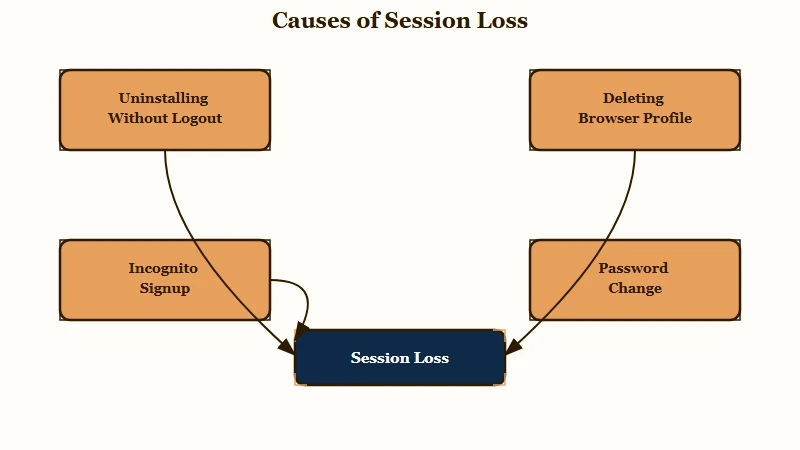
Clear the cookies, delete a browser profile, or uninstall the app without logging out, and the trusted session is gone even though the machine never changed.
Meta states this in its own page on login requests. The alert fires “whenever someone tries logging in to your account from a device or web browser we don’t recognize”. The browser is treated as a device in its own right.
I check the browser profile before the hardware every time now, because the pattern is consistent. Someone who only ever used Chrome on one desktop was locked out after they deleted that Chrome profile. The desktop never changed.
Here is the same story from the other direction. An account created inside an incognito window was locked within days, because closing the incognito session destroyed the only session Instagram had ever trusted.
In that January 2025 Facebook thread the browser, the PC and the IP address were all unchanged, and the account still would not open.
| What you did | What Instagram saw | Why the screen fires |
|---|---|---|
| Uninstalled the app without logging out | A brand new app install with no session token | The reinstall is an unrecognised client, same phone or not |
| Deleted a browser profile | Cookies and the trusted flag gone | The browser was the trusted device, and it no longer exists |
| Signed up in an incognito window | A session that self destructed on close | There has never been a device it can send the approval to |
| Changed the password on the web | A credential change from an unfamiliar client | The change itself raises the risk score on the next login |
So stop hunting for an old phone in a drawer. What you need is any route that proves ownership without a trusted session.
Which Fix Works When You Have No Other Device?
The password reset plus the “you can secure your account here” link is the route with the most confirmed successes.
It ends in a screen that logs every device out of the account, and clearing the session list is what removes the approval requirement.
The link is easy to miss because it is aimed at hacking victims, not locked-out owners. It sits at the very bottom of the confirmation email Instagram sends after a password change, under the line “If you didn’t change your password”.
The email link is the route I try first. Here is the sequence:
- Open Instagram in a browser and choose “Forgot password”. Ask for the link by email.
- Change the password. You will land back on the same “log in on another device” wall, which is expected.
- Open the confirmation email Instagram just sent about the password change.
- Scroll to the bottom and tap “you can secure your account here”.
- Set another new password on the page that loads. Read the line under the confirm button: it tells you all devices will be logged out.
- Confirm, then log in normally with the newest password.
Be honest about the odds before you start. In the main thread this route got three people back in and failed for three others, and because it ends by logging out every session it is the wrong first move on an account a team shares.
Two other routes are worth knowing when that one stalls, and both come from accounts where the email link led nowhere.
The first is auth.meta.com in a private window. Signing in there with your newest password prompted for an emailed code for one account that had already failed the video selfie, the hacked-account flow and a phone call with Meta support.
The second is the Facebook app. Entering Instagram credentials there, creating the linked Facebook account it offers, then going to Meta Account settings, Manage account, and choosing Move out of this Meta Account prompts a fresh password and reopened one locked account. The person who wrote that up flagged it themselves as something that may not work for everyone.
| Route | What it needs | How reliable it looks |
|---|---|---|
| Password reset plus “secure your account” link | Access to the account email | Most confirmed successes, and the one to start with |
auth.meta.com in a private window |
Account email, newest password | Worked after everything else failed, few reports |
| Facebook app, Move out of this Meta Account | Willingness to create a Facebook account | Worked once and written up honestly as untested elsewhere |
| Video selfie verification | A face matching the account photos | Frequently rejected within seconds |
| Two trusted friends verification | Friends who receive the request | Codes often never arrive |
| Waiting with no login attempts | 10 to 18 days of patience | Slow, but it does clear for some accounts |
Be straight with yourself about the bottom half of that table. One account was rejected by facial recognition within seconds of submitting, and another had the two-friends option send no codes at all, so neither belongs in a plan. If you get pushed into the selfie step anyway, the selfie verification fixes are worth reading first.
If the account was taken over rather than just locked, start from the hacked account recovery path instead. That flow is built for a different problem and the steps do not overlap.
Why Can’t You Turn On Two Factor Authentication While Locked Out?
Instagram freezes your security settings during the lockout, so the obvious fix is unavailable exactly when you need it.
Trying to add or remove two factor authentication from the unrecognised device returns a refusal instead of the setting.
The refusal, two days into a lockout, reads: “You can’t make this change at the moment. This is because we noticed you are using a device you don’t usually use and we need to keep your account safe. We’ll allow you to make this change after you’ve used this device for a while.”
This is the part I wish Instagram spelled out on the screen itself. Setting up an authenticator app genuinely does replace the “log in on another device” wall with a six digit code prompt, and that is a real fix. It only works before you are locked out.
Meta documents the reason the authenticator route is strong. Its page on 2FA for multiple devices states you can connect up to five devices to one Meta Account, so any of them can generate a code.
There is a catch buried in the same documentation. One device has to set up the authenticator method first before any other device can be added, and that first setup can only be done in the Instagram app for Android or iPhone.
So this one belongs on today’s to-do list, while you can still reach the setting. If you still have a working session anywhere, open Accounts Centre, Password and security, Two factor authentication, and add an authenticator app.
Login-request notifications have a second failure mode. Meta notes you may need to turn on push notifications from Instagram before the approval alert arrives, which covers accounts where the prompt never shows up on a phone sitting right there.
How Long Does the Instagram Device Lock Last?
There is no published duration, and the reported range runs from about 10 days to never.
Meta has never stated how long the check persists, and the accounts that recover by waiting take far longer than the 24 to 72 hours usually suggested.
Two data points sit at the honest end of the range. One account opened again after 18 days, having already failed a 72 hour wait. Another cleared in about 10 days.
Not every account comes back. One that was locked in November 2025 was still locked a month later, and the owner gave up and started a new account.
I would stop tapping the login button while you wait. Repeated attempts are one of the signals that raises the risk score in the first place, so hammering the screen extends the thing you are trying to outlast.
One more warning sign to recognise. A login-alert email quoted in one thread says security and account settings stay blocked “for a few days” and can only be reached from a device used in the past, which is the same freeze described in the section above.
Watch out for the opposite mistake too. Which? confirmed that a January 2026 wave of unsolicited Instagram reset emails was genuine, caused by an issue that let an outside party request them.
Which? still advises treating any unexpected reset mail with caution, so check the sender domain before you click anything.
What Should Teams Running One Instagram Account Do?
Sharing one Instagram password across a team is the fastest way to trigger this lock for everyone at once.
Several people signing in from different cities and devices looks exactly like an account takeover, and the check does not distinguish.
There is a specific trap here that catches brand accounts. A team sharing a password, where one member had added the Instagram account to his personal Accounts Centre, clicked the “secure the account” email link to remove him, and that locked out the whole team.
That is the same link recommended above as the best individual fix. On a shared account it does the opposite, because logging every session out removes every trusted device at once and nobody is left to approve anything.
A shared password is the setup I refuse to run for exactly this reason. The alternative costs one afternoon.
Before: One password in a team chat, four people signing in from four cities, and the only recovery device is the founder’s personal phone.
After: One owner account, everyone else invited through Meta Business Suite with their own login, an authenticator app on two separate phones, and nobody sharing a password.
Instagram’s monthly user count runs into the billions, and automated security is the only way Meta can police an account base that size. The check that locks you out is the same one stopping a stranger walking into your account.
The deeper lesson for anyone building a following is that the account is not yours. Losing it takes one bad login, so keep a direct line to your audience that does not depend on Meta approving a device. The free Creator Money Page template is one way to start building a list you own outright.
If your account keeps dropping sessions without hitting this wall, the repeated logout problem is a separate issue with its own causes.
Frequently Asked Questions
Why does Instagram say log in on another device to continue?
Instagram shows it when the browser or app install you are signing in from is not recognised. It asks you to approve the login from a session it already trusts. Uninstalling the app without logging out or deleting a browser profile is enough to trigger it.
How do I fix log in on another device if I have no other device?
Reset your password by email, then open the confirmation email and tap “you can secure your account here” at the bottom. Set a new password on that page. It logs every device out, which clears the approval requirement.
How long does the try another device to continue lock last?
Meta publishes no duration. Accounts that recover by waiting have taken about 10 days and about 18 days with no login attempts. Some never clear, and repeated attempts extend the wait.
Does reinstalling the Instagram app fix this error?
Usually not, and it often causes the problem. Uninstalling without logging out first destroys the trusted session and is one of the most common triggers. Reset the password before touching the app.
Can two factor authentication get me past this screen?
Not once you are locked out. Instagram blocks security setting changes from an unrecognised device. Set up an authenticator app while you still have a working session and future logins ask for a code instead.
Is an unexpected Instagram password reset email a scam?
Not always. Instagram has sent genuine reset emails in large unsolicited waves. Check the sender domain and review recent emails in Accounts Centre, Password and security, rather than assuming a compromise.
Quick Takeaways
- The device Instagram wants is a browser profile or app install, which is why the screen hits people on hardware they never changed.
- Start with a password reset, then the “you can secure your account here” link at the foot of the confirmation email, because it logs every session out.
- Do not uninstall the app to fix this. Uninstalling without logging out is one of the triggers.
- Waiting works for some accounts but takes 10 to 18 days, and every login attempt you make restarts the clock.
- Add an authenticator app to your account today if you can still log in anywhere, because you cannot add one after the lock starts.