Instagram Gambling Notifications and the Setting That Stops Them
Instagram Gambling Notifications and the Setting That Stops Them
Instagram gambling notifications such as Aviator and Chicken Road arrive through one Android category. See what they are and how to switch them off.
- 1Why Am I Getting Instagram Gambling Notifications?
- Is Instagram Itself Sending These Betting Notifications?
- Why Do Instagram Gambling Notifications Show Up on Vivo Phones?
- Do iPhone Users Get Instagram Gambling Notifications?
- 2How Do You Stop Instagram Gambling Notifications on Android?
- How Do You Report Gambling Notifications to Instagram?
- 3Do Gambling Notifications Mean My Instagram Was Hacked?
- 4What Should You Do If You Tapped an Instagram Gambling Notification?
- 5How Do You See Fewer Gambling Ads on Instagram?
- 6Quick Takeaways
TL;DR: Instagram gambling notifications such as “Aviator | PLAY NOW” and “Chicken Road | PLAY NOW” are betting pushes under Instagram’s icon, and they usually stop when you switch off one Android category. Open Settings, then Apps, then Instagram, then Notifications, and turn off the category near the bottom called Operational messages, Operations, Promotional messages or Carrier messages. Do not tap them, and never sign up for anything they open.
Instagram gambling notifications have been landing on Android phones since mid-October 2026, and they look like the real thing. Each one carries the Instagram icon and reads something like “Aviator | PLAY NOW” or “Chicken Road | PLAY NOW”, sometimes with a “WELCOME BONUS” line. Tapping it opens a betting page in the browser.
A thread on r/FraudPrevention raised it on October 16, and new threads were still appearing on November 10. Every phone named in those threads so far is a Vivo, including a Vivo X300 Pro.
The betting address quoted in the first thread is not Meta’s. It sits on inst-deeplink.com, a domain registered five weeks before that October 16 thread, through a different registrar from the one behind instagram.com.
The fix takes about two minutes, and it sits in your phone’s settings for the Instagram app. My advice is to make that change today rather than wait for Meta to explain the pushes. The steps below show where the switch hides and what to do if you already tapped one.
Why Am I Getting Instagram Gambling Notifications?
You are getting Instagram gambling notifications because betting promotions are reaching your phone through a notification category that belongs to the Instagram app. No statement from Meta or Vivo about them had appeared as of November 11, 2026.
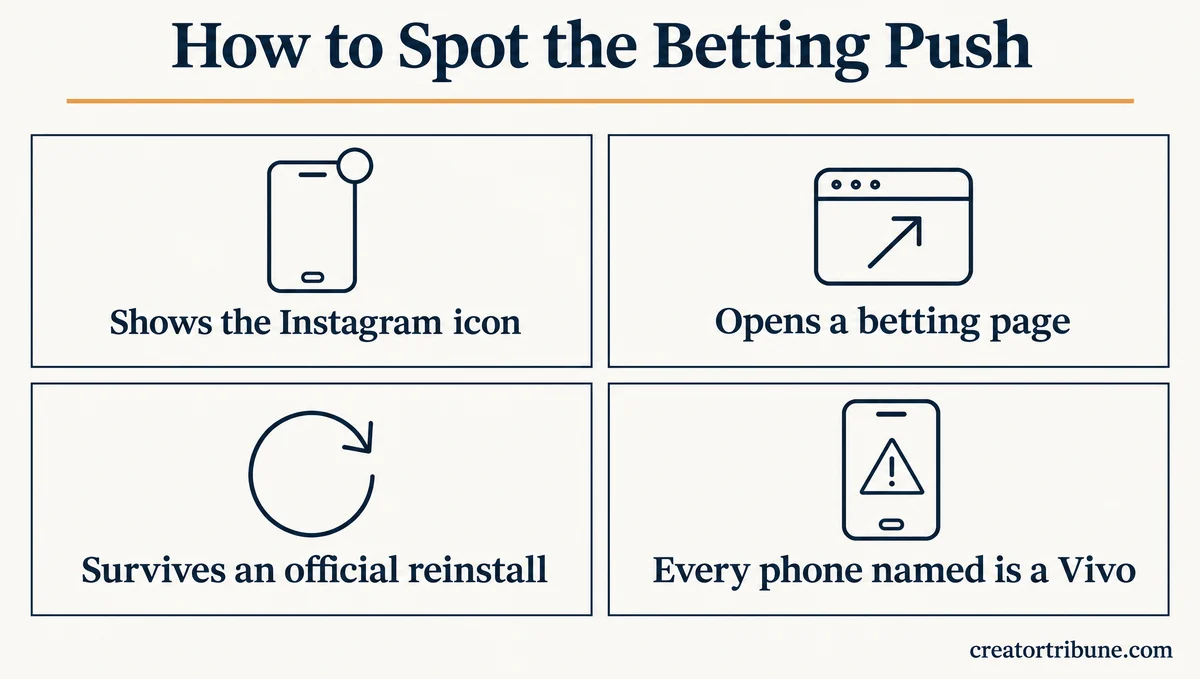
The pushes look like ordinary alerts until you read them. A post on r/MorpheApp shows the Aviator version under the Instagram icon, and an r/Instagram post shows the Chicken Road one. Tapping either one opens a betting page in the phone’s browser, usually Chrome, instead of the Instagram app.
The pushes have kept coming after an account was deactivated and after an official app reinstall from Google Play. One kept arriving on a phone with every Chrome site notification already blocked.
Those cases point away from your account, patched apps (modified, unofficial Instagram builds) and Chrome, and toward a notification category inside the Instagram app. I treat every one of these pushes as hostile until Meta explains them.
| What you see | A normal Instagram alert | A betting push under Instagram’s name |
|---|---|---|
| Icon | ||
| Typical text | A follow, a like, a comment, a mention or a message | “Aviator | PLAY NOW”, “Chicken Road | PLAY NOW”, “WELCOME BONUS” |
| What a tap opens | The Instagram app | A betting page in the browser |
| Android category | Its own category for each alert type | Operational messages, Operations, Promotional messages or Carrier messages |
| How to stop it | Instagram’s own notification settings | Android’s settings for the Instagram app |
Is Instagram Itself Sending These Betting Notifications?
Nobody has shown that Instagram sends these betting notifications, and Meta’s own descriptions of Instagram alerts list no ads or offers from other companies. The evidence so far points away from Meta without naming anyone else.
Instagram’s push notification help page says it sends them when someone follows you, likes or comments on your post, mentions you, messages you or goes live. Meta’s explainer for Instagram notifications, updated July 1, 2026, adds follow suggestions, suggested content, and alerts about account security or settings. Neither page mentions ads or promotions from other companies.
The page the pushes open does not lead back to Meta either. A link quoted on r/FraudPrevention goes to a page on inst-deeplink.com, and the domain’s public registration record shows it was registered on September 9, 2026 through Beget LLC. Instagram.com, by contrast, dates from 2004 and is held through RegistrarSafe.
Theories on r/MorpheApp and r/Instagram run from a bug in patched Instagram builds to spammers abusing Meta’s ad system. None of them comes with proof.
Why Do Instagram Gambling Notifications Show Up on Vivo Phones?
Nobody has confirmed why every phone named so far is a Vivo, though one name for the switch that stops these pushes, Operational messages, echoes Vivo’s own term for promotional pushes. Whether the pushes travel through Vivo’s push service is still unproven.
Tencent Cloud runs a push service that delivers through phone makers’ own channels. Its vendor push guide says Vivo splits pushes into system messages and operation messages, and has managed the two by app category since April 3, 2023. Tencent’s developer documentation, an 18 MB PDF, defines operation messages on page 122 as pushes for advertisements, recommendations and promotions.
The reports fit that pattern. One report names OriginOS, Vivo’s version of Android, another says the pushes began after a phone update, and none names a phone from another brand.
Do iPhone Users Get Instagram Gambling Notifications?
Every report that names a device so far comes from an Android phone. If one shows up on an iPhone, take a screenshot, open Settings, then Notifications, then Instagram to see what it may send, and report it as shown below.
How Do You Stop Instagram Gambling Notifications on Android?
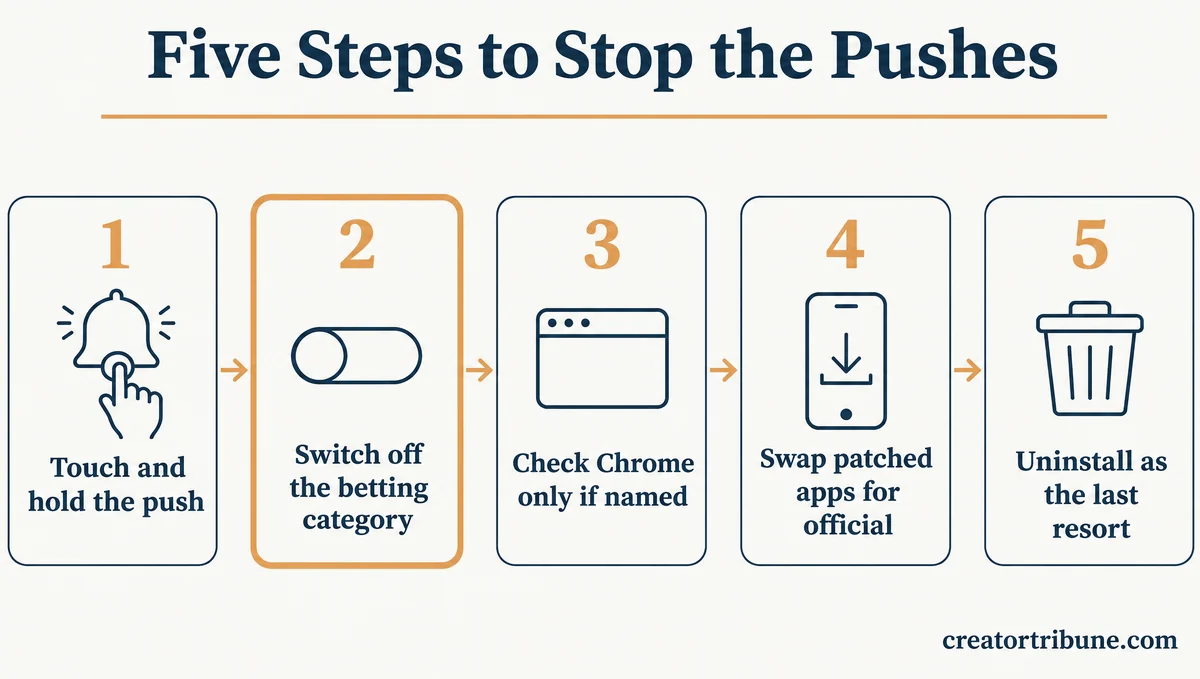
You stop Instagram gambling notifications by switching off one category in Android’s settings for the Instagram app, usually near the bottom of the list under a name like Operational messages. Android switches each category on its own, so the rest of Instagram’s alerts stay on.
What is a notification category: A switch Android gives each type of alert an app sends, so you can turn off one type, such as promotions, and keep the rest.
I flip the switch in step 2 first, because it costs nothing, and save step 1 for the next push that arrives.
- Check which app sent it. When the next push arrives, touch and hold it, then tap the settings icon. Android’s help page describes this route, and on most phones the screen that opens names the app and the category. Phones with notification history also list the day’s alerts under Settings, then Notifications.
- Turn off the betting category. Open Settings, then Apps, then Instagram, then Notifications, and scroll to the bottom of the category list. Switch off Operational messages, Operations, Promotional messages or Carrier messages, whichever your phone shows. Some phones put the same list under Settings, Notifications, Instagram.
- Check Chrome only if the alert names Chrome. In Chrome, open the three-dot menu, then Settings, then Site settings, then Notifications, and remove any site you do not recognize. A site you once allowed can send alerts that look like they belong to another app.
- Use the official Instagram app. If you run a patched build such as Piko, replace it with Instagram from Google Play, and post or save any drafts first, because removing an app can delete drafts kept on the phone. Reinstalling alone did not stop the pushes for the two people in a patched-app thread who tried it, so pair it with step 2.
- Uninstall as the last resort. If the pushes keep coming with the category off, save your drafts, uninstall Instagram and use instagram.com in your browser for a while. Removing the app ended them for the one person in these threads who reported the result.
| What the alert’s settings show | Likely cause | What to do |
|---|---|---|
| Instagram, in a category like Operational messages | The push arrives through an Instagram notification category | Turn that category off |
| Chrome or another browser | A website you allowed to send notifications | Remove the site in Chrome’s notification settings |
| An app name you do not recognize | An adware or copycat app | Uninstall it and run Google Play Protect |
| A patched Instagram such as Piko | Not the patch alone, since the official app gets them too | Install the official app, then turn the category off |
| Pushes continue after the category is off | Not yet known | Uninstall Instagram and use the website for now |
Before: “Aviator | PLAY NOW” arrives under the Instagram icon every day, and Chrome’s list of sites allowed to send notifications is already empty.
After: Settings, then Apps, then Instagram, then Notifications, with Operational messages switched off at the bottom of the list. The betting pushes stop, while likes and messages keep arriving through their own categories.
If your normal Instagram alerts have stopped arriving instead, that is a different fault with its own fix list. For betting pushes, do step 2 now, even if you have seen only one so far.
How Do You Report Gambling Notifications to Instagram?
You report gambling notifications to Instagram from your profile: tap Menu, then Help under More info and support, then Report a problem, and attach a screenshot of the push and its category. A push has no Report ad button, so the screenshot is your evidence. Instagram’s help page says your phone model and what you were doing when it appeared can help too.
Do Gambling Notifications Mean My Instagram Was Hacked?
No report ties these gambling notifications to a hacked Instagram account. They reached a phone whose owner had deactivated their account, and a virus scan on another phone found nothing.
I still run a two-minute account check after any alert I did not expect, because it settles the worry either way.
- In Instagram, open Accounts Center, then Password and security, then Where you’re logged in, and log out any device you do not own.
- Turn on two-factor authentication in the same Password and security screen.
- In the Google Play Store app, tap your profile picture, then Play Protect, then Scan.
- Remove apps you installed from outside Google Play, especially phone cleaners and app boosters.
One phone’s built-in security scan removed Instagram itself as a harmful app after the pushes started. If that happens to you, reinstall Instagram from Google Play and turn the betting category off right away.
If you do find a login you do not recognize, follow our hacked account recovery steps before anything else.
What Should You Do If You Tapped an Instagram Gambling Notification?
If you tapped an Instagram gambling notification, close the betting page and give it nothing, meaning no sign-up, no deposit, no app install and no permission to send notifications. Most of the risk comes from what you hand the page, so close it before it asks.
My rule for any push I did not ask for is to close the page before it finishes loading. If you got further than that, work through these four steps.
- Close the tab, then delete the last hour of browsing data in Chrome under the three-dot menu, History, Delete browsing data.
- If the page asked to send notifications and you allowed it, remove it under Chrome’s Site settings, then Notifications.
- Open your Files app, check Downloads, and delete any APK file (an Android app installer) the page saved.
- If you typed card details into the page, call your bank and block the card.
Pages that offer a “Chicken Road app” are copies. The real Chicken Road is a crash game, a bet on a multiplier that climbs until it crashes, and casinos license it. It has no consumer app or notification service of its own, so no download using the name comes from its maker.
The same caution applies to fake Instagram emails that ask you to tap a link. Close those the same way.
How Do You See Fewer Gambling Ads on Instagram?
You see fewer gambling ads on Instagram by choosing to see less of the gambling ad topic in Accounts Center and by hiding each gambling ad you meet. These settings shape your feed and Reels, and they have no effect on the push notifications above. See less cuts the number of gambling ads, and some will still get through.
Meta’s help page says you can choose to see fewer ads about certain topics “like alcohol, gambling, parenting or pets”, and the choice applies to every account in the same Accounts Center. I set this first, since one change also covers Facebook when it shares that Accounts Center.
- Open Accounts Center, then Ad preferences, then Ad topics, find Gambling, and choose See less.
- On any gambling ad, tap the three dots and choose Hide ad, or Report ad if it looks like a scam.
- Unfollow betting accounts you no longer want, since each one brings more into your suggestions.
A study by CondadoLab at PUC-Rio, a Brazilian university, found that following a single betting account brings dozens of similar suggestions, which is why unfollowing them matters.
Internal Meta documents reported by Reuters in November 2025, as summarized by TechCrunch, show Meta failed for three years to protect users from ads promoting illegal gambling, a reading Meta disputes.
If you are cutting back on gambling, a blocker app such as Gamban blocks betting sites across the whole phone, which no Instagram setting can do.
Quick Takeaways
- Betting pushes that carry Instagram’s icon have been reported on Reddit since mid-October 2026, every phone named is a Vivo, and nobody has confirmed who sends them.
- Turning off the Operational messages, Operations, Promotional messages or Carrier messages category under Settings, Apps, Instagram, Notifications usually stops them, and Chrome needs checking only when the alert names Chrome.
- If you tapped one, close the page, delete any download and never give it card details.
- Gambling ads in your feed are a separate problem, and See less under Ad topics in Accounts Center cuts them without blocking every one.
- Leave the betting category off even after the pushes stop, and switch it back on only once Meta or Vivo explains them.