Instagram Notifications Not Working and How to Get Them Back
Instagram Notifications Not Working and How to Get Them Back
Instagram notifications not working? Meta's AI picks post alerts but not DMs, so run five quick checks and fix them in order.
- 1Why Are My Instagram Notifications Not Working?
- 2Why Do I Only Get Instagram Notifications When I Open the App?
- 3Why Did Only Some of My Instagram Notifications Stop?
- 4Does the Reminders Toggle Fix Missing Post Notifications?
- 5How Do I Tell If the Problem Is Instagram or My Phone?
- 6Why Does Instagram Say Notifications Are Off When They Are On?
- 7How Do I Fix Instagram Notifications in the Right Order?
- 8Quick Takeaways
TL;DR: Instagram notifications often stop for reasons that have nothing to do with your settings. Meta documents an AI system that decides which post and suggestion alerts are worth sending you, Android’s Doze mode can hold them until you wake the phone, and a second logged-in device can absorb them. Work out which categories still arrive before you touch a single toggle.
Instagram notifications not working is the kind of problem that makes you doubt your own eyes. Every toggle is green, the phone permissions are granted, and the alerts still never land.
Then you open the app and there they are, eleven of them, stacked up and hours old. My own patience for the standard advice ran out around the third time I read a guide telling me to check that notifications were switched on.
The advice you will find on page one is a settings checklist. That checklist is fine for the person who muted something by accident, and useless for everyone else, because it assumes your phone is the only thing between Instagram and your lock screen. It is not.
This piece covers the three failure points that sit outside your settings and how to tell in about thirty seconds which one you have. It also sets the order to work through fixes, so you stop wasting time on the ones that cannot help you.
Why Are My Instagram Notifications Not Working?
Instagram notifications are not working in most cases because the alert was never sent, was sent and stalled on the phone, or was routed to a different device.
Your settings are the fourth suspect, and the only one most guides check.
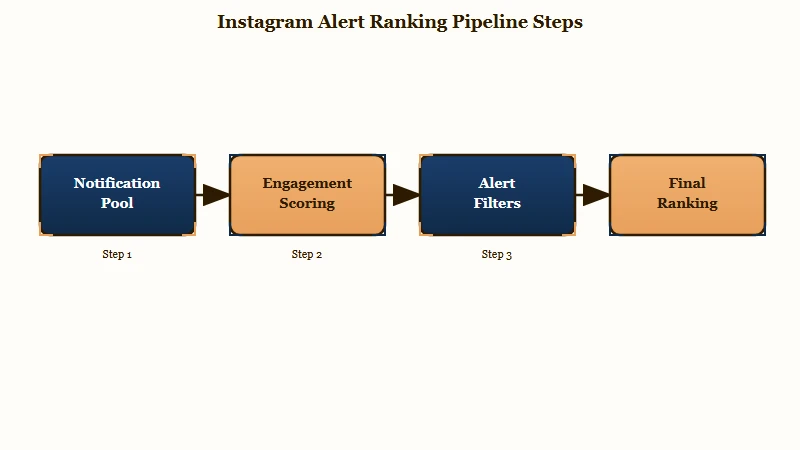
Meta publishes how this works and almost nobody reads it. Its notifications transparency page, still dated July 1, 2026 when I re-read it on October 20, says the system “automatically determines which posts or activity you are notified about, and in what order.” It does that by predicting what you are most likely to engage with.
The same page draws a line most guides miss. It says notifications about “messages, comments, connection requests, account security or settings” are “not powered by the AI.” The AI instead picks alerts about “new accounts to follow, activity from your connections, suggested content and more.”
That describes a ranking model sitting between the event and your screen. The documented flow runs five steps: find the optimal time, gather inventory, score notifications, apply additional filters, then rank results by score.
For those alerts, two of the five steps can end with you getting nothing. My reading is that “apply additional filters” is the step doing most of the quiet damage, because a filtered notification produces no error and no trace anywhere you can see.
Why Do I Only Get Instagram Notifications When I Open the App?
Alerts that appear only when you open Instagram mean the message reached Meta’s servers and something downstream held it.
The app is showing you a backlog, which proves delivery was never the problem.
Meta’s page confirms a deliberate hold for alerts its AI handles: “for less time sensitive notifications the system will identify the best time to notify a user based on a variety of signals.” Instagram is allowed to sit on those alerts and hand them over later. Messages sit outside that system, so a DM that shows up only when you open the app points at the causes below instead.
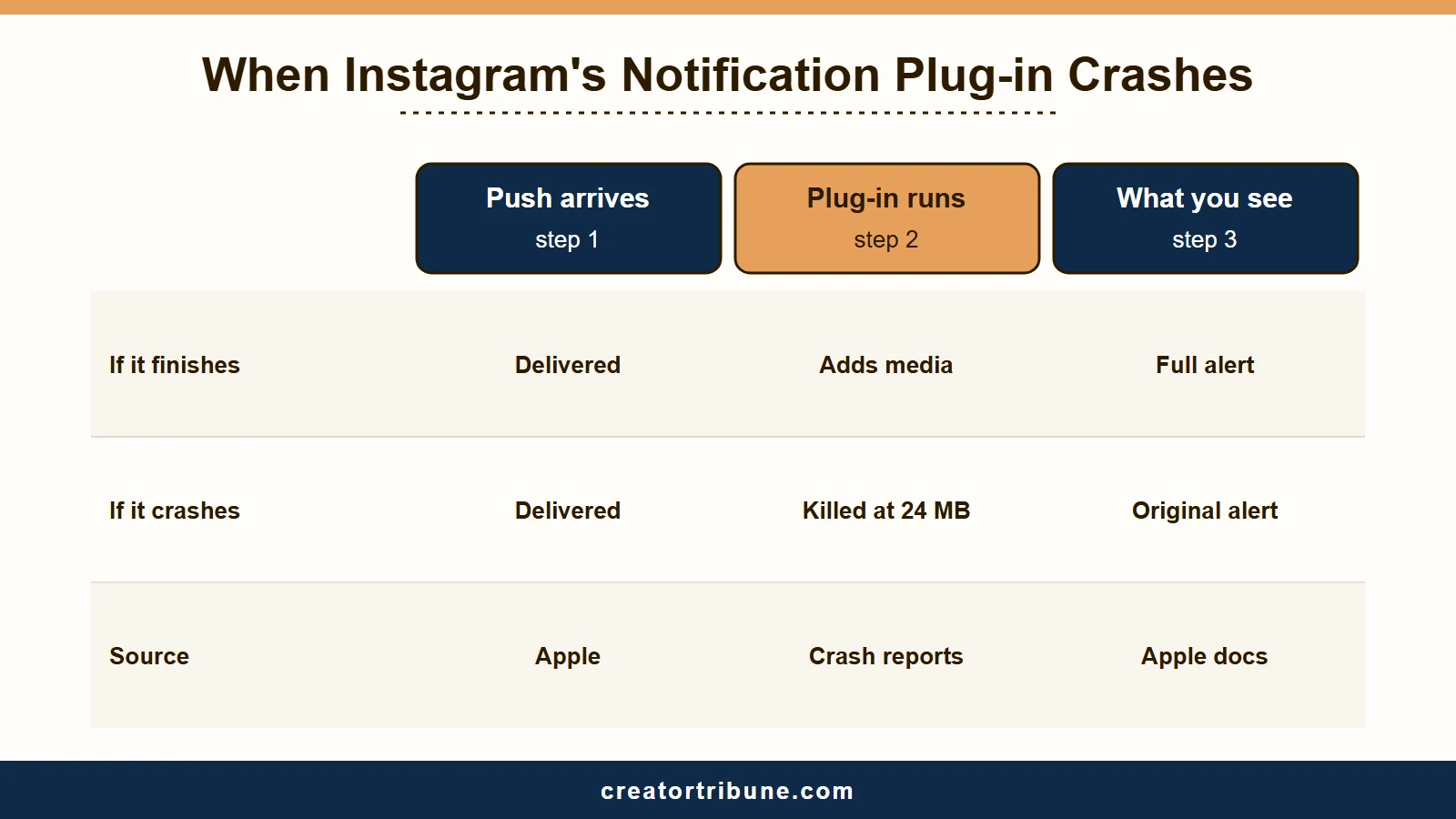
On iPhone there is a second suspect worth ruling out, and it leaves evidence. Instagram runs a background plug-in called InstagramNotificationExtension that renders incoming alerts, and it crashes often enough to leave dozens of entries in iPhone diagnostics.
This is the one I wish somebody had told me about years ago, because it is invisible unless you go looking for it.
The mechanism is a memory ceiling, since an iOS notification service extension gets a hard allowance. Developer crash reports such as this October 2024 one show the process dying with EXC_RESOURCE (RESOURCE_TYPE_MEMORY: high watermark memory limit exceeded) (limit=24 MB). iOS developer Igor Kulman traced the same 24 MB ceiling crashing an extension on larger iPhones.
Apple’s documentation says that when an extension fails to finish, the system shows the original contents of the notification instead. That fits Kulman’s case, where users still got the alert without its image, so treat crash entries as a lead to check alongside the settings below.
Instagram’s notification plug-in is also its largest app extension. A July 2023 binary teardown by Emerge Tools measured InstagramNotificationExtension at 23.5 MB against 5.6 MB for the share extension. That is a size measurement rather than a live memory reading, though it does show which component carries the most weight.
On Android the equivalent culprit is documented by Google rather than Meta. Doze and App Standby defer background work while the device is idle, so alerts queue until you wake the phone.
Why Did Only Some of My Instagram Notifications Stop?
Selective failure is the single most useful clue you have, because it proves Instagram can still reach your phone.
An iPhone’s permission covers every Instagram alert at once, so likes arriving while DMs do not points away from the phone. Android differs, since Google’s notification help lets you switch off one category of an app’s alerts, so check that list too.
The pattern shows up in three distinct shapes. Post alerts vanish while story, reel and livestream alerts keep arriving from the same accounts. DM alerts vanish while follow requests, likes and comments keep landing.
New follower alerts also fail on their own, which PiunikaWeb reported on April 27, 2026, when they stopped arriving and support’s advice to delete and reinstall changed nothing.
The first of those shapes fits Meta’s scoring system. The model predicts how likely you are to click a notification and to keep using Instagram afterwards, so a post category you have long ignored is one it can learn to stop sending.
That part is hard to argue with. If you never tap post notifications, the system is working as designed when it stops sending them.
The nearest thing to an override is the bell on each account. Open their profile, tap Notifications and pick Posts, Stories, Reels or Live videos, which Instagram’s push notification help says lets you “get notified every time” that account shares.
Meta’s transparency page puts DM alerts outside that system entirely, since message alerts are “not powered by the AI.” Silence there is a delivery, account or settings fault, and a second account on the same phone is the fastest way to tell which.
In a September 2026 thread, DM alerts died on one person’s main account while their second account on the same iPhone kept getting them. Several others reported the same that day, and the poster said it cleared on its own a day later, with calls still broken.
An October 2026 post shows the reverse split. Since August, likes, comments, new followers and follow requests went quiet on the poster’s main account while DMs and a second account worked. The poster recalls tapping “See less notifications like this” in the Activity tab and wonders if it is related.
Before: every notification type is switched on, so the settings are correct and the problem must be the phone.
After: likes and comments arrive, DMs do not, so delivery works and the DM category is switched off, held, or routed elsewhere.
Does the Reminders Toggle Fix Missing Post Notifications?
The Reminders toggle is the most circulated fix for this problem and it is misunderstood, including by the people recommending it.
It controls Instagram’s catch-up nudges about activity you have not seen, not real-time alerts from accounts you follow.
The advice comes from a widely shared r/Instagram thread: open Settings, then Notifications, then From Instagram, then switch Reminders on, and post alerts supposedly return. The same thread contains its own rebuttal, from someone who checked and found the toggle already on, and from others describing what the setting gave them instead.
What it gave them was a daily summary. One reply describes getting “a daily reminder of what someone has posted”; another describes new post alerts arriving “batched into one singular shitty highlight noti that doesn’t even list the posts.”
That is the “From Instagram” category behaving exactly as documented, since it covers announcements and reminders about unseen activity. My honest read is that the fix and the complaint in that thread are the same feature, and switching Reminders on is a plausible way to trade real-time alerts for a nightly digest.
Worth trying anyway, because flipping any notification preference can force Instagram to re-register your delivery settings. Go in expecting a re-registration side effect rather than a setting that does what the thread claims.
How Do I Tell If the Problem Is Instagram or My Phone?
Five quick checks separate a platform problem from a device problem in under a minute, and all of them beat toggle-flipping.
Run them before you change anything.
Here is the sequence I use, in this order:
- Note which categories still work. Send yourself a DM from another account, have someone like a post, and check whether follow alerts arrive. Anything still landing proves delivery is intact.
- Watch the app badge. A count that climbs with no banner means the push reached your phone, and on iPhone that is also what unticked Lock Screen, Notification Center and Banners boxes produce. Check them under Settings, Notifications, Instagram, and set Notification Delivery to Immediate Delivery if you use a Scheduled Summary.
- On iPhone, open Settings, then Privacy and Security, then Analytics and Improvements, then Analytics Data, and scroll to entries beginning
InstagramNotificationExtension. Repeated entries there are the crash leaving fingerprints. - Log in on a second device, or add a second account on this phone. Alerts that work on another device point at your phone, while a second account that gets alerts on the same phone points at your main account.
- Check an independent outage monitor before Meta’s status page. During the Instagram DM outage on July 22, 2026 that Tom’s Guide tracked live, Meta’s own status page showed no known issues while the outage was ongoing.
Step five is the one people skip and regret. I check a third-party monitor first now, because a company status page is a statement of what a company has admitted so far.
The in-app list can break on its own, apart from push alerts. In mid-September 2026, Instagram’s desktop notifications panel showed only a “Suggested for you” block for days. Three people in that thread saw it return on September 18 or 19 with no change on their side, though two others still had it on October 2.
If your list looks out of order instead, Meta’s transparency page names one control for it. Switch off “See most relevant in-app notifications first” in notification settings to sort the list newest first, where your app offers it.
| Symptom | Likely cause | What to do |
|---|---|---|
| Alerts appear only when you open the app | Post alerts held by ranking, or Doze on Android | Use the bell on key accounts, set Android battery use to Unrestricted, reinstall last |
| Some categories work, others dead silent | A switched-off category, AI filtering of post alerts, or an account-side fault | Set the dead categories to On, test a second account, do not reinstall |
| Badge count rises, no banner ever shows | Alerts set to skip the Lock Screen and banners, or a Scheduled Summary | Tick the Alerts boxes in iPhone Settings and choose Immediate Delivery |
| Nothing at all, on every category | Device permission, Focus mode, or Pause All | Standard settings checklist genuinely applies |
| Alerts work on your tablet but not your phone | A second session holding push delivery | Force log out every other device |
Why Does Instagram Say Notifications Are Off When They Are On?
A warning claiming your notifications are off while every toggle is on is a known 2026 display bug, and it is not proof that anything is broken.
Test whether alerts arrive before you troubleshoot the banner.
The prompt hit many accounts at once on August 19, 2026, when Windows Report logged the wave of Reddit reports and noted that Meta had not confirmed an outage. It reappeared on app launch, when sending a DM and when sharing a reel, and tapping through showed every system permission already granted.
Windows Report found users who had restarted, re-toggled and reinstalled with the warning still showing. In the main r/Instagram thread, though, one reply within hours said an app update cleared it on iOS and another credited a reinstall.
This one matters because it sends people down a fix path for a problem they may not have. If someone DMs you and the alert arrives normally while the banner still nags, the banner is the bug and your notifications are fine.
I would leave that one alone and install the next app update. Reports of the prompt bunch on August 19, while October’s r/Instagram threads describe alerts going missing instead. The reinstall it tempts you into also carries a real cost, covered next.
How Do I Fix Instagram Notifications in the Right Order?
Reinstalling Instagram belongs at the very end of this list, because it invalidates your push token.
When an app is removed or its data is cleared, the device token registered for delivery becomes invalid, and a botched refresh can leave notifications failing silently afterwards.
Work through these in order, stopping as soon as alerts return:
- Set every category you care about to On rather than a personalised or partial state, and check Messages and Calls separately, since each has its own row.
- Turn off Pause All and Sleep Mode, and clear any Focus or Do Not Disturb mode on the phone. Then confirm the phone’s own switch: on iPhone, Settings, Notifications, Instagram, Allow Notifications; on Android, Settings, Apps, Instagram, Notifications.
- Force log out of every other device in Instagram’s security settings. Old tablets and retired phones that still hold a session are a common cause of alerts landing on the wrong hardware.
- Update the app, then restart the phone. An update is how a fix for a crashing notification extension reaches your phone.
- On Android, exempt Instagram from battery optimisation, usually under Settings, Apps, Instagram, Battery, set to Unrestricted, so Doze stops deferring its background work. Clearing Instagram’s cache under Storage on the same screen is a lighter step than a reinstall.
- Only now uninstall and reinstall, and log straight back in rather than restoring from a backup.
Step three is the one I reach for first now, because it costs nothing and it is the fix nobody thinks to try. The device-level half of this tree is genuinely generic, and the TikTok notification checklist walks through the Focus mode, battery optimisation and background refresh steps in more depth than is worth repeating here.
The reverse complaint, alerts that keep coming after you try to stop them, has its own causes. An October 2026 thread reports that swiping “Not interested” on alerts about a story reaching a set number of views changed nothing.
On Android, Google’s notification help says to touch and hold an alert, then tap Settings, so you can switch off just that category. Calls ring through for a different reason, since Calls has its own row in Instagram’s Notifications menu, and turning off Instagram calls walks through it.
If your alerts are working but the DMs behind them will not open, that is a different failure and Instagram DMs not loading covers it.
Alerts dying alongside the app itself points at Instagram crashing instead. Being thrown out of your session mid-use is closer to Instagram logging you out.
Quick Takeaways
- Meta documents an AI system that scores and filters post and suggestion alerts, and says message, comment and follow-request alerts are not powered by it.
- Selective failure, where some categories arrive and others do not, rules out the iPhone permission at once, though Android can switch off single categories.
- If a second account on the same phone gets alerts and your main one does not, the phone is fine and the fault sits with that account.
- A rising badge with no banner means the push landed, so on iPhone check the Alerts boxes and Notification Delivery under Settings, Notifications, Instagram.
- Force log out of every other device before you consider reinstalling, since reinstalling invalidates your push token.
- Check an independent outage monitor before Meta’s status page, which showed no known issues during the July 22, 2026 DM outage.