How to Cancel a TikTok Subscription and Really Stop the Billing
How to Cancel a TikTok Subscription and Really Stop the Billing
Deleting the TikTok app does not stop the charges. Here is how to cancel a TikTok subscription on iPhone, Android, and desktop, and stop the billing.
- 1How Do You Cancel a TikTok Subscription for Good?
- 2Why Does Deleting the TikTok App Not Stop the Charges?
- 3How to Cancel on iPhone, Android, and Desktop
- 4What Happens to a TikTok LIVE Subscription When You Cancel?
- 5Can You Get a Refund for a TikTok Subscription?
- 6What About TikTok Ad-Free, Coins, and TikTok Shop Subscriptions?
- 7How Do You Stop Paying When You Cannot Access the Original Account?
- 8Frequently Asked Questions
- Does deleting the TikTok app cancel my subscription?
- How do I stop TikTok from charging me every month?
- Will I get a refund if I cancel my TikTok subscription?
- Why is TikTok still charging me after I unsubscribed from a creator?
- How do I cancel a TikTok subscription without the original phone?
- 9Quick Takeaways
The Short Answer: You cancel a TikTok subscription through whichever store you signed up in, not inside the TikTok app. iPhone subscriptions cancel in Apple ID settings, Android in Google Play, and creator LIVE subscriptions on the TikTok website. Deleting the app never stops the billing.
The single most expensive mistake I see people make is deleting the TikTok app and assuming the charges stop. They do not. If you want to cancel a TikTok subscription, the payment lives in your Apple or Google account, not inside TikTok, so removing the app just hides the button you needed to press.
That one detail explains almost every “why is TikTok still charging me” post on Reddit and the Apple Support forums. People unfollow the creator, clear the app, even reset their phone, and the monthly charge keeps landing because the subscription is still active one layer up in the App Store or Google Play.
This guide fixes that for every kind of TikTok subscription: a creator’s LIVE Subscription, the new paid Ad-Free tier, Coins auto top-ups, and TikTok Shop Subscribe and Save orders. I will show you exactly where to tap on iPhone, Android, and desktop, when refunds are genuinely possible, and how to stop the money if you have lost access to the original phone or account.
TikTok pulls in more than 1.5 billion monthly users, per Statista, and a growing share of them are now paying it directly, so knowing where the off switch lives matters more than it used to.
How Do You Cancel a TikTok Subscription for Good?
To cancel a TikTok subscription you go back to the platform that took your money.
iPhone charges cancel in Apple ID subscriptions, Android charges in the Google Play Store, and a creator LIVE Subscription billed on the web cancels on tiktok.com. Match the cancel path to the billing source and the renewal stops.
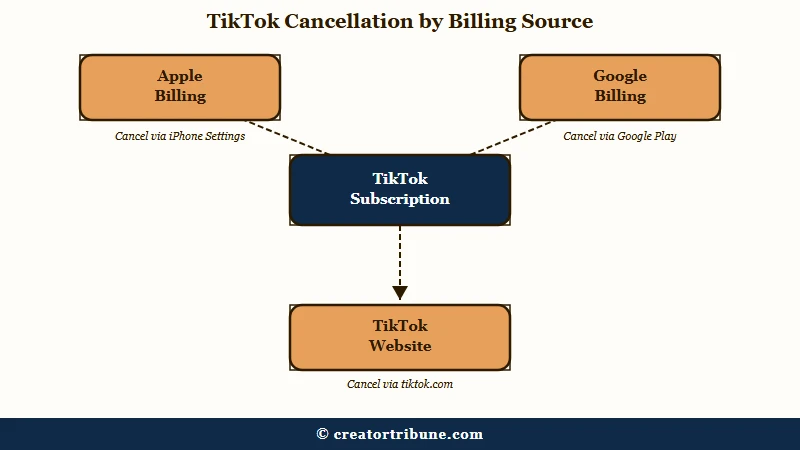
The reason this trips people up is that TikTok is only the storefront window. When I trace these charges for people, the actual billing relationship is almost always with Apple or Google, who handle the payment and the auto-renewal on TikTok’s behalf.
So the first job is not tapping around inside TikTok. It is working out which company is really billing you, then cancelling there. Here is where each type of TikTok charge lives and where the real cancel button sits.
| Subscription type | Where the billing lives | Where you cancel it | Refund window |
|---|---|---|---|
| Creator LIVE Subscription | Apple, Google, or TikTok web depending on signup | Same store you signed up in | None from TikTok, no proration |
| TikTok Ad-Free (UK) | App Store or Google Play | Apple ID or Google Play subscriptions | Store policy, 48h on Google Play |
| Coins auto recharge | App Store or Google Play wallet | Turn off auto recharge in TikTok wallet, remove card in store | None, unused Coins are non refundable |
| TikTok Shop Subscribe and Save | TikTok Shop order, card on file | Orders section of your TikTok Shop account | Per seller, often a 30 day return |
If you only own one TikTok charge, it is probably a creator LIVE Subscription. If you cannot even remember signing up, jump ahead to the section on finding a mystery charge, because that is usually Coins or an accidental Ad-Free tap.
Why Does Deleting the TikTok App Not Stop the Charges?
Deleting the TikTok app does not cancel any subscription because the billing is stored in your Apple or Google account, not the app.
The app is just a shortcut. Remove it and the recurring charge keeps renewing on schedule until you cancel it in the store’s own subscription list.
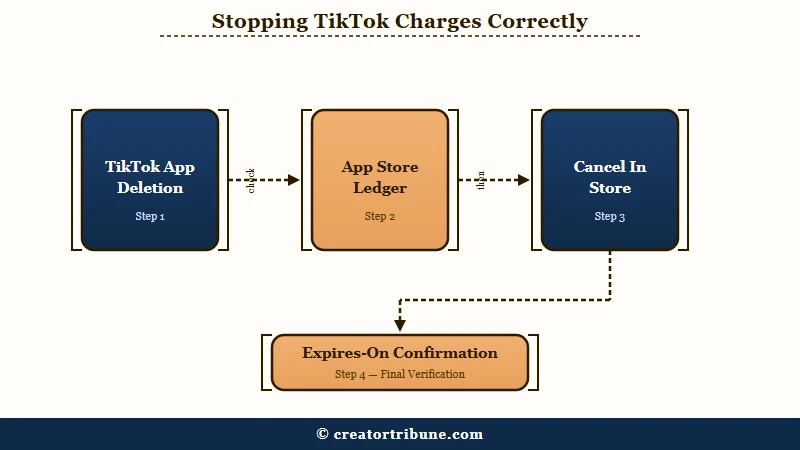
This is the part I wish more people knew before they rage-uninstall. The App Store and Google Play both keep a subscription ledger that outlives any single app, which is why a deleted app can still bill you for months.
I treat it like a gym membership. Throwing away your membership card does not close the account, and deleting TikTok is the exact same thing. The contract sits with the store, and the store needs to hear the word cancel. Cancelling a subscription is also separate from deleting your TikTok account, which is its own process with its own grace period.
What is a TikTok LIVE Subscription: A monthly paid membership to a specific creator that unlocks a subscriber badge, custom emotes, and subscriber only chat during their live streams.
Before: You delete the TikTok app, block the creator, and wait for the charges to stop. They do not, because Apple or Google still holds an active subscription with your card attached.
After: You open your Apple ID or Google Play subscriptions, cancel TikTok there first, confirm it now reads “Expires on” instead of “Renews on,” and only then delete the app if you still want to.
How to Cancel on iPhone, Android, and Desktop
You cancel a TikTok subscription in three different places depending on your device: Apple ID settings on iPhone, the Google Play Store on Android, and the TikTok website for LIVE subscriptions billed on desktop.
Pick the one that matches how you paid.
Most people are on iPhone and never realise the setting is buried in Apple’s menus rather than TikTok’s. Here is the exact tap sequence I would follow on an iPhone:
- Open the iPhone Settings app, not TikTok.
- Tap your name and photo at the very top to open your Apple ID.
- Tap Subscriptions.
- Find and tap TikTok in the active list.
- Tap Cancel Subscription and confirm.
On Android the billing runs through Google Play, so the path lives there instead. This is the sequence I walk Android users through:
- Open the Google Play Store app.
- Tap your profile icon in the top right.
- Tap Payments and subscriptions, then Subscriptions.
- Select TikTok.
- Tap Cancel subscription and confirm the reason prompt.
If you subscribed to a creator on a computer, cancel it on the web: log in at tiktok.com, click your profile picture, open Settings, find the LIVE Subscriptions tab, click the three dots next to the creator’s name, and choose Cancel Auto-Renewal. The confirmation you want in every case is the status flipping from “Renews on” a date to “Expires on” a date.
What Happens to a TikTok LIVE Subscription When You Cancel?
Canceling a LIVE Subscription stops the next payment but does not refund the current one.
You keep the badge, emotes, and subscriber chat until the paid month runs out, then they disappear. TikTok does not prorate, so there is no partial money back for the unused days.
There is one deadline that truly matters here, and I would circle it. You have to cancel at least 24 hours before the renewal date to avoid the next charge. Cut it closer than that and the system can still bill you for another cycle.
The quiet sting is the streak. When I cancel and later resubscribe to the same creator, my subscriber tenure resets to zero rather than picking up where it left off, so any loyalty badge milestones start over.
That trade-off is worth a thought before you cancel a creator you plan to return to. If money is the only issue, cancelling and losing the streak is fine. If you are close to a tenure badge, riding out one more month can be the cheaper call.
Can You Get a Refund for a TikTok Subscription?
Refunds are possible but rare, and they depend entirely on which store billed you.
Google Play usually approves a refund if you request it within 48 hours, Apple handles refunds case by case, and TikTok itself treats subscription and Coin payments as final.
Here the sources genuinely disagree, and it is worth being honest about it. Some guides flatly say TikTok never refunds, while Google’s own community experts say a Play Store refund is routine inside that 48 hour window. Both are true at the same time, because the refund is a store decision, not a TikTok one.
Coins are the harsh exception. Any Coins you already bought are locked in your wallet with no cash out, so cancelling your subscription does nothing to recover them. I would never top up Coins in bulk for that reason alone. If the charges look nothing like anything you set up, treat it as a possible account compromise and walk through recovering a hacked TikTok account before anything else.
The last resort is a bank chargeback, and I only reach for it when a store flatly refuses a clearly wrong charge. Be careful: Apple, Google, or TikTok can suspend the account you filed the chargeback against, so you may win 8 dollars and lose your login. Below is the quick triage I use when a charge will not stop.
| Symptom | Likely cause | Fix |
|---|---|---|
| Charged after deleting the app | Subscription still active in the store | Cancel in Apple ID or Google Play subscriptions |
| Charged after unfollowing a creator | LIVE Subscription auto renew still on | Cancel auto renewal on the web or in the store |
| Small repeat charges you never approved | Coins auto recharge is on | Turn off auto recharge in the TikTok wallet |
| Charge with no matching TikTok setting | Billed through a different device or store | Check every Apple ID and Google account you own |
What About TikTok Ad-Free, Coins, and TikTok Shop Subscriptions?
TikTok now has several paid products, and each cancels differently.
The Ad-Free tier and Coins are store subscriptions, while TikTok Shop Subscribe and Save is a retail order managed inside your Shop account. Naming which one you have is half the battle.
The newest is TikTok Ad-Free, a paid tier that launched in the UK for 18 and over at 3.99 pounds a month, as Digital Trends reported. The catch I would flag before anyone pays: it removes TikTok’s own feed ads but not the sponsored posts creators tag with hashtag ad, so your feed is quieter, not ad free in the literal sense. You cancel it in the same Apple or Google subscription list as any other tier.
Coins are not really a subscription at all unless you switched on auto recharge, which quietly tops up your balance whenever it runs low. I would check the wallet, turn auto recharge off, and remember that whatever Coins you have already bought are yours forever with no refund.
TikTok Shop Subscribe and Save is the odd one out, a recurring physical product order with a 5 to 20 percent discount rather than a digital membership. You manage or stop it in the orders area of your TikTok Shop account, and standard orders can be cancelled without seller approval within the first hour while they are still pending.
How Do You Stop Paying When You Cannot Access the Original Account?
If you have lost the phone or account you subscribed on, you cancel at the payment source instead.
Sign in to the matching Apple ID or Google account from any device, or as a last step, remove the card and dispute the charge with your bank. The subscription follows the payment method, not the handset.
This is the scenario the tidy step by step guides skip, and it is the one that leaves people paying the longest. Your subscription is tied to the Apple ID or Google account that paid, so a new phone signed into that same account can still see and cancel it.
Parents get hit here a lot. When a child subscribed through a shared setup, I would look under Apple Family Sharing or Google Family Link, where the payer can find and kill purchases made on a kid’s device. If a creator you subscribed to gets banned or stops streaming, do not assume billing pauses on its own, cancel the auto renewal yourself so a dormant channel is not still charging you.
There is a bigger lesson buried in all of this. Renting your reach and your relationships through someone else’s paywall means someone else controls the off switch, which is exactly why I tell creators to build an audience they own.
A simple creator money page that sends fans to a channel you control beats depending on a platform’s billing menu, and it is the same instinct behind learning to turn views into subscribers.
Frequently Asked Questions
Does deleting the TikTok app cancel my subscription?
No. Deleting the app removes the shortcut but leaves the subscription active in your Apple ID or Google Play account. You have to cancel in the store’s subscription list, or the renewal keeps charging your card every cycle.
How do I stop TikTok from charging me every month?
Cancel the subscription in the store that bills you. On iPhone go to Settings, Apple ID, Subscriptions, TikTok, Cancel. On Android open Google Play, Payments and subscriptions, TikTok, Cancel. Confirm the status reads “Expires on” a date.
Will I get a refund if I cancel my TikTok subscription?
Usually not from TikTok, which treats payments as final. Google Play often refunds within 48 hours of the charge, and Apple decides case by case. You keep access until the current billing period ends since TikTok does not prorate.
Why is TikTok still charging me after I unsubscribed from a creator?
You likely cancelled inside the app but the auto renewal still lives in the store, or you removed the creator without cancelling the LIVE Subscription. Cancel again in Apple ID, Google Play, or on tiktok.com and check for a confirmation.
How do I cancel a TikTok subscription without the original phone?
Sign in to the same Apple ID or Google account that paid, from any device, and cancel there. If you cannot access that account, remove the card as a stopgap and contact your bank about the recurring charge as a last resort.
Quick Takeaways
- Deleting the TikTok app never stops billing, cancel in your Apple ID or Google Play subscriptions instead.
- Match the cancel path to the payment source, iPhone in Apple settings, Android in Google Play, web LIVE subs on tiktok.com.
- Cancel a LIVE Subscription at least 24 hours before renewal, you keep perks until the cycle ends but get no refund or streak back.
- Google Play often refunds within 48 hours, TikTok itself rarely does, and bought Coins are gone for good.
- Confirm success when the status flips from “Renews on” to “Expires on,” then own your audience so no platform paywall controls the off switch.

My daughter has been deceased since July 17, 2027 and can’t find or locate her phone and would like her TikTok cancelled because no one should be using her cell phone.
Geraldine, I’m so sorry about your daughter. You don’t need her phone for this. A family member can ask TikTok to remove a deceased person’s account through the Report a problem option in the app or the contact form at support.tiktok.com, and you should expect to be asked for her username, a death certificate and proof that you’re related.
If you also need to cancel a TikTok subscription she was paying for, that charge sits with the Apple or Google account that paid, and her bank can stop it if nobody can sign in. Her mobile carrier can close the phone line itself.