InShot vs CapCut for TikTok and Reels Creators
InShot vs CapCut for TikTok and Reels Creators
InShot vs CapCut compared on watermarks, price, music licensing, and exports. See which editor fits TikTok and Reels creators before you commit.
- 1InShot vs CapCut at a Glance
- 2Which One Is Free Without a Watermark
- 3How Much Do InShot and CapCut Cost
- 4The CapCut Music Trap Most Creators Miss
- 5Who Should Choose InShot
- 6Who Should Choose CapCut
- 7Frequently Asked Questions
- Is CapCut or InShot better for beginners?
- Does CapCut still export without a watermark in 2026?
- Can I use CapCut music on YouTube and Instagram?
- Is InShot’s lifetime plan worth it?
- Which app is better for cross-posting to multiple platforms?
- 8Quick Takeaways
The Verdict: CapCut wins on a no-watermark free tier, desktop and web apps, and stronger AI captions, while InShot wins on a one-time lifetime price and music you can safely cross-post. The deciding factor most guides skip is CapCut’s music being licensed for TikTok only, which means trending CapCut songs can trigger copyright claims on Reels and Shorts. Pick CapCut for TikTok-first editing, InShot for clean cross-posting on a budget.
The InShot vs CapCut question usually gets answered on the wrong terms. People compare the sticker price or the template count and miss the two things that decide which editor you should live in.
The first is whether your free exports carry a watermark. The second, and the one almost nobody mentions, is who is allowed to hear the music you added once your video leaves TikTok.
I have built short clips in both, and the gap that matters is not the feature list. It is what happens to your video when you cross-post it. This breakdown covers price, watermarks, exports, captions, and the music trap, then tells you which editor fits your workflow.
InShot vs CapCut at a Glance
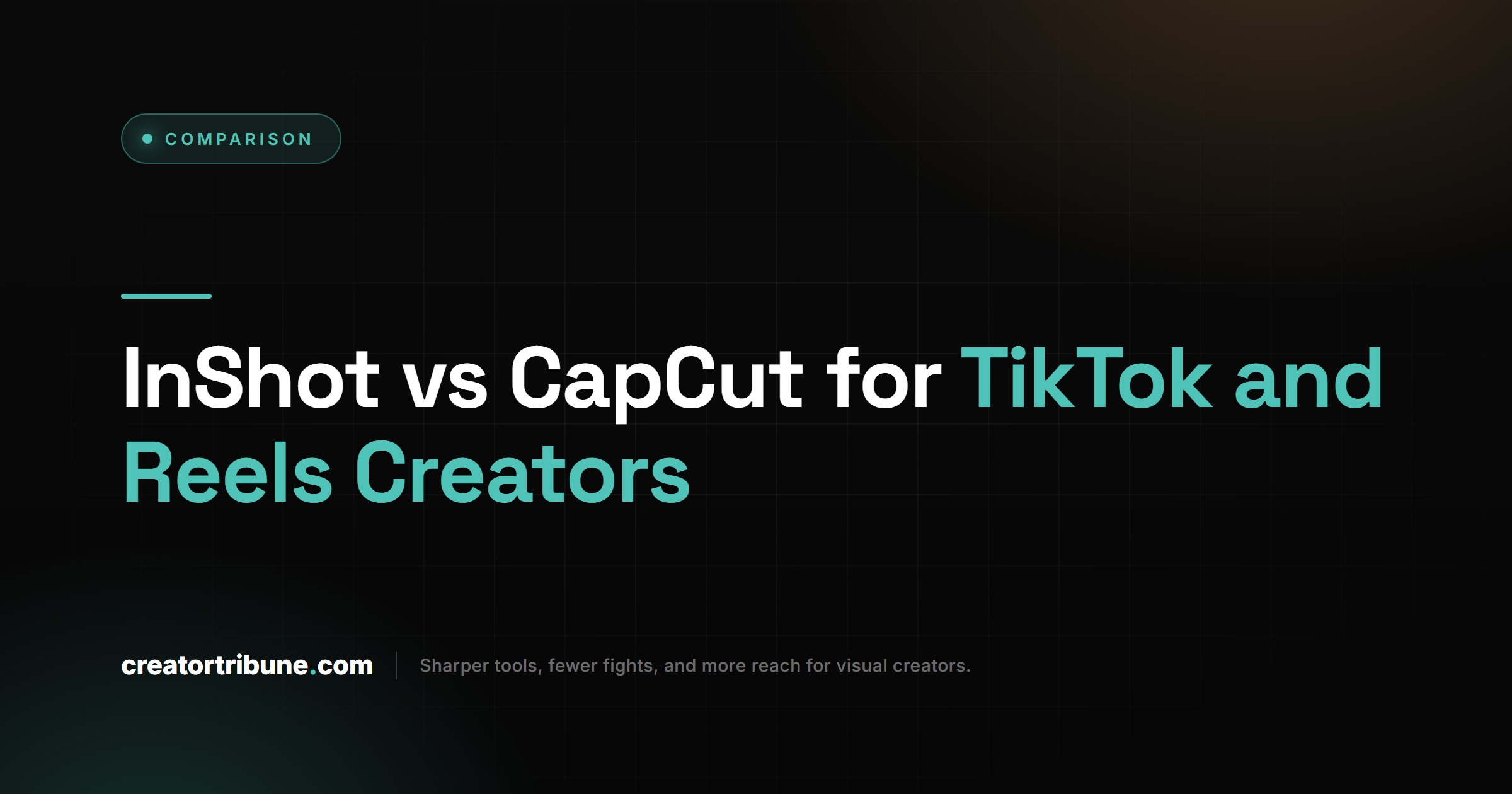
InShot vs CapCut comes down to reach versus value: CapCut gives you a watermark-free free tier plus desktop and web, while InShot gives you a lifetime payment option and music that is safe to post anywhere.
Both are excellent mobile editors, so the right pick depends on where your videos go after you export.
Both rank among the most-used editors for short-form video, the format that now drives most creator reach, with TikTok alone past a billion monthly users (per Statista).
CapCut is the heavier toolkit. It runs on iOS, Android, desktop for Mac and Windows, and the web, and its AI auto-captions and effects are a step ahead of InShot.
InShot is the leaner, friendlier mobile app. The way I see it, InShot is what you hand someone who wants to edit a Reel on their phone in ten minutes without a tutorial.
Here is the head-to-head on the factors that change your daily workflow.
| Factor | InShot | CapCut |
|---|---|---|
| Free watermark | Yes, on all free exports | No watermark on free exports |
| Platforms | iOS and Android only | iOS, Android, desktop, web |
| Pricing model | Monthly, annual, or lifetime | Subscription only |
| AI captions | Basic, weaker auto-captions | Stronger AI auto-captions |
| Music for cross-posting | Royalty-free, safe anywhere | Licensed for TikTok only, risky elsewhere |
If you want the wider field of free editors beyond these two, my roundup of CapCut alternatives covers the rest.
Which One Is Free Without a Watermark
CapCut is the better free editor because it exports with no watermark, while InShot stamps a watermark on every free export until you upgrade.
For a creator posting daily, that single difference often settles the choice.
CapCut lets free users export clean 1080p video with no branding on it. That is rare for a free editor this capable, and it is the main reason CapCut spread so fast.
InShot’s free tier puts a watermark on your exports, and the only way off it is InShot Pro. There is one workaround worth knowing: InShot’s own developer makes a separate app called YouCut that exports watermark-free on its free tier, so you can keep a similar interface without paying.
What surprised me is how many creators pay for InShot purely to kill the watermark, when CapCut would have given them clean exports for nothing. If watermark removal is your only reason to upgrade, rethink the spend.
How Much Do InShot and CapCut Cost
InShot is cheaper and offers a rare lifetime payment, while CapCut is subscription-only and costs more per month but bundles more tools. Your call depends on whether you would rather pay once or pay for the deeper toolkit.
InShot Pro runs about $3.99 to $4.99 a month, roughly $17.99 to $19.99 a year, and offers a one-time lifetime unlock around $39.99 to $49.99. CapCut Pro is about $7.99 a month or $71.88 a year, with a Team tier near $12.99 per user.
The lifetime option is InShot’s quiet advantage. If you plan to keep editing on your phone for two years or more, paying once beats subscription fatigue, and that is the math I would run before subscribing to anything.
| Plan | InShot | CapCut |
|---|---|---|
| Monthly | $3.99 to $4.99 | $7.99 |
| Annual | $17.99 to $19.99 | $71.88 ($5.99/mo) |
| Lifetime | $39.99 to $49.99 | Not offered |
| Team or business | Not offered | $12.99 per user monthly |
One catch on CapCut’s paid assets: its license grants them on a per-export basis, so re-editing and re-exporting a finished video that used paid stock can mean paying for those assets again. For high-volume editors, a clean cross-posting workflow explains how to keep a master file and avoid repeat charges.
The CapCut Music Trap Most Creators Miss
CapCut’s built-in music is licensed only for TikTok and CapCut, so trending CapCut songs can trigger Content ID claims when you post the same video to YouTube Shorts or Instagram Reels.
This is the single biggest reason a cross-posting creator should think twice before leaning on CapCut audio.
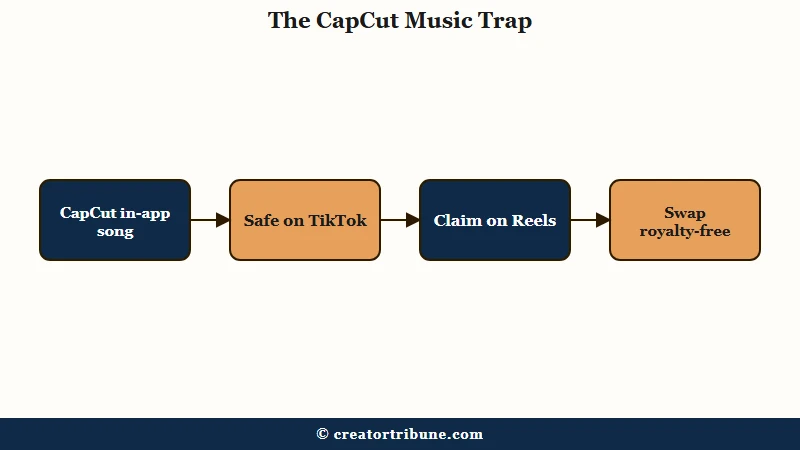
The music inside CapCut is cleared for the TikTok ecosystem, not the open web. Move that export to Reels or Shorts and you risk a copyright claim, muted audio, or lost monetization on that video.
InShot ships a royalty-free library meant for social use across platforms, which is why it is the safer pick if your one video lands on three apps. CapCut’s license also forbids pulling its sound effects out as standalone files for use in other editors, so you cannot borrow that library for Premiere or Final Cut.
Example scenario: You cut a clip in CapCut with a trending in-app song and post it to TikTok with no issue. Repost that exact file to Reels and you can catch a Content ID claim that mutes the audio. The same clip built in InShot with its royalty-free track posts clean on all three apps.
If you have a CapCut edit you want on Reels or Shorts, here is the sequence I would run to avoid a claim:
- Mute the CapCut in-app track on your export.
- Drop a royalty-free song over the muted clip in InShot or another library.
- Re-export the swapped version and post that one to Reels and Shorts.
If a CapCut song has already cost you a muted upload, music removed from TikTok walks through recovering the post.
Who Should Choose InShot
Choose InShot if you edit mostly on your phone, cross-post the same video to several platforms, and want to pay once instead of subscribing. It is the budget-and-simplicity pick.
InShot rewards the creator who values a clean, fast mobile workflow over a deep feature set. The royalty-free music makes it the safer choice when a single clip has to live on TikTok, Reels, and Shorts at the same time.
The lifetime unlock seals it for me for anyone tired of monthly charges. If you are a casual or solo creator who wants to own the tool, InShot is where I would start.
Who Should Choose CapCut
Choose CapCut if you want a no-watermark free tier, edit across phone and desktop, and rely on strong AI captions, while keeping its music for TikTok posts. It is the power pick for a TikTok-first workflow.
CapCut is the better fit when your editing spans devices, since it syncs from mobile to desktop to web. The AI auto-captions and effects also save real time once your videos get more involved.
The way I see it, CapCut is the stronger editor as long as you respect the music boundary. Keep CapCut songs on TikTok, swap in royalty-free audio before you cross-post, and you get the deeper toolkit without the copyright headache. For the full feature rundown, see our standalone CapCut review.
Frequently Asked Questions
Is CapCut or InShot better for beginners?
InShot is friendlier for absolute beginners because its mobile interface is simpler. CapCut is nearly as easy but packs more tools, so there is a slightly steeper learning curve in exchange for more power.
Does CapCut still export without a watermark in 2026?
Yes. CapCut’s free tier exports with no watermark at up to 1080p. InShot, by contrast, watermarks all free exports unless you upgrade to Pro.
Can I use CapCut music on YouTube and Instagram?
It is risky. CapCut’s in-app music is licensed for TikTok and CapCut, so using it on Reels or Shorts can trigger Content ID claims. Swap in royalty-free audio before cross-posting.
Is InShot’s lifetime plan worth it?
If you edit regularly and plan to stay on InShot for two years or more, the one-time fee around $39.99 to $49.99 usually beats paying monthly. Casual users may not need Pro at all.
Which app is better for cross-posting to multiple platforms?
InShot, mainly because of its royalty-free music. One InShot export with safe audio posts cleanly across TikTok, Reels, and Shorts without copyright surprises.
Quick Takeaways
- CapCut has the better free tier with no watermark and 1080p exports; InShot watermarks all free exports.
- InShot is cheaper and offers a rare lifetime unlock around $39.99 to $49.99, while CapCut is subscription-only at about $7.99 a month.
- CapCut music is licensed for TikTok only, so it can trigger copyright claims on Reels and Shorts.
- Choose CapCut for TikTok-first editing across phone and desktop, and InShot for clean cross-posting on a budget.
- If you like InShot but hate the watermark, the same developer’s YouCut app exports free without one.