How to Archive Instagram Posts Without Hurting Your Reach
How to Archive Instagram Posts Without Hurting Your Reach
How to archive Instagram posts, the archive vs delete reach trap, how to unarchive, and a clean grid rebrand workflow. Here is the full guide.
- 1How to Archive Instagram Posts
- 2Does Archiving Instagram Posts Hurt Your Reach
- 3Where Do Archived Instagram Posts Go
- 4How to Archive Instagram Reels and Stories
- 5Why Is My Instagram Archive Button Missing
- 6How to Use the Archive to Clean Up Your Grid
- 7Frequently Asked Questions
- How do I archive a post on Instagram?
- Does anyone get notified when I archive a post?
- Is it better to archive or delete Instagram posts?
- Where does an unarchived post go on my grid?
- Can I archive multiple Instagram posts at once?
- Does archiving a post delete its likes and comments?
- 8Quick Takeaways
TL;DR: To archive an Instagram post, tap the three dots on it and choose Archive. It hides from your grid while keeping every like and comment, and it does not touch your reach. Deleting is the risky move: a mass purge can flag your account and cut your next post’s reach. This guide covers the steps, Reels and Stories, unarchiving, and a safe grid cleanup.
If you want to know how to archive Instagram posts, the steps take about three taps, but choosing to archive instead of delete is the part that protects your account. Archiving hides a post from your grid while keeping it and all of its likes and comments safe, and it leaves your reach alone.
Deleting is the trap. In one split test, mass-deleting 20 low-performing posts dropped the next post’s reach by 40 percent, because the algorithm reads a sudden purge as suspicious activity. Archiving the same 20 posts had zero negative effect.
So this guide covers the full picture for creators. You get the exact steps to archive one post or a batch, what archiving does to your metrics, where archived posts go, how to handle Reels and Stories, the fix when the archive button vanishes, and how to run a clean grid rebrand.

How to Archive Instagram Posts
To archive an Instagram post, open the post, tap the three dots in the top right, and select Archive. It vanishes from your public grid instantly and moves to a private archive, with every like and comment kept.
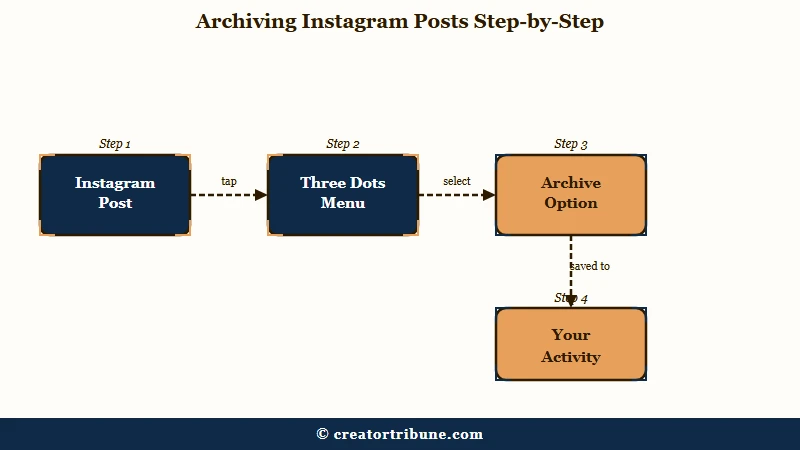
What is archiving on Instagram: Hiding a post from your public profile while Instagram keeps the post and its engagement stored privately, so only you can see it and you can restore it anytime.
Nobody gets notified when you archive, and no follower sees a gap or a clue. The part I like about archiving over deleting is that it is fully reversible, so a spring-clean of your grid never costs you the content or the history behind it.
For a single post, the three-dot menu is all you need. To clear out a batch at once, the path is buried in a different menu, and here is the sequence I would use:
- Tap the hamburger menu on your profile, then open Your activity.
- Tap Photos and videos, then Posts under the content you have shared.
- Tap Select, then tap each post you want to hide.
- Tap Archive at the bottom to move them all off your grid.
One limit to plan around: Instagram caps this bulk action at 100 posts at a time, so a large cleanup runs in rounds. Reels are the exception here, they cannot be bulk-archived and have to be handled one by one.
Does Archiving Instagram Posts Hurt Your Reach
Archiving Instagram posts does not hurt your reach, but mass-deleting them can. A split test found deleting 20 posts cut the next post’s reach by 40 percent as the algorithm flagged suspicious activity, while archiving the same posts had no effect.
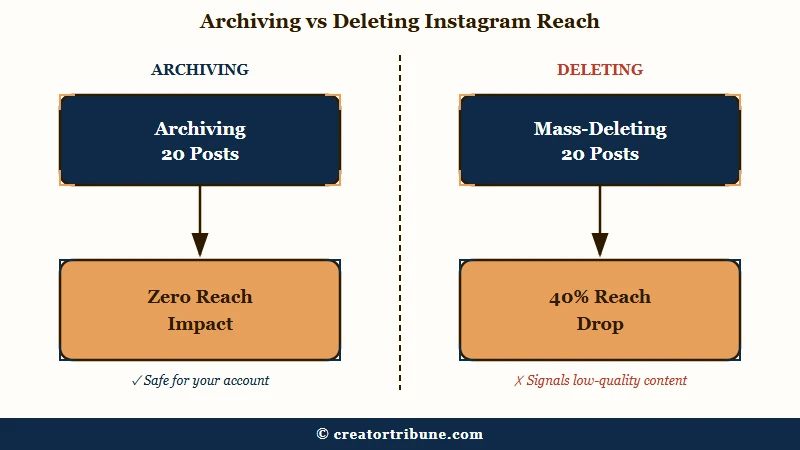
The logic is about trust. A sudden mass deletion looks like a compromised or purchased account scrubbing its history, so the system gets cautious with your distribution.
Archiving keeps all of your engagement data intact on the back end, which is the signal the algorithm leans on, so if your numbers already look off, rule out the causes behind a dropped Instagram reach before you start hiding posts.
There is one nuance I would flag. Archiving a top-performing post can cause a temporary dip in your engagement rate, because that rate is a rolling average of the posts still visible on your profile. It is a display effect, not a penalty, and it is different from an Instagram shadowban, which throttles reach directly.
For scale, Instagram serves more than 2 billion monthly users, per Statista data, so the algorithm has plenty of reason to police purges.
Before: You delete 20 old flop posts to tidy your grid, and your next post reaches 40 percent fewer accounts as the system flags the purge.
After: You archive the same 20 posts, your grid looks just as clean, your engagement history stays intact, and your reach is untouched.
| Action | What happens | Reversible | Reach impact |
|---|---|---|---|
| Archive | Hidden from grid, likes and comments kept | Yes, restore anytime | None |
| Delete | Removed after 30 days in recently deleted | Only within 30 days | Mass delete can drop reach sharply |
| Remove from grid (Reels) | Off the grid but public in the Reels tab | No, the grid removal is permanent | Keeps discovery reach in the Reels tab |
Where Do Archived Instagram Posts Go
Archived Instagram posts go to a private archive only you can see, split into Posts, Stories, and Live tabs. To unarchive, open the archive, tap the post, tap the three dots, and choose Show on profile.
Getting to the archive trips people up because it moved. Tap the hamburger menu, then Archive at the top, and use the dropdown to switch between the Posts archive, Stories archive, and Live archive.
Here is the myth I want to kill, because I see creators chase it constantly. Unarchiving a post does not republish it as fresh content or bump it to the top of your grid. It returns to its exact original date, with the old likes and comments restored, so you cannot use the archive as a trick to reorder your feed or repost old content for a new algorithmic push.
How to Archive Instagram Reels and Stories
Reels must be archived one at a time because Instagram has no bulk-archive for them, and Stories auto-archive after 24 hours if the Story archive setting is on.
Removing a Reel from your profile grid is a separate action that you cannot undo.
Stories are the easy part. If you keep the Story archive setting turned on under Archiving and downloading, every Story saves itself after 24 hours, ready to reshare or drop into a Highlight. Stories work differently from feed posts here, because there is no Show on profile control for them, and unarchiving an Instagram Story covers what a reshare costs you.
What is Remove from profile grid: A Reels-only option that takes a Reel off your main grid but leaves it public in your Reels tab and on Explore. Unlike archiving, this choice is permanent.
Reels need more care because two different actions look similar. The way I would handle a Reel I want off my grid is the post-then-remove approach: leave it on the main feed for the first 48 to 72 hours so it captures early follower engagement, then use Remove from profile grid. You keep the algorithmic boost and still get a clean grid, but remember that grid removal cannot be reversed.
Why Is My Instagram Archive Button Missing
The archive button is usually missing because of an outdated app or a cache glitch, and a full app refresh fixes most cases.
On very old accounts, some archived posts have vanished for good, which is why the archive is not a real backup.
The fixes worth trying in order are updating the app, clearing the cache, and reinstalling, since most disappearing-archive reports trace back to a stale app version. A recurring 2026 bug hides the On This Day memories feature, and the community workaround is to open the Story camera, tap Create, and scroll to the clock icon to surface old memories manually.
The deeper lesson is that the archive is a hiding place, not a vault. It has no search function, so it becomes a junk drawer fast, and users on very old accounts have reported archived posts disappearing without explanation. If a post genuinely matters, download the original file rather than trusting the archive to hold it forever.
| Symptom | Likely cause | Fix |
|---|---|---|
| Archive button not showing | Outdated app version | Update Instagram, then reopen the post menu |
| Archived posts missing | Cache glitch or sync error | Clear cache, then reinstall the app |
| On This Day memories gone | Known 2026 feature bug | Story camera, then Create, then the clock icon |
| Old archived posts vanished | Undocumented account-age issue | Download originals, do not rely on the archive |
How to Use the Archive to Clean Up Your Grid
The safest grid cleanup is to archive off-brand or poorly cropped posts, never mass-delete them. This protects your reach while letting you hide the posts that the 2026 grid change left looking wrong.
In early 2025 Instagram switched the profile grid from square previews to a taller 3:4 shape, which center-crops older square photos and breaks carefully planned mosaics. Rather than delete those posts, I would archive the ones that crop badly and use Adjust Preview on the keepers to reposition them.
One thing to stop searching for: the drag-and-drop grid reordering tool. Instagram tested it and then pulled it, so posts are locked in reverse chronological order and you cannot reorder your Instagram grid natively anymore.
A grid rebrand is where the archive earns its keep, but it also exposes how much you are renting from the platform. The audience you can keep through any redesign is the one you own, which is why I point creators toward the free Creator Money Page template and toward turning views into subscribers on a channel no algorithm controls.
Frequently Asked Questions
How do I archive a post on Instagram?
Open the post, tap the three dots in the top right, and select Archive. The post leaves your public grid instantly and moves to your private archive with its likes and comments intact.
Does anyone get notified when I archive a post?
No. Archiving is silent, and your followers receive no notification or clue. Only you can see your archived posts, and they stay hidden until you choose to restore them.
Is it better to archive or delete Instagram posts?
Archiving is safer for creators. Deleting removes the post and its engagement permanently after 30 days, and mass deleting can flag your account and cut your reach. Archiving hides posts while keeping everything intact.
Where does an unarchived post go on my grid?
Back to its original spot. An unarchived post returns to its exact original chronological date with its old likes and comments, not to the top of your grid, so it does not work as a reposting trick.
Can I archive multiple Instagram posts at once?
Yes, for feed posts. Go to Your activity, then Photos and videos, tap Select, choose your posts, and tap Archive. Instagram caps this at 100 posts at a time, and Reels cannot be bulk-archived.
Does archiving a post delete its likes and comments?
No. Archiving preserves all likes, comments, and analytics attached to the post. Everything comes back exactly as it was the moment you unarchive and show the post on your profile again.
Quick Takeaways
- Archive, do not mass-delete, because deleting 20 posts can cut your next post’s reach by 40 percent while archiving does not.
- Tap the three dots on a post and choose Archive to hide it while keeping every like and comment.
- Unarchived posts return to their original date, so you cannot use the archive to reorder or repost.
- Reels cannot be bulk-archived, and removing a Reel from your grid is permanent.
- Treat the archive as a hiding place, not a backup, since old archived posts have been known to vanish.