Opus Clip Review When Credits Run Out Mid-Month
Opus Clip Review When Credits Run Out Mid-Month
Opus Clip pricing looks fair until the credit trap kicks in mid-month. Real numbers on what solo creators actually spend in 2026.
- 1What Opus Clip Is
- 2How the Pricing Works
- 3The Workflow That Works for Solo Creators
- Caption Accuracy in the Real World
- The Virality Score Is a Suggestion, Not a Verdict
- 4Where Opus Clip Falls Short
- Concerns Before You Subscribe
- 5Who Should Choose Opus Clip
- Alternatives Worth Considering
- 6Frequently Asked Questions
- Is Opus Clip free to try?
- Does Opus Clip work for podcasts with two or more speakers?
- Can I use Opus Clip on iPhone or Android?
- How much do credits cost in real terms?
- Is the Virality Score reliable?
- What is the cheapest way to get the editor?
- 7The Verdict
Bottom Line: Opus Clip is the right first AI clipper for solo creators who already record long-form video and only need a faster way to repurpose it, with the Pro annual plan at $14.50 a month being the only tier worth paying for. It is the wrong tool if you film with a phone or care enough about visual identity to refuse a templated look.
I spent three weeks running Opus Clip against my own podcast back catalog before writing this.
The pitch is familiar. Upload long video, get ten short clips back in minutes, pick the winners, publish.
What is less familiar is the gap between that pitch and what running it as a real workflow looks like.
Short version: the Pro annual plan earns its $14.50 a month for anyone publishing weekly. The Starter plan is a trap. The Free tier is a demo, not a workflow. And the credit math hurts the wrong people in the wrong way.
What Opus Clip Is
Opus Clip is a browser-based AI tool that ingests long video and exports short vertical clips formatted for TikTok, Instagram Reels, and YouTube Shorts, with caption generation, virality scoring, and basic editing built in.
The platform crossed 10 million users this year and reports more than 172 million clips generated.
It raised about 50 million dollars in funding, including a 2025 SoftBank Vision Fund 2 round at a 215 million dollar valuation.
So this is not a small experiment. It is the default in the long-to-short clipping category, which is exactly why I needed to look at it carefully before recommending it.
This review focuses on the solo creator decision: which tier to pay for, what the realistic workflow looks like, and where Opus loses to alternatives.
How the Pricing Works
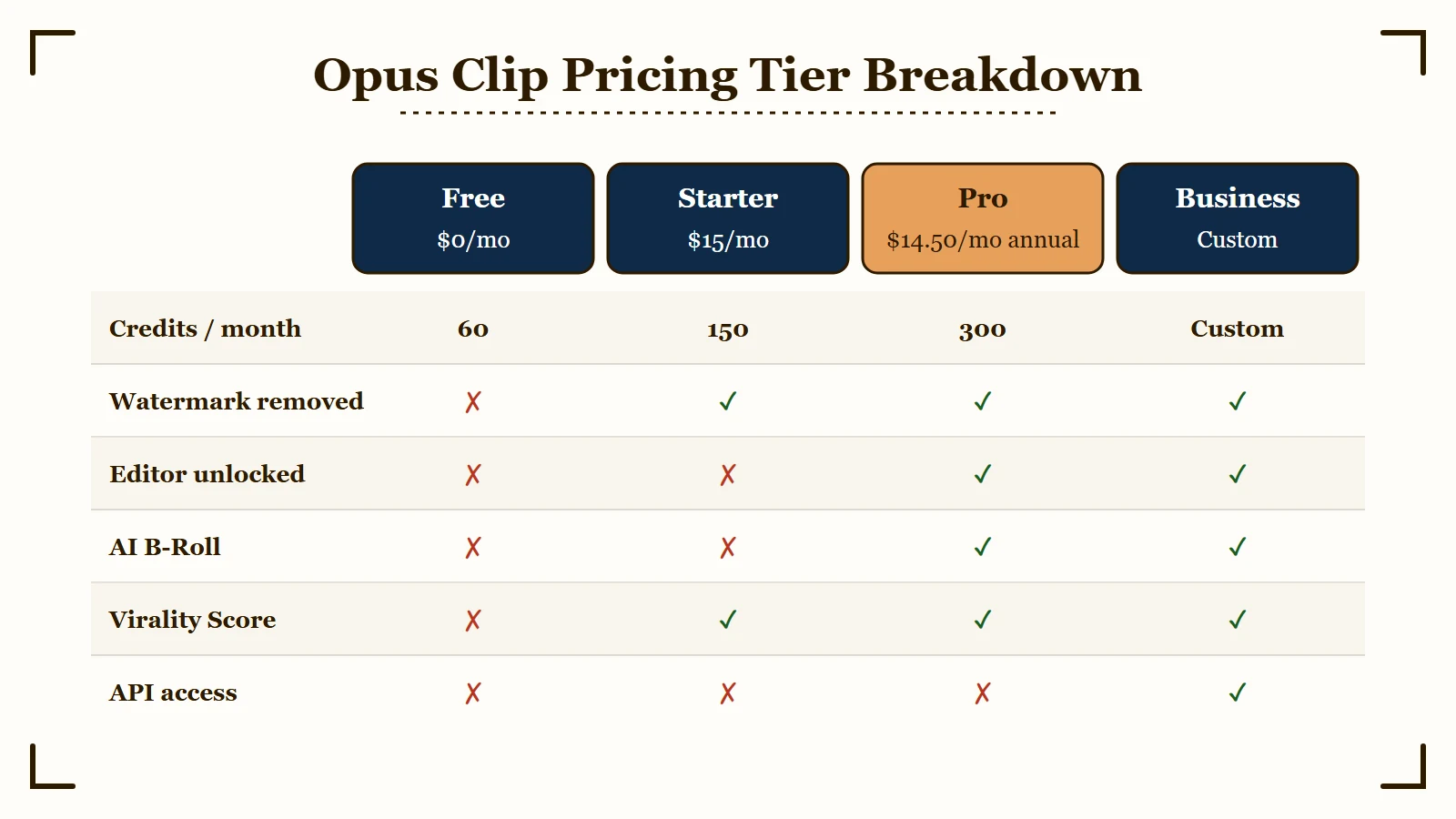
Opus Clip has four pricing tiers, with Pro at $14.50 a month annual being the only sensible entry point for solo creators, because Starter monthly at $15 locks the editor and the Free tier ships with a watermark.
The pricing page lists four tiers. The mechanics that matter are not on the page.
| Plan | Monthly | Annual (per month) | Credits | Editor | AI B-Roll |
|---|---|---|---|---|---|
| Free | $0 | $0 | 60 / mo | No | No |
| Starter | $15 | About $9 | 150 / mo | No | No |
| Pro | $29 | About $14.50 | 300 / mo | Yes | Yes |
| Business | Custom | Custom | Custom | Yes | Yes |
The trap is the Starter plan.
At $15 a month it sounds like the right starting point. It is not. The editor is locked, AI B-Roll is locked, and most of the tool’s value is gated above this tier.
You pay $15 to remove the watermark and bump credits from 60 to 150. Nothing else changes from the demo.
The Pro annual plan at $14.50 a month is the real first tier. It is also cheaper per month than Starter monthly, which is the kind of pricing decision that makes me think Opus knows exactly which tier earns its keep.
There is no good reason to subscribe to Starter unless you are testing a switch from a competitor and want month-to-month flexibility for one cycle.
A credit equals one minute of source video, not one clip. Upload a 45-minute podcast and you spend 45 credits whether Opus produces three clips or twenty.
This is the math most creators get wrong on day one.
If you produce two long-form videos a week at 30 minutes each, you burn 240 credits a month. Pro covers it with room. If you produce four 45-minute podcasts a week, you burn 720 credits and Pro is not enough.
The tier you should be on depends on raw input minutes, not on how prolific you feel.
Unused credits expire 60 days after purchase on monthly plans, 13 months on annual. The 60-day cliff is harsh if you have a slow editing month.
The Workflow That Works for Solo Creators
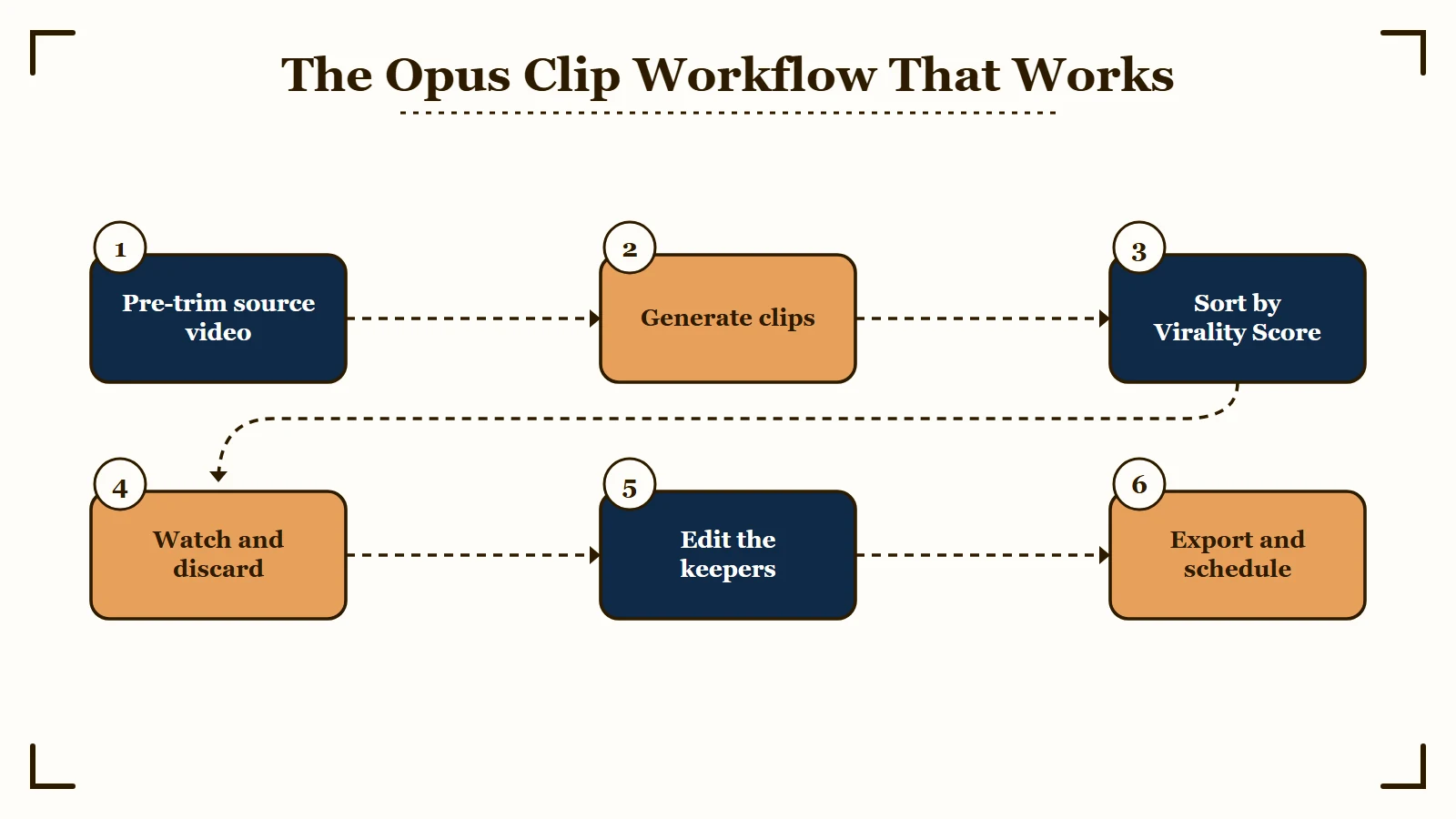
The Opus Clip workflow that produces publishable clips reliably is six steps, not the three the marketing promises, and the difference is the discard pass that no first-time user knows to run.
The workflow Opus wants you to follow is: upload long video, click generate, scroll through clips ranked by Virality Score, hit publish.
That works for the first ten clips. After that, the cracks show.
A more honest workflow looks like this:
- Pre-trim before upload. Cut the dead first 30 seconds and the dead final two minutes from your source. Both are credit drain that produces nothing.
- Generate. Wait 4 to 8 minutes per 30 minutes of source for processing.
- Sort by Virality Score. Take the top 10 clips, ignore everything below 70.
- Watch each top clip end to end. Discard the ones with mid-sentence cuts, missing context, or moments where you reference something the viewer cannot see.
- Edit the keepers. Trim endpoints, fix any caption drift, tweak the hook frame if it lands on a closed mouth.
- Export and schedule. Use the in-app social scheduler if you are on Pro, or download and queue elsewhere.
That last sequence is what an experienced operator does.
A first-time user publishes the AI’s first ten suggestions and wonders why engagement is mediocre.
Caption Accuracy in the Real World
Captions land around 95 percent accurate on clean audio across more than 25 languages. That number is real. It is also misleading.
The 5 percent failure cases concentrate in places that matter: technical jargon, brand names, numbers, and whisper-volume speech.
If your podcast mentions Anthropic, Claude Opus, GPT-5.5, or Llama 4, expect to fix the captions on every clip that mentions them. Same for creator handles, episode numbers, and any product name that is not a common dictionary word.
Caption styling is a separate question. Opus offers ten plus animated templates, keyword highlighting, auto emoji insertion, and speaker color coding. On Pro you get custom font upload.
The defaults are the problem. Most creators who pick Opus end up using one of the same three caption styles, and those styles are visible on every short feed.
If you care about visual identity, plan to bring a custom font and override the emoji insertion before publishing.
The Virality Score Is a Suggestion, Not a Verdict
Each clip gets a 0 to 100 score generated by a GPT-4 model trained on hook strength, emotional flow, perceived value, and trend alignment.
The number itself should be treated as a sorting hint, not a publish gate.
Two specific failure modes matter.
The score systematically underrates niche topics. A clip about a specific software feature for a specific developer audience will score lower than a clip with a shocking emotional opener, even when the niche clip will outperform on its target channel.
The score over-indexes on the first 1.5 seconds. A clip that opens with a question or a strong claim scores higher than one that opens with context, even when the contextual clip is the more publishable one.
Treat the Virality Score the way you would treat a junior editor’s gut feel. Helpful for sorting. Not a substitute for your own taste.
Where Opus Clip Falls Short
Three real limitations matter for a solo creator: no mobile app, shallow editing, and visual homogenization across every Opus clip with default settings.
Three real limitations matter for the buying decision.
Web only, no mobile app. If you record long-form on your phone, Opus is wrong for you. The platform expects desktop upload. There is no iOS or Android app for recording, scripting, or finishing on a phone.
Editing flexibility is shallow. You can trim endpoints, swap caption templates, and tweak the hook frame. You cannot do precise frame-level cuts, add custom music, or restructure the clip’s pacing.
Anything beyond the AI’s first pass requires exporting to Premiere Pro, DaVinci Resolve, or Final Cut. The XML export on Pro makes this practical, but it is a workflow handoff, not a finishing tool.
Aesthetic homogenization. Every Opus clip with default settings looks like every other Opus clip. The same caption templates, the same emoji bursts, the same hook frame layouts.
Scroll TikTok for ten minutes and you will see the Opus look on at least five clips. For a brand that wants to be recognizable, this is a real cost.
Plan to override the defaults from day one if visual identity matters to your channel.
Concerns Before You Subscribe
Trustpilot sits at 4.0 out of 5 across 302 reviews. The 22 percent 1-star rate is high enough to look at the complaints carefully.
Two patterns repeat.
Cancellation friction. Multiple users report a multi-step cancellation flow that requires clicking through several confirmation screens before the cancel button activates. This is intentional. The dark pattern is well documented and worth knowing about before subscribing.
Refund policy. The refund button only works before a video finishes processing. After processing completes you cannot get a refund, even if the AI’s output is unusable.
Set a calendar reminder for the date you want to evaluate cancellation. Expect to spend 10 minutes navigating the flow when the time comes.
Who Should Choose Opus Clip
Opus Clip is the right call for desktop-first long-form creators publishing weekly, the wrong call for mobile-first creators or anyone whose visual identity rules out templated output, and a maybe for creators producing under 30 minutes of source video a week.
The clean answer:
- Yes if you record long-form on desktop or with a real camera, publish more than 5 short-form clips a week, and want to cut your repurposing time from hours to minutes.
- Yes if you are a podcaster who already produces 60 to 90 minutes of audio plus video weekly and want to harvest clips without dedicating a team member.
- No if your filming is mobile-first and you do not own a desktop editing setup.
- No if your visual identity is the load-bearing part of your channel and you are not willing to override default templates on every clip.
- Maybe if you produce less than 30 minutes of source video a week. The credit math may not justify the Pro tier.
Alternatives Worth Considering
Three platforms in this category are worth a look if Opus does not fit.
Submagic focuses on the captioning layer first and uses AI clip selection second. The captions look more polished out of the box and the editor is more flexible inside the app. We have a Submagic review that goes deeper.
Captions is the mobile-first answer. The iOS and Android apps are first-class, and the AI editing is built around the assumption that you film and finish on a phone. See our Captions app review.
Vidyo.ai sits between Opus and Submagic on price and features. Worth a look if you find both overpriced.
For the head-to-head decision most creators face, our Opus Clip vs Submagic breakdown puts the two side by side.
Frequently Asked Questions
Is Opus Clip free to try?
Yes. The Free plan gives 60 credits per month, but exports carry a watermark and expire after three days. Editing tools and the Virality Score are locked. Treat the Free tier as a demo that lets you confirm the platform works for your video, not as a usable workflow.
Does Opus Clip work for podcasts with two or more speakers?
Yes, but accuracy drops. AI clip selection is around 60 to 70 percent on clean solo audio and around 40 percent on conversations with crosstalk or background noise. Plan to discard a higher percentage of AI suggestions for multi-speaker recordings.
Can I use Opus Clip on iPhone or Android?
No. Opus Clip is web only. There is no mobile app for iOS or Android. If a mobile workflow is required, look at Captions or BIGVU.
How much do credits cost in real terms?
A credit is one minute of source video. The Pro plan at $14.50 a month annual gives 300 credits, so each minute of upload effectively costs about 5 cents. A 30-minute podcast costs about $1.45 to process at the Pro annual rate.
Is the Virality Score reliable?
It is reliable as a sorting hint, not as a publish gate. The model under-rates niche content and over-indexes on the first 1.5 seconds of a clip. Use it to triage which clips to review first, not to decide what publishes.
What is the cheapest way to get the editor?
The Pro annual plan at $174 per year, which works out to $14.50 a month. The Starter monthly plan at $15 a month sounds cheaper but the editor is locked, so most creators end up paying 15 to remove the watermark while still being unable to fix the AI’s mistakes.
The Verdict
Opus Clip earns its place as the default for desktop-first long-form-to-short workflows, with one tier worth paying for and a credit model that punishes assumptions about how it works.
If you are a podcaster or YouTuber who already produces real long-form content and your visual identity does not depend on bespoke editing, Opus Clip earns a spot in your stack.
If your filming is mobile or your brand cannot afford to look templated, the answer is one of the alternatives above.
The honest read: this tool saves a real solo creator about 5 hours of repurposing work per long video. That math justifies $14.50 a month for anyone publishing weekly.
The trick is knowing which tier to pay for and how to override the defaults that would otherwise make your channel look like everyone else’s.
Per Trustpilot’s verified reviews, the 4.0 rating across 302 reviews backs both the value claim and the friction claims. Read the 1-star reviews before you subscribe. Make the decision with both stories in front of you.
When your Shorts views stall after uploading, the YouTube Shorts views troubleshooting guide diagnoses the common causes.
If you are repurposing clips across platforms, the cross-posting without watermarks guide covers the cleanest workflow.