Fix Instagram Tagged Photos Not Showing Up
Fix Instagram Tagged Photos Not Showing Up
Instagram tagged photos not showing on your profile? Here are the real causes, the exact settings to check, and the fix for tags added after posting.
- 1Why Are Your Instagram Tagged Photos Not Showing
- 2The Difference Between Being Tagged and Showing on Your Profile
- 3How to Make Tagged Photos Show on Your Profile
- 4How to Fix Tags Added After Posting
- 5Why Tags Never Land on a Teen Account
- 6When a Restriction or Cache Is Hiding Your Tags
- 7Frequently Asked Questions
- Why are tagged photos not showing on my Instagram profile?
- Where is the tag approval setting on Instagram in 2026?
- Why does my tag not show up when I tag someone?
- What is the difference between being tagged and showing on a profile?
- How do I show a hidden tagged post on my profile again?
- Can a shadowban stop tagged photos from showing?
- Why can nobody tag my teen’s Instagram account?
- 8Quick Takeaways
TL;DR: Being tagged and the tag showing on your profile are two separate things. Instagram auto-adds tags to your Photos of You tab by default. When they stop appearing it is almost always Manual Approval sitting on a pending tag, a post set to Hide from my profile, or a sync bug from editing a post to add the tag after publishing. Check Tags and Mentions in settings first, then re-tag fresh if the post was edited.
If friends keep tagging you and nothing lands on your Photos of You tab, the problem is rarely a bug on your end. Instagram treats the tag itself and the tag showing on your profile as two independent actions, and a setting most people never opened usually sits between them.
The default behavior is to add tags automatically. So if tagged posts used to appear and suddenly stopped, something changed: a privacy toggle, a per-post visibility choice, or a quiet account restriction. Each has a different fix.
Here is what this covers: where the tag settings live in 2026, why a tag added after a post is published often never registers, and the exact steps to force tagged photos back onto your grid.
If your posts are also reaching fewer people, our guide on Instagram reach dropping tackles that separately.

Why Are Your Instagram Tagged Photos Not Showing
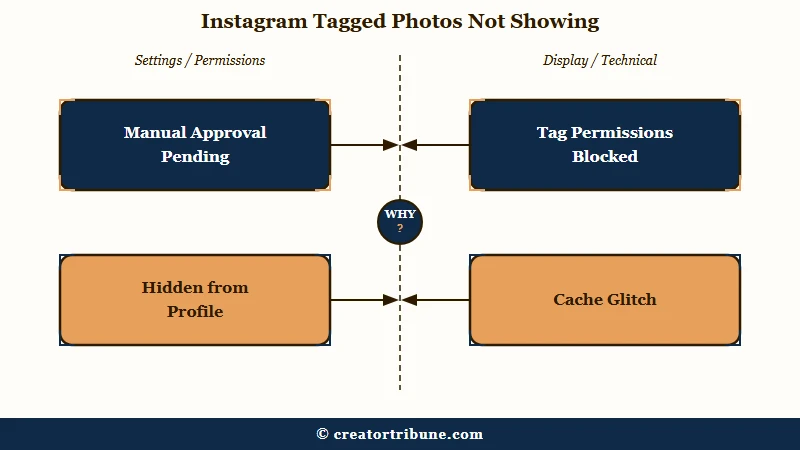
Tagged photos do not show because Manual Approval is on with the tag stuck in a pending queue, the post was hidden from your profile, the tagger does not meet your tag permissions, or a restriction or cache glitch is blocking the tab.
Each cause has its own switch.
What is the Photos of You tab: A separate gallery on your profile that houses posts other people tagged you in. It is independent from your own grid, so a post can tag you without ever appearing here.
The most common culprit is Manual Approval being switched on without the account owner realizing it. When that toggle is active, every tag waits in a pending queue for you to approve it, and until you do, nothing reaches your profile. Most people never know the queue exists.
The second is per-post visibility. You, or a setting, may have chosen Hide from my profile on a specific tagged post, which keeps you tagged but pulls the post off your public gallery. The third is permissions, where a tag from someone who does not meet your tag settings never registers.
The Difference Between Being Tagged and Showing on Your Profile
Being tagged attaches your username to a post and sends a notification; the tag showing on your profile is a second, separate step that places the post in your Photos of You gallery.
You can be tagged in hundreds of posts that never touch your grid.
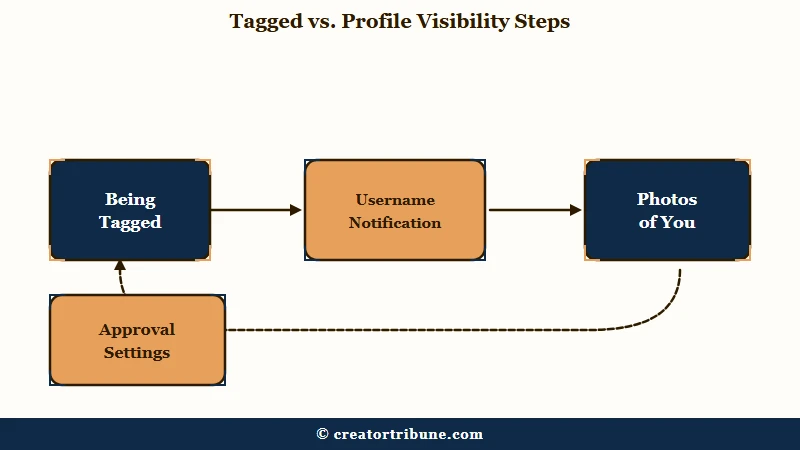
A creator tags you, you get the notification, and the post carries your username in its data. Whether that post then lands on your public profile depends entirely on your approval settings and your per-post choices.
Photo tags and caption @mentions also land in separate notification surfaces, so a mention buried in a caption is easier to lose track of than a photo tag. That makes a real photo tag the more reliable way to be sure someone sees a post.
How to Make Tagged Photos Show on Your Profile
To make tags appear, open Tags and Mentions in settings, turn off Manual Approval or clear the pending queue, and set the post to Show on my profile. Two menus control almost everything here.
Fixing this takes under a minute once you know the paths. Run the sequence below.
- Open Instagram, tap your profile icon, then the hamburger menu, then Settings and Privacy.
- Go to Tags and Mentions, then Manually Approve Tags. Turn it off to auto-add tags, or leave it on and clear the pending queue.
- If approval is on, open the review queue and approve the specific tags you want, since pending tags never show until approved.
- For a single post, tap the photo, tap your username on the image, and choose Show on my profile.
The table below maps the common symptoms to their cause and fix so you can jump straight to yours.
| Symptom | Likely cause | Fix |
|---|---|---|
| No tags appear at all | Manual Approval on, queue ignored | Approve tags in the review queue or turn approval off |
| One post missing from grid | Set to Hide from my profile | Tap your username on the post, choose Show on my profile |
| A friend’s tag never lands | They do not meet your tag permissions | Open tag permissions in Tags and Mentions, or check for Teen Account limits |
| Tab is blank or will not load | Cache or app glitch | Clear cache on Android, or offload and reinstall on iPhone |
How to Fix Tags Added After Posting
If someone edited a post to add your tag after publishing and it never showed, remove the tag, save, fully close the app, reopen it, and re-tag. A post-publish edit often fails to sync the new tag to your profile.
This one is a sync bug on Instagram’s side.
Check first whether the tag was added during the original post or bolted on later through an edit. Editing a published post to add a tag frequently fails because Instagram’s registry does not reliably sync the new metadata to the tagged profile’s grid.
The workaround that clears it is specific, and the order matters.
Before: A creator publishes a post, then edits it later to add your tag. The tag saves on their end but never appears on your Photos of You tab.
After: They remove the tag, save the post, fully close Instagram, reopen it, then add the tag again as a fresh action. The re-applied tag syncs and lands on your grid.
A related quirk shows up with collaborator posts. A collaborator invite can be accepted and even count toward the post total while staying invisible on the actual grid, which points to the same kind of sync error.
If your Stories have similar trouble appearing, our fix for Instagram Stories not uploading walks through that case.
Why Tags Never Land on a Teen Account
Instagram Teen Accounts limit tagging by default, so only accounts the teen already follows can tag or mention them. A tag from anyone else never reaches the Photos of You tab, and re-tagging will not change that until the setting does.
Meta’s announcement of Teen Accounts states the rule plainly: teens can only be tagged or mentioned by people they follow. That limit switches on automatically, which is why it catches people who never opened the tags menu.
Teen Accounts apply automatically to every teen under 16, including accounts that already existed, and teens under 18 are placed into them when they sign up. An account can inherit the restriction without its owner changing a thing.
The age split matters when you try to loosen it. A teen under 16 needs a parent’s permission through Instagram’s supervision tools to make any built-in protection less strict, so the fix runs through the parent account instead of the teen’s own settings.
A 16 or 17 year old can adjust the setting themselves in Tags and Mentions unless a parent has switched supervision on. Check the account’s age before working through the rest of this guide, because opening tag permissions to Everyone is not available the same way here.
When a Restriction or Cache Is Hiding Your Tags
If settings and re-tagging do not work, a soft restriction or shadowban can hide tagged content from non-followers, and a stale cache can break the tab entirely. Rule these out before assuming the feature is broken.
Account-level restrictions are the cause people overlook. Under a soft restriction, your content can stay visible to existing followers while disappearing from recommendation surfaces and from non-followers, which makes tagged posts look like they vanished. Check this under Settings, then Account Status.
According to Forbes reporting on Instagram visibility, Instagram’s Account Status tool exists specifically to reveal silent penalties that suppress how your content is distributed. If the tab still misbehaves after that, clear the cache, since accumulated temporary files routinely break loading and updating.
To run those last checks in order, work through this short list.
- Open Settings, then Account Status, and look for any active restriction on your account.
- If your reach looks suppressed more broadly, run a shadowban self-check to confirm.
- Clear the Instagram cache on Android through device settings, or offload and reinstall the app on iPhone.
- If a restriction is the cause, resolving it through the action-blocked fix restores normal tag visibility.
Frequently Asked Questions
Why are tagged photos not showing on my Instagram profile?
The most common reason is that Manual Approval is turned on and the tag is sitting in a pending queue. Tagged posts can also be hidden per post, blocked by your tag permissions, or suppressed by an account restriction.
Where is the tag approval setting on Instagram in 2026?
Go to your profile, tap the hamburger menu, then Settings and Privacy, then Tags and Mentions, then Manually Approve Tags. From there you can toggle approval or open the review queue to approve pending tags.
Why does my tag not show up when I tag someone?
If you tagged them by editing the post after publishing, Instagram often fails to sync the tag to their profile. Remove the tag, save, fully close the app, reopen, and re-tag. Their tag settings or a private account can also block it.
What is the difference between being tagged and showing on a profile?
Being tagged attaches your username to a post and sends a notification. The tag showing on your profile is a separate step that adds the post to your Photos of You gallery, which your approval and visibility settings control.
How do I show a hidden tagged post on my profile again?
Open the post, tap your username on the image, and choose Show on my profile. For several at once, use the bulk tag manager under Tags and Mentions to select posts and switch their visibility.
Can a shadowban stop tagged photos from showing?
Yes. A soft restriction or shadowban can hide tagged content from non-followers while keeping it visible to your existing followers. Check Settings, then Account Status, to see whether a restriction is active.
Why can nobody tag my teen’s Instagram account?
Instagram Teen Accounts only allow tags and mentions from accounts the teen already follows, and that limit switches on automatically. A teen under 16 needs a parent’s permission through supervision to change it, while a 16 or 17 year old can adjust it in Tags and Mentions unless supervision is switched on.
Quick Takeaways
- Being tagged and the tag showing on your profile are independent; the default is auto-add, so a missing tag usually means a setting changed.
- Check Tags and Mentions first: turn off Manual Approval or clear the pending queue, and set the post to Show on my profile.
- On a Teen Account only people the teen follows can tag them, and under-16s need a parent’s permission to change it.
- For a tag added by editing a post after publishing, remove it, save, fully close the app, reopen, and re-tag to force a sync.
- If tags still hide, check Account Status for a restriction and clear the app cache before assuming the feature is broken.