Clear the TikTok Cache Without Losing Your Drafts or Login
Clear the TikTok Cache Without Losing Your Drafts or Login
Clear your TikTok cache in five taps on iPhone or Android. See what it deletes, what it keeps, and why your drafts are safe when you do it.
- 1How to Clear TikTok Cache on iPhone and Android
- 2Does Clearing TikTok Cache Delete Your Drafts?
- 3What Clearing the Cache Deletes and Keeps
- 4What Problems Clearing the Cache Really Fixes
- 5Clear Cache vs Offload vs Clear Data vs Reinstall
- How Do You Clear TikTok’s Documents and Data on iPhone?
- 6Will Clearing the Cache Log You Out or Reset Your Feed?
- 7Quick Takeaways
TL;DR: To clear your TikTok cache, open Profile, tap the menu, go to Settings and privacy, tap Free up space, then tap Clear next to Cache and confirm. It frees storage and can fix lag without touching your drafts, saved videos, or messages. Drafts can disappear through Clear storage on Android, a reinstall, a move to a different device or a delete under Manage beside Drafts, never through Clear next to Cache.
If you have been putting off learning how to clear your TikTok cache because you are scared it will wipe your drafts, here is the relief. It will not.
Clearing the cache and losing your drafts are two separate things that people constantly confuse. Drafts live on your phone, not on TikTok’s servers, and TikTok files them apart from the cache, so a cache clear leaves them untouched.
What can delete drafts is clearing TikTok’s storage on Android, deleting and reinstalling the app, or moving your account to a different device. Each of those is a different action from the cache button.
This walks through the exact steps on iPhone and Android, what a cache clear does and does not remove, the problems it fixes, and the two menu mix-ups that cost people unsaved work.

How to Clear TikTok Cache on iPhone and Android
To clear your TikTok cache, go to Profile, then the menu, then Settings and privacy, tap Free up space, then tap Clear next to Cache and Clear again to confirm.
The in-app steps are identical on iPhone and Android.
What is the TikTok cache: Temporary files like video previews, thumbnails, and preloaded clips that TikTok stores so the app loads faster. TikTok’s help says clearing them “removes temporary files that may be causing issues”.
Here is the sequence I use, and the menu tells you exactly how much space you will recover before you confirm.
- Open TikTok and tap Profile in the bottom-right corner.
- Tap the menu icon, the three lines in the top-right.
- Tap Settings and privacy.
- Scroll down to Cache and Cellular and tap Free up space. If your version has no such heading, look for Free up space itself, which is how TikTok’s own help words this step.
- Tap Clear next to Cache, then tap Clear again to confirm. The screen shows the megabytes or gigabytes you will free first.
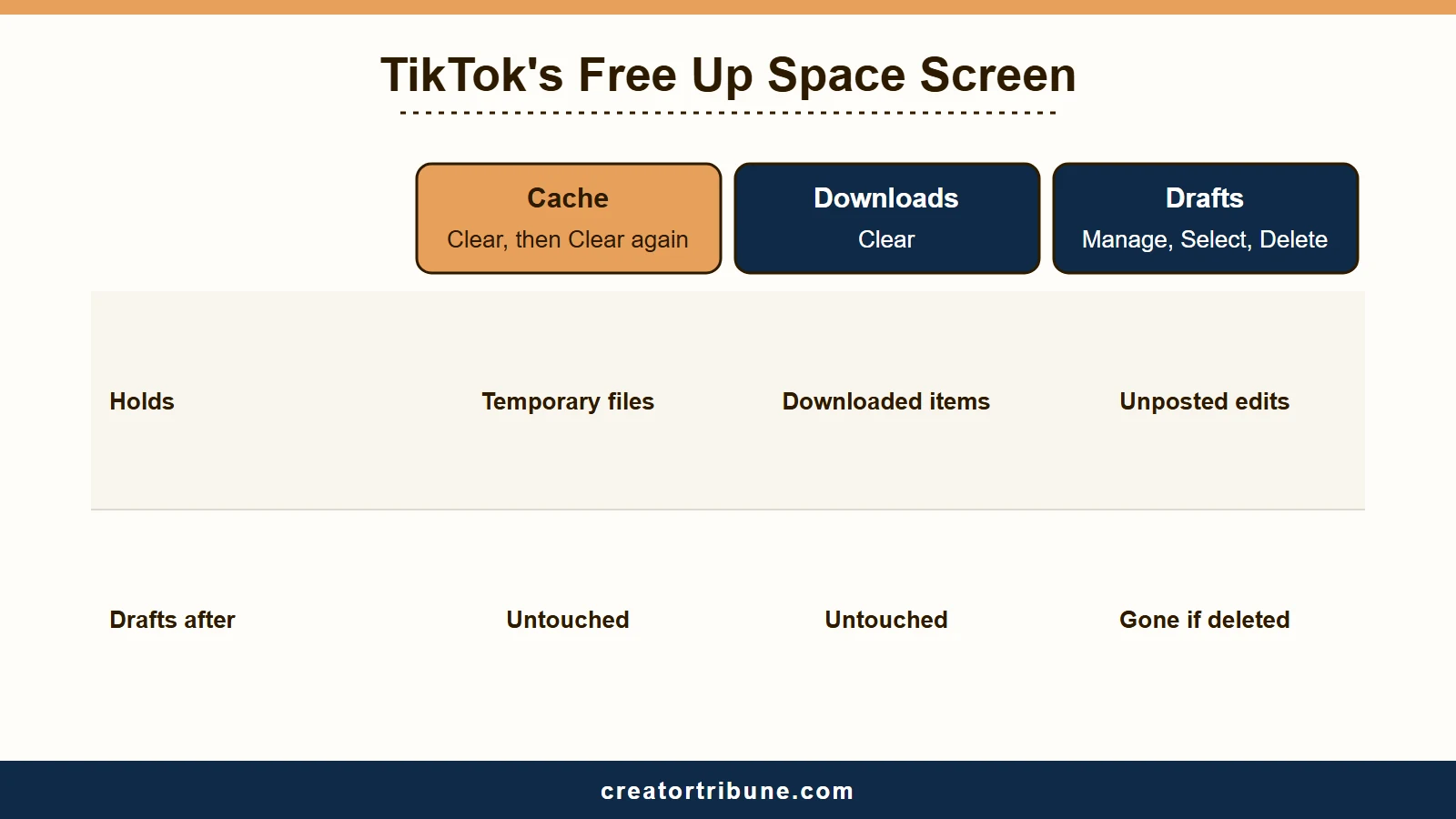
That same Free up space screen holds three items in TikTok’s troubleshooting help: Cache and Downloads, each with a Clear button, and Drafts, with a Manage button. Manage is where you select drafts and tap Delete, so leave that line alone unless deleting drafts is the plan.
There is a platform difference once you step outside the app. Android also lets you clear the cache from the phone settings under Apps, then TikTok, then Storage and cache, then Clear Cache.
iPhone has no system-level clear-cache button, so the in-app route above is the one to use for a routine clear. The heavier option is deleting the app and installing it again, which Apple describes as removing “the app and its related data”.
Offloading, which I cover further down, is a storage move, and Apple does not document it as a cache clear.
Do not judge the result from iPhone Storage, because Apple’s storage page warns that in that per-app view “cached data and temporary data might not count as usage”. The figure on TikTok’s Free up space screen is the one to trust.
If your app keeps freezing before you even reach these menus, my guide to a TikTok that keeps crashing tackles the harder cases.
Does Clearing TikTok Cache Delete Your Drafts?
Clearing the TikTok cache does not delete your drafts, because TikTok keeps Drafts as a separate item from Cache and a cache clear is not on its list of reasons drafts get removed.
This is the fear that stops most people, and it is misplaced.
The question I get asked most is whether a cache clear will erase weeks of unfinished videos. It will not. Your drafts, saved videos, liked videos, messages, and follower list all survive a cache clear without a scratch.
What I would warn you about is the button right next to it. On Android that is Clear storage, called Clear data on some phones, and Google’s Android help says it “permanently deletes all app data”, which logs you out and takes every draft with it. That is a different action from Clear cache, and tapping the wrong one in your phone settings is the real way people lose unpublished work.
TikTok’s Saving a draft help, read on 14 October 2026, adds the cases people do not expect. Drafts “may be removed” when “TikTok has been uninstalled, then reinstalled on a device” or when “The account has been moved or switched to a different device”.
The second reason is why a new phone can open with an empty Drafts folder, whatever you did with the cache. The same section adds that drafts “can’t be shared or transferred between various accounts”, so switching accounts will not carry them across either.
Before: You think tapping Clear Cache will erase the drafts you have been building for weeks.
After: Clear Cache leaves every draft in place. What wipes them is a delete under Manage next to Drafts on the Free up space screen, Clear storage on Android, or deleting the app, and only the first happens inside TikTok.
The habit I would build is saving any draft you care about to your camera roll before a big app update, a reinstall or a switch to a new phone. If your drafts have already vanished, my walkthrough on recovering disappeared TikTok drafts covers what is and is not recoverable.
What Clearing the Cache Deletes and Keeps
A cache clear removes only temporary files like previews and thumbnails, while keeping every piece of real content you care about.
Nothing tied to your account or your creations is at risk.
What surprised me the first time was how cleanly the line is drawn. The table below is the quick version of what goes and what stays.
| Cleared by a cache clear | Kept safe |
|---|---|
| Video previews and thumbnails | Your drafts, which have their own Manage button |
| Preloaded videos | Downloads, which has its own Clear button |
| Other temporary files | Saved and liked videos, messages and followers |
One thing I would not overlook is the Downloads line in that same Free up space menu. Downloads holds AR filters, effects, and stickers you have grabbed, and it sits separately from Cache.
If clearing the cache alone does not free enough room, you can clear Downloads too without touching a single draft or posted video.
What Problems Clearing the Cache Really Fixes
Clearing the cache is a safe early fix for lag, freezing, crashes, buffering, and parts of the feed that will not load.
It forces the app to pull fresh data instead of leaning on stale files.
I reach for a cache clear right after a restart whenever TikTok starts stuttering or a video refuses to load. On an app that Statista tracks at over a billion monthly active users, a bloated cache is a common culprit behind sluggish scrolling and stuck uploads. It is not a guaranteed cure, but it is fast and risk-free, so it belongs near the top of the list.
TikTok’s own troubleshooting help puts it fourth, after restarting the app and your phone, updating to the latest version and checking your connection. It suggests clearing the cache when your connection is fine or TikTok is taking up too much storage.
Where I would set expectations is on the bigger stuff. Clearing the cache will not fix a shadowban or low views, despite a popular myth that it does. It only resolves technical glitches that can mimic those symptoms, like videos failing to load.
On 4 October 2026 an r/TikTok user said clearing the cache and restarting did not fix videos that would not play, and two replies by 8 October had the same problem. On 10 October others described a For You feed stuck on each video’s first frame and two weeks without notifications, with cache clears already tried in both. When a cache clear and a restart both fail, rule out a problem on TikTok’s side before reaching for Clear storage or a reinstall, which can cost you drafts.
If your reach is genuinely down, my breakdown of low TikTok views digs into the real causes. If the whole app is unreachable, my check on whether TikTok is down helps you tell an outage from a local problem.
For quality complaints, a cache clear can sometimes help a blurry or stuck video load properly, though upload settings matter more. My guide to TikTok video quality after posting handles that side. If the photo option is missing when you tap +, my guide to making a TikTok slideshow lists the cache clear among its fixes.
Clear Cache vs Offload vs Clear Data vs Reinstall
Clear Cache is safe, Offload App keeps your documents and data, Clear Data wipes your drafts and logs you out, and reinstalling deletes local drafts unless you backed them up first.
Knowing which is which is the difference between a tune-up and a disaster.
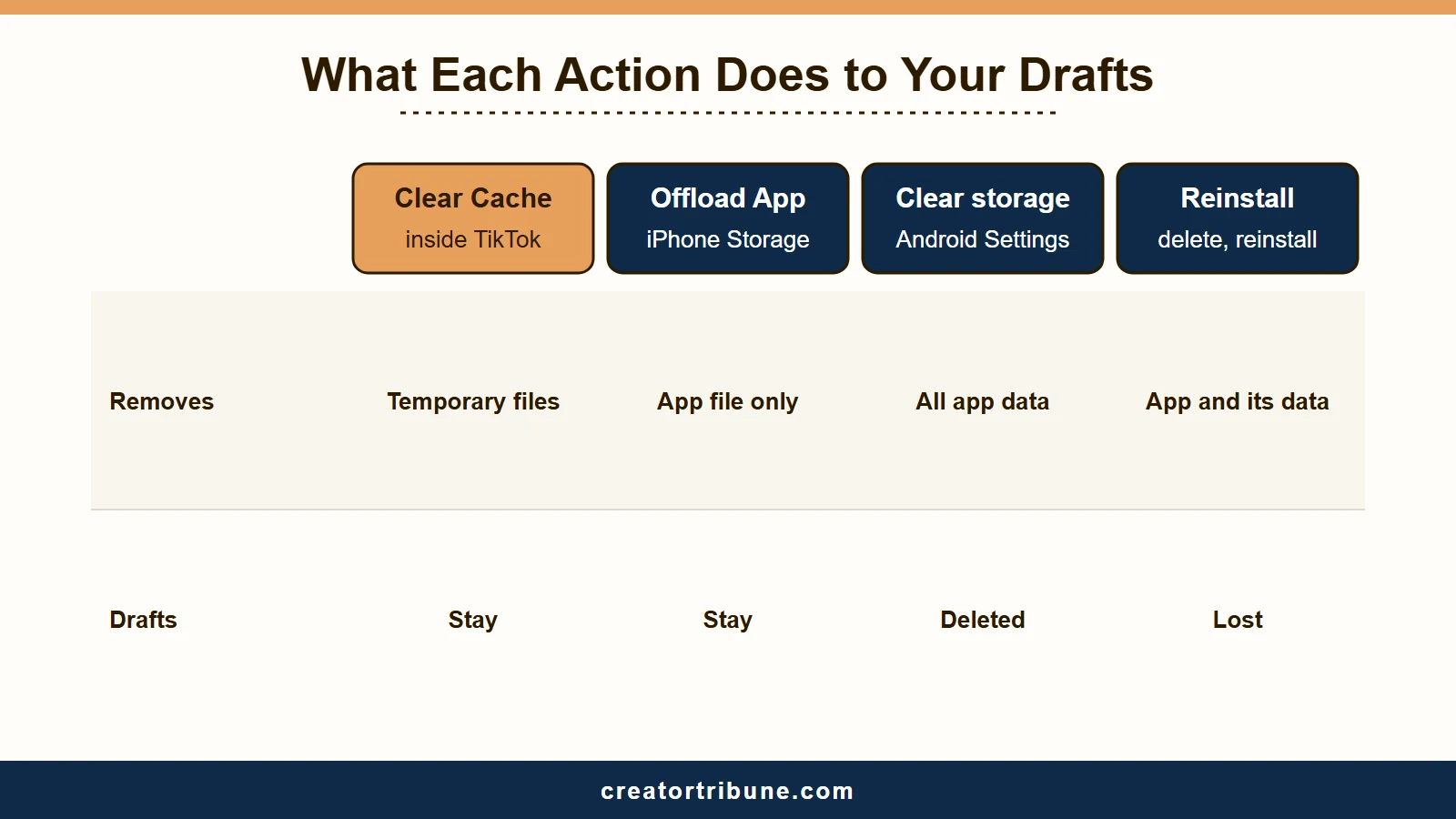
This is the distinction I wish more guides made loudly. The first four actions in the table below free up space, and only two of them leave your drafts alone, while the fifth frees nothing and can still cost you drafts.
| Action | What it removes | Are your drafts safe |
|---|---|---|
| Clear Cache | Temporary files only | Yes, drafts stay put |
| Offload App on iPhone | The app file only, documents and data stay | Yes, drafts stay put |
| Clear Data or Clear storage on Android | Everything TikTok stores on the phone, including your login; posted videos stay on your account | No, drafts are deleted |
| Delete and reinstall | All local app storage | No, unless saved to camera roll |
| Move the account to a different device | Possibly your drafts, which do not move with the account | No, TikTok lists it as a reason drafts may be removed |
The iPhone exception is worth knowing here, and it is the step most guides describe wrongly. Apple’s storage documentation says Offload App “frees up storage used by the app, but keeps its documents and data”, while Delete App “removes the app and its related data”.
So offloading, found under Settings, then General, then iPhone Storage, then TikTok, then Offload App, hands back the space the app file occupies while your documents and data, drafts included, stay put. TikTok’s App Store listing put version 47.1.0, released on 7 October 2026, at about 1.05 GB when read on 14 October, so an offload hands back something in that region.
Android’s Clear storage has no such mercy, which is why I always tell Android users to back up drafts first.
How Do You Clear TikTok’s Documents and Data on iPhone?
Check TikTok’s entry in iPhone Storage first, and if it offers no way to delete documents and data, delete and reinstall the app after saving any draft you care about.
Documents and Data is the part an offload deliberately keeps, so that line holds steady even as the app’s total drops. Apple notes that “depending on the app, you might be able to delete some of its documents and data” from that screen.
Apple describes Delete App as removing “the app and its related data”, so a delete followed by a fresh install is what clears it. A fresh install starts empty, which is why the camera roll copy matters.
Will Clearing the Cache Log You Out or Reset Your Feed?
Clearing the cache usually keeps you signed in and does not erase your For You algorithm, though a rare logout or a brief feed reset can happen. Neither is something to worry about.
Whether you stay logged in is not fully consistent. Most of the time you stay signed in, but a small number of cases ask you to log back in. If you rely on auto-login and do not remember your password, jot it down before clearing.
Your For You feed is built from server-side account activity, not local cache, so it does not get wiped. If the feed looks a little generic for a few minutes after a clear, I would not panic. The algorithm reads your next few taps and snaps back to your usual recommendations quickly.
If TikTok sits on a loading screen while it gets your feed ready after the clear, give it a moment on a good connection, since the previews it had stored must download again. Google’s Android help warns that after a cache clear “some apps may be slow the next time you open them”.
Quick Takeaways
- Clearing your TikTok cache is safe and never deletes drafts, saved videos, messages, or followers.
- The path is Profile, menu, Settings and privacy, Free up space, then Clear next to Cache and Clear again to confirm.
- Drafts can go with Clear storage on Android, a reinstall or a move to a different device, so save the ones you care about to your camera roll first.
- A cache clear fixes some lag and loading glitches but will not lift a shadowban or raise low views.
- On iPhone, offloading frees the space the app file takes and keeps your drafts, but it is not a substitute for the in-app cache clear.