
Why Is TikTok Draining My Battery Even When I’m Not Using It
Why Is TikTok Draining My Battery Even When I’m Not Using It
Why is TikTok draining your battery, even when closed? Check your battery screen for background drain, then use the iPhone and Android fixes that work.
- 1Why Is TikTok Draining My Battery So Fast?
- 2How Can You Tell If TikTok Is the App Draining Your Battery?
- 3Why Does TikTok Drain Your Battery When You’re Not Using It?
- 4How Do You Stop TikTok Running in the Background?
- What If TikTok Still Drains Your Battery After You Restrict It?
- 5Which Settings Make TikTok Use Less Battery?
- 6Why Does TikTok Make Your Phone Hot?
- 7Quick Takeaways
TL;DR: TikTok drains your battery in two different ways, and your phone’s battery screen shows which one you have. Heavy screen time is the normal cost of watching video, close to a quarter of a charge an hour, and turning your brightness down saves the most there. Hours of background time are not normal: turn off Background App Refresh for TikTok on iPhone, or set its battery use to Restricted on Android.
What is background activity: Battery your phone spends on an app while the app is not on your screen, for example playing audio, refreshing content or finishing a download.
Why is TikTok draining my battery? There are two different answers, and your phone already knows which one is yours.
Scrolling for hours costs battery on any phone, and that part is normal. Drain while TikTok sits closed is a fault, and it is what a run of November 2026 reviews describes.
A November 11 review on TikTok’s Google Play listing, left on version 47.7.3, says the app “CONSTANTLY runs in the background” since the latest update. The same reviewer says TikTok’s usage reached 9 hours without the app ever being open on the screen.
At least 16 one- to three-star TikTok reviews on Google Play from October 23 to November 14, 2026 blame the app for battery drain, heat or running in the background. Fifteen of them were left on versions 47.4.3 to 47.7.3.
The check below takes about five minutes and tells you which drain you have before you change a single setting. I start with the battery screen every time, because the fix for screen drain does almost nothing for background drain.
Why Is TikTok Draining My Battery So Fast?
TikTok drains your battery fast because it keeps a bright screen on, decodes a new video every few seconds, and loads upcoming clips over Wi-Fi or mobile data before you reach them.
Every swipe starts a new video, so the processor, screen and radio rarely settle into a low-power state. TikTok also loads the next clips ahead of time so they start the moment you swipe, which keeps the connection busy even when you pause.
The numbers back this up. A 2025 study by the UK telecom firm Elevate, reported by Digital Journal, put TikTok at 25% of a full charge for every hour of use. That matches Netflix and is more than YouTube and Instagram, which each used 20%.
Elevate ranked TikTok second only to Netflix, at 825% of a full charge a month from about 33 hours of screen time. It counted another 9.9 hours a month of TikTok background activity on top of that, and since it does not say what phone or test conditions it used, I take these figures as estimates.
A weak signal makes all of this worse. When reception is poor, the phone’s radio works harder to hold the connection while TikTok keeps pulling video, so one bar of mobile data costs more than strong Wi-Fi.
Filming is heavier than scrolling. The camera, live effects and the final export all run on the phone at once, so a long editing session empties the battery faster than an evening on the For You feed. The same load is behind CapCut lagging while editing.
My read is that a busy scrolling day explains most “TikTok ate my battery” moments. The battery screen is how you prove it either way, and that is the next step.
How Can You Tell If TikTok Is the App Draining Your Battery?
Your phone’s battery screen shows how much battery TikTok used, split into screen time and background time. That split tells you whether the drain comes from watching or from the app running out of sight.
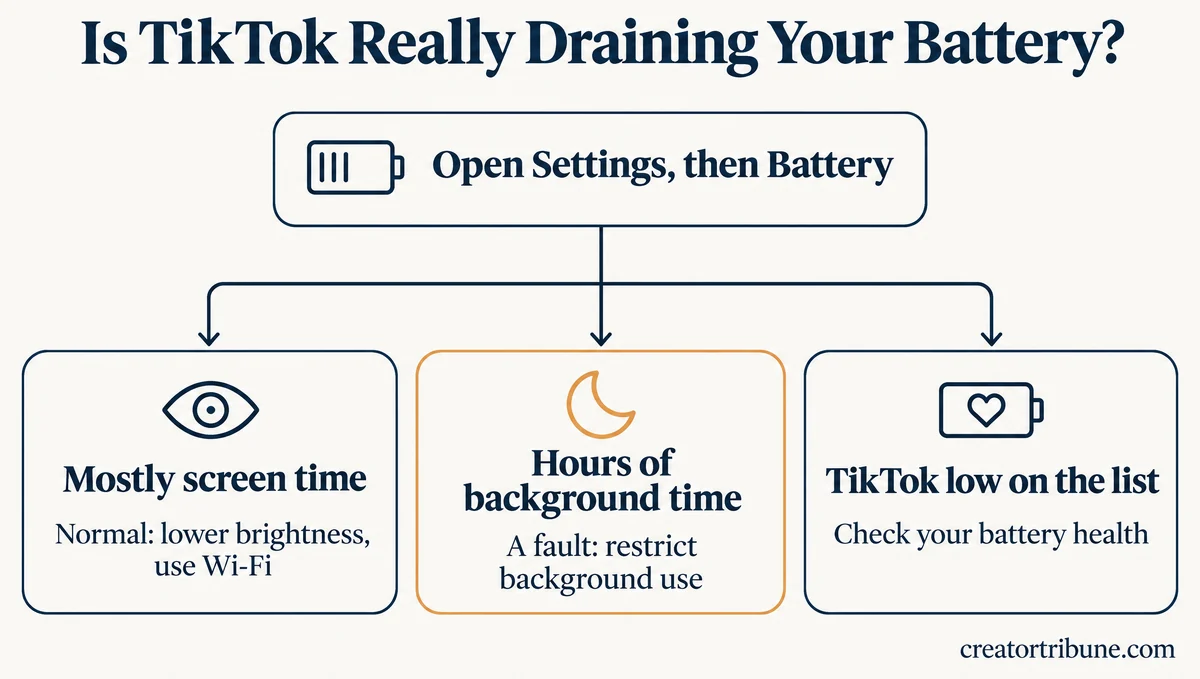
The number I care about most is the background figure, because hours there mean TikTok kept working after you put the phone down. Here is where to find it.
On iPhone, open Settings, then Battery, then View All Battery Usage under Daily Usage. Apple’s iPhone guide splits each app’s use into On screen and Background time. An app marked Background Activity used most of its battery “while the app was active in the background,” such as playing music or tracking location, per Apple’s guide to fast battery drain.
On a Pixel, open Settings, then Battery, then Battery usage, then View by apps, and tap TikTok. On a Galaxy, Settings, then Battery, then View details lists app usage along with screen-on and screen-off time.
| What the battery screen shows | What it means | What to do |
|---|---|---|
| TikTok near the top, almost all screen time | The normal cost of watching video | Lower brightness first |
| Hours of background time for TikTok | TikTok kept running after you left it | Restrict its background use, steps below |
| A No Mobile Coverage and Low Signal note on iPhone | Weak reception made the radio work harder | Switch to Wi-Fi |
| An Ongoing iOS Update insight on iPhone | The phone is still settling after a system update | Wait a few days, then check again |
| TikTok low on the list, battery still drains fast | Another app or a worn battery | Check battery health |
A rough yardstick helps. Elevate’s figure works out to about a quarter of a charge an hour, and one Galaxy owner lost “42.5% in 2:52 hrs of watching” on Wi-Fi in dark mode, about 15% an hour. Anything well past a quarter of a charge per hour of watching, or steady drain with the screen off, is worth chasing.
If TikTok sits low on the list and the phone still dies by lunch, the battery itself may be worn. On iPhone, Settings, then Battery, then Battery Health shows the battery’s maximum capacity compared with when it was new.
Why Does TikTok Drain Your Battery When You’re Not Using It?
TikTok drains your battery while closed when it keeps running in the background to refresh content or finish downloads. In some cases a LIVE stream or video keeps playing audio after you leave the app.
The November reviews describe exactly this. A November 1 review says “lives constantly play in the background even if you don’t have tiktok open,” and a November 3 review says the app “keeps playing in the background when you close it.”
What bothers me most is that restricting TikTok did not always stop it. A November 4 review says background use was already restricted on the phone and TikTok “STILL eats up 50+% of my battery in a day.”
This is not new to 2026. An iPhone owner’s battery screen in October 2023 showed TikTok “running for 10.5 hours” in a day and waking for about five minutes in every ten overnight, while the app was closed. The same owner had already switched off Background App Refresh.
TikTok’s Offline videos feature adds downloads of its own. TikTok’s help page says the feature downloads “a selection of videos for you, based on your For You feed recommendations,” and recommends reconnecting so it “can refresh your offline videos.” The page does not say whether that refresh can happen while the app is closed, so if you set the feature up once and no longer use it, clear the feed.
Google polices this kind of behavior on Android. From March 1, 2026, Google Play may show a battery warning on an app’s listing and leave it out of recommendations, per Google’s Android Developers blog.
The trigger is 5% of the app’s sessions over 28 days keeping the phone awake for 2 hours or more in a day. Android’s own rules leave time spent playing audio out of that count.
TikTok’s US Google Play web listing showed no battery warning on November 20, 2026. That suggests most Android phones do not see hours of hidden wake time from TikTok. A LIVE stream left playing would not trip the warning, though, so if your battery screen shows hours of background time, treat it as a fault worth fixing with the steps below.
How Do You Stop TikTok Running in the Background?
You stop TikTok running in the background by turning off Background App Refresh for it on iPhone or setting its battery use to Restricted on Android. If it is stuck playing audio, close it from the app switcher.
The whole fix takes about two minutes per phone. I work through it in this order because the first step covers routine background refreshes, and the later ones handle audio, widgets and downloads that can keep running without it.
On iPhone:
- Open Settings, then General, then Background App Refresh, and turn TikTok off.
- If a LIVE or video keeps playing after you leave, swipe TikTok away in the app switcher. Apple’s guide to quitting apps says to quit an app that isn’t responding and notes that quitting apps you’re not using “doesn’t prolong battery life,” so keep the swipe for a stuck app.
- Remove any TikTok widget, including one hidden inside a Smart Stack (the pile of widgets you swipe through), since one iPhone owner found a TikTok widget in their overnight battery use without having added one.
- On a long day, turn on Low Power Mode from Settings, then Battery (then Power Mode on iPhone 15 and later). It limits background activity for every app and turns itself off once you charge to about 80%.
Background App Refresh is a separate switch from TikTok’s notifications, so your alerts keep coming. If the battery screen marks TikTok with Notifications, its alerts are waking the phone often, which Apple’s battery guide says you can ease by letting them wake the device less often.
Turn off the alert types you do not need inside TikTok under Settings and privacy, then Notifications. While you are tidying up, check Settings, then Privacy & Security, then Location Services, then TikTok, and choose Never if you do not use location features.
On Android:
- Open Settings, then Apps, then TikTok, then Battery or App battery usage.
- Choose Restricted. On a Pixel, that means turning off Allow background usage.
- If TikTok is misbehaving right now, go back to the TikTok app info page and tap Force stop.
- On a Galaxy, you can also add TikTok to Deep sleeping apps under Settings, then Battery, then Background usage limits. Samsung says apps on that list “will only function if you open them.”
Google’s own wording for Restricted is that it “fully prevents an app from running in the background” and that apps “may not work as expected,” per its background guidance for developers. Samsung adds that Restricted will not let an app play music in the background, which should also stop a LIVE stream’s sound from carrying on after you leave.
A Samsung Community moderator gave the same advice for a different symptom in November 2025. A Galaxy S24 Ultra owner in Samsung’s community forum said TikTok was holding 5 GB of RAM. The moderator called that “not typical,” said it may point to a software issue, and suggested setting TikTok’s battery to Restricted.
If TikTok alerts start arriving late afterwards, try Optimized, the Android default, before anything looser. The TikTok notification fixes walk through Unrestricted if alerts still lag, which trades some battery for on-time alerts.
What If TikTok Still Drains Your Battery After You Restrict It?
If TikTok still drains your battery after you restrict it, the fault most likely sits in the installed app itself. What is left is a newer version, a report to TikTok, a cache clear and a reinstall.
None of these has a strong record for battery drain. In the October and November reviews on TikTok’s Play listing, two people reinstalled the app and one cleared its cache, and all three were still having trouble afterwards.
- Check the App Store or Google Play for a newer TikTok version, because the November reports cluster on a handful of builds.
- Report it inside TikTok from Settings and privacy, then Help Center, then Chat with us, following TikTok’s reporting steps, and attach a screenshot of your battery screen.
- Clear TikTok’s cache from Settings and privacy, then Free up space. It leaves your drafts alone and usually keeps you signed in, as this cache walkthrough explains.
- As a last step, save your drafts to your phone, then delete and reinstall TikTok, because a reinstall wipes drafts that live only in the app.
If TikTok also freezes or closes on its own, the TikTok crash fixes cover that side. I don’t buy the idea that you should live with hours of background drain, because a restricted app that still runs is a bug and TikTok should hear about it.
Which Settings Make TikTok Use Less Battery?
Screen brightness makes the biggest difference to how much battery TikTok uses. In a 2026 lab test, Power Saving mode and dark theme saved far less, and refresh rate only mattered above 60Hz.
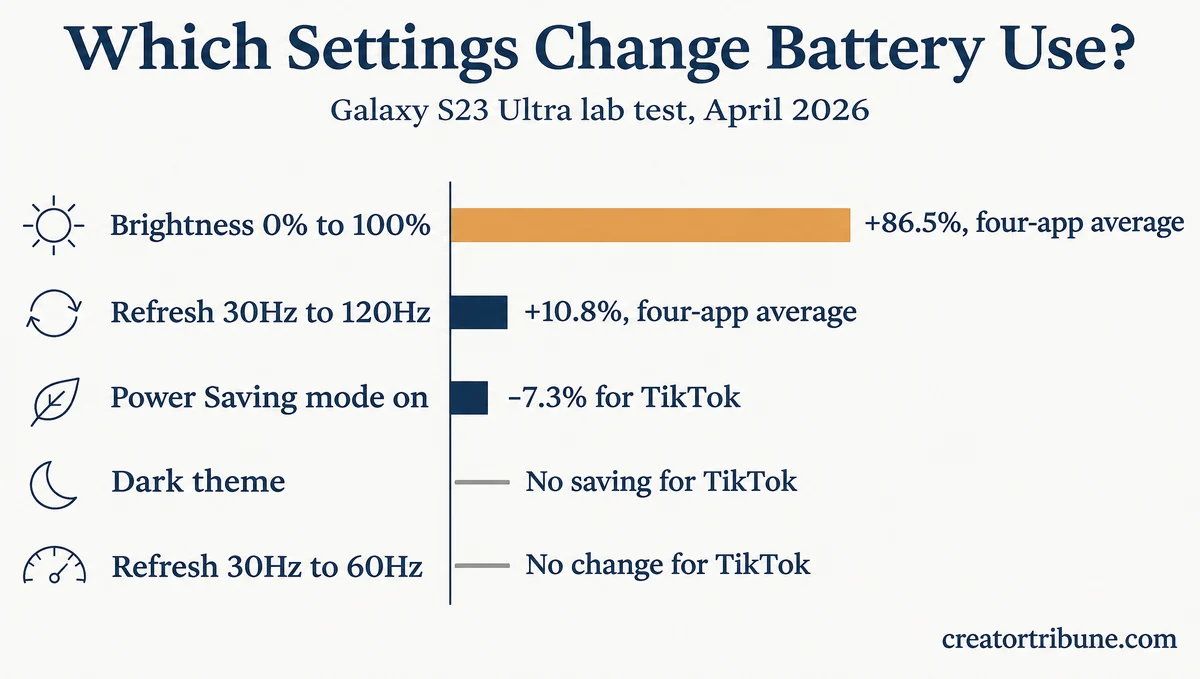
A University of Lisbon study, published in April 2026, measured TikTok, YouTube, Instagram and WhatsApp on a Samsung Galaxy S23 Ultra. Turning brightness from 0% to 100% raised energy use by 86.5% on average across the apps.
The other settings did much less. Power Saving mode cut TikTok’s energy use by only 7.3%, the smallest cut of any app tested, against 14.0% for YouTube. Dark theme saved energy only on Instagram (2.4%) and WhatsApp (3.8%), 1.4% on average, with no measured saving for TikTok.
Refresh rate mattered only at the top end. Going from 30Hz to 60Hz made no difference to TikTok, while going all the way to 120Hz raised energy use by 10.8% on average across the apps, and the study calls 60Hz a practical default. On an iPhone with a ProMotion screen, Apple’s faster-refreshing display, Limit Frame Rate under Settings, then Accessibility, then Motion caps the display at 60 frames per second.
Brightness goes first on my list for that reason. Wi-Fi comes next whenever your signal is weak, because Apple’s battery screen treats a low signal as a drain of its own, and both come ahead of Power Saving mode and dark mode.
| Setting | Where to find it | How much it helps | Trade-off |
|---|---|---|---|
| Lower brightness | Control Center on iPhone, Quick Settings on Android | The biggest single saving in the Lisbon test | A dimmer screen outdoors |
| Wi-Fi instead of weak mobile data | Connect before you start scrolling | Less work for the radio than one bar of signal | None |
| 60Hz screen | Limit Frame Rate on iPhone, refresh rate under Display on Android | Avoids most of the 10.8% average rise at 120Hz | Less smooth scrolling |
| TikTok Data Saver | Settings and privacy, Data Saver (under Cache and cellular or Data) | Smaller video files on mobile data; battery effect not measured | Blurrier videos on mobile data |
| Power Saving or Low Power Mode | Settings, then Battery | 7.3% less for TikTok with Power Saving on the Galaxy; iPhone not tested | Background refresh pauses for every app |
| Clear Offline videos | Settings and privacy, Offline videos, Settings, Clear | Ends the downloaded feed and its refreshes | No offline feed for flights |
Data Saver comes with a catch. It lowers video quality on mobile data, so if the feed or your own videos start looking soft, the blurry TikTok video fixes explain what to switch back.
Before: Low Power Mode on, dark mode on, brightness at full, scrolling on one bar of 5G.
After: Brightness at about a third, Wi-Fi on whenever the signal is weak, Background App Refresh off for TikTok, and Low Power Mode kept for days you cannot charge.
The second setup puts brightness first, which is the change the lab numbers back, and it deals with background drain at the source. Try it for one evening and compare the battery screen the next morning.
Why Does TikTok Make Your Phone Hot?
TikTok makes your phone hot because video playback, constant loading and a bright screen keep the processor and radio busy for long stretches, and charging while you scroll adds more heat on top.
Heat shows up next to battery drain in many of the recent reviews. A November 2 review says TikTok “overheats your phone so bad you can cook breakfast on it,” and a November 3 review says it “overheats my phone BAD.”
I read heat as an early warning for the same faults, so the fix list barely changes. A phone that is hot with the screen off is the clearest sign of background drain, so go back to the steps above.
If it gets hot while you scroll, unplug the charger, lower the brightness, and give it a break before you open TikTok again.
Quick Takeaways
- Open your battery screen first: screen time is the normal cost of TikTok, background time is the fault.
- Turn off Background App Refresh for TikTok on iPhone, or set it to Restricted on Android, to cut routine background drain.
- Lower brightness before reaching for Power Saving mode or dark mode, because a 2026 lab test found Power Saving mode cut TikTok’s energy use by only 7.3%.
- If a restricted TikTok still drains your battery, update it and report it with a screenshot, and keep a cache clear or reinstall for last.
- If the drain started with a TikTok update, check the battery screen again after the next version lands.
Check the battery screen tonight and let the split decide. If it is mostly screen time, brightness is your lever and the rest is the cost of watching video. If TikTok still logs hours of background time after you restrict it, that is most likely a bug on TikTok’s side, so report it with that screenshot and check again after the next update.