Make a TikTok Video Your Wallpaper on iPhone and Android
Make a TikTok Video Your Wallpaper on iPhone and Android
Make a TikTok video your wallpaper on iPhone or Android, and fix a missing Live Photo button or a wallpaper that will not move. See the steps.
- 1How Do You Make a TikTok Video Your Wallpaper on iPhone?
- 2How Do You Set a TikTok as Your Wallpaper on Android?
- Can You Use a TikTok Video as a Samsung Wallpaper Without TikTok’s App?
- 3Why Is My TikTok Wallpaper Not Working?
- Why Is the TikTok Live Photo Button Greyed Out?
- How Do You Fix TikTok Set as Wallpaper When Nothing Happens on Android?
- Why Does iPhone Say Motion Not Available for a TikTok Wallpaper?
- 4Can You Put a TikTok Wallpaper on the Lock Screen Only?
- Does a TikTok Live Wallpaper Play Sound?
- 5Quick Takeaways
TL;DR: To make a TikTok video your wallpaper on iPhone, tap Share, then Live Photo. Then set that Live Photo in Settings with the play button on, so it moves each time you wake the phone. On Android, install TikTok’s free TickTock-TikTok Live Wallpaper app, then tap Live Photo or Set as wallpaper in TikTok’s Share menu. If that button is greyed out on a video, the creator has turned off downloads, and nothing on your phone brings it back.
How to make a TikTok video your wallpaper depends on your phone, though either way it takes about two minutes. An iPhone needs the clip saved as a Live Photo first. An Android phone hands the job to a separate wallpaper app that TikTok publishes.
Plenty of advice still tells iPhone owners to press and hold the lock screen to start the video. That came from Apple’s own iOS 15 guide, which said “To play the Live Photo, touch and hold the Lock Screen.” Since iOS 17, Apple’s support page says a Live Photo wallpaper “plays whenever you wake up your device,” and touching and holding the Lock Screen now opens the wallpaper gallery instead.
Before I spend any time on a clip, I open its Share menu and check that Live Photo is not greyed out, because a greyed-out button means the creator switched downloads off. Once the wallpaper is set, a still iPhone Lock Screen usually means the play button is off.
How Do You Make a TikTok Video Your Wallpaper on iPhone?
To make a TikTok video your iPhone wallpaper, save it as a Live Photo from TikTok’s Share menu, then set it in Settings, Wallpaper, with the play button on. This wake-to-play motion needs iOS 17 or later.
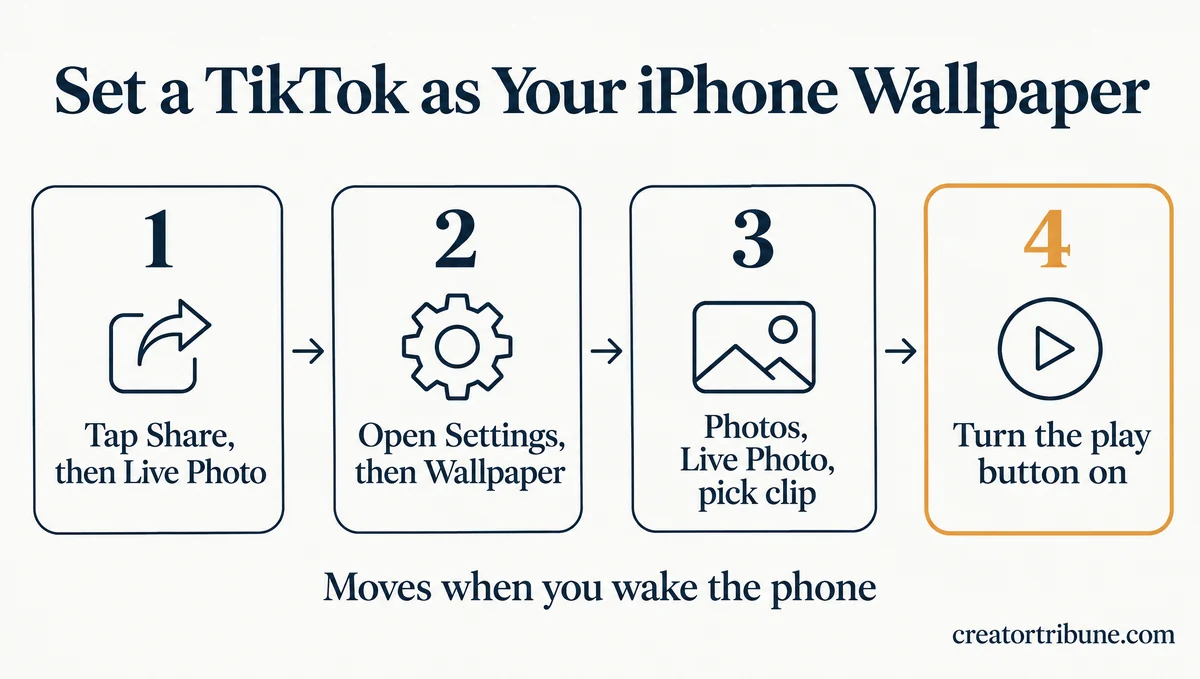
This is the sequence I follow, and it takes about two minutes:
- Open the video in TikTok and tap the Share arrow on the right.
- Scroll the bottom row of options and tap Live Photo. If your iPhone asks whether TikTok can add to your photos, allow it, or nothing gets saved.
- Open Settings, tap Wallpaper, then tap Add New Wallpaper.
- Tap Photos, then Live Photo, and pick the clip you just saved.
- Make sure the play button is on. Apple’s steps say this is what makes the wallpaper “play automatically when you wake your phone.”
- Tap Add, then Set as Wallpaper Pair, or tap Customize Home Screen if you want a different Home Screen picture.
Before: you pick the TikTok Live Photo in Settings, leave the play button off and tap Add. The Lock Screen shows a still frame, and holding your finger on it opens the wallpaper gallery.
After: you add the same Live Photo with the play button on. The clip plays in slow motion each time you wake the iPhone.
The motion belongs to the Lock Screen, since Apple ties it to waking the iPhone, and Customize Home Screen gives the Home Screen its own picture. Apple’s iOS 15 guide said it plainly: a Live Photo plays “on your Lock Screen, but not on your Home Screen.”
Any public video works as long as its creator allows downloads, and searching TikTok for “live wallpaper” is a quick way to find one. I set mine from Settings rather than the Photos app, because that is the route Apple documents step by step, so every menu name matches.
How Do You Set a TikTok as Your Wallpaper on Android?
To set a TikTok as your Android wallpaper, install TikTok’s free TickTock-TikTok Live Wallpaper app from Google Play, then tap Live Photo or Set as wallpaper in TikTok’s Share menu. The app stores the clip and runs it as a live wallpaper.
The app’s Google Play listing names TikTok Pte. Ltd. as the developer, shows more than 100 million downloads and says it was updated on Sep 22, 2026. Older guides call the same app TikTok Wall Picture.
Install the app before you touch TikTok, so the button has somewhere to send the clip:
- Install TickTock-TikTok Live Wallpaper from Google Play, and check that the developer line reads TikTok Pte. Ltd.
- Open the video in TikTok and tap the Share arrow.
- Scroll the bottom row and tap Live Photo or Set as wallpaper, whichever your version shows. The clip goes into the wallpaper app.
- In the preview that opens, tap Set as wallpaper.
- Choose where it goes, usually Home screen or Home screen and lock screen.
For a lock-screen-only wallpaper on a Galaxy, use the Samsung route below. I only install the copy on Google Play from TikTok Pte. Ltd. and skip unofficial download sites, which add risk and nothing else.
Can You Use a TikTok Video as a Samsung Wallpaper Without TikTok’s App?
Yes, a Samsung Galaxy can play a saved TikTok video as its wallpaper straight from the Gallery, with no extra app. Samsung’s UK help page says “up to 15 seconds of the video will play as your background,” and an older New Zealand page caps the file at 100MB.
Save the video first with Share, then Save video, which only works when the creator allows downloads. Then set it from the lock screen:
- Touch and hold the Lock screen, then enter your PIN, pattern or password.
- Tap Wallpapers, then Gallery, and pick the saved video.
- Tap Trim to choose the part that plays, then tap Done.
Samsung’s US page also lists a home screen route: touch and hold the home screen, tap Wallpaper and style, then Change wallpapers and Gallery. On a Galaxy, the Gallery route is the one I’d pick for a lock-screen-only wallpaper.
Why Is My TikTok Wallpaper Not Working?
A TikTok wallpaper usually fails for one of three reasons: downloads are off, the Android wallpaper app is stuck, or the iPhone play button was off. Match your symptom below, then use the fix in the section that covers it.
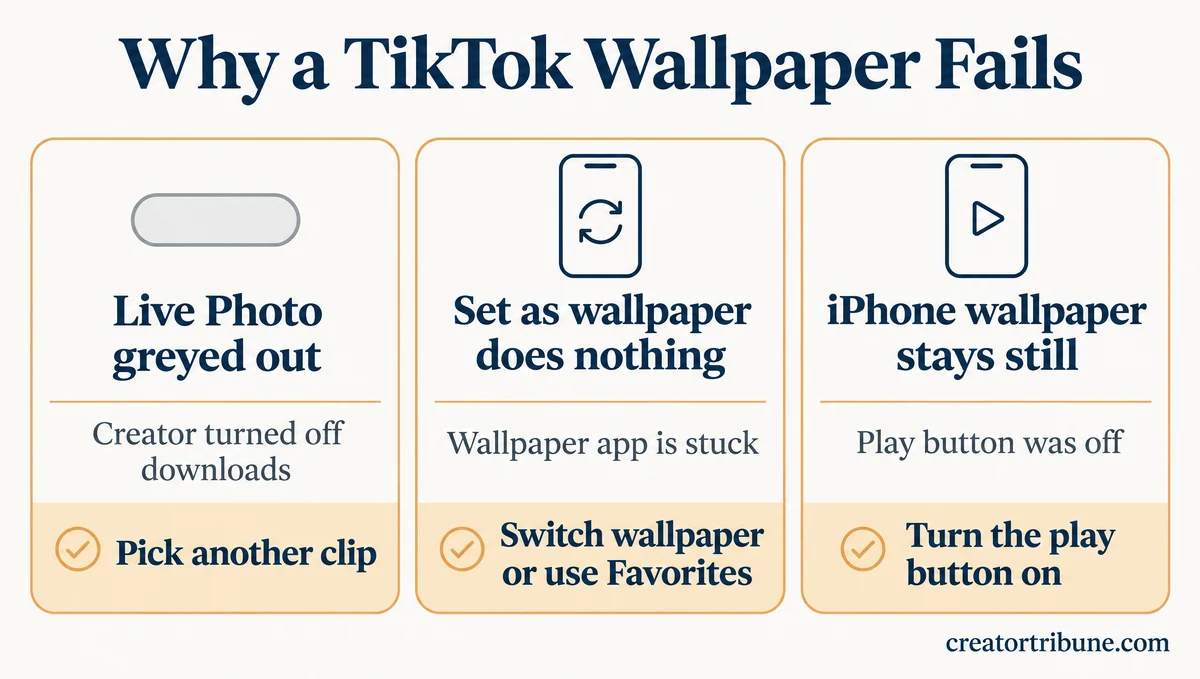
| Symptom | Likely cause | Fix |
|---|---|---|
| Live Photo greyed out on one video | The creator turned off downloads | Pick another clip or ask the creator |
| Live Photo greyed out or missing on a private or under-16 account’s video | Downloads are forced off on those accounts | No fix on your side |
| Set as wallpaper does nothing, or vanished after you turned on live wallpaper | The wallpaper app is stuck | Switch to a still wallpaper, then retry from Favorites or re-select TikTok under Live wallpapers |
| Wallpaper stopped after a restart or update | Android dropped the live wallpaper | Set it again from TikTok’s app |
| iPhone wallpaper stays still | The play button was off | Add it again with the play button on |
| iPhone shows Motion not available | iOS cannot turn that clip into slow motion | Retry once, then try a different clip |
On iPhone, if tapping Live Photo saves nothing, open TikTok’s page in Settings and allow it to add photos.
Why Is the TikTok Live Photo Button Greyed Out?
The TikTok Live Photo button is greyed out when the video’s creator has turned off downloads, because TikTok then blocks everyone else from turning the clip into a Live Photo. On Android, the wallpaper app relies on that same Live Photo save, so the block applies there too.
TikTok’s downloads help page says that when a creator does not allow downloads, people “can’t convert your videos to live photos, GIFs” or share them straight to some other apps. The setting covers videos already posted as well as future ones.
Some accounts have the block switched on for them. TikTok’s page says “If your account is private or if you’re under the age of 16, your video downloads setting is turned off by default and you can’t turn it on.” TechCrunch reported the under-16 half of that rule when TikTok introduced it in January 2021, writing that users aged 13 to 15 “won’t be able to make their videos downloadable either.”
So a video from a private TikTok account or a creator under 16 will never offer Live Photo, no matter how many times you reopen it. I don’t look for workarounds here. A private account would have to go public before its owner could allow downloads, and an under-16 account can’t allow them at all, so the clean option is a different clip.
Your own uploads are the exception. TikTok says you keep “the download and sharing options available for your own content,” so your own clips work as wallpapers even with downloads switched off.
If you post videos and want to control this, the switch sits under Profile, Menu, Settings and privacy, Privacy, then Downloads. The guide to that setting explains what turning downloads off stops.
How Do You Fix TikTok Set as Wallpaper When Nothing Happens on Android?
TikTok’s Set as wallpaper button on Android usually works again once you set the clip from your Favorites or switch to any other wallpaper first. All four fixes below come from a 2024 r/TikTok thread where tapping the button on a Pixel 7 did nothing, or made “the loading square” appear “just for a split second.”
Work through these in order, cheapest first:
- Set it from Favorites. Tap the Favorites button on the video, leave search, open the video from Profile and the Favorites button, and tap Set as wallpaper there. It has the best track record of the four, so start with it.
- Switch to any other wallpaper first. Set a plain photo as your wallpaper, go back to TikTok and try again. One reply in the thread put it this way: “It’s like it was stuck until I changed it to anything.”
- Re-select TikTok’s live wallpaper. Open your phone’s wallpaper settings, find Live wallpapers (on some phones it sits under More wallpapers), pick the TikTok entry and tap Set wallpaper, then return to TikTok. Expect to redo this after a phone update or restart.
- Clear the wallpaper app’s cache. Open the app info page for TickTock-TikTok Live Wallpaper in Settings, tap Storage, then Clear cache, and do the same for your phone’s own wallpaper app if nothing changes. Neither is TikTok’s own cache, which is a different fix.
A November 6, 2026 post on r/TikTok describes the button vanishing right after the poster “enabled live wallpaper,” with restarts and toggling it on and off changing nothing. That matches the stuck state, so switch to a still wallpaper first (fix 2), then re-select TikTok’s live wallpaper (fix 3) if the button stays gone.
A restart can undo a working wallpaper too. A review on the app’s Play listing says videos “stop working when you restart your phone,” but adds that “it’s so easy to go in and set it up again.”
Why Does iPhone Say Motion Not Available for a TikTok Wallpaper?
iPhone says Motion not available when it cannot turn that Live Photo into the slow-motion effect it plays on the Lock Screen. Apple’s Lock Screen guide says the play button works “If you select a Live Photo that can be translated into slow motion,” so not every TikTok clip qualifies.
The developer of the VideoToLive converter app wrote on October 15, 2023 that the message can be an iOS bug. Their fix: tap Cancel, then Use as Wallpaper again in the Photos app’s Share menu. If a second try shows the same message, save the TikTok again with Share, then Live Photo, or pick a different clip.
I give a clip one retry and then move on, because Apple’s own wording means some clips will never qualify.
Can You Put a TikTok Wallpaper on the Lock Screen Only?
You can keep a TikTok wallpaper on the lock screen only with an iPhone or a Samsung Galaxy’s Gallery, while TikTok’s Android app usually covers the home screen or both screens. On iPhone, the clip moves only on the Lock Screen anyway.
I like the lock screen as the only place a clip moves, because a moving home screen fights the app icons for attention. The table shows where each route plays the clip:
| Route | Where the clip moves | What you need |
|---|---|---|
| iPhone Live Photo | Lock Screen, each time you wake the phone | iOS 17 or later, and a creator who allows downloads |
| TickTock-TikTok Live Wallpaper | Home screen, or home and lock screen together | The free Android app from TikTok Pte. Ltd. |
| Samsung Gallery video | Lock screen or home screen | A saved video, with up to 15 seconds of playback |
Choose by where you want the motion. For the lock screen alone, use the iPhone route or a Galaxy’s Gallery, and for motion behind your apps, use TikTok’s Android app or the Galaxy’s home screen route.
Every Apple, TikTok, Samsung and Google Play page quoted here was checked on November 7, 2026.
Does a TikTok Live Wallpaper Play Sound?
An iPhone Live Photo wallpaper plays silently, while TikTok’s Android app can play the clip’s audio along with the picture. Apple’s setup offers a play button and no sound control.
iPhone owners noticed the missing audio as far back as iOS 9, in a 2015 Apple Community thread where a reply put it bluntly: “Wallpapers, by definition do NOT have sound.”
On Android, reviews on the app’s Play listing describe the audio misbehaving. A September 2025 review says the app “freezes the sound sometimes,” and an older one says setting a video again “with NO sound” did not work.
I pick clips that look good muted, because, as TikTok’s listing puts it, the wallpaper “starts playing” whenever you unlock the phone, and a soundtrack at every unlock wears thin fast. If you want the sound, TikTok’s Android app is the route that plays it.
Quick Takeaways
- On iPhone, save the clip with Share, then Live Photo, and set it in Settings, Wallpaper, with the play button on, or it will sit still.
- Pick the route by where you want motion: an iPhone or a Galaxy’s Gallery for the lock screen alone, TikTok’s Android app for the home screen or both.
- On Android, install TikTok’s free TickTock-TikTok Live Wallpaper app, then tap Live Photo or Set as wallpaper in TikTok’s Share menu.
- A greyed-out Live Photo button means downloads are off, so ask a public creator to allow them, or pick another clip if the account is private or under 16.
- If Set as wallpaper does nothing on Android, switch to any other wallpaper first or set the clip from your Favorites, and if a clip still refuses, try a different one.