Post a Horizontal Video on Instagram Without the Black Bars
Post a Horizontal Video on Instagram Without the Black Bars
Instagram keeps a horizontal video full width only when you share it through Post. See what Reels, Stories and Edits do to a wide clip.
- 1How Do You Post a Horizontal Video on Instagram Without Cropping?
- Why Does a Horizontal Video Look Cropped on Your Instagram Grid?
- 2Why Does Instagram Add Black Bars to a Horizontal Reel?
- 3How Do You Post a Horizontal Video to Your Instagram Story?
- 4Why Does the Edits App Post a Horizontal Video With Black Bars?
- 5What Size Should a Horizontal Video Be for Instagram?
- 6Should You Post a Horizontal Video on Instagram or Re-Cut It Vertical?
- 7What Is Instagram’s Features Format for Long Horizontal Videos?
- 8Quick Takeaways
TL;DR: To post a horizontal video on Instagram, tap Create, choose Post instead of Reel, and widen the preview before you share. Instagram accepts reels anywhere from 1.91:1 to 9:16, and the black bars appear when the Reels editor or the full-screen Reels player puts a wide clip inside a vertical 9:16 frame. Stories are vertical too, so a wide clip there sits inside empty space unless you pinch it larger or re-cut it.
A 16:9 clip that looked fine on your phone can land on Instagram as a thin strip between two black bars. Learning how to post a horizontal video on Instagram without them costs about a minute, because the fix is one choice in the Create menu.
A Final Cut Pro editor who kept getting bars on a 1920 by 1080 upload found that choice in 2024. His fix was to create a “Post” instead of a “Reel”, “which is tricky because the app defaults to creating a Reel.”
The common advice is that Reels force a vertical 9:16 frame, but Instagram’s own reel size page says you can upload a reel “with an aspect ratio between 1.91:1 and 9:16.” That range covers the 16:9 shape a phone records sideways, so the bars come from the Reels editor and the full-screen player.
Every help-page rule quoted below was checked on November 6, 2026.
I check where a video will be watched before I open an editor, because only the feed shows a 16:9 clip edge to edge.
How Do You Post a Horizontal Video on Instagram Without Cropping?
You post a horizontal video on Instagram without cropping by choosing Post, not Reel, in the Create menu and widening the preview to the full frame before you share. The feed then shows the video at its own shape, up to Instagram’s widest supported ratio of 1.91:1.
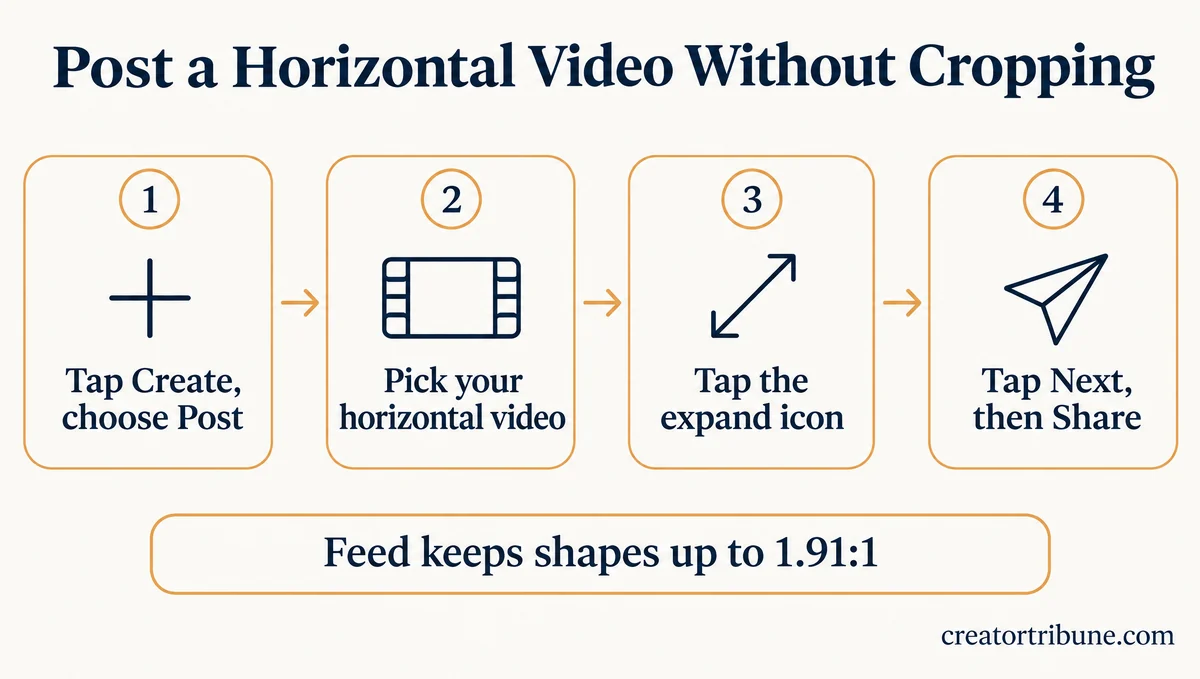
Here is the sequence I use for anything I shot sideways:
- Tap Create (the plus sign), then choose Post rather than Reel.
- Pick the horizontal video from your camera roll.
- If the preview shows a square or tall crop, tap the two-arrow expand icon at the bottom left of the preview so the whole width shows.
- Tap Next, trim the clip or pick a cover frame, tap Next again, then add your caption and tap Share.
The post still becomes a reel behind the scenes. Instagram has shared new video posts as reels since July 2022, when TechCrunch reported the change for videos under 15 minutes, so the clip also lands in your Reels tab. What the Post route changes is the frame: your 16:9 shape stays 16:9 in the feed instead of being dropped onto a vertical canvas.
Before: you tap Create, stay on Reel, add a 16:9 drone shot and share it. Followers scroll past a thin strip of video between two black bands.
After: you switch to Post, widen the preview and share. The same shot fills the width of the feed with nothing above or below it.
The Post route fixes the feed, not the full-screen Reels player. Anyone who opens the video there still sees bands above and below, because that player is a vertical 9:16 screen. If full-screen viewing matters more to you than the wide frame, the re-cut section below covers that trade.
Instagram’s help pages list nothing wider than 1.91:1, so a 2.39:1 cinema cut needs a choice before upload. Placing it on a 1.91:1 canvas keeps the whole frame with thin bars of its own, while cropping it to 16:9 fills the post edge to edge. Instagram’s photo resolution page says photos outside the range “will be cropped to fit a supported ratio.”
A carousel is the one feed route that keeps a wide video out of the Reels tab, the full-screen view where the bands appear. Instagram’s carousel help says “videos in carousels are not considered reels and will not show up in the Reels tab.” I use it only when the clip belongs with matching wide photos, since one orientation applies to every item and the video no longer counts as a reel.
Why Does a Horizontal Video Look Cropped on Your Instagram Grid?
A horizontal video looks cropped on your profile because Instagram’s grid has shown posts as tall rectangles since January 2025. A 16:9 video keeps less than half of its width in that tile. The full video still plays when someone taps the tile.
Instagram head Adam Mosseri announced the switch from squares to rectangles in January 2025, The Verge reported at the time. Instagram has not published the tile’s exact ratio. If the tile matches 3:4, the tallest shape its photo page accepts, it holds about 42% of a 16:9 frame’s width, and a 4:5 tile would hold about 45%.
I frame the subject in the middle third of any wide shot for that reason, and I pick a cover frame where the subject sits in the center. If the post lands in the wrong spot on your profile, Instagram’s grid reorder lets you move it afterward.
Why Does Instagram Add Black Bars to a Horizontal Reel?
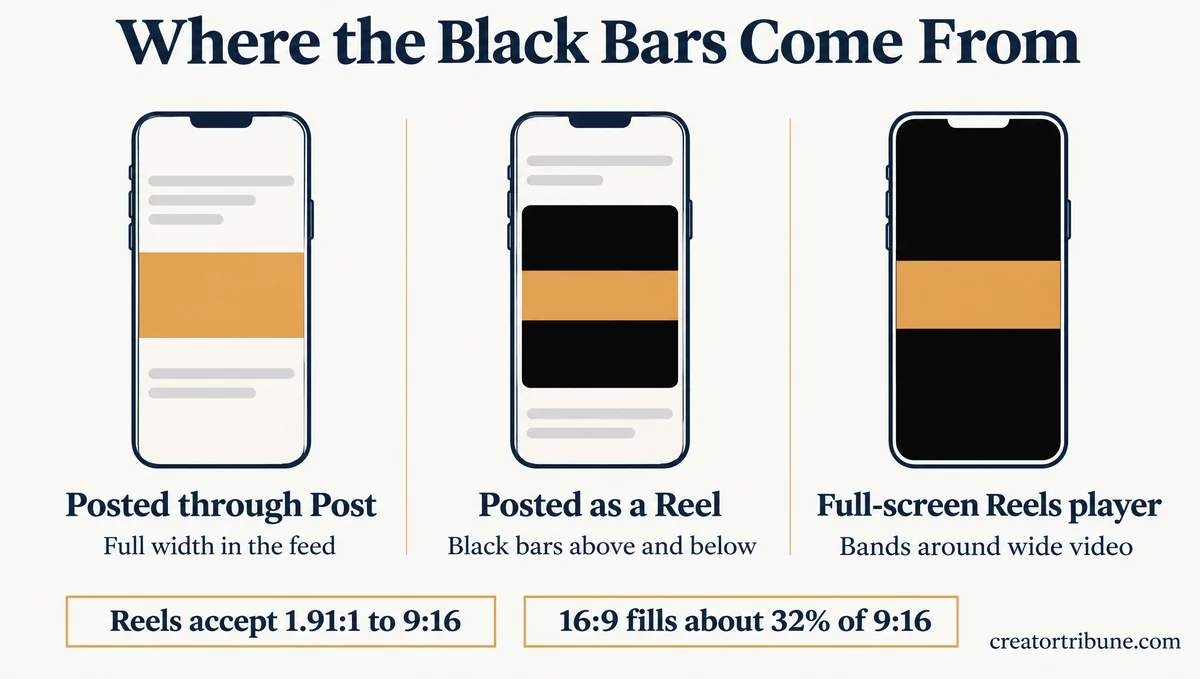
Instagram adds black bars when a horizontal video plays inside a vertical 9:16 frame. The Reels editor builds that frame around a wide clip you post as a Reel, and the full-screen Reels player shows it around any wide video.
Meta’s developer documentation, written for apps that publish through its API, is looser than the help page. Its reel specifications accept any aspect ratio “between 0.01:1 and 10:1 but we recommend 9:16 to avoid cropping or blank space.” The blank space is the black bar, and nothing in that rule blocks a wide upload.
Video editors spotted the split years ago. In an r/editors thread from October 2022, one noticed 16:9 reels that showed no bands in the feed but gained black bands “above and below” once tapped open.
The copies he downloaded came back at 1080 by 608, a 16:9 size. He later answered his own thread: “you have to upload the video as post, and it will automatically be posted as reel too, if it’s short enough.”
What surprised me is how much of the screen a padded clip gives up. A 16:9 video placed full width on a 9:16 screen covers about 32% of it, since 9:16 divided by 16:9 is 0.316, and the other two thirds is black.
| Where the video goes | What a 16:9 clip looks like | What to do |
|---|---|---|
| Feed post (Create, then Post) | Full width, no bars | Use this route for wide shots |
| Reel made in the Reels editor | A thin strip on a 9:16 frame, black above and below, in the feed too | Post it again through Post, or fill the frame on purpose |
| Full-screen Reels player | The clip sits in the middle with bands above and below | Re-cut it vertical if full-screen viewing matters |
| Story | A smaller rectangle in the middle of a vertical screen | Pinch it larger, or design the space around it |
| Profile grid tile | Less than half of the frame’s width | Keep the subject centered |
Black bars are not only a horizontal problem. In an r/Instagram thread from 2023, a creator’s vertical travel clips got strips above and below because the phone camera recorded at 1080 by 1440, a 3:4 shape. The fix was the camera’s 9:16 option.
When a horizontal clip has to live in a 9:16 frame anyway, I fill the frame on purpose instead of leaving it black. Three ways work in any editor:
- Put a blurred, zoomed copy of the same clip behind it, so the bars become soft color.
- Use the top band for a title and the bottom band for captions.
- Zoom the clip until it fills the height, accepting that the left and right edges are cut.
How Do You Post a Horizontal Video to Your Instagram Story?
A horizontal video in an Instagram Story sits as a smaller rectangle in the middle of a vertical screen. You either leave space around it or pinch it larger to fill the screen and lose the sides. Stories fill a vertical phone screen, so a wide clip trades empty space against a crop.
Pinching a 16:9 clip until it fills a 9:16 Story cuts off about two thirds of its width, because only 0.316 of the frame fits across the screen. I pinch a Story clip only when the action sits in the middle of the shot.
When the edges matter, I leave the clip small and use the space above and below it for text or a sticker, keeping both off the video itself. If the clip looks soft once it is up, why your Story looks blurry walks through the upload settings that cause it.
Why Does the Edits App Post a Horizontal Video With Black Bars?
Edits, Instagram’s own video editing app, adds black bars when a horizontal clip sits in a vertical 9:16 project, and its Share to Instagram button then posts the result as a reel. Edits on iPhone has offered other aspect ratios since July 2026, and Edits for Mac, released November 5, 2026, exports horizontal video in 4K.
The complaint shows up in an r/Instagram thread from November 5, 2026: an edited horizontal video “goes in the vertical format with those black bars on the feed.”
Edits added other shapes in version 440.0 on July 27, 2026, according to its App Store listing: “Multiple aspect ratio now available. Not just vertical.” Sharing from Edits still goes to Instagram “as a reel,” per its download page, so my fix on a phone is to take the posting step out of Edits:
- Set the project to a horizontal aspect ratio before you export, if your version of Edits shows the option.
- Tap the resolution in the top right of the project and pick the highest setting, then tap Next and Download to save the video to your camera roll.
- If black bands are still there, crop them off in your phone’s photo editor, keeping the 16:9 picture.
- Upload the file in Instagram through Create, then Post, as in the first section.
On a computer, Edits for Mac needs a Mac with Apple silicon, M1 or later. TechCrunch’s report on the launch says it supports “horizontal and vertical video formats, with watermark-free exports in 4K resolution.” If you edit on a Mac, export the horizontal file there and post it through Post like any other wide clip.
What Size Should a Horizontal Video Be for Instagram?
A horizontal video for Instagram should be 1920 by 1080 pixels, a 16:9 shape that sits inside the 1.91:1 limit, recorded at 30 frames per second or more. Instagram’s reel page sets a minimum frame rate of 30 FPS and a “minimum resolution of 720 pixels.”
| Shape | Size at 1080 pixels wide | Where it fits |
|---|---|---|
| 16:9 (1.78:1) | 1080 x 608 (upload at 1920 x 1080) | Feed post through Post, shown full width |
| 1.91:1 | 1080 x 566 | The widest shape Instagram’s help pages list |
| 3:4 | 1080 x 1440 | The tallest feed photo Instagram keeps uncropped |
| 9:16 | 1080 x 1920 | Full-screen Reels and Stories, no bars |
The 1.91:1 and 3:4 limits come from Instagram’s photo resolution page, which keeps a 1080-pixel-wide upload at “a height between 566 and 1440 pixels.” Sizes checked against Instagram’s help pages on November 6, 2026.
I turn on one setting before any upload I care about. Instagram’s reel size page puts it under Profile, Menu, Your app and media, Media quality, then the Upload at highest quality toggle, and it notes that higher-quality uploads take longer. Our photo quality guide covers the other things that soften an upload.
Some scheduling tools run tighter limits than the app. Buffer’s help article on accepted aspect ratios says its automatic posting takes horizontal videos only between 1.01 and 1.78, so 16:9 is the widest video it will publish.
Buffer also warns that Instagram “will not consider rounding to the closest number,” so if you schedule wide video, export it at exactly 1920 by 1080 and leave a strict tool nothing to round.
Should You Post a Horizontal Video on Instagram or Re-Cut It Vertical?
Post a video horizontal when the whole frame carries the story, such as scenery, gameplay or two people side by side. Re-cut it vertical when Reels reach matters more than the frame. Meta recommends 9:16 for reels, and a wide clip gives up most of the screen there.
| Your video | Post it as | Why |
|---|---|---|
| Scenery, drone or travel footage | Horizontal feed post | The width is the point |
| Two people talking side by side | Horizontal, or a vertical re-cut with both stacked | Cutting to one face loses the exchange |
| One person talking to camera | Vertical re-cut | Cropping the sides keeps the face in frame |
| A long video, such as a podcast | Short vertical clips, plus the full version for followers | Reels over 3 minutes are not recommended to new audiences |
The three-minute line comes from Instagram’s reel recording guide, which allows reels up to 20 minutes but says “Reels over 3 minutes won’t be recommended to new audiences.” For a long horizontal video, I cut short vertical clips for reach.
Submagic has a Magic Clips tool that turns a long video into short clips if you would rather not cut them by hand. Each run spends credits from the same monthly pool as its other tools.
If a horizontal reel is getting fewer views than your vertical ones, why Reels reach drops covers the other causes worth ruling out first.
What Is Instagram’s Features Format for Long Horizontal Videos?
Features is Instagram’s test format for horizontal videos of up to 90 minutes, announced by Instagram head Adam Mosseri and VP of product Tessa Lyons on October 26, 2026. Only a small group of creators in the US and Brazil can post one so far. Instagram has announced no sign-up or eligibility rule for joining the test.
The Hollywood Reporter names the early US testers: podcast host Emma Grede, beauty and fashion creator Monet McMichael, street interviewer Preston Rakovsky and football creator Donald De La Haye. It also says Instagram plans to widen the test to tens of thousands of US creators.
TechCrunch’s report adds that Features comes with “Clips as Reels,” short reels that link viewers to the full video, and that viewers can send the long video to the Instagram app on their TV. A Meta spokesperson told TechCrunch it is “too early to share a long-term monetization model,” so there is no announced way to earn from a Feature yet.
My advice is to keep posting wide videos through Post until Features reaches your account, then test it on one long video before moving a whole series over. If another creator posts a horizontal video longer than 20 minutes and you have no option to post one, they are probably in the Features test.
Quick Takeaways
- Choose Post, not Reel, in the Create menu, and widen the preview to keep a horizontal video full width in the feed.
- Instagram accepts reels from 1.91:1 to 9:16, and the black bars appear when the Reels editor, the full-screen player or the Edits app puts a wide clip in a 9:16 frame.
- In Stories, pinch a wide clip larger to fill the screen and lose the sides, or leave it small and use the space for text.
- Export at 1920 by 1080 and 30 FPS, and turn on Upload at highest quality under Your app and media, then Media quality.
- Keep a clip horizontal when the whole frame carries it, and re-cut it vertical when Reels reach matters more.