Add Your Own Audio to Instagram Photo Posts, Reels and Stories
Add Your Own Audio to Instagram Photo Posts, Reels and Stories
Instagram has no audio upload button. See how to add your own audio to Reels, Stories and photo posts, and which shortcut gets songs muted.
- 1How Do You Add Your Own Audio to an Instagram Reel?
- Can You Upload an MP3 or WAV File to an Instagram Reel?
- How Do You Rename Original Audio on Instagram?
- Why Did Instagram Change Your Original Audio to Someone Else’s Song?
- 2Can You Add Your Own Audio to an Instagram Photo Post?
- Does Merging a Photo and a Song Into a Video Work on Instagram?
- Can You Use Your Own Reel’s Sound on an Instagram Photo Post?
- Can You Add Music to an Instagram Carousel With a Video?
- What If the Song You Want Isn’t in Instagram’s Library?
- 3How Do You Add Your Own Audio to an Instagram Story?
- 4How Do You Get Your Own Song Into Instagram’s Music Library?
- How Do You Find Your Song in Instagram’s Music Search?
- 5Quick Takeaways
TL;DR: You add your own audio to Instagram Reels by recording it, uploading a video that already holds it, or using the Voiceover tool, and Instagram’s free Edits app imports an MP3 directly. Photo posts and Stories have no audio upload, so your sound has to ride inside a video or come from a reel you posted. A video with a released song already baked in is what usually gets muted, according to the distributor DistroKid.
Instagram has no button for uploading an audio file. To add your own audio to Instagram, your voice, your song or a sound saved on your phone has to get in through a video, the Voiceover tool or Instagram’s Edits app. Photo posts are the hardest case, because their Add audio button only picks sounds already on Instagram, with no way to upload a file from your phone.
The usual advice for a photo post is to merge the photo and the song into a video in an editor such as CapCut or InShot. DistroKid, a music distributor, says in its help article on muted videos that uploading videos “with the song already attached” is what causes muting “most of the time.” TuneCore’s help page adds that a static image playing a song “may result in the video being muted.”
The merge still works for audio nobody has registered with Meta, like a voice memo or a demo you recorded yourself. It is risky with released songs, your own included once a distributor has delivered them to Instagram. I sort every sound into one of those two piles before I open an editor, and that ten-second check decides which route below fits.
Every Instagram rule below matches its help pages as of November 5, 2026.

How Do You Add Your Own Audio to an Instagram Reel?
You add your own audio to an Instagram Reel by recording with the Reels camera, uploading a camera-roll video that holds the sound, adding a Voiceover, or importing a file in Instagram’s Edits app. Instagram then labels the sound Original Audio under your username.
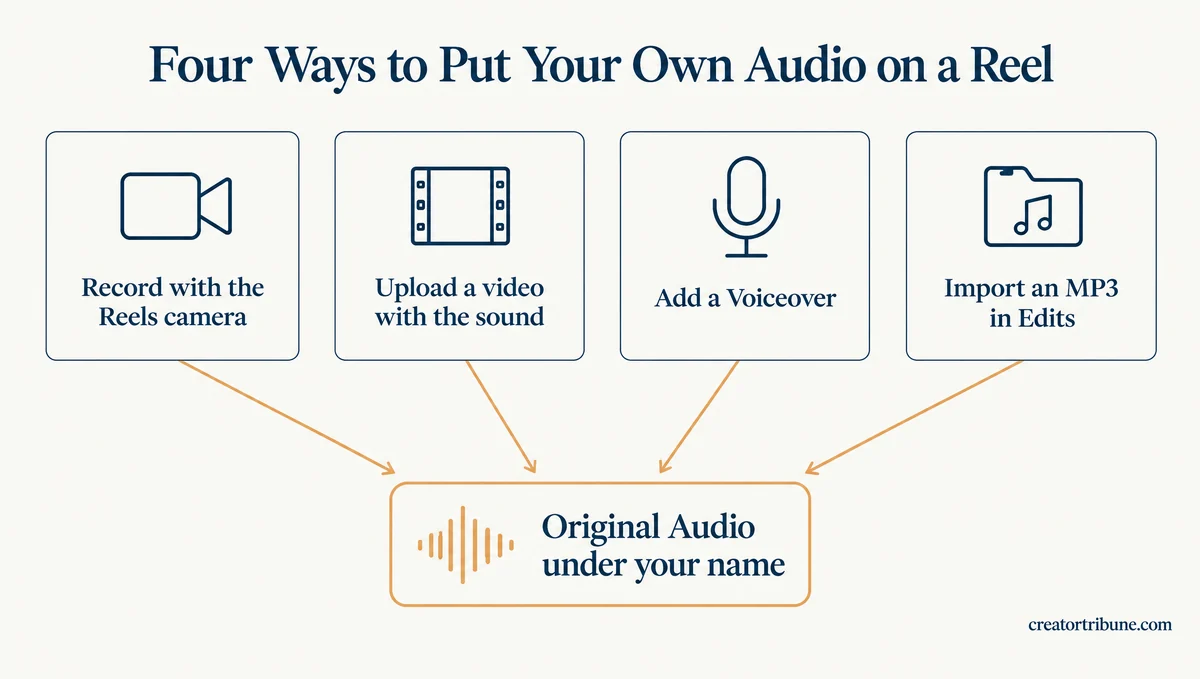
Instagram’s reel audio page counts only “audio recorded by your microphone while filming your reel or audio that is part of a video you uploaded” as your own camera audio. Library songs and other creators’ sounds sit on the other side of the audio mixer. Keep library music off the clip if you want the credit, because a reel that uses a library track is attributed to that track.
The Voiceover tool is the one I use for narration, since the whole take stays inside one app. Here is the sequence in the Instagram app:
- Tap Create, then tap Reel.
- Record a clip, or tap your camera roll at the bottom left to add a video.
- Tap Next, then tap Audio at the bottom.
- Tap Voiceover, slide the bar to where your voice should start, then tap and hold Record.
- Tap Done, drag the volume bars to balance your voice against the clip’s own sound, then tap Next and share.
Reels can run up to 20 minutes, but Instagram’s reel recording guide says reels over 3 minutes won’t be recommended to new audiences. A full song past the three-minute mark mostly reaches people who already follow you. On a computer, click Create, then Post, then Select from computer, and a finished video file goes up as a reel with its sound.
Before: you open the Music button, search for the demo you recorded last night, and find nothing, because Music only searches Instagram’s library.
After: you record the reel with the demo playing, or upload the video that already carries it, and the reel posts with Original Audio under your name.
One setting matters before you post a sound you care about. Instagram’s audio rules say anyone can record a reel with the original audio from a public account, including people on the Meta AI apps and websites. You can switch off the Meta AI part under Profile, Menu, Sharing and reuse, and only a private account stops reuse on Instagram itself.
Reels that carry only your original audio also download with their sound, while reels built on library music download silent. If you post the same clip on TikTok, adding your own TikTok sound covers that app’s version. A file sitting on your phone is the one thing the Instagram app will not take.
Can You Upload an MP3 or WAV File to an Instagram Reel?
You cannot upload an MP3 or WAV file inside the Instagram app, because its picker accepts video files only, but Instagram’s separate Edits app imports audio files directly. Edits costs nothing to download, and it shares your finished video to Instagram as a reel.
The Instagram app’s limit shows up in a January 2026 r/Instagram thread, where the poster asks how to use a .wav or .mp3 on a reel. “It only allows me to choose a video file,” the post adds. TechCrunch’s guide to Edits lists “Import Audio from Files” among the app’s features and describes it as a way to “add your own unique sounds directly into edits.”
Instagram’s Edits help page says its Audio tool lets you browse music “or import your own by clicking the folder icon.” The steps:
- Install Edits from the App Store or Google Play and log in with your Instagram account.
- Start a new project and add your video or photos.
- Tap Audio, then tap the folder icon and choose your audio file.
- Tap and hold either end of the audio clip to trim it, then export and share to Instagram as a reel.
Edits also has a Voice tool that records a voiceover while you follow an on-screen script. Instagram’s Edits audio page says a video shared to Instagram as a reel with original audio “will display your username with the original audio.” One catch applies only to library songs: that page says licensed audio past 60 seconds is left out of a downloaded export.
How Do You Rename Original Audio on Instagram?
You rename original audio on Instagram with the Rename audio option on the screen before you share, or later from the sound’s audio page. Meta’s developer documentation for Instagram says a reel’s audio can be renamed only once, so type the final name the first time.
To rename it later, tap the Original Audio name at the bottom of your reel to open its audio page, then look for Rename audio in that page’s menu. Meta’s reference for Instagram media puts the rule plainly: “You can only rename once, either while creating a reel or after from the audio page.”
I name mine with the track title and my handle, because a single rename leaves no room for a typo.
Why Did Instagram Change Your Original Audio to Someone Else’s Song?
Instagram changes Original Audio to a song title when its system detects licensed music in the audio you recorded or uploaded. Instagram’s help page says the reel then joins that song’s audio page, where more people may find it.
If the match is wrong, tap Options at the bottom of the reel, then Remove From Audio Page, and the sound returns to Original Audio with your username. If the match is right, the track can be muted later when licensing changes, and Instagram copyright claim fixes covers what to do when a rights holder steps in.
Photo posts are stricter than reels, and that is where most people get stuck.
Can You Add Your Own Audio to an Instagram Photo Post?
You cannot upload your own audio file to an Instagram photo post, because its Add audio button only picks sounds already on Instagram, such as library songs. The two workarounds are a video made from the photo, which posts as a reel, and a sound borrowed from a reel you posted first.
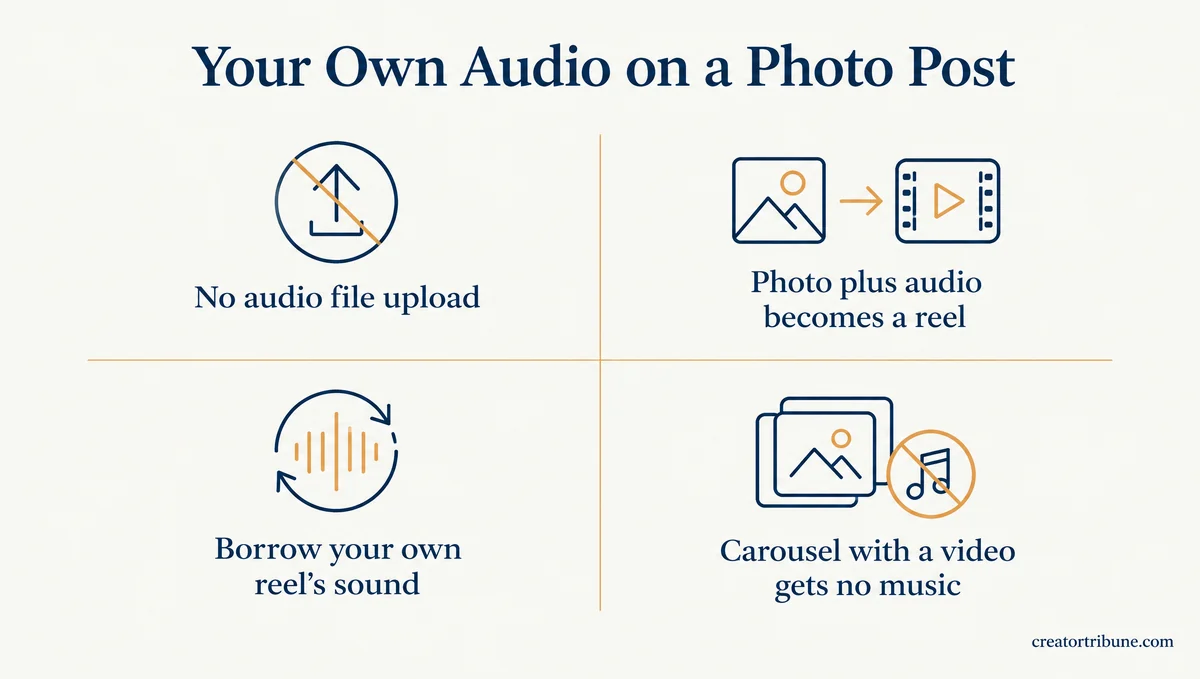
Instagram’s photo post help goes from Create to POST to Next twice, then says “Tap Add audio. You can select a song from the list or search our music library.” No step in that flow takes a file from your phone.
The rules change from one format to the next, so here is the whole picture in one place.
| Format | Upload your own audio file? | What works | The catch |
|---|---|---|---|
| Reel in the Instagram app | No, video files only | Record with the camera, upload a video with the sound in it, or add a Voiceover | Public accounts let anyone reuse your original audio |
| Reel made in Edits | Yes | Import the file in the Audio tool, then share to Instagram as a reel | Library songs past 60 seconds drop out of downloads |
| Photo post | No | A library song, or the sound from your own earlier reel | The borrowed-sound route is unofficial |
| Photo carousel | No | A library song | Same limits as a single photo |
| Carousel with a video | No | No post-wide music | Instagram blocks music on mixed carousels |
| Story | No | Record it with the Story camera or upload a video that holds it | The Music sticker plays library songs only |
Does Merging a Photo and a Song Into a Video Work on Instagram?
Merging a photo and your audio into a video works on Instagram, but the upload becomes a reel, and a released song inside it risks getting muted. The route is safe for your own voice or an unreleased recording.
As TechCrunch reported in July 2022, Instagram shares new video posts under 15 minutes as reels, so a photo with a soundtrack posts as a video reel instead of a photo post. Make it in Edits or any editor: set the photo as the only clip, add your audio, stretch the photo to the length of the sound, export, and post the video.
The muting risk comes from Meta’s rules for songs. DistroKid’s help article on muted videos says videos “that mimic an audio-only listening experience are not permitted,” and lists still image videos and live streams with large amounts of matched audio as examples. Matched audio is sound that Meta’s systems recognize as a registered song.
I’d skip this route for any song you did not make, and for your own once a distributor has delivered it to Instagram. If your own released song still gets muted, the same DistroKid article says its support team can allowlist a profile you control to prevent future muting.
Can You Use Your Own Reel’s Sound on an Instagram Photo Post?
The workaround for your own sound on an Instagram photo post is to post the audio as a reel first, save that reel, then pick its sound for the photo. Instagram does not document this route, so treat it as one that can stop working.
In one r/Instagram thread, the fix that worked was posting the audio as a reel over a black screen, saving that reel, and then using its sound on the photo post. A reply in the same thread says a second account kept just for sounds works too, and another notes that this account has to stay public.
That fits a line on Instagram’s own photo post help page: “If your account is public, anyone can reuse your original audio in their post.” The borrowed-sound route is the one I trust least, because it hangs on a reel you must never delete. Here is the route:
- Post the sound as a reel from a public account. A black screen or one still image is enough, and renaming the audio on the share screen makes it easier to recognize later.
- Save that reel: tap Save under it, which adds it to your saved posts, per Instagram’s reel management page.
- Start the photo post, tap Add audio, and look for that sound among your saved items. Instagram does not document where the sound appears on that screen, so this step can look different on your account.
- Keep the source reel up and the account public, because only a public account’s original audio can be reused and a reel loses all of its sound when the audio it uses is deleted.
To swap the song on a post that is already live, changing a post’s song walks through the Replace Audio option. Carousels add one more rule.
Can You Add Music to an Instagram Carousel With a Video?
You cannot add music to an Instagram carousel that includes a video, because Instagram’s help page says “Music cannot be added to carousels with videos.” A photo-only carousel takes a library song the same way a single photo does.
If you need one song across the whole post, drop the video slide, or post the video as its own reel. The carousel help page gives three ways to pick the song: a suggested song in “For you”, music in “Browse”, or a search in the search bar.
What If the Song You Want Isn’t in Instagram’s Library?
A song missing from Instagram’s library was never delivered to Instagram, is unlicensed where you live, was pulled after a rights change, or is hidden by your account type. Instagram’s audio problems page lists the last three reasons and points accounts without the full library to its Sound Collection.
Business accounts see the narrowest library, and business account music limits explains why switching to Creator unlocks songs without making a commercial post safe to use them on. Uploading someone else’s song to a distributor is no fix either, since DistroKid accepts only “audio that you created yourself” for Instagram.
How Do You Add Your Own Audio to an Instagram Story?
You add your own audio to an Instagram Story by recording it with the Story camera or by uploading a video that already holds the sound. Stories have no audio file import, and the Music sticker plays only songs from Instagram’s library.
For a quick voice note, I record straight into the Story camera, since that skips every editor. The steps:
- Open the Story camera from Your story at the top of Feed.
- Hold the record button while you speak or play the sound, or pick a video from your camera roll.
- Make sure the video’s sound is not muted in the editor, then share.
Instagram’s Stories help page lists filters, the Music sticker, stickers, drawing and text as the Story tools, with no voiceover or audio import. For narration over footage, record a Voiceover in a reel draft, tap Download in the reel editor, then post the saved video to your Story.
Voice may come to Stories directly. On June 17, 2026, social media reporters Jonah Manzano and Matt Navarra reported a new Voice sticker that adds a voice note to a Story. As of November 5, 2026, the Stories help page does not list it, so it may not be on your account yet.
If a library song on your Story stops after a few seconds, why Story music cuts off covers the length limits. Musicians have one more route, and it ends with the song inside Instagram’s own library.
How Do You Get Your Own Song Into Instagram’s Music Library?
You get your own song into Instagram’s music library through a music distributor that delivers to Meta, such as DistroKid, TuneCore or CD Baby, as long as you made every sound in the track. Instagram has no upload form for artists, and once the song is in, anyone can add it to their posts, Stories and reels.
Sending a song to Instagram costs nothing extra at DistroKid, whose help article says “There is no charge for opting into distribution to Instagram/Facebook.” The route:
- Upload the release to your distributor and tick Instagram and Facebook (DistroKid lists it as “Instagram & Facebook” under Services).
- Wait for delivery. TuneCore says most releases are live within a week and can take up to two weeks, while CD Baby tells artists to allow at least 30 days.
- Search for the track with its ISRC (the 12-character code that identifies a recording), as shown below, and save it to your favorites.
- Add the song to your own videos from the library instead of uploading videos with the song already in them.
The eligibility rules decide whether a track gets in at all. DistroKid’s eligibility page treats these as unlikely to qualify:
- Not distinct enough: production loops, soundbeds, sound effects, soundalikes, karaoke, public-domain classical recordings, film scores, meditation or sleep music, and DJ mixes.
- Not music: spoken word, comedy, speeches, audiobooks and podcasts.
TuneCore goes further. Its list rejects a track with “10+ consecutive seconds of spoken word material”, any work you don’t own exclusive rights to, and samples or beats even when you hold a distribution license. One ineligible track keeps the whole release off Facebook and Instagram, per the same TuneCore page.
My take is that the library route pays off only for a finished release. A demo, a podcast clip or a track built on a leased beat is better posted as original audio on a reel, knowing a match against the beat’s owner can relabel or mute it.
How Do You Find Your Song in Instagram’s Music Search?
You find your song in Instagram’s music search by typing ISRC: followed by your track’s ISRC code, the format TuneCore gives for tracks that don’t appear by title. DistroKid suggests running the search from the Music option when you add a Story.
DistroKid shows each ISRC to the right of the track title on your album page. A single that vanishes after you upload an album that repeats it may have been pulled by the album’s later release date. DistroKid explains that Instagram uses the latest release date for a track, and its fix is an Instagram Resubmission Request form.
Quick Takeaways
- Instagram has no audio file upload, so a Reel takes your sound through the camera, an uploaded video or the Voiceover tool.
- Edits, Instagram’s free editing app, imports your audio file and shares the result to Instagram as a reel.
- Photo posts and carousels take no audio file: a photo plays a library song or the sound of a reel you posted first, and a carousel with a video takes no music.
- Musicians reach the library through a distributor, which takes from about a week at TuneCore to at least 30 days at CD Baby.
- Sort the sound before you open an editor. Audio nobody has registered with Meta, like a voice memo or your own unreleased demo, is safe as original audio on a reel or through Edits. Pick a released song from the library instead of baking it into the video.