Create a Second Instagram Account and Protect Your Main One
Create a Second Instagram Account and Protect Your Main One
Instagram now allows 10 logged-in accounts, not 5. Learn how to create a second Instagram account and make one ban less likely to reach both.
- 1How Do You Create a Second Instagram Account?
- How Do You Make a Second Instagram Account on a Computer?
- Should Your Second Instagram Account Be Personal or Business?
- 2How Many Instagram Accounts Can You Have?
- 3Can You Use the Same Email for Two Instagram Accounts?
- 4How Do You Switch Between Instagram Accounts?
- How Do You Remove an Instagram Account From the App Without Deleting It?
- 5Should Your Second Instagram Account Share a Login With Your Main?
- 6If One Instagram Account Gets Banned, Do Your Others Go Down Too?
- 7Will Your Followers Know You Have a Second Instagram Account?
- 8Why Won’t Instagram Let You Create Another Account?
- 9Quick Takeaways
TL;DR: Go to your profile, tap your profile name at the top, tap Add Instagram account, then tap Create new account. Instagram’s help page now allows up to 10 accounts logged in at once, and one email address can cover up to 5 accounts. Tap Create password during sign-up if you want the new account kept apart from your main one.
Learning how to create a second Instagram account takes about two minutes, and the steps barely change from phone to phone. The choice you make halfway through them is the part that can cost you your main account.
Instagram’s own help page now says you can keep 10 accounts logged in at once, and it has said so since at least January 2026. Google’s AI answer to this question still says 5.
The 5 that everyone remembers survives as a different rule, the cap on accounts per email address.
What worries me more than the number is one screen in the sign-up flow. Linking the new account to your main login lets the accounts log into each other, and Meta’s rules let one disable reach every account the same person owns.

How Do You Create a Second Instagram Account?
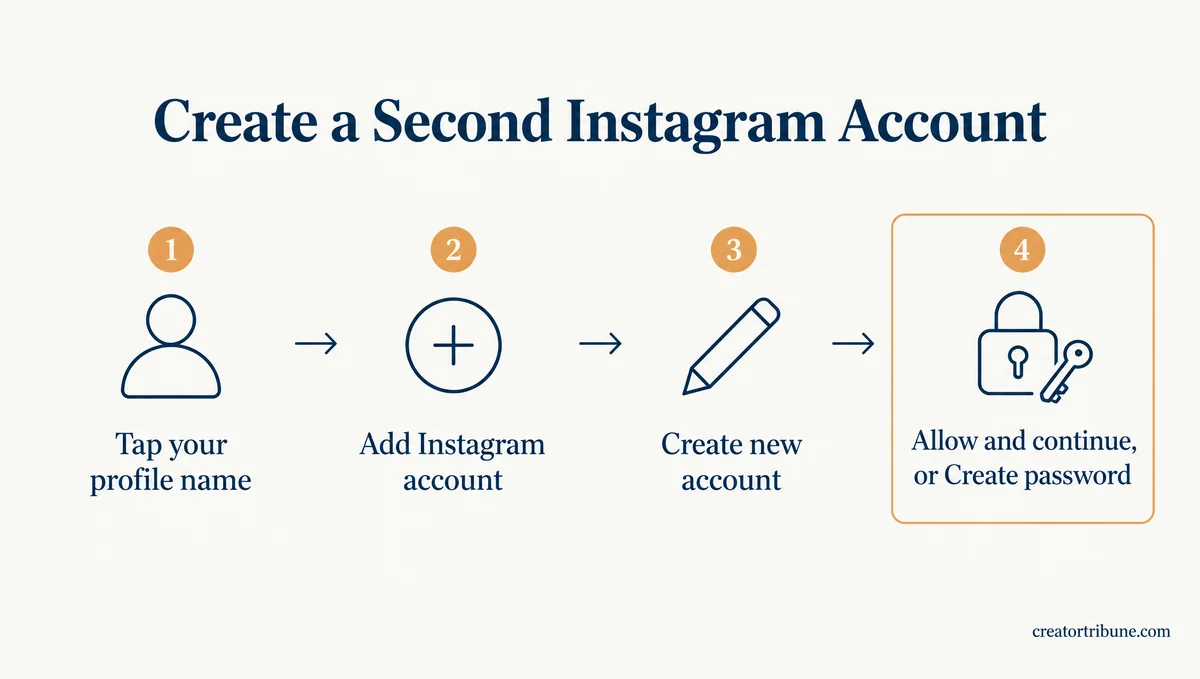
You create a second Instagram account from inside the one you already have. Tap your profile name, then Add Instagram account, then Create new account, and Instagram asks for a profile name and a phone number or email.
What is Accounts Center: Meta’s settings hub that links your Instagram and Facebook profiles so they can share logins and settings, which some people now see as Meta Account settings.
Instagram’s help page on multiple accounts lists these steps for the iPhone and Android app, as of October 30, 2026.
- Open Instagram and tap your profile picture in the bottom right.
- Tap your profile name at the top.
- Tap Add Instagram account, then tap Create new account.
- Enter a name for the new profile and tap Next.
- Tap Continue, then Allow and continue to add the profile to your Accounts Center, or tap Create password to keep it out.
- Add a phone number or email, tap Next, then tap Complete sign up.
The screen that offers Allow and continue or Create password is the one I slow down on, because it decides whether the new account shares a login with your main one. The section on shared logins below explains what each choice does.
To add an account you already own instead, the same page has a second route. Tap Menu in the top right, scroll to the bottom, tap Add account, then tap Log into existing account.
How Do You Make a Second Instagram Account on a Computer?
Instagram’s help center says you can create an account from the app or from Instagram.com. Once it exists, add it on a computer from More in the bottom left, then Switch accounts, and log in with its username and password.
The computer route suits a business account you plan to run from a laptop. Every account you add this way shows up in the same Switch accounts list.
Should Your Second Instagram Account Be Personal or Business?
Pick personal, creator or business for what the account will do, and enter your own birthday whichever type you choose.
Instagram’s account creation page asks you to “use your own birthday, even if this account is for a business, a pet or something else.” The minimum age is 13 in most places, 14 in South Korea, Quebec, Spain and Florida, and 16 in Australia, according to Instagram’s minimum age page.
An account that represents a child under the minimum age needs a bio line saying a parent runs it. The section on bans below shows what happened to one parent who skipped that line.
How Many Instagram Accounts Can You Have?
Instagram’s multiple accounts help page says you can have up to 10 accounts logged in at one time. Its older copies said 5 as late as February 2025, and 5 is still Instagram’s cap on accounts for one email address.
The line on that help page reads, “Keep in mind that you can have up to 10 accounts logged in at one time.” The desktop, Android and iPhone versions of the page all carry it on October 30, 2026.
None of the help pages linked here sets a total for the accounts one person can own.
Older copies of the page give the old number. Internet Archive copies from October 2024 and February 2025 read, “Keep in mind that you can add up to 5 accounts,” and the copies from January, February and June 2026 read 10.
I trust the help page over Google’s summary here, because the summary is repeating guides that still carry the old number. Here is what each of those numbers counts.
| Number | What it counts | Status on Instagram’s help pages (checked October 30, 2026) |
|---|---|---|
| 10 accounts | Accounts logged in on the app at one time | Current wording on the multiple accounts page |
| 5 accounts (logged in) | The same thing, under the old wording | Gone from the page, last seen in the February 2025 copy |
| 5 accounts (email) | Accounts that can share one email address | Current rule on the login info help page |
| 1 account | Accounts you are using at any one moment | The device login page says you can be logged into a single account at a time |
| 1 Facebook account | Facebook accounts in one Accounts Center | Current rule on the Accounts Center page |
Ten is plenty for a main account, a finsta (a private second account for close friends) and a side project. Once you reach ten, log out of an account you rarely use to free a slot in the app.
TikTok handles this differently and publishes no account cap at all, as the TikTok account limit guide explains.
Can You Use the Same Email for Two Instagram Accounts?
Yes. Instagram’s login info help page says one email address can be linked to up to 5 Instagram accounts, and it gives no number for phone numbers.
The page reads, “An email address can only be associated with up to 5 Instagram accounts.” Internet Archive copies show 5 on that page since at least April 2021, and a 2016 copy allowed one account per email.
Some guides on Google’s first page still say every account needs its own email. That matched the 2016 rule, and Instagram’s current page says otherwise.
If sign-up says an account already exists with your email or phone number, the same page tells you to double-check the login details you typed. It also says Instagram emails you when someone tries to use your address to create a new account.
Five per email is generous, and I still give a business or client account its own address. A shared inbox makes it harder to tell which account a security email is about.
How Do You Switch Between Instagram Accounts?
In the Instagram app, tap your username at the top of your profile and pick the account you want. On a computer, click More in the bottom left, click Switch accounts, then click the account.
Google’s AI answer also suggests pressing and holding your profile picture in the bottom bar. Instagram’s help page for the app lists only the username route, so use that one if the shortcut does nothing on your phone.
Instagram’s device login page explains why switching is instant: “You can only be logged into a single Instagram account at a time, but your device can store login information for multiple Instagram accounts.” Read together, the two pages mean the app keeps up to 10 accounts ready to switch to, with one in use at a time.
I glance at the username at the top before every post, because the switcher makes it easy to post from the wrong account. A Story meant for a finsta that lands on a business page is the classic second-account mistake.
How Do You Remove an Instagram Account From the App Without Deleting It?
Log out of the account from Menu, then Login, or remove it from the login screen with Options, then Remove profiles from this device. Neither one deactivates or deletes the account.
The device login page lists both routes.
- To log out, tap Menu in the top right of your profile, scroll down to Login and tap Log out.
- To clear a saved account, go to the Instagram login screen, tap Options in the top right, tap Remove profiles from this device, then tap Remove next to the account.
Instagram says removing login information “will not temporarily deactivate or permanently delete the Instagram account,” and it adds that not everyone can remove a profile from the login screen yet.
If you deactivated an account and want it back, the reactivation guide covers that.
Should Your Second Instagram Account Share a Login With Your Main?
Keep a second Instagram account separate unless you run every account alone. Adding it to your Accounts Center lets the accounts log into each other, while Create password at sign-up keeps it out.
Other accounts can show up on your login screen for three reasons, according to Instagram’s device login page. One of them is “You have multiple accounts added to the same Accounts Center, and these accounts are able to log into each other.”
That saves time when every account is yours, but it also means anyone who shares one of the accounts can reach the others. In an October 29 thread, a friend landed in the poster’s personal account and later in the account they run for a sports team.
The poster never worked out how, but the two share admin logins to a third account they run for a venue.
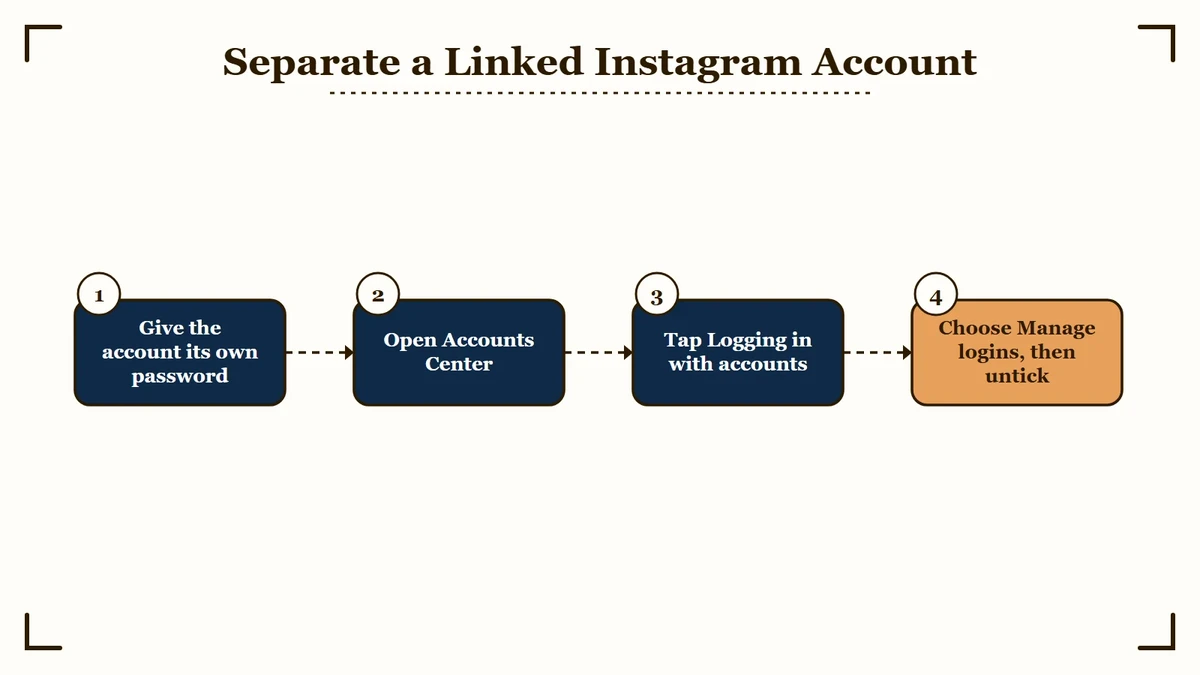
The fix lives in a setting called Logging in with accounts, which Instagram’s Accounts Center page now documents. Share all logins lets every account log into the others, and Manage logins lets you untick the ones that should not.
That page read differently in March 2026. A March 30 archive copy reads, “Starting early 2026, the connected experience, Logging in with accounts, will no longer be available, and all accounts will be able to log into each other by default.”
The October page drops that sentence and keeps the setting’s instructions.
| Choice during sign-up | What the accounts share | Good for |
|---|---|---|
| Allow and continue (joins your Accounts Center) | Logins between accounts, plus connected features such as cross-posting | Several accounts that only you ever touch |
| Create password (stays out) | Nothing by default, the account uses its own password | A finsta, a client account, or anything shared |
My rule is simple: if anyone else ever logs into an account, it does not go in my Accounts Center. If an account is already linked, here is the order that avoids a lockout.
- Give the account its own password first. Instagram warns that after you turn off shared logins, “You may not be able to log in to your accounts until you’ve created a password.”
- Open Accounts Center, tap Logging in with accounts, choose Manage logins, and untick the accounts that should not reach each other.
- If you do not see that setting, remove the account from your Accounts Center. On a computer that is More, Settings, Accounts Center, Accounts, then Remove next to the profile.
Meta is replacing Accounts Center with a Meta Account in a rollout it expected to take about a year. TechCrunch reported in April 2026 that the new setup “doesn’t force users into linking all of their accounts.” The Meta account explainer covers what that switch changes.
If One Instagram Account Gets Banned, Do Your Others Go Down Too?
They can. Meta’s Account Integrity policy says it may restrict or disable accounts “owned by the same person or entity as an account that has been disabled.” Linked accounts have gone down together after a single disable.
In a June 2026 thread, a parent ran a small account for a 6-year-old’s LEGO builds, linked in Accounts Center with a creator account of 13.7K followers and a business account of 7K.
The bio said “I am only 6 years old,” and Instagram disabled the account for an owner under 13, then closed it even after the parent uploaded ID. The parent later wrote that all of the accounts were disabled, with no appeal button.
In the same thread, another owner got the first account back while the accounts linked to it stayed disabled a month later. A third person there had every account on their phone suspended, including one that was never linked directly, and said the suspensions were temporary. A 2023 reply to the same question had said, “In general, no.”
Keeping an account out of your Accounts Center removes the most visible link between your accounts. The policy is written around ownership, though, so no setting can promise that Meta treats two of your accounts as strangers.
The bio is the likely trigger, since the disable notice cited an owner under 13, and Instagram spells out the fix. Its minimum age page says an account that represents someone under the minimum age must state in its bio that a parent or manager runs it.
Before: “I am only 6 years old.”
After: “Managed by a parent. My son’s LEGO builds, posted by me.”
Starting over after a disable is the other trap. The same policy covers accounts “created or repurposed to evade a previous account or entity removal.”
Meta’s rules on disabling accounts add that it works to disable “accounts created to get around our restrictions” as soon as it becomes aware of them.
One October 2026 thread suggests how fast that can happen. After repeated bans, the poster made a brand-new account on a new iPhone, hit a human check right after sign-up, and was banned again.
That parent’s story is the reason I keep hobby and test accounts out of my Accounts Center. Here is how to limit the damage before anything goes wrong.
- Keep any shared account, or one run for a child, out of your Accounts Center with Create password.
- Put “managed by a parent” in the bio of any account that represents a child under the minimum age.
- Appeal a disable from the account itself, using the integrity ban guide or the suspended by mistake guide.
- Do not create a replacement account while a disable stands.
Will Your Followers Know You Have a Second Instagram Account?
People can find a second Instagram account even if you never tell them. Instagram’s help pages say a confirmed phone number or email can get it recommended to anyone who has that contact saved, and people may see that an account is new.
What is a finsta: A second, usually private Instagram account kept for close friends, separate from the main account most people see.
Once you confirm your phone number or email, “your account may be recommended to users who have your contact information in their device’s contact list,” according to Instagram’s contact syncing page.
The account creation page adds, “If you created your account recently, people on Instagram may see that you have a new account.”
I treat the phone number as the real giveaway, because it is the one detail your friends already have saved. Set up a quiet second account in this order.
- Sign it up with an email or phone number your contacts do not have.
- Turn off contact syncing. Tap Menu, then Meta Account or Accounts Center, then Your information and permissions, then Upload contacts, pick the account, and turn off Connect contacts.
- Turn off account suggestions on a browser. On Instagram.com, go to Edit profile, toggle off Show account suggestions on profiles and click Submit, because the app does not have this switch.
- Keep it out of your Accounts Center, and do not link a Facebook account to it.
- Make it private, and leave your real name and photo off it.
That last step matters because Instagram’s privacy help page lists your name, username, profile picture, bio, links and follower counts as visible to anyone, even on a private account. The suggested accounts guide walks through the suggestion settings in more detail.
Turning off contact syncing does not delete the contacts you already synced. Instagram’s contacts help page says deleting them happens on a computer, under Manage contacts, and can take up to 90 days.
Why Won’t Instagram Let You Create Another Account?
Instagram blocks a new account when the app already holds 10 logged-in accounts, the email is already on 5 accounts, you are under the minimum age, or a past disable is tied to you. Each cause has a different fix.
I start with the first two rows below, because they take a minute to rule out.
| What you see | Likely cause | What to do |
|---|---|---|
| You can’t add one more account to the app | 10 accounts are already logged in | Log out of one you rarely use from Menu, then Login |
| An account already exists with your email | The email is in use, and one address covers at most 5 accounts | Check the address you typed, or use a different email |
| An account run for a child gets deleted or disabled | Instagram thinks the owner is under the minimum age | Use your own birthday, and say in the bio that a parent runs it |
| “Log in on another device to continue” | A login security check | Follow the another device fix |
| A new account is suspended right after sign-up | A past disable is linked to you | Appeal the original disable instead of starting over |
In one October 2026 thread, every new account a user made after a bot ban was suspended for ban evasion and then disabled.
If that is your situation, the account disabled guide covers the appeal path. Fixing the first ban is the route Meta’s rules leave open.
Quick Takeaways
- Create a second account from your profile name, then Add Instagram account, then Create new account.
- Instagram’s help page now allows 10 accounts logged in at once, and one email can cover up to 5 accounts.
- The safest default is to tap Create password for any account another person will ever log into.
- One disable can take linked accounts down with it, so keep shared accounts and accounts run for a child unlinked.
- Turn off contact syncing, and account suggestions on a browser, before you post anything on a finsta.