Hide Posts From Someone on Instagram Without Blocking Them
Hide Posts From Someone on Instagram Without Blocking Them
Instagram has no button to hide a post from one person, but Close Friends can leave them out. See what works, what fails, and what gives you away.
- 1How Do You Hide Posts From Someone on Instagram?
- Can You Change an Instagram Post to Close Friends After Posting?
- 2Why Is the Close Friends Option Missing on Instagram?
- 3How Do You Hide Your Instagram Story From One Person?
- 4Does Restrict or Mute Hide Your Posts on Instagram?
- 5Will Making Your Instagram Private Hide Posts From One Person?
- 6What Does Blocking Someone on Instagram Hide?
- 7Can Someone Tell You Hid Your Instagram Posts From Them?
- 8How Do Creators Hide Posts From Someone on Instagram?
- 9Quick Takeaways
TL;DR: To hide posts from someone on Instagram without blocking them, share the post or reel to Close Friends and leave that person off the list. You can’t change the audience after sharing. For stories, the “Hide story and live from” setting removes one person, while Restrict and Mute hide nothing you post.
If you want to hide posts from someone on Instagram, the advice online contradicts itself. A February 2026 wikiHow guide says Close Friends “won’t work on regular photo posts.”
wikiHow’s other guide, updated October 12, 2026, calls hiding feed posts “not possible” in its summary, then says in step 4 to pick Close Friends “when sharing a video or photo post.”
Instagram’s own Close Friends help page backs the steps, saying that when you share “a post, note, reel, or story, you can choose for only people on that list to see it.” The list works in reverse: you name everyone who may see the post.
Instagram brought that audience to feed posts and reels on November 14, 2023, as TechCrunch reported that day. It’s the first setting I point friends to, because a block is much harder to undo quietly.
People still ask Instagram to build what it already has. When a parent asked in January 2026, the first reply said the option “has been around for at least a year” and pointed to Audience, then Close Friends, before you share.
Below are the steps and the clues that still give you away.

How Do You Hide Posts From Someone on Instagram?
You hide posts from someone on Instagram by sharing them to Close Friends and leaving that person off the list.
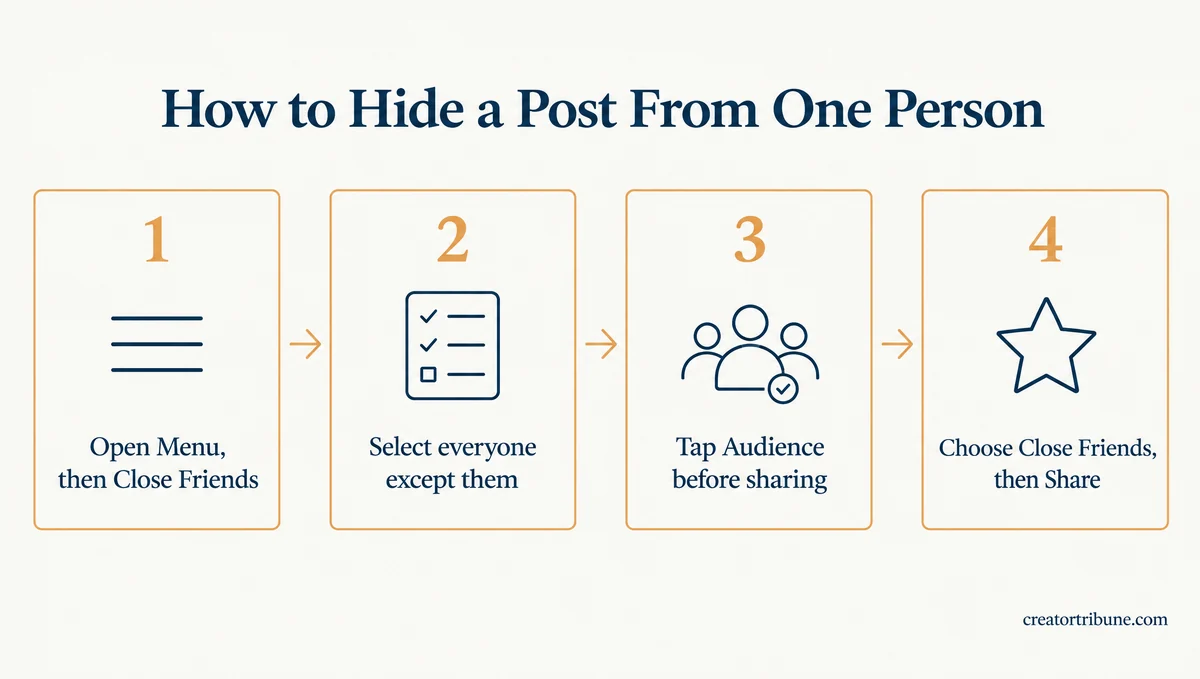
There is no button that excludes one person from a feed post, so the list does the work.
What is Close Friends: A list of people you pick by hand on Instagram. Anything you share to it, whether a story, note, reel or feed post, shows only to the people on that list.
I build the list first and post second, in this order:
- Tap your profile picture, then tap Menu in the top right.
- Under “Who can see your content,” tap Close Friends.
- Tap Select next to each person who should see the post, leave out the one you’re hiding it from, then tap Done.
- Create your post or reel as normal, and on the last screen, before you share, tap Audience.
- Choose Close Friends, then tap Share.
The Close Friends audience “works for both public and private Instagram accounts,” according to Instagram’s reels guide. Anyone off the list never gets the post in their feed, and a link to it won’t open for them, which is one of the post unavailable causes.
The list takes work, because Instagram has you tap Select on one name at a time, so hiding a post from one person on a 400-follower account means about 399 taps. One account owner who set out to add over a thousand followers by hand says Instagram “automatically flagged it as unusual behavior.”
People on the list can tell they’re on it, but nobody is told when you add or remove them. Instagram’s Close Friends help page says “People won’t be notified when you add or remove them from your list,” though listed people “may also see a green ring around your profile photo.”
On a reel, if someone on the list likes, comments on or shares it, others on the list can see “their username and how they interact with your reel.” Close Friends posts also carry a green star in friends’ feeds, per TechCrunch’s launch report.
Before: You restrict your manager, then post a beach photo to all your followers. It still lands in their feed, because Restrict hides nothing you post.
After: You post the same photo with Audience set to Close Friends, and your manager isn’t on the list. It never reaches them, and nothing alerts them.
Build the list before the day you need it, so you’re not adding names in a rush. Your Close Friends stories and notes use the same list, so everyone you add for one post will see those too.
Can You Change an Instagram Post to Close Friends After Posting?
No, Instagram doesn’t let you change a post’s audience after you share it.
The Audience choice only exists on the last screen before you share. A September 2026 question on r/Instagram asked whether an already posted image could be changed to close friends only, and the poster couldn’t “find a way to do so.”
The first replier in the January 2026 thread had already said so: “You can only select the audience before publishing.”
For a post that’s already public, you have two blunt options. Archiving it hides it from your followers, and Instagram says an archived post “keeps all its likes and comments,” which our archive guide covers in full. Deleting it and posting again to Close Friends also works, but the new post starts at zero likes and comments.
A 2024 thread about the reverse switch, Close Friends to public, found a third route for reels: tap Delete, choose “Move to drafts,” change the audience, then share again.
It worked for 3 of the 6 people there who tried it, and two of the misses were on iPhones, where a needed menu option never appeared. Nobody there tested it from public to Close Friends.
If “Move to drafts” isn’t on the screen, back out, because the next tap deletes the reel. A commenter there who hit that got the reel back unchanged from Recently Deleted, but I still wouldn’t plan around this route.
Why Is the Close Friends Option Missing on Instagram?
When the Close Friends option is missing on Instagram, check Facebook sharing first, because Instagram’s own error message blames cross posting.
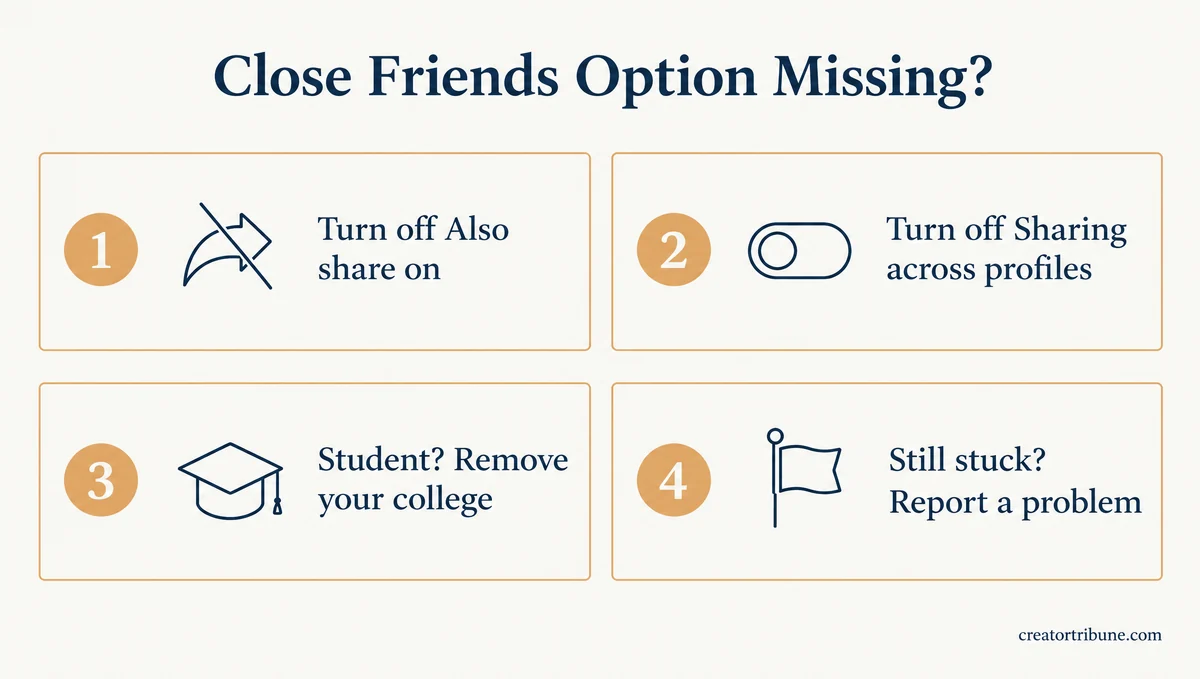
The error reads “cannot change audience because cross posting is on,” per an April 2025 post. I clear the “Also share on” row before trying anything else.
Instagram’s sharing help page puts the switches in two places, the “Also share on” row and Accounts Center:
- On the last screen before you share, tap “Also share on” and turn Facebook off for this post.
- For automatic sharing, go to your profile, tap Menu, then Accounts Center, then “Connected experiences.”
- Tap “Sharing across profiles,” then pick the account to share from and the account to share to.
- Turn off the toggle next to “Your Instagram posts.” Instagram’s reels sharing page shows a “Your Instagram reels” toggle under “Sharing across profiles” too, so turn that off as well.
That fix doesn’t always hold. The April 2025 poster had cross posting “off everywhere” and still got the message.
A 2026 post hit a Close Friends post error with cross-posting turned off and the account separated from Meta accounts, and replies through late September 2026 reported the same error.
| What you see | Likely cause | What to try |
|---|---|---|
| “Cannot change audience because cross posting is on” | Facebook sharing on for the post or the account | Turn off “Also share on” and the “Sharing across profiles” toggles |
| Same error with sharing already off | An account bug with no published fix | Report it from Menu, Help, then “Report a problem” |
| No Audience row on the last screen | The feature missing on this account or app version | Update the app, then compare with a second account |
| Stories offer Public and your college, but no Close Friends | A school added to your profile | Remove the school from your profile and test again |
Students have one more cause to rule out. Instagram let US college students add their school to their profile banner in August 2025. An October 2026 Reddit post found that adding a college swapped the story’s Close Friends option for a college audience until the college came off the profile.
If the option still won’t appear, report it, and share anything urgent as a Close Friends story in the meantime. A reel can work too, since the April 2025 poster could still share reels to Close Friends when photos failed.
How Do You Hide Your Instagram Story From One Person?
You hide your Instagram story from one person with the “Hide story and live from” setting, under “Story, live and location” in your settings.
Unlike Close Friends, it lets you name the one person to leave out, and it hides your highlights from them too. The steps, from Instagram’s hide story help page:
- Go to your profile and tap Menu in the top right.
- Under “Who can see your content,” tap “Story, live and location.”
- Tap “Hide story and live from” (on an iPhone, the row reads “Hide your story and live videos from specific people”).
- Select the person, then tap Back on Android or Done on an iPhone.
Android also offers a shortcut from your viewer list. Tap Options next to their name, choose “Hide your story,” then tap Hide.
The same switch covers highlights. Instagram’s highlights page says “those you’ve allowed to see your story can also see your highlights.” It does nothing for posts, since the hide story page says hiding your story “doesn’t prevent them from seeing your profile and posts.”
The hide list only works while the person stays on it. In an October 2025 thread, someone took a person off the list soon after posting, expecting that story to stay hidden, and that person then quoted it back in a message.
I leave people on my hide list for good instead of switching them on and off, because taking someone off opens every highlight to them at once. For one story you want kept from one person, post it as a Close Friends story, which shares it “with only the people on that list,” so your hide list stays put.
Does Restrict or Mute Hide Your Posts on Instagram?
No, neither Restrict nor Mute hides your posts on Instagram: Restrict changes how their comments and messages reach you, and Mute hides their posts and stories from your feed.
Restrict only touches your inbox and comments. Per Instagram’s Restrict page, a restricted person “won’t be able to see when you’re online or if you’ve read their messages,” and their new comments show only to them unless you approve.
None of that touches your posts, and a reply on r/Instagram says it outright: “Restricting an account doesn’t prevent them from seeing your Posts.”
Mute runs the other way. It stops you seeing “someone’s posts in your Feed,” and “Instagram won’t let them know you muted them,” per Instagram’s mute page. I keep Restrict for comment trolls and Mute for oversharers, since neither one hides a thing I post.
None of these settings sends the other person an alert, so the real differences are what each one hides and what it costs you.
| Setting | Hides your feed posts | Hides your stories | What it costs you |
|---|---|---|---|
| Close Friends audience | Yes, if they’re off the list | Yes, for Close Friends stories | Building the list one name at a time, and listed people see a green star |
| Hide story and live from | No | Yes, highlights included | Your highlights vanish for them, which they may notice |
| Restrict or Mute | No | No | Hides nothing you post, and Mute only hides their posts and stories from you |
| Private account plus removing them | Yes | Yes | Every non-follower loses access, and professional accounts can’t do it |
| Block | Yes | Yes | Deletes their old likes and comments for good |
| Archive | Yes, from everyone | Not applicable | The post disappears for all your followers |
For one post kept from one person, use Close Friends, and save the heavier options below for people you want gone from everything.
Will Making Your Instagram Private Hide Posts From One Person?
Making your Instagram account private hides your posts from one person right away if they don’t follow you, and only after you remove them if they do.
Going private costs you every stranger. A private account’s photos and videos drop out of search results, Explore, and hashtag and location pages, per Instagram’s public and private comparison, and the people who already follow you keep full access.
That page says that if someone “was already following you before you set your posts to private,” you can remove them from your followers or block them.
It also says follow requests appear in Activity, “where you can approve or ignore them,” so a fresh request from the same person can sit there unanswered. Removing them is silent, since Instagram’s remove follower page says “When you remove a follower, they aren’t notified.”
- Tap Menu on your profile, then tap “Account privacy” under “Who can see your content.”
- Turn on “Private account” and tap “Switch to private.”
- Go back to your profile and tap Followers.
- Tap the X next to the person’s name, then tap Remove to confirm.
Going private is the route I’d pick only for someone I never want back in my followers.
Creator and business accounts can’t take this route at all. Instagram’s professional account page says “Professional accounts can’t be set to private,” and switching to one auto-accepts every pending follow request, including one you left unanswered from the person you’re avoiding.
Going private means switching to a personal account first, which costs you tools like Meta Business Suite and Meta Ads Manager.
Don’t flip back and forth to hide a single post either. Instagram’s unwanted followers page warns that a temporary limit “may be placed on your Instagram account if you switch between your public and private accounts too often.”
If one person is your only reason to go private, a block does the same job without hiding you from everyone else.
What Does Blocking Someone on Instagram Hide?
Blocking someone on Instagram hides your profile, posts and stories from their account without telling them.
A block also wipes their history on your posts. Instagram’s block help page says “After you block someone, their likes and comments will be removed from your photos and videos” and “Unblocking someone won’t restore their previous likes and comments.”
The block screen in the app lets you block just the one account or also “other existing accounts they may have or accounts they may create.” A blocked person “won’t be able to mention your username or tag you,” and they can still see your likes and comments on posts shared by public accounts or accounts they follow.
A block covers Instagram accounts, and the open web is a separate matter. On a public account, anyone off Instagram can find links to your photos and videos in search engine results, and anyone can embed them, per Instagram’s public and private comparison.
Blocking is the cleanest option of the lot, and I save it for people I’m finished with. For what it looks like from their side, see how to tell you’re blocked.
Can Someone Tell You Hid Your Instagram Posts From Them?
Instagram never alerts someone you hid posts from, but they can still work it out from clues on your profile.
Four things can give you away:
- A post count higher than the posts they can see
- A highlights row that suddenly goes empty
- A public post where a friend tagged you
- A screenshot from someone on your list
The post count is one clue. Instagram doesn’t say whether Close Friends posts count toward the number on your profile, yet one r/Instagram post asks whether a count that rose with no new post means a Close Friends post. Another describes a profile showing a post count above “No posts yet.”
Hiding your story also empties your highlights row for that person, which is easy to spot if they once saw it full.
Other people’s posts are out of your hands too. If a friend tags you in a public post, the person you’re hiding from can still see it on that friend’s profile. Instagram’s tag help page says hiding it from your profile “doesn’t remove you from the reel, photo or video itself.”
Anyone on your list can screenshot a Close Friends post and pass it on, and Instagram sends no screenshot alert for feed posts, reels or stories. Close Friends has also reportedly failed on its own. On October 9, 2025, Cybernews reported an alleged glitch that let people outside a Close Friends list “see and even reply to private Notes.”
An October 12, 2026 post describes a person removed from a Close Friends list a month or two earlier who could still view and reply to the poster’s Close Friends stories. Anything that would hurt me if it leaked stays off Instagram entirely, Close Friends included.
How Do Creators Hide Posts From Someone on Instagram?
Creators hide posts from someone on Instagram with Close Friends, a block, or a private second account, because professional accounts can’t be set to private.
Check your Close Friends list before you trust it. Adding every follower to Close Friends became a growth trick, and one r/InstagramMarketing post credits it with a 5x lift in organic story views on a theme page with 500,000 followers.
A list built that way hides nothing, because the person you want to avoid is probably on it. Taking that one person off takes seconds, but if you post stories to that list for reach, they stop seeing your stories too, which is easy to notice.
On a creator account, my rule is that personal posts go on a second account set to private. A personal account can go private, so the second account does what Close Friends can’t guarantee.
Audit your Close Friends list before your next private post, and remove anyone who shouldn’t be on it.
Quick Takeaways
- Close Friends is the only way to keep a feed post or reel from someone who still follows you without blocking them, and you choose it before you share.
- You can’t switch a post to Close Friends later, so archive or repost anything already public.
- The “Hide story and live from” setting removes one named person from your stories and highlights, while Restrict and Mute hide nothing you post.
- The order to follow is Close Friends for one post, the hide list for stories, and a block only for someone you want gone from everything.
- No setting sends an alert, but a post count that doesn’t match your grid can give you away.