Fix TikTok Notifications Not Working on Any Phone
Fix TikTok Notifications Not Working on Any Phone
TikTok notifications not working? Before you blame a shadowban, check if the likes are still landing. Here is the device-to-app fix order that works.
- 1Why TikTok Notifications Are Not Working
- 2Is It a Notification Glitch or a Shadowban
- 3How to Fix TikTok Notifications on Android
- 4How to Fix TikTok Notifications on iPhone
- 5The TikTok Notification Fix Checklist in Order
- 6What Not to Do When Notifications Break
- 7Frequently Asked Questions
- Why am I not getting TikTok notifications?
- Why do likes and comments not show in my Activity?
- Does battery saver block TikTok notifications?
- Why is my TikTok follower count not updating?
- Is it a notification glitch or a shadowban?
- Do Business accounts get fewer notifications?
- 8Quick Takeaways
The Fix: TikTok notifications usually stop because of a phone setting, not a ban. A glitch means the likes and comments are still landing and only the Activity display broke, while a shadowban means the engagement itself dropped. Check your latest video for new comments first, then work the fix list from device settings to in-app toggles.
If your TikTok notifications are not working, the instinct is to assume the worst and brace for a shadowban. Most of the time the truth is far less scary and far easier to fix.
The alerts are usually being blocked or delayed by a setting on your phone, or held back by a display bug inside the app. The engagement is still happening, you just stopped seeing the pings.
I have walked creators through this more times than I can count, and the order you check things in matters more than any single fix. This guide covers the one-minute test that tells a glitch apart from a ban, then the device-to-app fix list that clears the rest.
Why TikTok Notifications Are Not Working
TikTok notifications are not working usually because of a layered stack of settings: device push permissions off, battery optimization sleeping the app, an iPhone Focus mode, or a corrupt in-app cache.
A true ban is rare; a blocked or batched alert is common.
What I have noticed is that people skip straight to the dramatic explanation and miss the boring one sitting in their settings. A single toggle in the wrong position will silence every like and comment you should be seeing.
| Symptom | Likely cause | Fix |
|---|---|---|
| No push alerts at all | Device push permission off, or Focus mode on | Enable notifications in phone settings, turn off Focus |
| Alerts arrive hours late | Android battery optimization or Doze mode | Set TikTok battery to No Restrictions |
| Likes and comments missing in Activity | Display glitch or sync error | Inbox Filter Reset to re-index |
| Follower count frozen | Cached profile snapshot | Clear cache to pull live data |
| Nothing works after updates | Permissions revoked by an OS update | Reinstall to restore defaults |
The pattern that catches people out is the activity-center bug, where a reply shows a “1 reply” badge that vanishes the moment you tap it. That is a sync problem, not a sign your account is in trouble.
With more than a billion monthly users, per Statista, TikTok pushes a huge volume of alerts, so a single throttled setting can bury a lot of activity fast.
Is It a Notification Glitch or a Shadowban
A notification glitch and a shadowban look identical but are opposites: in a glitch the likes and comments are still landing and only the display broke, while a shadowban means the engagement itself stopped.
The test takes under a minute.
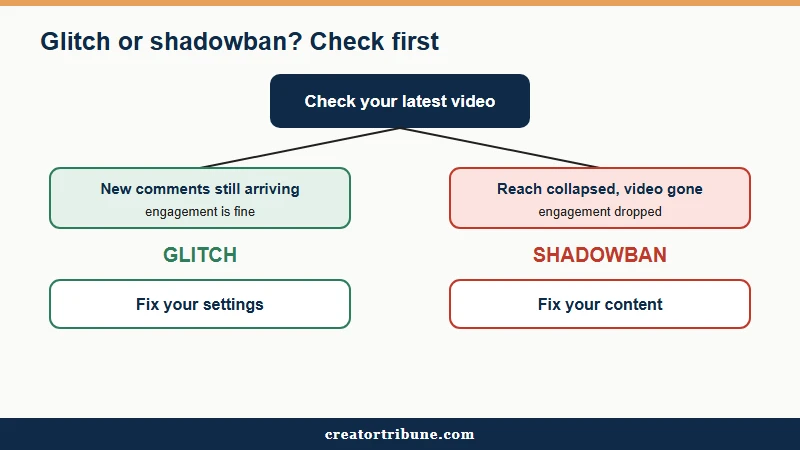
The mistake I see most is a creator deleting a perfectly healthy video because the Activity tab went quiet. Before you touch your content, confirm whether the engagement is still arriving. Here is the quick check I would run first:
- Open your most recent video and watch for new likes or comments arriving over the next few minutes.
- View the same video from a logged-out browser or a second account to confirm it still shows in the feed and under its hashtag.
- If engagement is still landing, it is a display glitch, so fix settings. If the video has vanished from search and reach fell off a cliff, treat it as a reach problem instead.
If the numbers point to a reach drop rather than a display bug, the TikTok shadowban recovery steps and the shadowban self-test are the right next reads. If the counts are just not displaying, the separate guide on TikTok engagement numbers not showing covers the display side in depth.
Before: Your Activity tab goes silent for a day, the badge sits at zero, and you assume TikTok shadowbanned you and panic-delete a post.
After: You open your latest video and see fresh comments still arriving, so engagement is fine. You run an Inbox Filter Reset, the missing notifications reappear, and the video stays up.
How to Fix TikTok Notifications on Android
Fixing TikTok notifications on Android comes down to stopping the battery system from sleeping the app, then confirming both the device and in-app toggles are on. Doze mode is the usual culprit.
What is Doze mode: An Android battery feature that puts idle apps to sleep, batching their notifications and delivering them only in short wake windows or when motion sensors detect you picked up the phone.
Doze is why your alerts arrive in a sudden silent flood the second you grab your phone, per Android’s own documentation. The phone is holding the pings until it decides you are active again. What I would do first is take TikTok out of that sleep cycle.
Set the app to unrestricted battery under Settings, Apps, Manage Apps, TikTok, Battery, then choose No Restrictions. Lock TikTok in your Recent Apps view so the system stops killing its background process. Then confirm the in-app alerts are live under Profile, Menu, Settings and Privacy, Notifications, with Likes, Comments, and Mentions all on.
How to Fix TikTok Notifications on iPhone
Fixing TikTok notifications on iPhone means clearing Focus and Notification Summary first, then turning Background App Refresh on and forcing a re-index if a sync bug is hiding alerts.
The iOS 26 update introduced a notification quirk worth knowing.
The trap I see most on iPhone is Notification Summary, which quietly bundles non-urgent alerts and delivers them on a schedule, making TikTok look broken. Turn off any Focus or Do Not Disturb mode, then check that TikTok is not parked inside the Scheduled Summary. Set Background App Refresh to Always under Settings, General, Background App Refresh.
After the iOS 26.2 update, some iPhone users found the badge and push alerts failing despite every setting being correct. The targeted fix is an Inbox Filter Reset rather than a full phone reset. Open the Inbox, tap All Activity, and toggle the category filters to force the app to re-index the pings it missed.
If pings still fail, Offload the app in iPhone Storage, which clears deep software glitches while keeping your login and drafts. That is far gentler than the factory reset many guides jump to. The same app-level instability shows up when TikTok keeps crashing, and the Offload trick helps there too.
The TikTok Notification Fix Checklist in Order
The fastest fix is to work from the device level down to the app level and finish at the server level, stopping the moment the alerts return.
Going in order stops you from chasing the wrong layer.
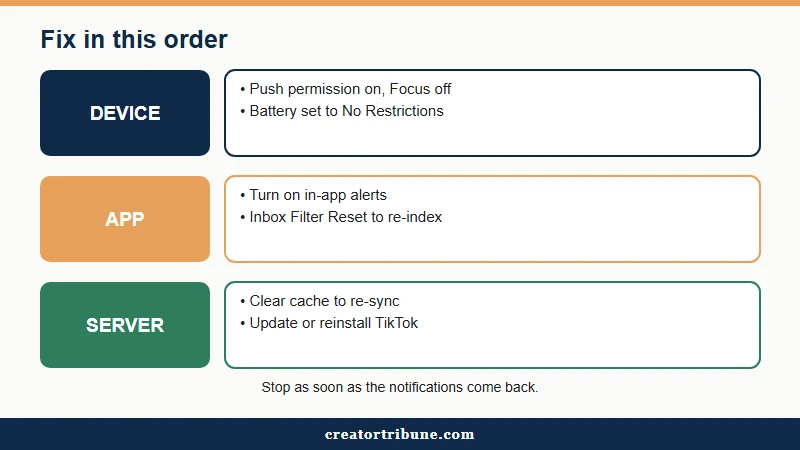
From my experience the device settings catch about half of these cases, so start there before you touch anything inside TikTok. Here is the sequence I would follow on either platform:
- Turn device push permission on for TikTok in your phone settings.
- Turn off Focus or Do Not Disturb, and on iPhone confirm Notification Summary is not batching TikTok.
- On Android, set the app battery to No Restrictions and lock it in Recent Apps.
- On iPhone, set Background App Refresh to Always.
- Enable in-app alerts under Settings and Privacy, Notifications.
- Run an Inbox Filter Reset to re-index missing activity.
- Clear the cache under Free up space to force a server re-sync.
- Update or reinstall TikTok if alerts still fail.
| Fix layer | iPhone (iOS) | Android |
|---|---|---|
| Device push | Settings, TikTok, Notifications, Allow | Settings, Apps, TikTok, Notifications, on |
| Background delivery | Background App Refresh set to Always | Battery set to No Restrictions, lock in Recents |
| Platform quirk | Turn off Notification Summary batching | Stop Doze mode sleeping the app |
| Deep reset | Offload app, keeps login and drafts | Clear cache, then reinstall if needed |
What Not to Do When Notifications Break
The wrong first move is a full factory reset; the right moves are clearing the in-app cache, reinstalling the app, and waiting out server-side glitches that clear on their own. Skip the nuclear option.
A factory reset wipes your whole phone to fix one app, which is the kind of overkill I would talk anyone out of. A reinstall restores the notification permissions an OS update may have silently revoked, and it takes two minutes. Some sync glitches are server-side and resolve themselves within a day, so give it time before you tear your settings apart.
Two things confuse creators here. Your public follower count is a cached snapshot, while your Creator Tools and Analytics tab pulls the live number, so check Analytics during a viral moment rather than refreshing your profile.
If your alerts changed right after you switched to a Business account, note that Business accounts trade the full trending-sound library for Commercial Sounds, which can cut the engagement that drives notifications in the first place. When the whole app seems frozen rather than just notifications, the guide on whether TikTok is down helps rule out an outage.
Frequently Asked Questions
Why am I not getting TikTok notifications?
The most common cause is a phone setting, not a ban. On Android, battery optimization or Doze mode silences alerts when the phone is idle; on iPhone, a Focus mode or Notification Summary blocks or batches them. Check those before anything else.
Why do likes and comments not show in my Activity?
This is usually a display or sync glitch, not lost engagement. The likes and comments are still on your video; the Activity feed failed to index them. Run an Inbox Filter Reset by toggling the category filters under All Activity to force a re-sync.
Does battery saver block TikTok notifications?
Yes. Battery Saver and Ultra Power-Saving modes limit background data, which stops TikTok from checking for new alerts until you open the app. Set TikTok to No Restrictions in its battery settings to keep notifications flowing.
Why is my TikTok follower count not updating?
Your public follower count is a cached snapshot the app shows to save bandwidth, so it can freeze. Clear the cache under Settings and Privacy, Free up space, or check your Analytics tab, which pulls the live count from TikTok’s servers.
Is it a notification glitch or a shadowban?
A glitch means engagement is still arriving but not displaying, so you fix settings. A shadowban means your reach to followers dropped after a guideline issue, so you fix content. Check whether new comments still land on your latest video to tell them apart.
Do Business accounts get fewer notifications?
Business accounts do not get fewer alerts directly, but switching one loses access to the full trending-sound library and some analytics history. Losing those viral sounds can lower engagement, which indirectly means fewer notifications coming in.
Quick Takeaways
- A notification glitch is the opposite of a shadowban: in a glitch the likes and comments still land, only the display broke, so check your latest video before blaming a ban.
- On Android, Doze mode and battery optimization are the top cause, fix it by setting TikTok to No Restrictions.
- On iPhone, turn off Notification Summary and set Background App Refresh to Always, then use an Inbox Filter Reset for the iOS 26 sync bug.
- Skip the factory reset, a cache clear or a reinstall fixes almost every case, and some server-side glitches clear on their own.