How To Fix a YouTube Video Stuck on Processing
How To Fix a YouTube Video Stuck on Processing
YouTube video stuck on processing? Diagnose by the percentage you see, apply the right fix for 0, 95, 99, or 100, and know when to wait or re-upload.
- 1What Counts As Stuck Versus Just Slow
- 2How To Diagnose Where Your Video Is Stuck
- 3Stuck on the Details Tab or in Checks Is Not a Processing Problem
- 4The Percentage Decision Tree For Every Stuck Spot
- Stuck At 0 Percent
- Stuck At 95 Percent
- Stuck At 99 Percent
- Stuck At 100 Percent But Not Live
- 5The Six Counterintuitive Fixes Most Creators Skip
- 6Patience Benchmarks By Resolution
- 7The Active Waiting Protocol
- 8When To Stop Waiting And Re-Upload
- 9Prevention Checklist For Future Uploads
- 10Frequently Asked Questions
- Why is my YouTube video stuck on processing for hours?
- Can I close my browser while a YouTube video is processing?
- Will deleting and re-uploading lose my edit history?
- Does Private or Unlisted really speed up processing?
- Why does my YouTube Short get stuck at 99 percent more than my long-form videos?
- What is the best time of day to upload to YouTube to avoid processing delays?
- Can I publish my video while the Checks step is still running?
- 11Closing Note
TL;DR: A YouTube video stuck on processing is almost always one of four problems, and each one has a different fix. Match the percentage you are stuck at to the cause, try the right intervention first, and only re-upload after a specific time threshold. This guide walks the full decision tree.
YouTube video stuck on processing is the most frantic search a creator can type at 2 AM, ten minutes before a launch goes live. The status bar froze, the analytics card says nothing, and the upload that was supposed to be live an hour ago is still sitting at 95 percent.
I have watched this happen on launches I cared about, and the worst part is that almost every guide tells you the same generic five steps. Clear your cache, check your internet, try a different browser.
None of those answers map cleanly to what is happening on YouTube’s end at the percentage you are stuck at.
Here is the part nobody writes down plainly. A video stuck at 0 percent and a video stuck at 99 percent are two completely different problems. The fix that unblocks one will do absolutely nothing for the other.
You will walk out of this guide knowing which root cause matches the percentage you see, which fix to try first, and the exact time threshold at which it makes sense to stop waiting and re-upload.
What Counts As Stuck Versus Just Slow
A YouTube video is genuinely stuck when no progress has been made for at least 30 minutes on a 1080p file, 90 minutes on a 4K file, or 4 hours on a video longer than 2 hours.
Anything under those windows is normal processing, not a failure.
YouTube runs over 1 million servers dedicated to transcoding, and the platform handles around 500 million hours of viewing every day, per Statista’s YouTube usage tracker. All that traffic means uploads sit in a queue, and the queue is not the same length at every hour.
From what I have seen, the single biggest predictor of a slow upload is the time of day you started it. Processing tends to run noticeably slower on weekdays between roughly 2 PM and 4 PM Pacific Time.
That window lines up with peak US viewing, peak Pacific work hours, and peak ad-server load. If you uploaded inside that window, give it longer before you panic.
Sometimes the stall is not your file at all. In early January 2026, YouTube confirmed a global processing incident where uploads hung on a “processing will begin shortly” message for 30 minutes or more, well past the usual 15 to 20 minute window, and its official support thread drew more than 6,000 creator reports before the fix landed. YouTube put it plainly at the time: “We’re aware that some creators across the globe are experiencing longer-than-usual video processing times,” per 9to5Google’s report on the outage.
So before you re-export anything, rule out a platform-wide event. If your dashboard shows that exact “processing will begin shortly” wording and a fresh re-upload behaves the same way, waiting is the only real fix. A per-file stall is the percentage-specific problem the rest of this guide solves, and stuck uploads stay uncommon enough that most creators only hit one now and then.
How To Diagnose Where Your Video Is Stuck
Diagnosing a stuck YouTube upload is a three-question process: how long has it been stuck, what percentage does it show, and did the upload bar ever reach 100 percent before processing started.
The combination of those three answers maps to a specific root cause every time.
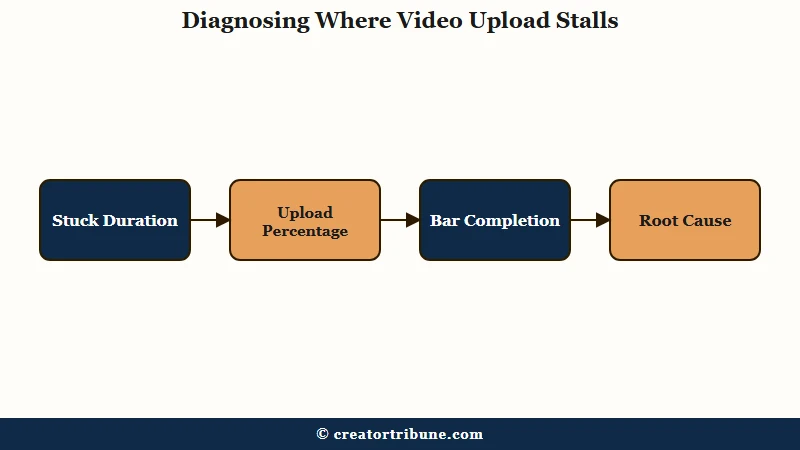
Walk through the questions in this exact order before touching anything else.
- How long has it been at the same percentage. Use the 30 / 90 / 240 minute thresholds from the previous section. If you are under those, set your Visibility, then close the tab and come back later. Tinkering with a video that is still processing normally is how you create the actual problem you are trying to solve.
- What percentage is it stuck at. The four common stall points are 0 percent, 95 percent, 99 percent, and the strange “100 percent but not live” state. Each one has its own root cause, mapped in the percentage decision tree below.
- Did the upload bar reach 100 percent before processing started. If the upload itself never finished, you have a network problem, not a YouTube problem. If the upload finished and processing then froze, you have a server-side or codec problem.
The way I see it, most creators skip step 1 and go straight to “re-upload everything.” That is the most expensive fix and almost never the right first move. A 4K video that has been stuck for 45 minutes is not stuck, it is normal.
Stuck on the Details Tab or in Checks Is Not a Processing Problem
YouTube Studio’s upload dialog runs through named steps, Details, Video elements, Checks and Visibility, plus Monetization and Ad suitability if you are in the Partner Program, and a video that looks frozen on Details or in Checks is sitting in a step that does not block processing at all. Those two are the most commonly misread stalls.
The Checks step screens your video for copyright and ad-suitability issues, and YouTube is explicit that it does not hold you up: “Checks can take some time, but they run in the background, so you can return to the process later. You can also publish your video while checks are running and fix issues later.” A spinner on Checks is not a reason to cancel and start over.
One part of that step is recent enough that most guides have not caught up. YouTube notes that during Checks, likeness detection also runs in the background, doing a one-time scan for enrolled creators’ faces that may have been altered or AI-generated. YouTube adds that these checks will not restrict your video’s visibility, but the video may still be removed later if it violates policy.
A video that seems stuck on Details is often one where the dialog got closed before you reached Visibility. YouTube’s upload documentation says that if you close the upload window before finishing your Visibility settings, the video “will be saved as private on your Content page in YouTube Studio”. Look in the Content tab for a private draft with your file already attached.
Copyright results from that step are provisional too. YouTube warns that “Copyright check results aren’t final”, and that future manual claims, copyright strikes, and edits to your video settings can still affect the video after it goes live.
The Percentage Decision Tree For Every Stuck Spot
Each common stuck percentage on YouTube corresponds to a different processing step, and matching the percentage to the right step tells you exactly which fix to try first.
Stuck at 0 is a handshake problem, stuck at 95 is a high-resolution stitch problem, stuck at 99 is a Content ID or final pass problem, and stuck at 100-but-not-live is a UI ghost.
Here is the full mapping, with the right first fix for each.
| Stuck percentage | What YouTube is doing | Most likely cause | First fix to try |
|---|---|---|---|
| 0 percent | Initial handshake with the upload server | Firewall, antivirus, browser extension, or unstable connection | Disable VPN, pause antivirus, switch to a different network |
| 95 percent | Stitching higher-resolution variants (1080p, 1440p, 4K) | Codec or bitrate mismatch on the high-res pass | Re-export at H.264 with bitrate under 50 Mbps and re-upload |
| 99 percent | Content ID scan plus final variant pass | Music or footage triggering Content ID review | Flip the video to Private or Unlisted, wait 10 minutes, flip back to Public |
| 100 percent (not live) | All processing done, UI not refreshing | Browser cache or page-state mismatch | Open the video URL in a new private window or on a phone |
This table is the entire decision tree. Print it, screenshot it, or keep it in a note on your phone.
I would walk through each branch in order rather than trying all four at once, because the wrong fix at the wrong percentage can reset progress. Flipping a video at 0 percent to Private does nothing useful. Re-exporting a video that is stuck at 100 percent is wasted hours.
Stuck At 0 Percent
A 0 percent stall almost always means the handshake between your browser and YouTube’s upload server is being interrupted. From what I have seen, this is the easiest stuck point to fix, but only if you check the right thing first.
Run through this short list:
- Turn off any VPN, even one you have run for months.
- Pause your antivirus and firewall for 5 minutes. Local security software interfering with the upload handshake is the most underrated cause of a 0 percent stall.
- Disable browser extensions, especially ad blockers and privacy extensions, in the same tab.
- Switch from Wi-Fi to ethernet if you can, or to a phone hotspot if you cannot.
- Try the upload again from a private or incognito window.
YouTube recommends a sustained upload speed of 20 Mbps for HD content. Anything below that for sustained periods will look like “stuck at 0 percent” because the chunked upload keeps dropping and restarting.
Stuck At 95 Percent
A 95 percent stall almost always means the high-resolution stitching pass is failing on a codec or bitrate mismatch. A stall anywhere from about 90 to 98 percent is the same case, so treat 94 or 98 percent here too. The first 1080p variant got built, and the 1440p or 4K variant is choking.
The fix that works most often is to re-export the source file with cleaner settings. Aim for these:
- Container: MP4
- Video codec: H.264 (VP9 is faster server-side but H.264 is the safest reupload format)
- Audio codec: AAC-LC
- Bitrate: under 50 Mbps total
- Frame rate: 30 fps for talking-head content, 60 fps only when the content genuinely needs the motion
Dropping the frame rate from 60 fps to 30 fps is the underrated lever here. A 60 fps export doubles the work YouTube has to do on every variant, and on a long video that compounds.
The way I see it, 60 fps is for gaming and high-motion sports, not for vlogs or tutorials. If you do not need it, switching to 30 fps will speed up not just this upload but every future upload.
If your source file is genuinely 4K and you do not need 4K distribution, export at 1080p instead. Smaller files process faster and break less often.
Stuck At 99 Percent
A 99 percent stall is almost always the Content ID scan choking on something the algorithm cannot quickly classify. This is the single most counterintuitive fix on the list, and it works often enough to try first.
Before: video sits at 99 percent for 90 minutes with no movement, music in the background was a popular song that triggers Content ID review.
After: flip the video to Private or Unlisted in YouTube Studio, wait 5 to 10 minutes, watch it move to 100 percent and process, then flip it back to Public.
Why this works: YouTube skips certain processing steps, including the full Content ID scan, on Private and Unlisted videos. The video finishes processing under the lighter pipeline. When you flip it back to Public, the Content ID scan runs in the background without holding up the publish.
This is the same lever creators use when they need to publish on a tight schedule even if Content ID is slow. The trade-off is that if there is a real match, you will see the claim show up a few minutes after the video goes live rather than before.
That is fine for most creators. If you depend on monetization being clean before publish, this is a separate decision to make. The Content ID dispute walkthrough covers the full picture once a match does land.
Stuck At 100 Percent But Not Live
The 100 percent ghost state is almost always a UI cache problem, not a real processing failure. The video is done, the page just has not noticed.
The fastest check is this: open the video URL directly in a new private browser window, or on your phone with you logged out. If the video plays, processing is complete and the public URL is live. Your Studio dashboard is just lying to you.
If the video does not play in a private window, then it is still processing and the percentage indicator broke. In that case, wait another 20 minutes and check again from a fresh browser session. Closing the YouTube Studio tab entirely and reopening it is the second most common fix.
The Six Counterintuitive Fixes Most Creators Skip
A handful of stuck-upload fixes work consistently but feel wrong, which is why most creators do not try them.
These are the moves that have unblocked uploads for me when the obvious steps did nothing.
These six are worth keeping in your head because the order matters and the reasons are not obvious from the YouTube interface.
- Close the upload tab entirely, once Visibility is set. Some uploads finish only after the tab closes, but closing before you have chosen Visibility parks the video as a private draft instead. The handshake between your browser and the processing pipeline can get into a state where the open tab is the bottleneck. Hard to believe until it works.
- Flip to Private or Unlisted. Skips the Content ID full-scan step. The single most useful move when stuck at 99 percent.
- Open the video URL on a separate device. Tests whether you are stuck in a UI ghost state versus an actual processing failure. Phone with you logged out is the cleanest test.
- Pause local antivirus and firewall. The most underrated fix at 0 percent. Local security software can throttle the upload handshake without producing any visible error.
- Drop frame rate from 60 fps to 30 fps before re-export. Doubles or halves the server-side work, depending on direction. Pairs well with bitrate reduction for stuck 95 percent uploads.
- Verify your YouTube account. YouTube’s upload documentation states plainly, “For optimal processing time, verify your YouTube account”, so an unverified channel may be sitting in a slower lane before you change a single export setting. Almost nobody connects phone verification to transcoding speed.
The pattern across all six is the same: each one looks like it should not matter, and each one has a real technical reason behind it. From my experience, I always try them in order before re-exporting from scratch, because re-exporting a 90-minute 4K video is a 30-minute time cost minimum.
Patience Benchmarks By Resolution
Knowing how long a YouTube upload should normally take saves you from triggering interventions that make the problem worse.
The right benchmark depends on resolution, frame rate, and length, not on a single universal threshold. YouTube lists the factors as “quality, video length, video format, and traffic”, and Studio shows an estimated processing time for SD, HD and 4K uploads, so read that estimate before trusting any table including this one.
These are the windows I use as the line between “still working” and “stuck.”
| Video spec | Normal processing time | Call it stuck after |
|---|---|---|
| 1080p, 30 fps, under 20 minutes | 5 to 20 minutes | 45 minutes |
| 1080p, 60 fps, under 20 minutes | 15 to 40 minutes | 75 minutes |
| 4K, 30 fps, under 20 minutes | 20 to 60 minutes | 90 minutes |
| 4K, 60 fps, under 20 minutes | 45 to 120 minutes | 3 hours |
| Anything over 2 hours | 2 to 6 hours | 8 hours |
| Anything over 8 hours | high risk of failure | 12 hours, then re-upload |
For videos over 2 hours, YouTube’s long-upload Help Center recommends splitting the source and reassembling it with the Trimming tool rather than uploading as a single file. Long files compound every problem in the pipeline.
YouTube Shorts have their own quirk worth knowing: they process on a different priority lane and usually finish faster than long-form, but they get stuck at 99 percent more often because the Shorts-specific compliance check is part of the final pass. Same fix applies, flip to Private then back.
The Active Waiting Protocol
While a YouTube upload is processing, certain actions are safe and others can reset progress or create new problems. Knowing the difference matters when you have a launch on the line.
Here is what I would do and what I would not do while a video is processing.
Safe to do while processing:
- Edit the title, description, tags, and thumbnail.
- Add chapter timestamps.
- Add cards and end screens.
- Schedule the publish time for later.
- Run analytics on other videos in the channel.
- Start a separate upload in a different browser tab.
Not safe to do while processing:
- Switch the video file by re-uploading over the same draft.
- Delete the draft and re-upload, when the original is still processing under the hood.
- Change the privacy setting more than twice during a stuck state.
- Run a Content ID match release from another video at the same time.
The pattern is that metadata edits are cheap and reversible, but file-level changes interrupt the underlying job. If the upload looks stuck, lean into metadata work and leave the file alone.
When To Stop Waiting And Re-Upload
The decision to re-upload should be based on time elapsed at the same percentage, not on how long the total upload has taken. If the percentage has not moved in the windows from the patience table, the upload is genuinely stuck and starting over is the right call.
Before you re-upload, do this short sequence:
- Note exactly which percentage the video stuck at, so you can apply the right export tweak this time.
- Save the existing draft as Unlisted instead of deleting it. Sometimes a re-uploaded duplicate finishes faster, and you want a fallback if the new upload also stalls.
- Re-export the source file with the cleaner settings from the 95 percent section above. Container MP4, codec H.264, AAC-LC audio, bitrate under 50 Mbps, frame rate 30 fps unless you need 60.
- Upload from a different network if you can. Wired ethernet beats Wi-Fi, and a phone hotspot beats a contested home network.
- Avoid the 2 PM to 4 PM Pacific window. Late night or early morning Pacific Time is the fastest queue.
If the second upload also stalls at the same percentage, the issue lives in the source file, not on YouTube. Re-export from the original master, not from a previous export, to avoid cascading codec issues.
Prevention Checklist For Future Uploads
Most stuck uploads can be prevented by treating export settings and upload timing as deliberate choices instead of defaults.
The checklist below is the one I would lock into your editor preset and your weekly upload schedule.
Lock these into the workflow, not just one upload:
- Export preset: MP4, H.264, AAC-LC, bitrate under 50 Mbps, 30 fps unless 60 is required by the content
- Resolution: 1080p unless you have a real reason to ship 4K
- Length: split anything over 2 hours into segments
- File size: keep individual uploads under 8 GB when possible
- Upload time: late night or early morning Pacific, never the 2 to 4 PM window
- Network: wired ethernet, or a hotspot when ethernet is not available
- Browser: a clean private window with no extensions for the upload itself
This same prevention list will also make your post-publish issues less common. The Shorts that go viral, then stop getting views the next day are often the same files that struggled in processing, and why YouTube Shorts views stop covers what happens after that point. If the processing felt off, the discovery layer often inherits the problem.
For long-form, the same prevention chain feeds into diagnosing YouTube shadowban-style reach drops and the longer-term YouTube monetization denied appeals.
The fewer surprise stalls you have at upload time, the cleaner the rest of the pipeline runs. Posting cadence matters here too, and optimal posting frequency by platform explains why two stalled uploads in a week can break the discovery pattern entirely.
Frequently Asked Questions
Why is my YouTube video stuck on processing for hours?
Your YouTube video is stuck because it hit a specific processing stage that is failing, and the stage depends on the percentage. 0 percent is a network or local software issue, 95 percent is a high-resolution stitch failure, 99 percent is a Content ID slowdown, and 100 percent is usually a UI cache lag.
Can I close my browser while a YouTube video is processing?
Yes, once the upload itself reaches 100 percent, processing continues on YouTube’s servers, and in some cases closing the tab unblocks a stalled upload. One caveat: if you close the window before you have finished choosing your Visibility settings, YouTube saves the video as private on your Content page instead of publishing it. Set Visibility first, then close the tab.
Will deleting and re-uploading lose my edit history?
Deleting and re-uploading creates a new video ID, which means a new URL, no comments, no analytics history, and any pre-publish scheduling is lost. If the upload is for a launch where the URL is already shared, wait longer or fix the export before deleting.
Does Private or Unlisted really speed up processing?
Private and Unlisted videos skip the full Content ID scan step, which is the slowest part of the final pass. Flipping a stuck video to Private, waiting 10 minutes, and flipping it back to Public is a known fix at 99 percent. The Content ID scan still runs in the background after publish.
Why does my YouTube Short get stuck at 99 percent more than my long-form videos?
YouTube Shorts run through a separate compliance check at the final pass, which is the same step that stalls long-form Content ID. Shorts get stuck at 99 percent more often because that compliance check is non-optional and adds a step that long-form does not always trigger.
What is the best time of day to upload to YouTube to avoid processing delays?
Upload between late night and early morning Pacific Time. Processing tends to run slower between roughly 2 PM and 4 PM Pacific because of peak global viewing and ad-server load. Off-peak windows clear the queue in a fraction of the time.
Can I publish my video while the Checks step is still running?
Yes. YouTube states that checks run in the background and that you can publish your video while checks are running and fix issues later. Copyright check results are not final either way, so a claim can still appear after the video is live.
Closing Note
A YouTube video stuck on processing is rarely an emergency, and it almost never requires starting from scratch. Match the percentage to the right fix, give the upload the time the resolution genuinely needs, and only re-upload after the time thresholds above. The fixes that look counterintuitive are the ones that work most often.