The Instagram Passkey Prompt You Never Set Up and How to Get In
The Instagram Passkey Prompt You Never Set Up and How to Get In
An Instagram passkey prompt can lock you out even if you never made one. See why Meta asks, who has to use one, and how to get past each screen.
- 1What Does the Instagram Passkey Prompt Mean If You Never Set One Up?
- Who Has to Use Advanced Protection on Instagram?
- Does Instagram’s Advanced Protection Require a Passkey?
- 2How Do You Get Past Instagram’s Choose a Way to Log In Screen?
- How Do You Log In to Instagram on a Computer With a Passkey?
- Why Does Instagram Say You Can’t Make This Change at the Moment?
- How Do You Get Back Into Instagram When No Login Method Works?
- 3What Is an Instagram Passkey?
- 4How Do You Create a Passkey on Instagram?
- 5How Do You Remove a Passkey From Instagram?
- 6Why Is Your Instagram Passkey Not Working?
- 7Is the Instagram Passkey Request a Scam?
- 8Quick Takeaways
TL;DR: Instagram usually asks for a passkey or an authentication app when your account already holds a passkey or is enrolled in Meta’s Advanced Protection, which can cover Meta Verified subscribers and advertisers. Your best route in is a phone where Instagram is still logged in: add a passkey or an authentication app there, then try the blocked screen again. With no logged-in phone, request a login link through Forgot password, and if that fails, request support and finish Instagram’s identity check.
On November 9, 2026, an Instagram passkey prompt stopped a Chrome login at a choice of “Passkey or authentication app” for an account whose owner had never set up either one. For a creator, every hour on a screen like that is an hour of posting and replying lost.
Later that week, a post on Reddit’s r/Instagram showed a “Choose a way to log in” screen with nothing to select. A web login got stuck on “Use face scan, fingerprint or screen lock to confirm it’s you”.
The empty screen is the hardest to read. No method is listed under its heading, and the only option offered is a link that asks “No longer have access to these?”
Meta Verified accounts are more likely to hit these screens, since Instagram says a subscription can enroll an account in Advanced Protection automatically. If you are stuck on one now, my advice is to start from any phone where Instagram is still logged in, then match your screen in the “Screen you see” table below.

What Does the Instagram Passkey Prompt Mean If You Never Set One Up?
The Instagram passkey prompt means Meta wants a stronger check than your password before it lets this login through. It usually appears when your account already holds a passkey that Meta treats as the default way in, or is enrolled in Meta’s Advanced Protection. A passkey is a login saved on your phone or computer and unlocked with your face, fingerprint or screen lock, while Advanced Protection is Meta’s stricter login mode for accounts at higher risk of phishing.
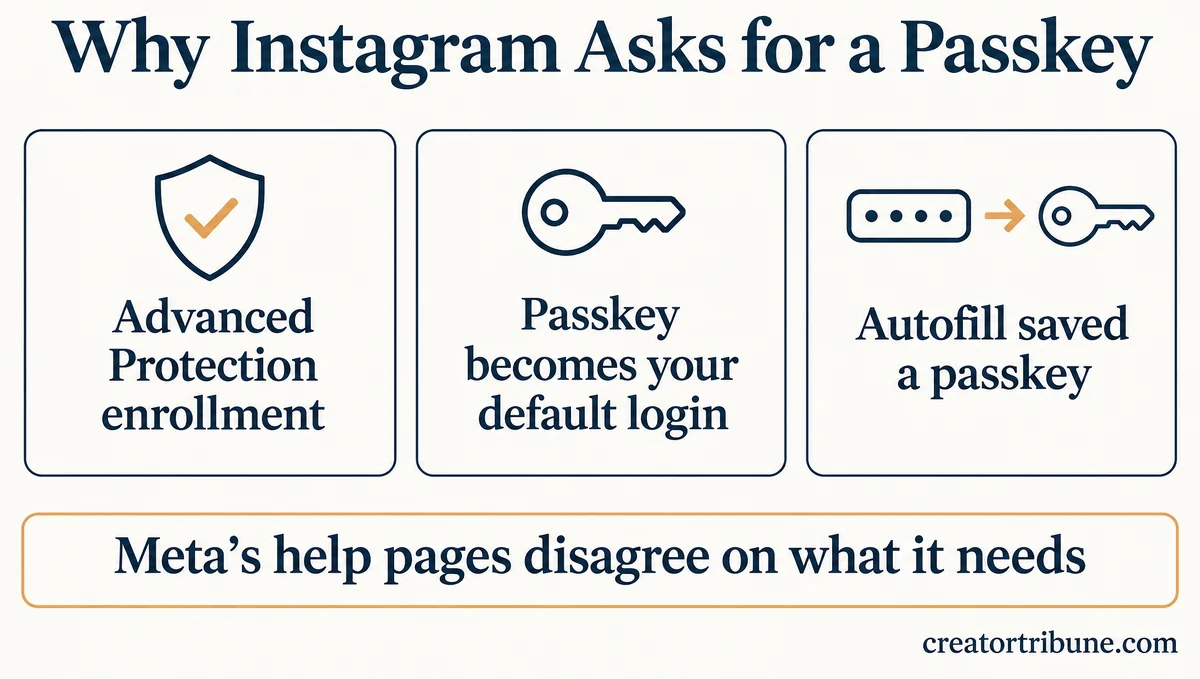
You may hold a passkey without remembering making one. Meta’s passkey help page says it “may automatically upgrade existing credentials to passkeys when you sign in using password autofill”. Meta adds that this “doesn’t change how you log in” and only stores a passkey “for faster access the next time”, so a later login can offer one you never chose to make.
Meta has been open about where this is heading. At Authenticate 2026, an industry passkey conference held in October, Meta’s product leads described a plan in which login, two-factor checks and reauthentication “default to” the passkey.
Meta also “adds friction to non-passkey methods” for people who hold a passkey, according to a recap by Corbado, a passkey software company. The same recap puts the count at more than 100 million Meta account passkeys created since January 2026.
For people who use a passkey consistently, Meta is also testing and rolling out the removal of phishable login methods at two-factor checks, login challenges and recovery. Phishable methods are the codes and passwords a fake login page can collect.
Who Has to Use Advanced Protection on Instagram?
Instagram says Advanced Protection can be required for Meta Verified subscribers, politicians, journalists and people who advertise with Meta. Meta’s passkey page widens that to accounts with ad or business tools, page admins and profiles with a large following.
Instagram’s Advanced Protection page says an account that has not enrolled “within the given grace period” will be locked until enrollment is complete. Meta’s passkey page is blunter: “If you’re required to create a passkey and don’t, you will be locked out of your account until you create one.”
For ad accounts the window is short. Since August 2026, Meta has been rolling out required passkey creation for people tied to ad business portfolios, with a grace period of 14 to 30 days, per Corbado’s recap.
If you pay for Meta Verified or run ads, set up an authentication app and a passkey from your everyday phone before the grace period ends.
Does Instagram’s Advanced Protection Require a Passkey?
Meta’s help pages disagree: one requires a passkey, one accepts a passkey or two-factor authentication, and Instagram’s own page lists no passkey at all. Here is what each page said on November 13, 2026.
| Help page | What it says Advanced Protection needs | Passkey mentioned? |
|---|---|---|
| Meta’s passkey page | “you’re required to create a passkey”, and you stay locked out until you do | Yes, as a requirement |
| Facebook’s Advanced Protection page | “either turn on two-factor authentication or create a passkey” | Yes, as one of two options |
| Instagram’s Advanced Protection page | “one of 3 security methods”: an authentication app, text message or WhatsApp | No |
That Chrome report quotes a prompt asking for a “Passkey or authentication app”, which is closer to Facebook’s version of the rule than Instagram’s. Setting up both is the safest fix I know of, because a passkey plus an authentication app satisfies every version of the requirement.
How Do You Get Past Instagram’s Choose a Way to Log In Screen?
Your best route past it is a phone where Instagram is still logged in: add a passkey or an authentication app there, then try the blocked screen again. Without a logged-in phone, Instagram’s recovery steps at the end of this section are the way back.
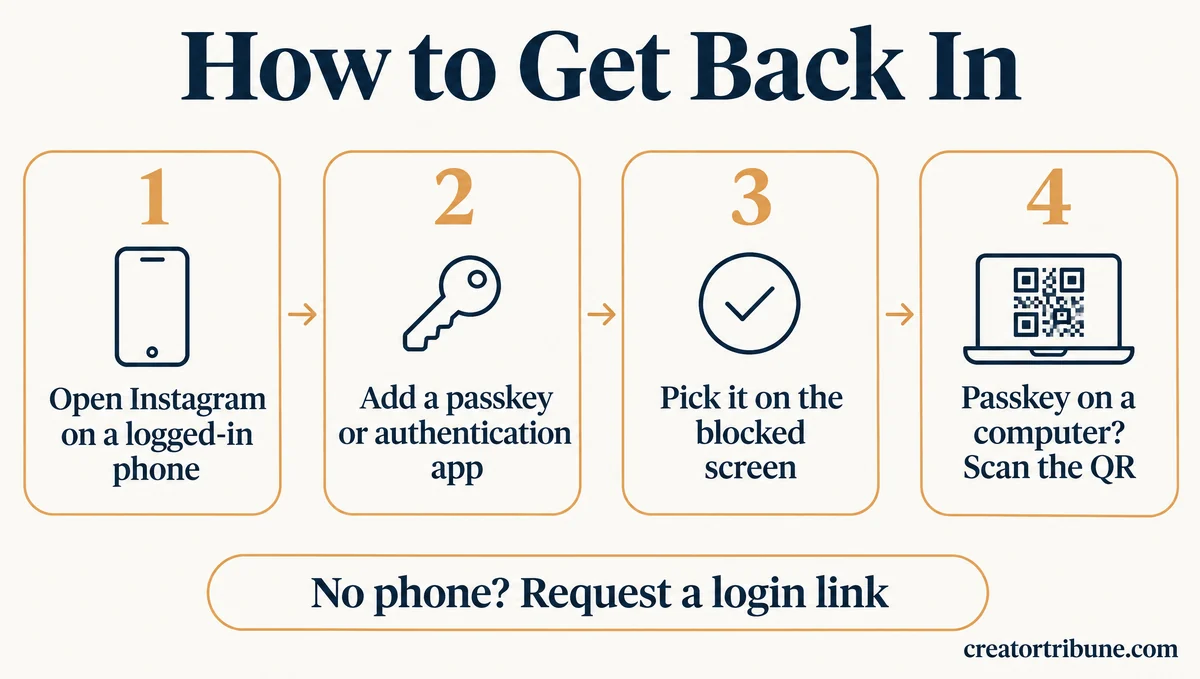
The wording on your screen tells you which fix applies, because each version asks for something different.
| Screen you see | What it shows | What to do |
|---|---|---|
| “Choose a way to log in” | No method listed, a faded Continue button, and one link: “No longer have access to these?” | Add a passkey or an authentication app from a logged-in phone, then reopen the login. With no phone, tap the link, the screen’s only option |
| “Choose a way to confirm it’s you” | Two options: a passkey or an authentication app | Create either one on a logged-in phone, then pick it here |
| “Use face scan, fingerprint or screen lock to confirm it’s you” | A passkey check on a computer that keeps loading | Cancel it, then sign in with your phone and a QR code, Bluetooth on for both devices |
| “As part of Meta Verified you need Advanced Protection” | An enrollment step for Meta Verified accounts | Start enrollment on your everyday phone |
| “You can’t make this change at the moment” | A temporary block on security settings | Stop retrying for several days, then try again |
| “Log in on another device to continue” | A different check that wants an approval | Follow the another-device fix |
Instagram’s login and recovery help pages do not say where “No longer have access to these?” leads. If tapping it stalls, use the documented recovery steps further down.
Do not log out of that phone while you work through this. Instagram’s settings help page says security settings stay reachable from a device or browser you regularly use, so that session is your easiest way through.
Here is the order that makes sense to me on a phone that is still logged in:
- Create a passkey under Meta Account Settings, then Login and security, then Passkey, or add an authentication app under Two-factor authentication in the same menu.
- If you have no authentication app yet, install one such as Google Authenticator or Duo Mobile, both named in Instagram’s help pages, and link it through Instagram’s prompts.
- Go back to the blocked screen and choose the method you just added.
- If you added a passkey and the blocked screen is on a computer, choose the passkey option and scan the QR code with that phone.
Before: Chrome stops at “Choose a way to confirm it’s you. Passkey or authentication app”, and the account has neither.
After: Step 1 on the iPhone where Instagram is still open adds a passkey. Back in Chrome, the passkey option can show a QR code for the iPhone to scan with Bluetooth on, the route Meta documents for a computer with no passkey.
How Do You Log In to Instagram on a Computer With a Passkey?
On a computer, choose the passkey option and scan the QR code with the phone that holds your passkey, Bluetooth on for both. Meta’s passkey page says this works “even without a passkey on that device”.
A synced passkey can skip the QR step. Meta says synced passkeys work on any device signed in to the same iCloud Keychain or Google Password Manager account, while a device-bound passkey never leaves the device that created it.
Use Chrome, Safari or Edge, the three browsers Meta lists for passkeys, in a normal window rather than Incognito. Then match the browser to where your passkey syncs: Safari on a Mac that shares your iCloud Keychain, or Chrome signed in to the Google account whose Password Manager holds it.
The “Use face scan, fingerprint or screen lock to confirm it’s you” screen says “Your saved passkey securely and quickly confirms it’s you”, so it is waiting for a saved passkey. If it keeps loading, cancel it and start again with the phone and QR code option, which needs no passkey on the computer.
Why Does Instagram Say You Can’t Make This Change at the Moment?
“You can’t make this change at the moment” is Instagram pausing security changes on a device it does not recognize, for a few days. That pause can stall Advanced Protection enrollment.
Instagram’s settings help page says a login from a device or browser it does not recognize limits some security settings “for a few days”. It adds that the changes still work from a device or browser you regularly use.
A post on r/Instagram shows the full error, which says “we noticed you are using a device you don’t usually use”. It appeared after “As part of Meta Verified you need Advanced Protection” and Get Started, on the poster’s usual iPhone, and waiting 24 to 48 hours did not clear it.
What I would do here is stop retrying for several days, since the block outlasted two days on that usual iPhone. If the subscription started it, Instagram’s Advanced Protection page says canceling Meta Verified in the App Store or Google Play unenrolls the account, for subscriptions bought on mobile.
How Do You Get Back Into Instagram When No Login Method Works?
With no working method, request a login link through Forgot password, then request support from a mobile device if that fails. The steps sit on Instagram’s account recovery page, which covers login trouble as well as hacks.
- On the login screen, tap Forgot password, enter your username, email or phone number, then tap Send login link and complete the captcha.
- Open the link from your email or text message and follow the steps.
- If the link does not get you in, request support from a mobile device, using an email address only you can access.
- Complete the identity check Instagram sends you.
That check can ask for a video selfie, and these selfie check fixes cover the usual reasons it stalls.
What Is an Instagram Passkey?
An Instagram passkey is a Meta account login stored on your device and unlocked with your fingerprint, face or screen lock. Meta says passkeys “can’t be stolen, shared, guessed, or reused”, and a fingerprint or face scan stays on your device and is never shared with Meta.
One Meta passkey covers Facebook, Messenger, Instagram and Meta AI. WhatsApp keeps its own, and Meta says the two cannot be swapped.
Facebook started rolling out passkeys on iOS and Android in June 2025, as TechCrunch reported. The US Cybersecurity and Infrastructure Security Agency’s phishing-resistant MFA guidance calls FIDO/WebAuthn, the standard passkeys use, “the only widely available phishing-resistant authentication”.
That is why I rate the passkey above an authentication app: a fake login page has nothing it can take from it.
How Do You Create a Passkey on Instagram?
You create an Instagram passkey under Meta Account Settings, Login and security, Passkey, then Create passkey. Meta may also offer to create one while you sign in. Meta Account Settings belongs to the Meta account menu, which Meta is rolling out in place of Accounts Center, so some accounts still show the older label.
- Open Instagram, go to your profile and tap the menu.
- Tap Meta Account Settings. If you see Accounts Center instead, tap that.
- Tap Login and security, or Password and security in the older menu.
- Tap Passkey, then Create passkey.
- Confirm with your face, fingerprint or screen lock.
Meta allows up to 5 passkeys per Meta account, and each one lists its email or phone number, where it is stored and the date it was made. Two passkeys on two devices is the setup I recommend, so losing one device still leaves you a way in.
Do not create a passkey on a shared or public device, which Meta’s page warns against. If the Passkey option is missing, the feature may not have reached your account yet, since Meta says its passkeys “may not be available for everyone at this time”.
| Device | What Meta requires for a passkey |
|---|---|
| iPhone | iPhone 8 or later on iOS 16 or later, with iCloud and two-factor authentication turned on |
| Android | Android 9 or later with a device lock set |
| Computer | Windows 10 or later, or macOS Ventura or later |
| Browser | Chrome 109 or later, Safari 16 or later, or Edge 109 or later |
Requirements as listed on Meta’s passkey help page, checked November 13, 2026.
How Do You Remove a Passkey From Instagram?
You remove an Instagram passkey under Meta Account Settings, Login and security, Passkey, by tapping Remove next to it. Meta may ask for your password or a one-time code, removal is permanent, and an Advanced Protection account can lose access until a new passkey exists.
Removing the last passkey before a replacement works is the most expensive mistake on this page, in my view. Meta also says removing a passkey from your account may not delete it from your phone or password manager, so check your device settings as well.
To stop passkeys appearing on their own, turn off Allow Automatic Passkey Upgrades in your device’s password settings, the switch Meta names for this.
Advanced Protection itself is harder to drop. Facebook’s help page says accounts required to have it cannot leave it, and Instagram’s only documented exit is the Meta Verified cancellation described under “You can’t make this change at the moment”.
Why Is Your Instagram Passkey Not Working?
When an Instagram passkey fails, start with Meta’s own checklist: screen lock, Bluetooth, iCloud Keychain, browser version and Incognito. Meta’s page admits that “Passkeys aren’t perfect” and that availability “can vary by app, device, and browser”.
I go through the list cheapest check first:
- Close any Incognito or private window, since Meta warns that passkeys may not work there.
- Turn on a screen lock, since the passkey uses it.
- Turn on Bluetooth on both devices when you sign in on a computer with your phone.
- On Apple devices, turn on iCloud Keychain.
- Open instagram.com in an up-to-date Chrome, Safari or Edge directly rather than inside another app’s browser, since those three are the browsers Meta lists.
- Update Instagram to the latest version, the first item on Meta’s troubleshooting list.
If every item checks out and the passkey still fails, use the authentication app for that login and come back to the passkey later.
Is the Instagram Passkey Request a Scam?
A real Instagram passkey request comes from your phone’s or browser’s own passkey prompt and asks for your face, fingerprint or screen lock. Genuine security emails also come from known Meta and Instagram addresses.
Facebook’s help page says genuine Advanced Protection emails come from [email protected], and that Facebook “will never ask you for your password in an email or Facebook message.” Instagram’s account recovery page names [email protected] as the sender of its email-change notices.
I check the sender against those two addresses before I act on any Advanced Protection or email-change notice. Anyone offering to unlock your account through a DM or a comment is not from Meta, and none of Instagram’s recovery steps involve messaging a stranger.
A passkey stored in your own iCloud Keychain or Google Password Manager may be Meta’s automatic upgrade. If Meta Account Settings lists one stored somewhere you do not recognize, treat the account as compromised and work through the hacked account guide.
Quick Takeaways
- Meta can require Advanced Protection for Meta Verified accounts, advertisers, politicians and journalists, and has described making the passkey the default login for accounts that hold one.
- Your best route past “Choose a way to log in” is a phone where Instagram is still logged in, where you add a passkey or an authentication app and then try the screen again. With no logged-in phone, request a login link through Forgot password, then request support from a mobile device and finish the identity check.
- Meta’s own help pages disagree on whether Advanced Protection needs a passkey, so setting up both a passkey and an authentication app covers every version.
- Instagram says the “You can’t make this change at the moment” block lasts a few days, but it has outlasted two days on an everyday phone, so stop retrying for several days.
- Keep two passkeys and an authentication app on the account, so a lost device still leaves you a way in. Set them up while you can still log in, since Meta is testing the removal of code and password fallbacks for people who use a passkey consistently.