How to Duet on TikTok and Fix a Missing or Greyed Out Button
How to Duet on TikTok and Fix a Missing or Greyed Out Button
The Duet button hides for specific reasons, and a viral Duet earns nothing on its own. Here is how to Duet on TikTok and fix a missing button.
- 1How to Duet on TikTok Step by Step
- 2Why Is the Duet Button Missing or Greyed Out
- 3How Do You Let People Duet Your Videos
- 4Can You Duet With a Photo or Pre-Recorded Video
- 5Duet vs Stitch and Why Neither One Pays You
- 6How to Fix Duet Not Working After an Update
- 7Frequently Asked Questions
- Why is there no Duet button on a video?
- Does the other person know if I Duet them?
- Can I Duet without using the original sound?
- Do Duets make money on TikTok?
- What is the difference between a Duet and a Stitch?
- 8Quick Takeaways
The Short Answer: To Duet on TikTok, tap the Share arrow on a video, choose Duet, pick a layout, record, and post. If the Duet button is missing, the creator has disabled reuse, their account is private, or they are live. One thing worth knowing first: a Duet earns you nothing directly under the 2026 Creator Rewards Program.
Before you learn how to Duet on TikTok, here is the part no basic guide mentions: a Duet can pull a million views and pay you nothing directly. Under the 2026 Creator Rewards Program, Duets and Stitches count as unoriginal content, so they are shut out of payouts no matter how far they travel.
That does not make Duets useless. Used well, they are one of the fastest ways to borrow a bigger creator’s audience and pull those viewers back toward the videos that do pay. The trick is knowing how the feature works and why it so often refuses to.
This guide covers the exact steps in the current app, every reason the Duet button goes missing, how to control who can Duet you, and how to fix the feature when it breaks after an update.
I have kept the creator angle up front, because that is where the real money question sits.
How to Duet on TikTok Step by Step
To Duet on TikTok, open a public video, tap the Share arrow, select Duet, choose a layout, record your half, and post.
The whole flow takes under a minute once you know where the button lives.
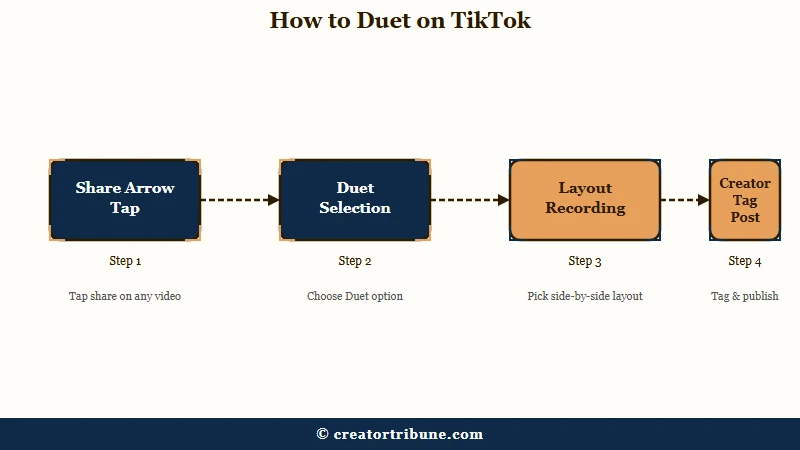
Here is the sequence I walk new creators through:
- Find a public video and tap the Share arrow on the right side.
- Tap Duet in the row of options.
- Pick a layout: Left and Right (classic side by side), React (your camera in a small window), Top and Bottom, or Green Screen (the original plays behind you).
- Tap the red Record button, film your half, then tap the check mark.
- Tap Next, write a caption, tag the original creator with an @ mention, and tap Post.
What is a Duet: A TikTok format that plays your new video alongside the full original clip at the same time, in a split-screen or picture-in-picture layout.
The React layout is the one I reach for most. It keeps your face prominent while the original plays small, which is the format viewers associate with commentary and hot takes.
Tagging the creator matters more than people think, since it is the only reliable way they get notified you Dueted them, and a share from them can multiply your reach.
Why Is the Duet Button Missing or Greyed Out
The Duet button is almost always missing because the original creator restricted reuse, their account is private, or they are live streaming, not because your app is broken.
Chasing a technical fix when the cause is a permission setting wastes an afternoon.
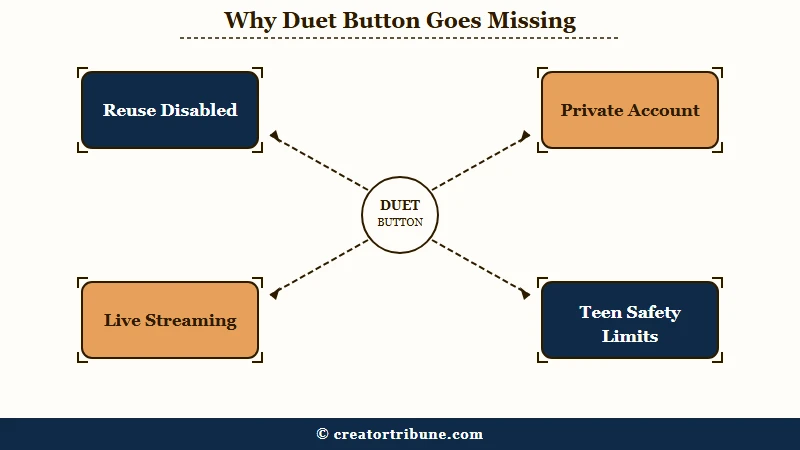
The single most common reason is permission. If a creator set their content to “Friends” or “No One,” or their whole account is private, the Duet option never loads for you. There is no workaround for that, and there should not be, since it is their call.
A few other blockers trip people up, so here is the quick diagnostic I use:
| What you see | Likely cause | What to do |
|---|---|---|
| No Duet option on a public video | Creator disabled reuse or set it to Friends only | Nothing to fix, respect their setting or ask them to enable it |
| Duet greyed out on a live video | The creator is currently live streaming | Wait until the live ends and the replay posts |
| Duet missing on every video | Your account is under 16 or has teen safety limits | Adult accounts unlock the feature, teen defaults restrict it |
| Duet vanished after an update | App glitch or stale cache | Update the app, clear the cache, restart the phone |
Teen accounts are the quiet one here. If you are under 18, TikTok’s privacy and safety defaults for minors heavily restrict Duets, and under-16 accounts often cannot be Dueted at all because they cannot be fully public. That is by design, not a bug you can toggle away.
How Do You Let People Duet Your Videos
To let people Duet you, go to Settings and privacy, then Privacy, then Reuse of content, and set Allow reuse of content to Everyone.
The setting was renamed, which is why the old “Duet” toggle everyone remembers is gone.
Here is where TikTok trips up returning creators. The dedicated Duet switch was folded into a broader control, so the path now runs Profile, then the Menu icon, then Settings and privacy, then Privacy, then Reuse of content, then Allow reuse of content from. Pick Everyone or Friends. You can also set it per video by tapping More options before posting.
There is a catch worth flagging before you touch that switch. Turning off “Allow reuse of content” does not only block Duets, it also stops people from Stitching your video, making stickers from it, or adding it to their Story. One toggle governs your entire collaborative footprint, so switching it off is a blanket move, not a surgical one.
Heads up on Remove all posts: If you try to wipe unwanted Duets of your video using the “Remove all posts” option, TikTok deletes your original source video along with every Duet and Stitch of it. Download your original first.
That deletion behavior surprises almost everyone. Creators who get Dueted by trolls reach for the mass-remove option assuming it clears the copies, and it takes their viral original down with them. I always tell people to save the source file to their camera roll before they go anywhere near that button.
Can You Duet With a Photo or Pre-Recorded Video
You can Duet with a photo using the green screen effect, but Duetting with a pre-recorded video from your gallery is not natively supported by most accounts.
This is the one point where the guides openly disagree, so I will give you both readings.
To Duet with a photo, start the Duet, tap Effects, search for the “looping green screen” effect, tap the plus button, and pull an image from your camera roll to sit as your side of the split. It is a clean way to react to a video with a meme, a screenshot, or a product shot.
Pre-recorded video is murkier. Most sources, including several step-by-step guides, say flatly that you cannot upload a saved clip from your gallery to Duet, and that you need a third-party editor like InShot to fake the side-by-side.
At least one guide claims gallery uploads for Duets are supported, so if your app offers it, count yourself lucky, and if it does not, the editor workaround still gets you there.
Before: You film a live reaction to a viral clip, fumble the timing, and post something flat.
After: You edit your half first in CapCut, line it up beat for beat, then bring it into a side-by-side using a third-party merge tool so the timing lands exactly where you want it.
Duet vs Stitch and Why Neither One Pays You
A Duet plays your video beside the full original at the same time, while a Stitch clips up to five seconds of someone else’s video onto the front of yours, and both are locked out of Creator Rewards.
Knowing the split changes how you should script each one.
The mechanical difference is simple once you see it side by side.
| Feature | Duet | Stitch |
|---|---|---|
| How it plays | Side by side, at the same time | Their clip first, then yours |
| Clip length used | The full original video | Up to five seconds only |
| Best for | Reactions, harmonies, side-by-side demos | A quick hook you answer or flip |
| Earns Creator Rewards | No, counts as unoriginal | No, counts as unoriginal |
The way I see it, the monetization rule is the most important line in that table. Since Duets and Stitches earn nothing from the Creator Rewards Program, treat them as reach machines, not paydays.
A strong Duet borrows a big account’s audience, and your job is to convert that borrowed attention into follows and into views on your own original, over-one-minute videos that do qualify for payouts.
That funnel logic is the whole game if you want TikTok to pay you. A rejected Creator Rewards application usually traces back to leaning on exactly this kind of unoriginal content, and building an owned audience is the durable fix.
Our Creator Money Page lays out how to turn borrowed reach into an audience you control, which pairs with the habit of converting viewers into subscribers off-platform.
How to Fix Duet Not Working After an Update
If the Duet feature broke after an app update, clear the cache, confirm microphone permission, and reinstall as a last resort.
App-side glitches are the second most common cause after permissions, and they clear quickly.
When a Duet genuinely will not record or post on a video you know allows it, here is the order I work through:
- Update TikTok to the latest version in your app store, since a stale build is the usual culprit after a rollout.
- Clear the cache. On Android, open Settings, then Storage, then TikTok, then Clear cache. On iOS, offload the app under iPhone Storage.
- Check that TikTok has microphone permission in your phone settings, which fixes the silent “no audio in Duet” bug.
- Restart your phone to flush a hung session, then try the Duet again.
If none of that works, a clean reinstall almost always does, though you will want to be logged in with your email or phone so you can get back in.
One more sound note. A Duet pulls the original audio automatically, and while you can layer a voiceover with the microphone tool, you cannot swap in a different song from the music library.
If the original used a track that later got muted for copyright, that muting can follow the Duet, which is worth checking before you blame the app.
Reaching a huge slice of TikTok’s audience is the upside, given the platform sits above 1.5 billion monthly users per Statista, and a working Duet is how you tap it. For related creator mechanics, it helps to know how to add your own sound and why the button disappears when a creator is going live on TikTok.
Frequently Asked Questions
Why is there no Duet button on a video?
The creator disabled reuse of their content, set it to Friends only, made their account private, or is live streaming. If the button is missing on every video, your own account may have teen safety restrictions or need an app update.
Does the other person know if I Duet them?
Not reliably unless you tag them. Creating the Duet alone may not notify the original creator, so type @ and their username in your caption to guarantee they get pinged and can reshare it.
Can I Duet without using the original sound?
No, a Duet always pulls the original audio and you cannot replace it with another song. You can layer your own voiceover using the microphone tool and adjust the volume balance between the two tracks.
Do Duets make money on TikTok?
Not directly. Duets and Stitches are classed as unoriginal content and are excluded from the Creator Rewards Program, so use them to grow reach and funnel viewers to your original videos that do qualify.
What is the difference between a Duet and a Stitch?
A Duet plays your video beside the full original at the same time. A Stitch clips up to five seconds of someone else’s video and places it at the start of your own new recording.
Quick Takeaways
- To Duet, tap the Share arrow, choose Duet, pick a layout, record, and tag the original creator in your caption.
- A missing Duet button almost always means the creator disabled reuse, went private, or is live, not that your app is broken.
- The permission is now under Settings and privacy, then Privacy, then Reuse of content, and turning it off also blocks Stitches, stickers, and Story adds.
- Never use Remove all posts to clear unwanted Duets, since it deletes your original video too, so back up the source first.
- Duets earn nothing under Creator Rewards, so treat them as reach machines that funnel viewers to your monetizable originals.