Streamladder Review and the AI Add-On That Inflates the Price
Streamladder Review and the AI Add-On That Inflates the Price
Streamladder turns long streams into vertical clips, and the free plan has no watermark. Here is the real cost once you add the AI auto-clipper.
- 1What Streamladder Is and What This Review Found
- 2How Much Does Streamladder Cost in 2026
- 3ClipGPT and the Real Cost of the AI Auto-Clipper
- 4The Free Plan Has No Watermark and That Is Rare
- 5Streamladder vs Opus Clip and Submagic
- 6Streamladder Pros and Cons
- 7Verdict and Who Should Skip Streamladder
- 8Frequently Asked Questions
- Is Streamladder free to use?
- Does the Streamladder free plan add a watermark?
- Is the AI auto-clipper included in the paid plans?
- How does Streamladder compare to Opus Clip?
- How do I cancel my Streamladder subscription?
- 9Quick Takeaways
Bottom Line: Streamladder is the best browser tool for turning Twitch and YouTube streams into vertical TikTok, Reels, and Shorts clips, and its free plan is unusually generous with no watermark. The catch this review keeps coming back to is that the AI auto-clipper everyone wants, ClipGPT, is a paid add-on on top of the Gold plan, so heavy streamers can end up near $510 a year. Manual clippers and casual creators get real value, but if you want the AI to find your highlights, budget carefully.
Most Streamladder reviews stop at the headline price of about $15 a month for Gold and call it affordable. This Streamladder review does not, because the feature most people sign up for, the AI that scans your stream and finds the best clips, is not in that plan at all.
What you get for the base price is a fast, genuinely pleasant manual editor that crops your horizontal stream into a vertical clip with your facecam and gameplay both visible. What you do not get, until you pay more, is the AI doing the finding for you. That gap is the whole story of whether this tool is worth it for you.
I will walk through exactly what each tier includes, what the surprisingly good free plan can do, the real cost once you add the AI, and how it stacks up against Opus Clip and Submagic. You will come away knowing which kind of creator should pay and which should stay on the free plan.
What Streamladder Is and What This Review Found
Streamladder is a browser-based tool that converts long Twitch, Kick, and YouTube streams into vertical short-form clips for TikTok, Reels, and Shorts.
Its core editor is excellent, but the AI highlight-finder is sold separately.
What is Streamladder: A web app for streamers that reframes horizontal stream footage into the 9:16 vertical format, adds captions and layouts, and can schedule the result straight to social platforms.
The part I came away genuinely impressed by is the manual Clip Editor. You paste a Twitch or YouTube clip link, drop crop boxes over your gameplay and your facecam, and it stacks them into a clean vertical layout in a couple of minutes. The reframing tool it calls Adaptive Autoframing tracks both the face and the action, which matters more than it sounds.
Here is the distinction the marketing blurs, and the one thing I want you to take from this review. Without the AI add-on, Streamladder does not watch your six-hour VOD and surface the funny moments for you.
You still have to know what you want to clip, grab the URL yourself, and place the boxes. The AI that does the hunting is a separate purchase, which I will get to.
How Much Does Streamladder Cost in 2026
Streamladder costs nothing on the free plan, about $8 to $9 a month for Silver, and about $15 to $16 a month for Gold, with a 20 percent discount if you pay annually.
The AI clipper is extra on top of that.
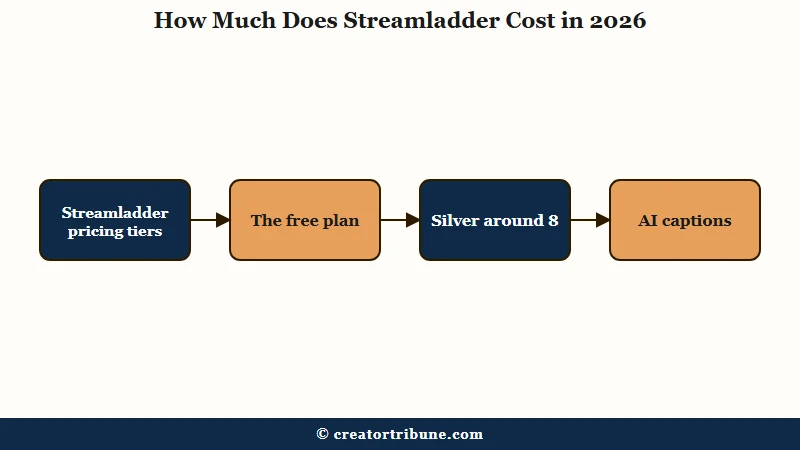
What I would tell anyone pricing this out is to ignore the sticker price and count your weekly stream hours first, because that is what sets your real bill. Here is how the tiers break down.
| Plan | Price (monthly) | What you get |
|---|---|---|
| Free | $0 | Unlimited manual clips, no watermark, 720p at 30fps, 200MB upload cap |
| Silver | about $8 to $9 | 1080p at 60fps, AI captions, custom stickers, direct posting |
| Gold | about $15 to $16 | Fast and background rendering, bulk export, zoom effects, scheduler |
| ClipGPT add-on | $9 to $30 extra | AI scans your VOD, finds highlights, gives a virality score |
The annual plans knock about 20 percent off Silver and Gold. The line that surprises people is the last one.
A Gold subscriber who streams 8 to 15 hours a week and wants the AI clipping pays roughly $9 to $30 more per month for ClipGPT, and one streamer did the math at around $510 a year all in. For a deeper look at how this compares to other tools, the Opus Clip review breaks down a different but equally sneaky credit system.
ClipGPT and the Real Cost of the AI Auto-Clipper
ClipGPT is Streamladder’s AI that scans a full stream VOD, finds the best moments, and scores each clip for viral potential, and it is a paid add-on, not part of Gold.
This is the single most misunderstood thing about the platform.
What is ClipGPT: Streamladder’s AI tool that analyzes an entire Twitch, Kick, or YouTube VOD, auto-crops the highlights to vertical, captions them, and assigns each a virality score from 0 to 100.
The way I see it, ClipGPT is the feature that justifies the whole platform for a busy streamer, and also the one that makes the pricing feel like a bait and switch. The base plans market the tool as an “AI Video Companion,” so people reasonably assume the AI is included. It is not, and the add-on scales with how much you stream.
That structure has produced real anger. On the streaming forums, one creator flatly called paying around $40 a month for the full stack “an insane ask,” noting you would need roughly 60 subscribers just to break even.
Another paid a year of Gold upfront, got stuck on the free version, and reported that nothing but the support bot ever replied. I would not sign up for an annual plan until you have tested that the billing and provisioning work for you.
Here is the difference the add-on buys you:
Before (manual, Gold plan only): You scrub your own six-hour VOD on Twitch, spot a funny moment, copy the clip URL, paste it into Streamladder, and place the crop boxes yourself. Fast per clip, but you do all the hunting.
After (with ClipGPT): You point the AI at the whole VOD, it returns a stack of pre-cropped, captioned highlights with virality scores, and you pick the winners. You pay for the hunting to be automated.
The Free Plan Has No Watermark and That Is Rare
Streamladder’s free plan exports clips with no watermark, which most competitors do not offer.
For a creator on a zero-dollar budget, that alone makes it the default starting point.
This genuinely surprised me, because the standard playbook for free video tools is to stamp a logo on your export and force the upgrade. Opus Clip and Crossclip both watermark their free clips, and Crossclip also limits you to three clips and adds a forced outro. Streamladder lets you make unlimited manual clips, watermark-free, for nothing.
The honest limit is resolution. Free exports cap at 720p and 30fps with a 200MB upload, and you lose AI captions and effects.
For a fast-paced shooter where crisp 1080p60 matters, that ceiling pushes you to Silver. For talking, reaction, or Just Chatting content, 720p is often fine, and repurposing long videos into shorts pairs well with this free-tier workflow.
Streamladder vs Opus Clip and Submagic
Streamladder wins for gaming and stream content, Opus Clip wins for talking-head and podcast clips, and Submagic wins for caption styling.
Pick the tool that matches what you really film.
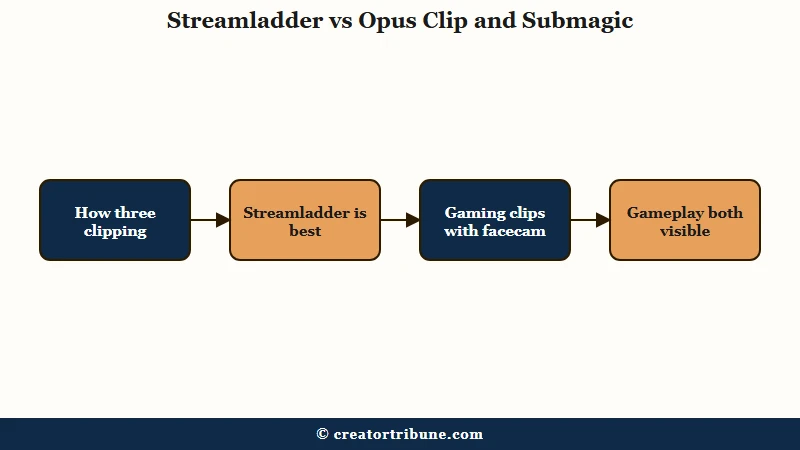
The clearest edge I found is for gamers. Opus Clip was trained on podcasts and dialogue, so its auto-framing chases the speaker’s face and often crops the gameplay clean out of frame. Streamladder’s Adaptive Autoframing keeps the facecam and the action on screen together, which is the whole point of a gaming clip.
| Tool | Best at | Free plan |
|---|---|---|
| Streamladder | Stream and gaming clips, facecam plus gameplay | No watermark, unlimited manual clips |
| Opus Clip | Podcasts and talking-head, AI VOD scanning | Watermarked free exports |
| Submagic | Caption styling and B-roll polish | Limited trial, then paid |
If captions are your priority over clip-finding, I would point you to the Submagic review and the head-to-head Opus Clip vs Submagic breakdown, since both go deeper on caption accuracy than Streamladder does.
Streamladder Pros and Cons
Streamladder’s strengths are its free tier and gaming-first reframing, while its weaknesses are the AI add-on pricing and a thin support system.
Here is the honest split after weighing the reviews and user reports.
What works in its favor:
- The free plan exports with no watermark and no clip limit, which is rare in this category.
- Adaptive Autoframing keeps facecam and gameplay both visible, beating Opus Clip for gaming.
- The manual Clip Editor is fast and genuinely beginner-friendly, with no software to install.
- It is versatile beyond gaming, handling Just Chatting and reaction content well.
- Direct scheduling to TikTok, Shorts, and Reels on Gold saves a real step.
What holds it back:
- ClipGPT, the AI that finds your clips, is a separate add-on that can push the real cost over $500 a year.
- Customer support leans on a bot named Kai, with users reporting slow or absent human replies.
- There are billing complaints, including charges continuing after a cancellation.
- The free tier caps at 720p and 30fps, which is soft for fast-motion gameplay.
- As a browser tool, render speed depends on your internet, not your computer.
Verdict and Who Should Skip Streamladder
Streamladder is worth it for active streamers who repurpose VODs constantly, while occasional clippers should stay on the free plan and heavy AI users should price ClipGPT carefully.
It earns its place, with eyes open about the add-on.
For a streamer pumping out clips every week, the integrated crop, caption, and schedule workflow saves enough time that Gold pays for itself. The people who regret it are the ones who expected the AI to be included and got surprised by the ClipGPT bill. Test the 7-day trial, which unlocks everything, before you commit to a year.
Skip Streamladder if you need cinematic edits with custom audio mixing, in which case a full editor like a desktop suite serves you better, or if your uploads are slow, since pushing multi-hour VODs to a browser is bandwidth-heavy.
If you mainly make talking-head content, Opus Clip’s built-in AI clip-finding may suit you more than Streamladder’s manual-first approach, and short-form clips are where streamer growth lives now, with TikTok past 1.5 billion monthly users according to Statista.
Frequently Asked Questions
Is Streamladder free to use?
Yes. Streamladder has a free plan with no credit card required that lets you make unlimited manual clips with no watermark, exported at 720p and 30fps. It also offers a 7-day trial that unlocks every premium feature including the AI.
Does the Streamladder free plan add a watermark?
No. The free plan does not watermark your clips as long as you stick to basic editing. Watermarks only appear if you try to use a premium feature you have not paid for, which is unusually generous for this category.
Is the AI auto-clipper included in the paid plans?
No. ClipGPT, the AI that scans your VOD and finds highlights, is a separate add-on costing roughly $9 to $30 a month depending on your weekly stream hours. The standard Silver and Gold plans do not include it.
How does Streamladder compare to Opus Clip?
Streamladder is better for gaming because its Adaptive Autoframing keeps both your facecam and gameplay on screen, while Opus Clip crops to the speaker’s face and is built for podcasts. Opus Clip includes AI VOD scanning in its plans, where Streamladder charges extra.
How do I cancel my Streamladder subscription?
Log in, click the three dots in the bottom-left corner, open Account Settings, go to the Plans and Billing tab, and click Cancel Subscription. Your benefits stay active until the end of the billing cycle, though some users report billing issues, so confirm the charge stops.
Quick Takeaways
- Streamladder is the best browser tool for turning Twitch and YouTube streams into vertical clips, especially for gaming.
- The free plan is the standout, with unlimited clips and no watermark, which Opus Clip and Crossclip do not match.
- ClipGPT, the AI that finds your highlights, is a paid add-on that can push the real cost over $500 a year.
- The manual editor is fast and great, but it does not auto-find clips unless you pay for the AI.
- Test the 7-day full-feature trial before committing, and watch the billing after any cancellation.