Instagram Could Not Open Photo and How to Fix Each Cause
Instagram Could Not Open Photo and How to Fix Each Cause
Instagram could not open photo usually means the original never came down from iCloud. Find your exact cause and the setting that fixes it.
- 1Why Does Instagram Say Could Not Open Photo?
- 2Does It Only Happen With Older Photos?
- What blocks the download
- 3How Do You Fix the iCloud Version of This?
- 4What Apple’s Own Support Forum Gets Wrong About This
- 5Why Does Instagram Reject Photos You Edited in Lightroom?
- 6Can You Post a RAW or DNG File to Instagram?
- 7Why Is the Photo Permission Missing From Your iPhone Settings?
- 8What Should You Try Before Reinstalling the App?
- 9What Does Not Cause This Error?
- 10Frequently Asked Questions
- Why can I see the photo but not post it?
- Why do only my old photos fail?
- Does clearing the Instagram cache fix this?
- Can I upload a RAW or DNG file?
- Will reinstalling Instagram delete my drafts?
- Nothing here worked. What now?
- 11Quick Takeaways
TL;DR: “Instagram could not open photo” is almost never a problem with Instagram. The photo picker shows you a small copy stored on your phone, then asks your phone for the full-size original, and the error appears when that second step fails. Clearing the app cache, the fix nearly every guide opens with, does nothing for the most common cause.
You tap a photo, Instagram thinks for a second, and then you get “could not open photo, please try again in a moment.” You try again in a moment. It says the same thing.
What makes this one maddening is that the photo is clearly there. You can see it in the grid, and you can open it in your gallery app.
Instagram just refuses to take it.
That gap between seeing the photo and posting it is the whole story, and it is the part almost every guide skips. On a platform with three billion monthly active users, a lot of people are hitting a wall that has five or six different causes wearing the same error message.
Below is how to work out which one you have, in the order I would check them.
Why Does Instagram Say Could Not Open Photo?
Instagram could not open photo means the app displayed a small preview it could reach, then failed to load the full-resolution file behind it.
The thumbnail and the original are two different files, and only the first one is guaranteed to be on your phone.
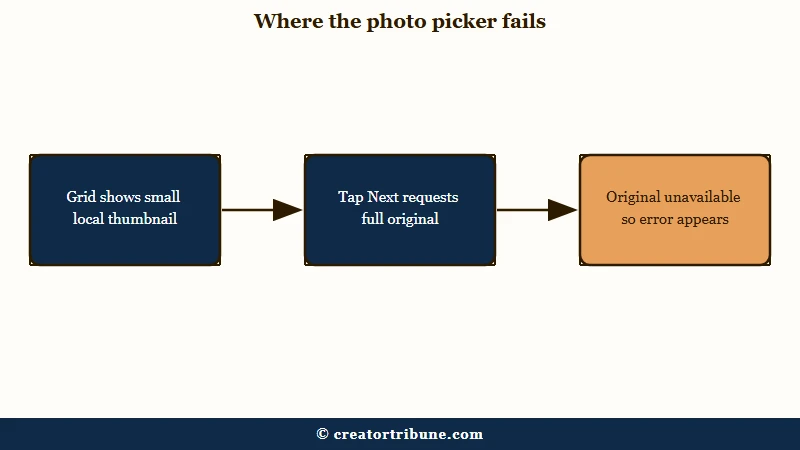
Instagram’s picker is a two-stage system. Stage one renders a low-resolution thumbnail so the grid loads fast. Stage two, which fires when you tap Next, asks the operating system to hand over the actual full-size image.
The error belongs to stage two. That is why the photo looks perfectly fine right up until the moment it does not.
This two-stage split is the thing I wish every guide led with, because it immediately rules out half the advice you will find. A corrupted app cache cannot explain a file that opens fine in your gallery and fails only inside Instagram.
| Symptom | Likely cause | Fix |
|---|---|---|
| Only older photos fail, recent ones post fine | The original is in iCloud and never downloaded | Accept pending iCloud terms, or switch to Download and Keep Originals |
| The photo came out of Lightroom or Snapseed | Instagram cannot parse that export | Re-save it through your phone’s gallery app |
| The file is a RAW or DNG | Instagram does not decode camera raw files | Export a JPEG in sRGB first |
| The photo permission toggle is missing entirely | Screen Time is blocking it | Screen Time, then Content and Privacy Restrictions, then Photos |
| Everything fails, on every photo | Beta build, or a stuck app | Leave the beta programme, then reinstall |
Does It Only Happen With Older Photos?
If recent photos post fine and older ones fail, the cause is iCloud, not Instagram.
Your phone keeps recent shots at full size locally and pushes older originals to the cloud, so the older ones have to be fetched back before Instagram can use them.
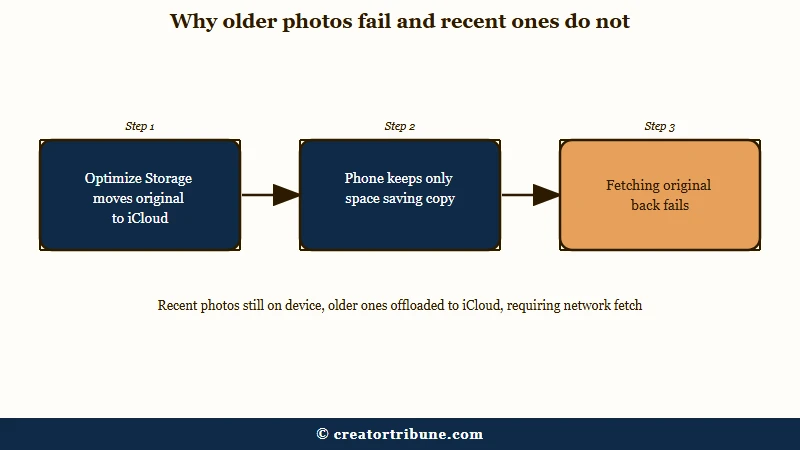
This is the single most useful pattern to notice, and it is the one I check before touching any setting. Open your camera roll, try something from this week, then try something from last year. If the new one posts and the old one fails, you have your answer.
Apple documents the mechanism plainly. In its own photo and video storage guidance, Apple states: “When Optimize Storage is turned on, full-resolution photos and videos are stored in iCloud, and, when needed, space-saving copies are stored on your device.”
Read that back with the error in mind. “When needed” is the fetch that fails, and “please try again in a moment” is the app politely describing a download that never finished.
What blocks the download
The obvious blockers are a weak connection or a phone with no free space. The one nobody mentions is a pending terms prompt.
When Apple updates its iCloud terms, background syncing pauses until you accept. Your library still looks normal, because the thumbnails are already on the phone, but nothing new can be pulled down.
That was the resolution in one r/Instagram thread where old photos would not post: accepting the outstanding iCloud terms restored access immediately. It costs nothing to rule out, and it is the first thing I would look at on an iPhone.
How Do You Fix the iCloud Version of This?
Force the original onto your device before you open Instagram. Once the full-size file is local, the picker’s second stage has nothing left to fail at.
Start with the terms check, since it takes ten seconds:
- Open Settings and look at the very top of the screen.
- If you see a banner reading New iCloud Terms and Conditions or Update Apple Account Settings, tap it.
- Read through and tap Agree.
If there is no banner, pull the original down by hand:
- Go to Settings, tap your name at the top, then iCloud, then Photos.
- Switch from Optimize iPhone Storage to Download and Keep Originals.
- Restart the phone.
- Turn Airplane Mode on for about ten seconds, then off, to force the connection to re-establish.
- Open the Photos app and tap the problem photo. Let it finish sharpening from blurry to crisp.
- Now post it.
You can switch back to Optimize iPhone Storage afterwards if you are tight on space. I leave mine on Download and Keep Originals for the week before a shoot goes out, then flip it back.
What Apple’s Own Support Forum Gets Wrong About This
A widely repeated answer on Apple’s support community contradicts Apple’s published documentation.
Anyone who follows it will rule out the correct cause and go hunting somewhere useless.
On a thread about Optimize iPhone Storage not freeing up space, a support moderator asserted that syncing with iCloud “doesn’t remove photos from the phone” and that it “was never designed to give you more space.” Another poster pushed back, writing that with the setting on, the phone is “supposed to store low resolution thumbnails on your phone, in order to FREE UP storage.”
The second person is the one matching Apple’s own support page, quoted above. Optimize Storage exists precisely to move full-resolution files off the device.
This matters more than a forum squabble. If you accept the moderator’s version, then “the original is not on my phone” stops being a possible explanation, and the actual fix becomes invisible to you. My advice is to trust the documentation over the forum, including when the forum has a badge on it.
Why Does Instagram Reject Photos You Edited in Lightroom?
Exports from third-party editors sometimes carry a file structure Instagram will not read, and re-saving the photo through your phone’s own gallery app rebuilds it into something it accepts. The picture data is intact, and the trouble sits in the container the editor wrapped around it.
The workaround that keeps surfacing is almost absurdly simple: crop the photo by a hair in your native gallery, save the copy, and post the copy. Cropping forces the phone to re-encode the file from scratch.
Here is what that looked like in a documented case on r/Instagram involving a Lightroom Mobile export on a Samsung device:
Before: 5.82 MB, 3000 x 4000, straight out of Lightroom. Instagram refused it.
After: 4.37 MB, 3000 x 3906, after a tiny crop in the Gallery app. Uploaded first try.
Those two numbers are the part I keep coming back to, because they rule something out. The dimensions moved by about two percent, so this was never about hitting a size or resolution limit. Re-encoding the file is what fixed it, and the smaller file size just came along for the ride.
The same thing happens with Snapseed exports, so treat it as a third-party-editor problem rather than a Lightroom one.
On Android, open the default Gallery, pick the photo, tap Edit, tap Crop, shave a sliver off one edge, and save a copy. On iPhone, open Photos, tap Edit, nudge Exposure by one point, and tap Done. You can undo that later with Edit, then Revert.
This does not work for everyone, and the same thread carries a flat “not solved, I just had the same issue, tried the crop, still can’t post.” Treat it as a strong first thing to try rather than a guarantee.
Can You Post a RAW or DNG File to Instagram?
No. Instagram does not decode camera raw files, and a RAW will fail after you select it rather than in the grid.
This trips people up because the raw file looks completely normal in the picker.
The reason is that the picker renders the small JPEG preview embedded inside the raw file. That preview is a real image, so the grid shows it happily. The moment you tap Next and Instagram reaches for the actual sensor data, it has nothing it can read, and you get “could not open photo” or a blank pink screen.
I find this one satisfying to diagnose because the tell is so specific. A file that previews perfectly and dies the instant you tap Next has a format problem. Connection trouble never behaves that cleanly.
The fix is to convert before you post. Open the raw file in Lightroom or Snapseed, make your edits, then export with the format set to JPEG and the colour space set to sRGB. Post the exported JPEG.
Why Is the Photo Permission Missing From Your iPhone Settings?
When the photo access option for Instagram is absent rather than switched off, Screen Time is hiding it.
Ordinary permission settings cannot remove the toggle, so a missing control points somewhere else.
Screen Time is the one I forget every single time, usually because it was switched on years ago for something unrelated and then never thought about again. It quietly overrides app-level privacy controls.
To check it: Settings, then Screen Time, then Content and Privacy Restrictions, then Photos under the Privacy heading. Find Instagram and set it to Full Access.
Then confirm the normal permission is right: Settings, then Privacy and Security, then Photos, then Instagram, and choose All Photos. Apple’s guide to app information access covers what each level allows.
What Should You Try Before Reinstalling the App?
Two settings fix this often enough to be worth thirty seconds each, and both are easier to undo than a reinstall. Reinstalling on iPhone wipes your saved drafts, so it deserves to be last, not first.
The first is beta enrolment. Beta builds break media handling regularly, and plenty of people forget they ever opted in.
- iPhone: open TestFlight, select Instagram, scroll down, tap Stop Testing, delete the app, then install the normal version from the App Store.
- Android: open the Play Store, go to Instagram, find the “You’re a beta tester” card, tap Leave, uninstall, wait a few minutes, then reinstall.
The second is HDR. Go to Settings, then Photos, and switch off View Full HDR. HDR data on newer iPhone photos can stall the handoff into Instagram, and turning the setting off changes nothing about your stored images.
My order of operations is terms, then storage setting, then re-save the file, then Screen Time, then beta, then HDR, and only then a reinstall. The disputed fixes sit at the bottom for a reason: leaving the beta drew a blunt “nope, didn’t work” on the thread that recommended it, and reinstalling fails for plenty of people too.
If you do end up reinstalling, know what you are trading. On Android you can clear the cache from system settings without losing drafts, and what clearing the cache removes is worth reading first. On iPhone there is no cache button, so a reinstall is the only way to flush it, and your drafts go with it.
What Does Not Cause This Error?
Two popular explanations are wrong, and chasing them wastes real time. Both come up constantly in guides and neither produces this error.
The first is colour profiles, the tag inside a file that tells an app which range of colours it was built for. Exporting in a wide one such as Adobe RGB, ProPhoto RGB or Display P3 does not make Instagram refuse to open a file.
What it does is shift your colours, leaving photos looking flat or slightly green once they land. The photo still opens, so that is a colour-accuracy complaint of a completely different kind.
Exporting in sRGB is still the right call, and I do it every time. It just will not fix a photo that refuses to open, and the two problems get blended together constantly. The colour side is covered properly in photo quality after upload.
The second is limited photo access. Choosing “Selected Photos” instead of full access restricts what Instagram can see and prompts you repeatedly, but it does not throw this error on a photo you have already granted access to. Screen Time, covered above, is the permissions cause worth checking.
On a thread about photos loading endlessly, Instagram’s in-app assistant told somebody their account had been flagged as a persistent violator, while Instagram’s own account status checker showed no restriction at all.
Do not take the in-app assistant’s word on your account standing. If you want to check whether something broader is wrong, the generic something went wrong error and stories that will not open cover the account-level versions of this.
Frequently Asked Questions
Why can I see the photo but not post it?
The grid shows a small thumbnail stored on your phone. Posting requires the full-resolution original, which may still be sitting in iCloud. Seeing the photo only proves the preview reached your screen.
Why do only my old photos fail?
Optimize iPhone Storage moves older full-size originals to iCloud and keeps small copies on the device. Recent photos are usually still local at full size, so they post normally while older ones have to be downloaded first.
Does clearing the Instagram cache fix this?
Rarely. Cache problems affect the app broadly, not one specific photo. If the file opens fine in your gallery and fails only in Instagram, the cause is the file or the download, not stored app data.
Can I upload a RAW or DNG file?
No. Instagram cannot decode camera raw formats, so the file previews normally from its embedded JPEG thumbnail and then fails when you tap Next. Export a JPEG in sRGB and post that instead.
Will reinstalling Instagram delete my drafts?
Yes, on iPhone. Drafts are stored locally in the app, so deleting it removes them. Android users can clear the cache through system settings instead and keep their drafts.
Nothing here worked. What now?
Try posting the same photo from a different device or from a different account. If it fails everywhere, the file is the problem, so re-export it. If it works elsewhere, the problem is that phone’s storage or permissions.
Quick Takeaways
- The error is a failed handoff between the preview your phone shows and the original file it has to fetch, which is why cache advice so often does nothing.
- Test with a recent photo and an old one first. If only the old one fails, your phone never pulled the original back down from iCloud.
- Check for a pending iCloud terms banner at the top of Settings before changing any other setting.
- For anything exported from Lightroom or Snapseed, re-save it through your phone’s gallery app with a tiny crop and post that copy.
- Colour profiles and limited photo access do not cause this error, so skip both and check Screen Time instead.