Why Your TikTok Looks Blurry After Posting and How to Fix It
Why Your TikTok Looks Blurry After Posting and How to Fix It
Why your TikTok looks blurry after posting and how to fix it. The HD toggle, the bitrate trap, washed-out color, and the Android fix that works.
- 1Why Does TikTok Make My Video Blurry After Posting
- 2The Settings That Keep TikTok Uploads Sharp
- 3Why Your Footage Looks Worse on Android Than on iPhone
- 4Is It Temporary Blur or Permanent Compression
- 5Frequently Asked Questions
- Why is my TikTok blurry after posting when it looked fine before?
- Does the TikTok HD upload toggle really work?
- Why does TikTok make my video washed out or pale?
- Should I upload 4K to TikTok for better quality?
- Why does my TikTok look choppy or laggy after uploading?
- How do I fix bad TikTok quality on Android?
- 6Quick Takeaways
What’s Changed: Nothing about your footage changed. TikTok recompresses every upload, and a handful of settings decide whether it stays sharp or goes soft. The biggest lever is the Allow high-quality uploads toggle, which resets to off after every single post.
You export a clean, sharp clip, it looks perfect in your camera roll, and the second it lands on TikTok the video quality after posting goes soft and grainy. The footage did not change. TikTok’s upload pipeline recompressed it on the way in.
Here is the part most creators get backwards. Uploading the highest possible quality can make the blur worse, not better. When you export a heavy master file at something like 50 Mbps, TikTok’s server-side encoder treats it as out-of-spec and compresses it harder, so you lose more detail than if you had handed it a clean 1080p file at a sane bitrate.
That single misunderstanding is behind a lot of blurry uploads. The fix is not “more quality,” it is hitting TikTok’s preferred specs so its re-encoder barely has to touch your file.
This guide walks through why the blur happens, the exact settings that keep an upload sharp, the Android-specific reason your footage looks worse than an iPhone’s, and how to tell a temporary processing blur from permanent compression damage.
Why Does TikTok Make My Video Blurry After Posting
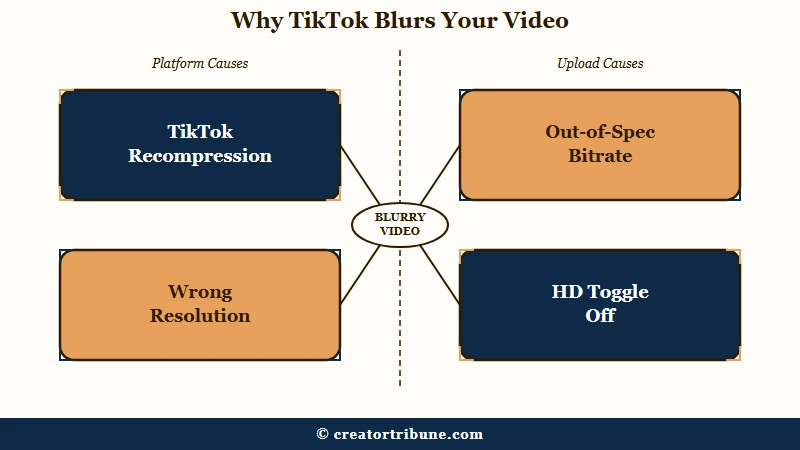
TikTok recompresses every video on upload to save bandwidth, and your file looks blurry when it falls outside TikTok’s preferred specs, forcing the encoder to compress it harder.
The most common triggers are a missing HD toggle, an out-of-spec bitrate, the wrong resolution, or HDR color the platform mishandles.
The thing to understand is that there are two separate quality problems. One is playback, where a viewer on slow Wi-Fi sees a lower-resolution version that corrects itself. The other is upload, where the compression happens once and bakes the damage into the file permanently.
Plenty of creators waste hours chasing the wrong one, and soft uploads can quietly dent your reach on top of looking bad. Below is the quick diagnostic I would run before changing a single export setting.
| Symptom | Likely cause | Fix |
|---|---|---|
| Sharp in camera roll, soft after posting | HD toggle off, recompression | Enable Allow high-quality uploads on the post screen |
| Stuttery or laggy motion | Variable frame rate re-encoded | Export at a constant 30 fps |
| Washed-out or pale color | HDR mishandled by TikTok | Export in SDR Rec.709, not HDR |
| Grainy only in busy or dark scenes | High motion and noise overload the encoder | Add light, lower complexity, raise bitrate slightly |
| Fine for hours then suddenly blurry | Server-side secondary processing | Usually self-corrects, do not delete the post |
The Settings That Keep TikTok Uploads Sharp
The single most important setting is the Allow high-quality uploads toggle, found under More options on the final posting screen, and it resets to off after every post.
Pair it with a 1080×1920 export at 8 to 12 Mbps, the H.264 codec, and a constant 30 fps, and TikTok’s encoder barely has to recompress.
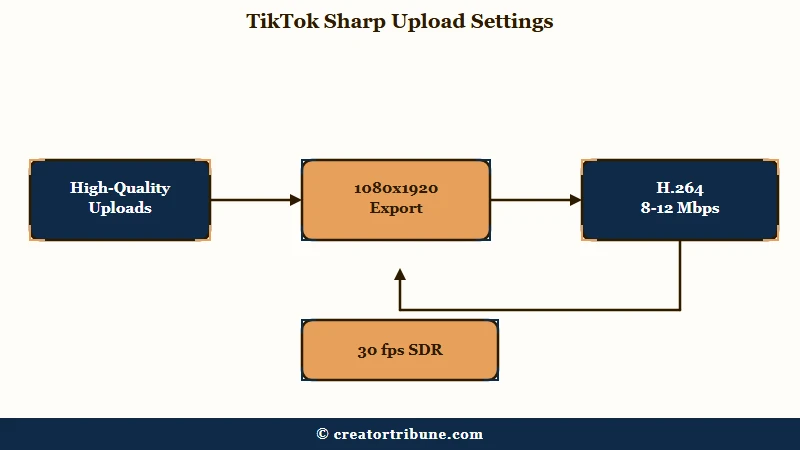
Most of the blur I see traces back to a few specific settings, so here is the sequence I would lock in before exporting anything.
- Turn on Allow high-quality uploads under More options every single time you post, since it never stays enabled.
- Export at exactly 1080×1920 in a 9:16 ratio, because anything below native resolution gets re-encoded twice and softens further.
- Keep the bitrate between 8 and 12 Mbps at 30 fps, or 10 to 15 Mbps at 60 fps, and resist going higher.
- Use the H.264 codec in an MP4 or MOV container rather than H.265, which invites extra server-side re-encoding.
- Export in SDR Rec.709 color, not HDR or Dolby Vision, to stop the washed-out look.
- Turn Data Saver off under Settings and Privacy then Data, so your own playback is not the thing fooling you.
What is bitrate: The amount of data used per second of video, measured in Mbps. Higher is not always better here, since TikTok re-compresses anything that overshoots its target range.
For tool-specific exports, CapCut wants 1080p, 30 fps, H.264, MP4, and Smart HDR switched off. In Premiere Pro, the reliable recipe is H.264 with a YouTube 1080p preset, VBR around 5 to 10 Mbps, and AAC audio at 128 kbps. Here is the difference a clean export makes.
Before: A 4K HDR master exported at 50 Mbps, uploaded with the HD toggle off, that lands grainy and pale.
After: A 1080×1920 SDR file at 10 Mbps in H.264, uploaded with Allow high-quality uploads on, that stays close to what you saw in the editor.
Why Your Footage Looks Worse on Android Than on iPhone
iPhones look sharper in-app because TikTok gets direct access to the camera sensor, while many Android phones force TikTok into a fallback that records the on-screen camera preview instead of the raw sensor feed.
That fallback amounts to a screen recording of the viewfinder, so it loses detail and dynamic range before the clip is even shot.
This is why a flagship Android with a great camera can still produce a softer in-app result than an older iPhone. The hardware is fine, the access path is the problem.
The workaround I would use on Android is to skip the in-app camera entirely. Record with your phone’s native camera app, then import the finished clip into TikTok, so you keep the sensor’s full quality and only hand TikTok a finished file to compress.
Is It Temporary Blur or Permanent Compression
A temporary blur clears on its own or after clearing the app cache, while permanent compression is baked in at upload and cannot be reversed without reposting a better file.
A useful tell is timing, since some creators report a clip that looks HD for a few hours then drops to blurry, which points to TikTok’s secondary server-side processing rather than your export.
If a video looks soft right after posting and never recovers, that is upload compression and the only fix is to repost a cleaner file. If it looked fine then degraded, give it time before touching anything.
What surprised me most is how much motion matters here. Academic encoding work from Uppsala University found that the amount of motion in a clip predicts graininess more reliably than how much fine detail it holds, which is why fast water, dense foliage, and low-light noise fall apart first. When you cannot avoid busy motion, raise the bitrate slightly and add light to give the encoder less to fight.
For a stubborn preview glitch, clearing the cache under Profile then Settings and Privacy then Free up space often resolves a blur that was never really in the file. The same export discipline carries over to other platforms, which I cover in the guide on Instagram photo quality after upload and the breakdown of native uploads versus reuploads.
Frequently Asked Questions
Why is my TikTok blurry after posting when it looked fine before?
TikTok recompresses every upload to save bandwidth. If your file is out of spec or the HD toggle is off, the encoder compresses it harder and bakes in softness. Export at 1080×1920, 8 to 12 Mbps, H.264, and enable Allow high-quality uploads.
Does the TikTok HD upload toggle really work?
Yes, it is the single most effective setting for keeping uploads sharp. The catch is that it does not stay on. You have to scroll to More options and enable Allow high-quality uploads for every post, and it cannot rescue already low-quality source footage.
Why does TikTok make my video washed out or pale?
This is almost always an HDR problem. TikTok mishandles HDR and Dolby Vision color, so it remaps the gamma and the video looks blanched. Export in SDR Rec.709 color, or convert HDR footage to SDR in your editor first.
Should I upload 4K to TikTok for better quality?
No. TikTok downscales 4K to 1080p and the extra processing often adds more artifacts than a clean 1080p upload. A 1080×1920 file at a moderate bitrate matches TikTok’s encoder and skips the extra softening pass.
Why does my TikTok look choppy or laggy after uploading?
Phone footage is often recorded at a variable frame rate, and TikTok’s re-encoder paces those frames unevenly, which reads as stutter. Export at a constant 30 fps to fix the motion, since 60 fps can also drop or blend frames during re-encoding.
How do I fix bad TikTok quality on Android?
Skip the in-app camera, which often records the screen preview instead of the sensor. Record with your phone’s native camera app, then import the clip into TikTok. Keep the HD toggle on and export at 1080p H.264.
Quick Takeaways
- TikTok recompresses every upload, so blur after posting is the encoder, not your footage.
- Uploading at extreme bitrates like 50 Mbps backfires, since TikTok compresses out-of-spec files harder.
- Lock in 1080×1920, 8 to 12 Mbps, H.264, constant 30 fps, SDR color, and enable Allow high-quality uploads every post.
- On Android, record with the native camera app and import, since the in-app camera often screen-records the preview.