Why TikTok Keeps Crashing and How to Really Fix It
Why TikTok Keeps Crashing and How to Really Fix It
TikTok keeps crashing on your phone? The in-app Clear Cache button barely helps. Here is the fix sequence that finally stops the crashes for good.
- 1Why TikTok Keeps Crashing in the First Place
- 2Why the In-App Clear Cache Button Barely Helps
- 3How to Fix TikTok Crashing Step by Step
- 4Why TikTok Crashes the Moment You Upload a Video
- 5Is It a Crash an Outage or a Shadowban
- 6How to Stop TikTok From Crashing Again
- 7Frequently Asked Questions
- Will clearing my cache delete my TikTok drafts?
- Why does TikTok keep stopping on my Android phone?
- Does reinstalling TikTok delete my drafts?
- Why does TikTok crash only when I upload a video?
- Is TikTok crashing a sign that I am banned?
- 8Quick Takeaways
The Fix: TikTok usually keeps crashing because of a corrupt cache, an outdated app version, or low free memory, not a broken phone. The Clear Cache button inside the app only wipes a sliver of the problem. The real fix lives in your phone’s system settings, and this guide walks the full sequence in order.
If TikTok keeps crashing every time you open it, freezes mid-scroll, or closes itself the second you hit upload, the cause is almost never your phone giving up. It is one of a handful of fixable software problems, and most of them cost nothing to clear.
Here is the trap that catches almost everyone. You tap the Clear Cache button inside TikTok, the crash comes straight back, and you decide the app is just broken. That button only ever clears a thin layer of temporary files.
I have walked through this exact sequence with creators who post three times a day, and the fix that sticks is rarely the first thing anyone tries. This guide covers which fix matches your specific crash, the order to try them in, and how to stop the crashes from coming back.

Why TikTok Keeps Crashing in the First Place
TikTok keeps crashing mainly because of a corrupted cache, an outdated app version, low free memory, or an operating system the current build was never tested against.
Almost all of these are software issues you can clear in minutes, not signs of a dying phone.
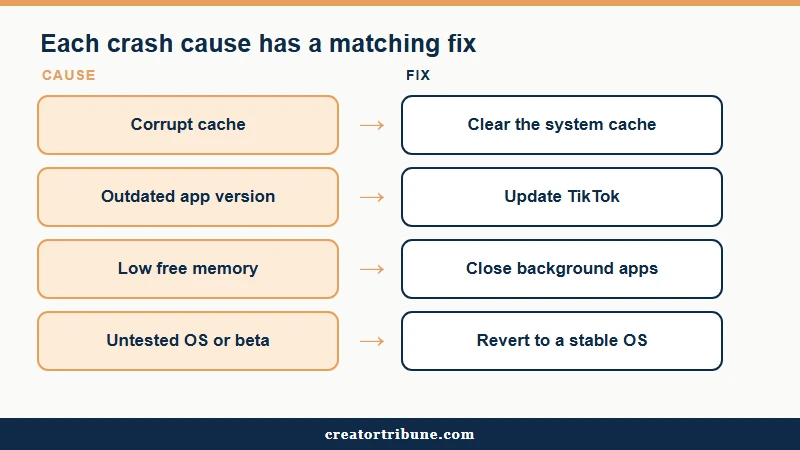
What I have noticed is that the symptom usually points straight at the cause, so the fix becomes a matching exercise rather than a guessing game. A crash on launch behaves differently from a freeze on upload, and each one has its own short path back to a stable app.
| Symptom | Likely cause | Fix |
|---|---|---|
| Crashes the instant you open it | App version clashes with your OS, often a beta | Update TikTok, or reboot then reinstall |
| Freezes mid-scroll then closes | Corrupt cache or low free memory | Clear the system cache, close background apps |
| Closes the moment you tap upload | Video file too large for free memory | Compress the clip, export as MP4 |
| “TikTok keeps stopping” on Android | Faulty Android System WebView update | Update or roll back Android System WebView |
| Stuck on a white or black screen | Stalled background process | Force close and relaunch, then reboot |
The one cause people underrate is the operating system. Running TikTok on a public beta build of iOS or Android can make it crash on launch every single time, because the app was compiled against an older system kit that the unreleased version breaks.
Why the In-App Clear Cache Button Barely Helps
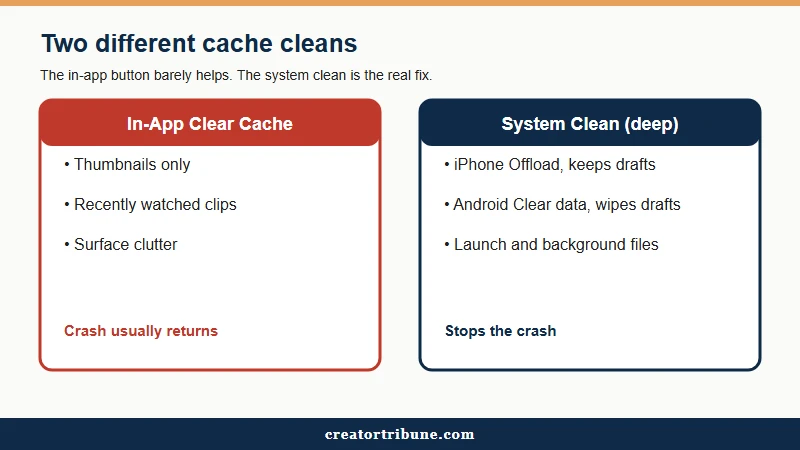
The Clear Cache button inside TikTok only removes a thin layer of temporary files like thumbnails and recently watched clips.
The launch files and background data that trigger repeat crashes sit deeper, and you reach those only from your phone’s own system settings.
What is RAM versus storage: Storage is the space that holds your files and apps. RAM is the smaller pool of active memory an app uses while running. You can have plenty of storage and still crash when RAM runs out.
The first time I watched someone tap that in-app button five times in a row, I understood why so many people give up and blame TikTok. The button does what it promises, it just promises very little. It clears the gallery of cached previews, not the corrupted launch data that makes the app fall over on open.
The deeper clean lives in two different places depending on your phone. On an iPhone you use Offload App, which clears the bloated app files while keeping your login and your drafts intact.
On Android you use Clear storage or Clear data, which is far more aggressive and will wipe locally saved drafts and effects, so treat it with care. This same memory-pressure pattern is what makes Instagram keep crashing on the same phones.
How to Fix TikTok Crashing Step by Step
The fastest way to fix TikTok crashing is to work from the lightest fix to the heaviest and stop the moment the crash clears.
Start with a force close, move to a reboot, then an update, then the system-level cache, and keep a full reinstall as the last resort.
From my experience the lightest fixes solve the majority of cases, so there is no reason to jump straight to a reinstall and lose your drafts. Here is the order I would walk through, because each step is less disruptive than the one after it:
- Force close TikTok and relaunch it, which clears short-term memory glitches.
- Reboot the phone, holding the power button for about ten seconds on most Androids, to refresh memory and background processes.
- Update TikTok in the App Store or Play Store, since an old build on a new OS is a frequent crash source.
- Clear the system-level cache on Android, or Offload the app on iPhone, to remove the deep clutter the in-app button cannot reach.
- On Android, update or roll back Android System WebView, the hidden component behind many “TikTok keeps stopping” errors.
- Reinstall TikTok only as a last resort, and remember it deletes every unsaved local draft.
TikTok’s own first-steps troubleshooting guide backs this baseline order, though it stops short of explaining the cache and memory mechanics. The iOS and Android paths differ enough that it helps to see them side by side.
| Fix step | iPhone (iOS) | Android |
|---|---|---|
| Force close | Swipe up from the bottom and flick TikTok away | Open recent apps, swipe TikTok off the list |
| Deep cache clean | Settings, General, iPhone Storage, TikTok, Offload App. Drafts and login stay safe | Settings, Apps, TikTok, Storage, Clear cache. Avoid Clear data unless desperate, it wipes drafts |
| Hidden component fix | Not applicable on iOS | Update Android System WebView in the Play Store, or uninstall its updates |
| Last resort | Delete and reinstall. Unsaved drafts are lost | Uninstall and reinstall. Unsaved drafts are lost |
Why TikTok Crashes the Moment You Upload a Video
TikTok usually crashes on upload because the video file is too large for your phone’s free memory, not because the app rejects your content.
High bitrate 4K and long 1080p clips on older hardware are the most common trigger.
What surprised me most here is how often the fix is to send a smaller file, not a bigger one. A heavy master file forces the app to hold and process more data than the phone’s memory can spare, and the app closes rather than freezing your whole device. Exporting at the absolute maximum quality can make the crash worse, not better.
The reliable path is to export a finished clip as an MP4 in your editor first, keep the effect stack light, and confirm a stable connection of roughly five megabits per second before you upload. If your phone keeps mangling clips even when the upload completes, the separate issue of TikTok video quality after posting covers the export settings that hold up.
Before: You shoot a nine-minute 4K clip, pile on stickers and effects, and hit upload. TikTok spins, then closes, and the half-edited draft is gone.
After: You export the clip as a 1080p MP4 in your editor, keep effects light, confirm a stable connection, then upload the finished file. The processing load drops and the upload completes on the first try.
Is It a Crash an Outage or a Shadowban
A crash is a problem on your device, an outage is TikTok’s servers failing for everyone, and a shadowban is your reach being quietly limited while the app runs fine.
Telling them apart stops you from fixing the wrong thing.
The mistake I see most is someone reinstalling the app over and over after their views dropped, when nothing is wrong with the app at all. A reach problem and a crash problem look nothing alike once you know the signals to check.
| Signal | Crash | Outage | Shadowban |
|---|---|---|---|
| Who is affected | Just you | Everyone, globally | Just you |
| App behavior | Closes or freezes | Loads but errors out | Works normally |
| Views and reach | Normal once fixed | Paused during the outage | Drop sharply and stay low |
| Where to confirm | Reboot test on your phone | An outage tracker spikes | Your analytics and reach |
| Typical fix time | Minutes | Under an hour | Days to weeks |
If the app loads but everyone is reporting problems at once, you are likely looking at a server issue, and the guide on whether TikTok is down or slow walks the confirmation steps. If the app is stable but your numbers fell off a cliff, that is a reach question, and the breakdown of low TikTok FYP views is the right place to start.
How to Stop TikTok From Crashing Again
You stop most repeat crashes with a short maintenance habit: clear the system cache weekly, reboot before big upload sessions, keep the app updated, and leave a couple of gigabytes of memory free.
Prevention is cheaper than a reinstall that costs you drafts.
Research on large-scale Android app stability found that proactive memory and network handling can cut crash rates by up to 85 percent, according to a 2025 engineering study. You cannot rewrite TikTok’s code, but the same logic applies to how you treat your device.
For a platform with more than a billion monthly users, per Statista, crashes hit a lot of creators on any given day, so a routine pays off. Here is the habit I would put on repeat if you post daily:
- Clear the system cache once a week, before it has time to corrupt.
- Reboot your phone before a batch upload session to free memory.
- Keep TikTok and your operating system updated, but skip public beta builds.
- Leave two to three gigabytes of storage and memory headroom at all times.
- Export and save finished videos before uploading, so a crash never costs you a draft.
Frequently Asked Questions
Will clearing my cache delete my TikTok drafts?
Clearing the in-app cache will not touch your drafts, account, or posted videos, it only removes temporary preview files. Clearing data on Android or deleting the app is different, and that will wipe locally saved drafts.
Why does TikTok keep stopping on my Android phone?
The “TikTok keeps stopping” error is often caused by a faulty update to Android System WebView, a hidden system component, rather than TikTok itself. Update or roll back Android System WebView in the Play Store, then reboot.
Does reinstalling TikTok delete my drafts?
Yes, a full uninstall and reinstall deletes every draft saved on your device that you have not posted. Save your finished clips to your camera roll first, then reinstall as a last resort.
Why does TikTok crash only when I upload a video?
Upload crashes usually mean the file is too large for your phone’s free memory, especially high bitrate 4K or long clips on older hardware. Export a smaller 1080p MP4 before uploading and the crash normally clears.
Is TikTok crashing a sign that I am banned?
No, a crash is a device or app problem, while a ban or shadowban leaves the app working normally but limits your reach. If the app runs fine but your views collapsed, the issue is reach, not a crash.
Quick Takeaways
- The in-app Clear Cache button only wipes a sliver of the clutter, the real fix is Offload App on iPhone or Clear cache in system settings on Android.
- Work the fix ladder from lightest to heaviest and stop when the crash clears, keeping a reinstall as the last resort since it deletes unsaved drafts.
- Upload crashes are a memory problem, so export a smaller 1080p MP4 before posting instead of a heavy 4K master.
- A weekly system cache clear plus a reboot before big upload sessions prevents most repeat crashes.